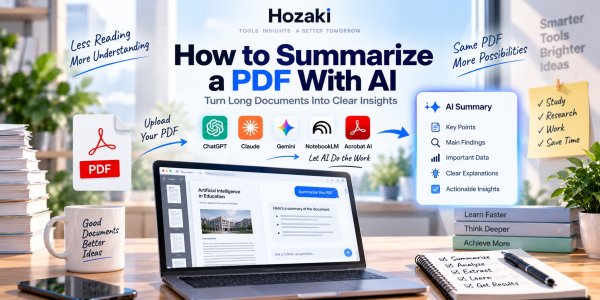
A 100-page PDF can contain exactly five pages you actually need.
The problem is finding them.
AI can make that process much faster. Modern AI tools can read supported PDF files, create summaries, answer questions, extract key points, explain difficult sections, and turn documents into notes or study material.
But there's a big difference between asking:
Summarize this PDF.
and using AI to produce a summary you can actually trust.
The first approach may give you a short answer.
The second helps you understand what the document says, what matters, where the evidence comes from, and what the AI might have missed.
In this guide, we'll walk through six practical ways to summarize PDFs with AI using tools such as ChatGPT, Claude, Gemini, NotebookLM, and dedicated PDF assistants.
More importantly, you'll learn how to summarize long PDFs, research papers, reports, and multiple documents without losing the details that matter.
If you're still deciding which tool to use, our Best AI PDF Tools guide compares general AI assistants with dedicated PDF software.
Quick Answer: How Do You Summarize a PDF With AI?
The basic process is simple:
- Choose an AI tool that supports PDF or document input.
- Upload or add your PDF.
- Tell the AI what type of summary you need.
- Ask it to identify the document's structure first.
- Generate a section-by-section or purpose-specific summary.
- Ask follow-up questions about important claims.
- Verify critical information against the original PDF.
For a short, low-risk document, that may be enough.
For a 150-page report, research paper, contract, or technical document, you should use a more structured process.
Let's go through it.
Method 1: Summarize a PDF With ChatGPT
ChatGPT is one of the easiest places to start if you already use it for other AI tasks.
The basic workflow is:
Upload PDF → give instructions → review summary → ask follow-up questions
Instead of immediately asking for a generic summary, start with:
Read this PDF and identify its title, purpose, structure, major sections, and main conclusion. Don't summarize it yet.
Why?
Because you first want to know whether the AI understands the document it received.
Then ask:
Now summarize each major section in 2–3 bullet points. Preserve important numbers, dates, names, and qualifications.
After that:
Give me a 10-point executive summary based on those section summaries.
This three-step process is usually more useful than one giant "summarize this" prompt.
Example ChatGPT PDF Prompt
Analyze this PDF before summarizing it. First identify the document's purpose, major sections, central argument, and conclusion. Then summarize each section separately. Preserve important statistics, dates, names, warnings, limitations, and exceptions. Finally, create a concise 10-point summary and list anything important that may have been lost through summarization.
That last instruction matters:
List anything important that may have been lost.
Summaries are compression.
Compression always removes information.
Method 2: Summarize a PDF With Claude
Claude is particularly useful when the PDF is long and text-heavy.
Examples include:
- Reports
- Research documents
- Essays
- Technical documentation
- Long readings
- Policy documents
Upload the supported document and start by telling Claude what you actually need from it.
For example:
I'm reading this report to understand the company's AI strategy. Ignore unrelated operational details unless they materially affect that strategy.
This is much better than:
Summarize this report.
Why?
Because a useful summary depends on your purpose.
A financial analyst, student, competitor, and journalist might summarize exactly the same PDF differently.
Ask Claude to Separate Facts From Interpretation
Try:
Create two sections. In the first, list claims explicitly stated in the PDF. In the second, identify conclusions that require interpretation rather than being directly stated.
This is useful for reducing a common AI problem:
presenting an inference as if the original document explicitly said it.
If you're choosing between these assistants for document analysis, see our ChatGPT vs Claude comparison for a closer look at their document and research workflows.
Method 3: Summarize a PDF With Gemini
Gemini is particularly worth considering if your files already live inside Google's ecosystem.
For example:
- Google Drive
- Gmail
- Workspace
- Google Docs
The summarization process itself is similar:
Provide document → define goal → inspect structure → summarize → verify
But integration can reduce the amount of moving information between applications.
A Useful Gemini Prompt
Analyze this document for someone who has not read it. Give me:
- The purpose of the document
- Five major conclusions
- Important supporting evidence
- Numbers or statistics worth remembering
- Limitations or caveats
- Five questions I should ask after reading it
The sixth item turns summarization into analysis.
If Google-connected workflows matter to you, compare the options in ChatGPT vs Gemini and Claude vs Gemini.
Method 4: Summarize PDFs With NotebookLM
NotebookLM becomes particularly interesting when you have more than one source.
Imagine you're studying for an exam and have:
- 6 lecture PDFs
- 4 assigned readings
- 2 research papers
- Your notes
Summarizing each file independently isn't necessarily the best approach.
You may want to ask questions across the entire collection.
For example:
What are the five concepts that appear most often across these sources?
Then:
Which sources disagree about Concept 3?
Then:
Create an exam study guide based only on these materials.
This is where a source-centered system can be more useful than repeatedly uploading individual PDFs.
Use NotebookLM for Source-Grounded Questions
Try:
Based only on the sources in this notebook, explain the three competing theories of X and identify which sources support each one.
This creates a much more controlled research or study workflow.
For more examples of using AI to study, organize course materials, and test understanding, see our Best AI Tools for Students guide.
Method 5: Use a Dedicated AI PDF Summarizer
You don't always need ChatGPT, Claude, or Gemini.
Dedicated PDF tools such as ChatPDF and other document-focused assistants can provide a simpler experience.
The basic interaction is often:
Upload → chat with PDF → ask questions
This is useful if your needs are narrow.
For example:
What are the five main findings?
Where does the author discuss pricing?
What does page 47 say about risk?
Explain Section 4.2 in plain English.
A dedicated tool may be faster to learn because it isn't trying to be a general-purpose AI workspace.
When Does a Dedicated PDF Tool Make Sense?
Consider one when:
- You work primarily with PDFs.
- You want simple document Q&A.
- Page-level references matter.
- You don't need a broader AI environment.
But don't automatically add another subscription.
If the AI tool you already pay for handles your PDFs well, a dedicated PDF product may duplicate functionality.
Our Best AI PDF Tools comparison can help you decide whether you actually need one.
Method 6: Summarize a PDF Without Uploading the Entire File
Sometimes you shouldn't upload the document at all.
Reasons may include:
- Confidential information
- Company policy
- Client data
- Privacy
- File limitations
- Unsupported format
In that case, you can extract or copy only the relevant sections and provide those to the AI.
Privacy note: Copying selected text into an AI service still means sharing that text with the provider. Removing the rest of the PDF does not automatically make the excerpt safe to disclose. Before pasting any content, check applicable company policies, confidentiality obligations, personal-data requirements, and the service's data-handling terms. If external processing is not permitted, use an approved internal or local workflow instead. Redaction may reduce exposure, but it must be checked carefully because names, identifiers, and sensitive context can remain in extracted text.
For example:
The following text is Section 3 of a report. Summarize only the information provided below. Do not infer details that aren't present.
Then paste the relevant text.
For a long document, work section by section.
Section-by-Section Workflow
Use:
Section 1 → summary
Section 2 → summary
Section 3 → summary
Then provide the individual summaries and ask:
Combine these section summaries into one final summary. Remove repetition but preserve disagreements, exceptions, numbers, and limitations.
This method takes longer, but it gives you more control over what information is shared with the AI.
How to Summarize a Long PDF With AI
Long PDFs need a different strategy.
Suppose the document is 250 pages.
A one-shot summary may flatten the entire document into generic themes.
Instead, use a hierarchical process.
Step 1: Map the Document
Ask:
Identify the document's structure and list all major sections and subsections.
Step 2: Define Your Goal
Tell the AI:
I'm reading this document specifically to understand market size, competitors, risks, and future trends.
Now the summary has a purpose.
Step 3: Summarize Each Major Section
Ask for:
- Main claim
- Evidence
- Important numbers
- Exceptions
- Conclusions
Step 4: Combine the Summaries
Only after the sections are understood should you request an overall summary.
Step 5: Search for Missing Information
Ask:
Which important points in the original document are not represented in the final summary?
Step 6: Verify
Open the original PDF and check:
- Important numbers
- Quotes
- Conclusions
- Tables
- Charts
- Dates
This workflow takes longer than one prompt.
It also produces a much more useful result.
Use a Coverage Checklist to Catch Missing Information
A summary can be accurate about the sections it covers while still leaving out an entire chapter, appendix, or important qualification.
For long or high-stakes documents, create a coverage checklist before accepting the final summary.
Step 1: Build a Section Inventory
Use the original PDF's table of contents, headings, and page numbers to list its major sections.
Do not rely only on the AI-generated document outline. Compare that outline with the actual PDF.
| Original PDF Section | Page Range | Summarized? | Critical Details Checked? |
|---|---|---|---|
| Executive summary | Record pages | Yes / No | Yes / No |
| Methodology or background | Record pages | Yes / No | Yes / No |
| Main findings | Record pages | Yes / No | Yes / No |
| Risks and limitations | Record pages | Yes / No | Yes / No |
| Appendices and supporting data | Record pages | Yes / No | Yes / No |
Replace these example sections with the actual structure of your document.
Step 2: Track Important Information Separately
Create a short evidence log for claims that must survive summarization.
| Information Type | What to Record |
|---|---|
| Statistics | Exact value, unit, period, and source page |
| Dates | Event or reporting period and source page |
| Conclusions | Original claim and supporting evidence |
| Exceptions | Conditions that limit the conclusion |
| Contradictions | Conflicting statements and their locations |
| Tables and charts | Relevant labels, values, and notes |
Step 3: Compare the Final Summary Against the Inventory
Ask:
"Compare this summary with the section inventory and evidence log. Identify any sections, important figures, limitations, or contradictory findings that are missing. Do not claim a section has been checked unless its source content is available."
Then inspect the original PDF yourself.
Important: Asking the same AI to check its own summary is useful for finding possible omissions, but it is not independent verification. The final check must refer back to the original document.
Step 4: Decide Whether the Summary Is Complete Enough
Not every summary needs every detail.
A five-bullet overview may intentionally omit minor background information. A compliance, financial, scientific, or legal summary may require much more extensive verification.
Judge completeness against the purpose of the summary, not simply its length.
A reliable result should make it clear what was covered, what was omitted, and which conclusions still require direct reading of the original PDF.
How to Summarize a Research Paper With AI
Research papers shouldn't be treated like ordinary articles.
A useful academic summary should identify:
Research question
What is the paper trying to discover?
Methodology
How was the research conducted?
Sample
Who or what was studied?
Results
What did the researchers find?
Limitations
What prevents the findings from being generalized too far?
Conclusion
What do the authors actually claim?
Research Paper Prompt
Analyze this research paper. Identify:
- Research question
- Hypothesis
- Methodology
- Sample size
- Variables
- Main results
- Statistical findings
- Limitations
- Authors' conclusion
- Questions the study does not answer
Clearly separate information explicitly stated in the paper from your own interpretation.
That final sentence is important.
For academic work, always verify these details against the original paper.
AI can misunderstand methods, tables, statistics, and citations.
How to Summarize a PDF for Studying
Students shouldn't aim for the shortest possible summary.
The goal is remembering and understanding.
Try this workflow.
First: Create the Summary
Summarize this chapter into 10 core concepts.
Second: Explain
Explain each concept in simple language.
Third: Test
Create 20 questions. Don't show me the answers yet.
Fourth: Recall
Answer the questions yourself.
Fifth: Review
Based on my answers, identify the three concepts I understand least.
Now the PDF has become an interactive study session.
That's much more useful than generating a summary and reading it passively.
For more study workflows, see our Best AI Tools for Students guide.
How to Summarize a Business Report With AI
Business reports often contain lots of information that isn't equally important.
A useful prompt should reflect the reader's role.
For example:
Summarize this annual report for an investor. Focus on revenue, profitability, growth, major risks, management guidance, geographic performance, and changes from the previous year.
Or:
Summarize this competitor report for a product manager. Focus on products, pricing, positioning, customers, partnerships, and strategic risks.
Same PDF.
Different summary.
Ask for Evidence
After the summary:
For every major conclusion, show the section or page where the supporting information appears.
Then verify those references manually.
How to Summarize a PDF Into Bullet Points
This sounds simple, but specify what kind of bullets you want.
Weak prompt:
Summarize in bullets.
Better:
Summarize this PDF into no more than 15 bullet points. Each bullet should contain one complete idea. Preserve important numbers, dates, names, exceptions, and conclusions. Order the bullets by importance rather than document order.
Or for studying:
Create 20 bullet points containing only concepts I would need to remember for an exam.
The output changes dramatically when you define the purpose.
How to Summarize a PDF Into Notes
Notes should be easier to review than the original document.
Ask for a hierarchy.
For example:
Convert this PDF into structured study notes using:
Topic
→ Key concept
→ Explanation
→ Example
→ Important fact
→ Question to remember
This creates material you can actually study from.
You can then ask:
Convert these notes into flashcards.
One document can therefore become several useful learning formats.
Can You Summarize Multiple PDFs With AI?
Yes. Some AI tools support working with several PDFs in one project or conversation, depending on the product, plan, file limits, and document format.
However, summarizing multiple PDFs is a different task from summarizing one document.
With a single PDF, the main challenge is preserving the document's structure, evidence, important numbers, and limitations.
With multiple PDFs, you also need to determine:
-
Which document supports each claim.
-
Whether the documents agree or contradict one another.
-
Whether similar findings use comparable methods or definitions.
-
Which information appears in only one source.
-
Whether several documents are repeating the same underlying evidence.
For example, imagine reviewing five industry reports. Five separate summaries might help you understand each report, but they will not automatically tell you where the reports disagree or whether their market estimates are comparable.
A reliable multi-document workflow should therefore keep each source identifiable before combining findings into a final synthesis.
When should you use a dedicated multi-PDF workflow?
Use one when you need to compare research papers, review several business reports, analyze documents from different organizations, or build a conclusion supported by multiple sources.
For the complete process, including source tracking, comparison tables, evidence verification, and reusable prompts, read our guide to summarizing multiple PDFs with AI without losing important details.
If you're deciding which tool to use for this work, our NotebookLM vs ChatGPT for PDFs comparison explains how their document workflows differ.
Best Prompts for Summarizing PDFs
Here are several reusable prompts.
Quick Summary
Summarize this PDF in 10 bullet points. Preserve important names, numbers, dates, conclusions, exceptions, and warnings.
Executive Summary
Create a one-page executive summary for someone who has not read the document. Focus on decisions, risks, evidence, and recommended actions.
Student Summary
Turn this PDF into study notes. Identify core concepts, explain difficult terms, and create 10 questions to test my understanding.
Research Paper
Identify the research question, methodology, sample, results, limitations, and conclusion. Separate explicit findings from interpretation.
Critical Analysis
Don't just summarize this document. Identify weak assumptions, missing evidence, contradictions, and unanswered questions.
Multiple PDFs
Compare these documents and identify agreements, disagreements, unique evidence, and differences in conclusions.
Missing Information Check
Review your summary against the original document. List important information that was omitted or oversimplified.
That last prompt should become part of your standard workflow.
Common Mistakes When Using AI to Summarize PDFs
Mistake 1: Asking Only "Summarize This"
The AI doesn't know what matters to you.
Give it a purpose.
Mistake 2: Trusting Every Number
Check important figures against the original document.
Mistake 3: Ignoring Tables and Charts
Ask the AI to analyze them separately.
What If the AI Cannot Read Part of Your PDF?
Before trusting a summary, check whether the AI actually had access to the information you expected it to analyze.
Scanned pages, complex tables, diagrams, unusual layouts, and poor text extraction can cause important content to be missed or interpreted incorrectly.
A useful first check is to ask the AI to identify the document's sections and describe the tables or figures it can access. Then compare that response with the original PDF.
If the document contains critical numerical information, verify the values directly rather than relying on the summary alone.
For a deeper explanation, see Why ChatGPT Misreads PDFs and How to Fix It.
If your goal is to recover structured rows and columns rather than summarize them, follow our PDF table extraction guide.
Mistake 4: Using a Summary Instead of the Source
A summary is a navigation tool, not always a substitute for reading.
Mistake 5: Uploading Confidential Documents
Check privacy and organizational policies first.
Mistake 6: Asking for Too Much at Once
For very long documents, summarize hierarchically.
Mistake 7: Never Asking What Was Missed
Always run a missing-information check on important documents.
Can AI Summaries Be Wrong?
Yes.
AI can:
- Miss important details
- Misread tables
- Misinterpret charts
- Confuse sections
- Oversimplify
- Produce incorrect page references
- Present inference as fact
The risk increases when documents are:
- Very long
- Poorly scanned
- Highly technical
- Table-heavy
- Visually complex
Use AI to reduce the amount of information you need to navigate.
Don't use it as an excuse to stop verifying important information.
Is It Safe to Upload PDFs to AI?
That depends on the document and the service.
Before uploading sensitive material, consider:
- What information is inside?
- Is it confidential?
- Does your employer permit external AI?
- How does the service handle data?
- Are appropriate privacy controls enabled?
- Does the document contain another person's information?
For public reports and ordinary study material, the risk profile is different from confidential contracts or internal company documents.
Use the right level of caution for the material.
AI PDF Summarizer vs Reading the Whole Document
AI summarization is most useful when your goal is:
triage
You want to determine:
- Is this document relevant?
- Which sections matter?
- Where should I read closely?
- What questions should I investigate?
For important material, a strong workflow is:
AI summary → identify relevant sections → read those sections → verify → ask follow-up questions
That's much better than either extreme:
Read every page regardless of relevance
or
Never open the PDF because AI summarized it.
Frequently Asked Questions
Can ChatGPT summarize a PDF?
ChatGPT can work with supported uploaded documents and help summarize, analyze, extract, and explain information from them.
What is the best AI to summarize PDFs?
The right tool depends on the workflow. General assistants such as ChatGPT, Claude, and Gemini are flexible, while NotebookLM and dedicated PDF tools can be useful for more specialized document workflows. See our Best AI PDF Tools guide for a broader comparison.
Can AI summarize a 100-page PDF?
Potentially, but long documents are better handled with a structured process: map the document, summarize major sections, create an overall summary, and verify important details.
Can Claude summarize PDFs?
Claude supports document-based workflows and can be useful for analyzing and summarizing long, text-heavy material.
Can Gemini summarize PDF documents?
Gemini supports document-oriented workflows, with particular advantages for users working inside Google's broader ecosystem.
Can AI summarize research papers?
Yes, but methodology, results, statistics, citations, and limitations should be checked against the original paper.
Can AI summarize multiple PDFs?
Several modern AI tools support working across multiple documents. This is especially useful for comparison and synthesis rather than simply generating independent summaries.
Can I summarize a PDF without uploading it?
Yes. You can extract relevant text and provide only those sections to an AI assistant, although this may require working through long documents in multiple stages.
Related Guides: What to Do After Summarizing a PDF
A summary is often the first step in a larger document workflow. Choose the next guide based on what you need to do.
-
Working with several documents? Learn how to summarize multiple PDFs with AI while preserving source attribution and important differences.
-
Choosing a document analysis tool? Compare NotebookLM vs ChatGPT for PDFs.
-
Getting incorrect or incomplete results? Explore why ChatGPT misreads PDFs and how to fix it.
-
Need spreadsheet-ready information? Follow our guide to extracting tables from PDFs with AI.
The right next step depends on whether your goal is understanding, comparing, verifying, or extracting information from the original document.
Continue Exploring AI Tools
Best AI PDF Tools
Compare tools for chatting with PDFs, summarizing documents, analyzing research, and checking source references.
Best AI Tools for PDFs: 10 Ways to Chat, Summarize, and Analyze Documents
Best AI Tools for Students
Explore AI tools for studying, research, writing, math, note-taking, and presentations.
Best AI Tools for Students: 10 Ways to Study Smarter in 2026
ChatGPT vs Claude
Compare two AI assistants for documents, research, writing, coding, and everyday work.
ChatGPT vs Claude: What's the Difference and Which Fits Your Workflow?
ChatGPT vs Gemini
Explore how ChatGPT and Gemini differ for document analysis, research, and Google-connected workflows.
ChatGPT or Gemini? How the Two AI Assistants Compare in 2026
Claude vs Gemini
Compare Claude and Gemini for long documents, writing, research, and connected applications.
Claude or Gemini? How These Two AI Assistants Compare in 2026
Best AI Tools in 2026
Explore AI software for writing, research, coding, documents, and productivity.
Comments 0