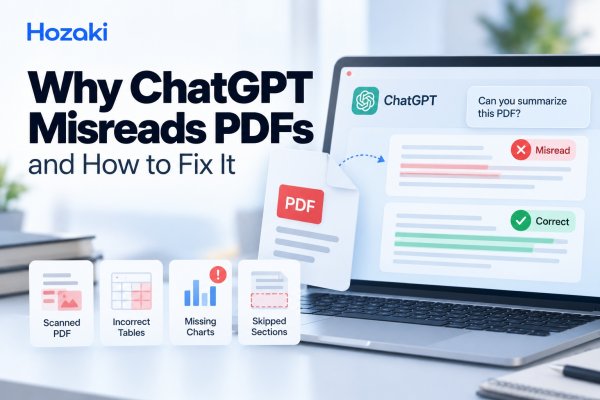
You upload a PDF to ChatGPT, ask a question about the document, and receive an answer that looks convincing. Then you check the original file and notice something is wrong.
A table contains different numbers. An important paragraph is missing. A chart is ignored. Or ChatGPT refers to a section that does not appear where it claims.
ChatGPT successfully accepting a PDF does not mean it has accurately interpreted every part of that PDF.
PDFs are designed to preserve document appearance, not necessarily to make information easy for software to extract. Scanned pages, multi-column layouts, embedded charts, complex tables, and long documents can all create problems.
The good news is that many PDF-reading problems can be diagnosed systematically.
This guide explains why ChatGPT sometimes misreads PDFs, how to identify the cause, and what to do before trusting an AI-generated summary or analysis.
Quick Fix: How to Make ChatGPT Read a PDF More Accurately
If ChatGPT is not reading your PDF correctly, follow these steps before trying another full-document summary.
-
Confirm the file uploaded successfully. If the upload itself failed, troubleshoot the attachment problem first.
-
Check whether the PDF contains selectable text. Open it in a PDF viewer and try selecting a paragraph.
-
Inspect the original document. Look for scanned pages, complex tables, multiple columns, charts, or unusual formatting.
-
Test a short passage. Ask ChatGPT to identify a specific heading and extract a small amount of text.
-
Compare the result with the source. Do not assume a plausible answer is an accurate one.
-
Convert difficult content when appropriate. OCR can help with scanned text, while CSV or XLSX may be better for tables.
-
Analyze long documents in sections. Keep a checklist of which pages or chapters have actually been reviewed.
-
Verify important conclusions manually. Check quotations, figures, page references, and source context.
If a small, clearly formatted passage cannot be extracted reliably, a longer prompt is unlikely to solve the underlying problem by itself.
Why Does ChatGPT Misread PDFs?
There is no single reason.
A PDF can contain different types of information, and those elements may be processed differently depending on the ChatGPT feature, account, plan, and document workflow.
PDF text is not always stored in reading order
A document may look perfectly organized on screen while its underlying text is stored in an unexpected sequence.
For example, a two-column academic paper may visually read from the top of the left column to the bottom, followed by the right column.
But a text extraction process might combine lines from both columns.
That can turn two coherent paragraphs into confusing fragments.
Some PDFs contain images instead of text
A scanned document often consists of page images.
The text you can see may not exist as a selectable text layer.
In workflows that rely primarily on text extraction, that content may be unavailable or incomplete unless optical character recognition (OCR) or appropriate visual processing is used.
Tables are more complicated than paragraphs
A table may include merged cells, nested headings, footnotes, units, and values spread across several pages.
If the relationship between rows and columns is lost, the extracted data can become misleading.
Charts contain information that may not exist in the text layer
A chart's legend, labels, plotted values, and visual relationships may be embedded as graphics.
If the workflow does not process that visual content, ChatGPT may not have access to the information needed to answer a chart-specific question.
Long documents introduce coverage problems
Even when individual pages are readable, a response may not incorporate every relevant part of a long document.
A summary that sounds complete is not proof that every chapter, appendix, table, and footnote was considered.
This is why PDF analysis should be treated as an extraction-and-verification workflow, not just a summarization task.
1. Check Whether Your PDF Contains Selectable Text
Start with the original file, not the AI response.
Open the PDF in a reliable PDF viewer and attempt to select a paragraph.
If you can select the words
The PDF probably contains at least some machine-readable text.
However, selectable text does not guarantee that the extraction order, tables, symbols, or formatting are correct.
Try copying a paragraph into a plain-text editor.
Check whether:
-
Words appear in the correct order.
-
Paragraphs remain understandable.
-
Special characters display correctly.
-
Columns have not been mixed together.
-
Numbers and units are preserved.
If the copied text is already broken, ChatGPT may encounter similar difficulties when processing the document.
If you cannot select the words
The page may be scanned or image-based.
It may also contain text rendered in a way that is difficult to extract.
In that case, OCR or a visual document-processing workflow may be necessary.
A quick diagnostic test
Choose a page with a distinctive heading.
Ask ChatGPT:
What is the exact heading on page 4 of this PDF? If you cannot access the page or determine the heading reliably, say so.
Compare its answer with the document.
A correct answer is useful evidence that the relevant content was accessible. It is not proof that the entire document was read accurately.
2. Use OCR for Scanned PDFs
OCR stands for optical character recognition.
It converts text visible in images into machine-readable characters.
If your PDF consists mainly of scanned pages, OCR can make its contents easier to search and analyze.
How to prepare a scanned PDF
Step 1: Inspect the scan quality
Look for blurred text, skewed pages, shadows, cropped margins, handwritten notes, and low-resolution images.
OCR cannot reliably recover information that is not legible in the original.
Step 2: Run OCR using an appropriate document tool
Use a reputable OCR-capable PDF application or document-processing service.
For sensitive documents, check the tool's privacy and data-handling policies before uploading anything.
Step 3: Save a searchable copy
Export the result as a searchable PDF or another suitable text-based format.
Keep the original scan unchanged.
Step 4: Verify the OCR output
Compare several passages, especially those containing numbers, names, technical terms, and unusual symbols.
Step 5: Upload the verified copy
Ask ChatGPT to analyze a specific section first.
Do not immediately assume the OCR conversion is error-free.
What OCR commonly gets wrong
OCR can confuse visually similar characters.
For example:
| Original character | Possible recognition error |
|---|---|
| 0 | O |
| 1 | I or l |
| 5 | S |
| 8 | B |
| Decimal point | Missing or misplaced punctuation |
| Minus sign | Omitted or interpreted incorrectly |
These examples are possible failure patterns, not a claim that every OCR tool makes these mistakes.
A single recognition error can materially change a financial figure, scientific measurement, or calculation.
For high-stakes analysis, verify the extracted values against the original scan.
3. Fix Incorrect Tables and Numbers
Tables are one of the most important sources of PDF analysis errors.
Imagine a financial report containing the following information:
| Metric | 2024 | 2025 |
|---|---|---|
| Revenue | $4.2M | $5.1M |
| Operating costs | $3.1M | $3.8M |
| Operating profit | $1.1M | $1.3M |
If the extraction process shifts a row or column, ChatGPT might associate the wrong figure with the wrong year.
The resulting explanation could sound reasonable while being factually incorrect.
This table is an illustrative example, not data from an actual financial report.
Use a structured data format when possible
If your main task involves calculations or comparisons, try exporting the relevant table to CSV or XLSX.
A structured spreadsheet often preserves row and column relationships more clearly than a visually complex PDF.
However, conversion itself can introduce errors.
Always verify the exported data.
A reliable table-checking workflow
-
Identify the table's title and page.
-
Record the column headings.
-
Confirm the units, such as USD, percentages, or kilograms.
-
Extract the rows without calculating anything.
-
Compare several cells against the PDF.
-
Check footnotes and definitions.
-
Only then request calculations or interpretation.
Prompt: Extract a PDF table carefully
Extract the table on page [X] of the uploaded PDF.
First, identify the table title, column headings, units, and footnotes.
Then reproduce the rows in a structured table.
Mark any unclear cell as "Needs verification."
Do not infer missing numbers or perform calculations until the extraction has been checked.
This approach separates data extraction from analysis.
That separation makes errors easier to find.
4. Handle Charts, Images, and Diagrams
Some PDFs contain information that cannot be understood from text alone.
Examples include:
-
Line charts showing changes over time.
-
Bar charts comparing categories.
-
Engineering diagrams.
-
Medical or scientific illustrations.
-
Process flowcharts.
-
Maps and annotated images.
Whether ChatGPT can interpret embedded PDF visuals depends on the specific product capability and workflow.
OpenAI's documentation distinguishes text-based document retrieval from visual PDF processing in supported environments.
Do not assume that every ChatGPT account or upload workflow interprets embedded PDF images in the same way.
How to work with visual information
First, determine whether the visual is actually accessible in your current workflow.
If it is not, consider providing the relevant image separately using a supported image-input feature.
For a chart, ask ChatGPT to identify the visible axes, units, legend, and plotted categories before requesting an interpretation.
For a diagram, ask it to describe the components and connections it can identify.
Then compare the description with the original.
Avoid estimating precise numbers from charts
A model may provide an approximate visual interpretation without having access to the underlying data.
If exact values matter, use the original spreadsheet, published data table, or another authoritative source.
A visually estimated value should not be presented as an exact measurement.
5. Prevent Missing Sections in Long PDFs
Long reports and academic documents can create a different kind of problem.
ChatGPT may correctly summarize several sections while omitting others.
The answer may still read like a complete summary.
To reduce this risk, use a coverage-based workflow.
Step 1: Create a document outline
Ask ChatGPT to identify the headings and subheadings it can access.
Compare that outline with the PDF's table of contents.
Do not assume the generated outline is complete.
Step 2: Divide the document into logical sections
For example, an academic paper might be reviewed as:
-
Abstract and introduction.
-
Literature review.
-
Methodology.
-
Results.
-
Discussion.
-
Limitations.
-
Conclusion.
-
Appendices and references.
The exact structure should follow the document, not a universal template.
Step 3: Analyze each section separately
Ask for the main claims, supporting evidence, important figures, and unresolved questions.
Request source locations when available.
Step 4: Build a coverage checklist
| Section | Reviewed? | Important findings | Needs verification? |
|---|---|---|---|
| Introduction | Yes / No | — | Yes / No |
| Methodology | Yes / No | — | Yes / No |
| Results | Yes / No | — | Yes / No |
| Discussion | Yes / No | — | Yes / No |
| Appendices | Yes / No | — | Yes / No |
Step 5: Produce the final summary
Only after reviewing the necessary sections should you ask for a document-wide synthesis.
This does not guarantee perfect accuracy, but it makes omissions more visible.
For a broader workflow, see Hozaki's guide to summarizing PDFs with AI without missing important information.
6. Use Better Prompts for PDF Analysis
A vague prompt such as "Summarize this PDF" gives ChatGPT little guidance about what must be included or verified.
A better prompt specifies the task, scope, expected output, and how uncertainty should be handled.
Prompt A: Check whether the PDF was read correctly
Before summarizing this PDF, verify what content you can actually access.
Identify the document title.
List the main section headings in order.
Extract three short passages from different sections.
Provide page or section locations when available.
Clearly state any pages, tables, images, or sections you cannot reliably read.
Do not guess or reconstruct missing text.
Use this prompt when you are unsure whether the document has been interpreted correctly.
Prompt B: Check tables and numbers
Analyze the table on page [X] of the uploaded PDF.
First, identify the column headers and units. Then extract the rows into a structured table.
Preserve each number's original label and unit.
Mark any unreadable or ambiguous cells as "Needs verification."
Do not calculate totals or draw conclusions until the extracted values have been checked against the source.
Use this prompt for reports, spreadsheets exported as PDFs, and data-heavy documents.
Prompt C: Check for missing sections
Review this PDF section by section.
Create a coverage checklist containing every main heading and subsection you can identify.
For each section, provide:
A brief summary.
Important figures or findings.
Source page or section references, when available.
Any information that could not be verified.
Do not claim complete coverage if some sections are inaccessible.
Use this prompt for long reports, manuals, and research papers.
Prompt D: Verify a specific claim
The previous answer stated: "[insert claim]."
Locate the exact supporting passage in the uploaded PDF.
Provide the relevant quotation and its page or section location when available.
Explain whether the passage directly supports the claim, only partially supports it, or does not support it.
If the source cannot be located, say so clearly.
This is especially useful when an answer contains surprising statistics or conclusions.
Important: Better prompting can improve the structure and transparency of an analysis. It cannot repair an unreadable source file or guarantee that a model will never make mistakes.
7. Verify ChatGPT's Answers Against the Original PDF
The final step is verification.
Even if the file uploads successfully, the extracted text looks readable, and the answer includes page references, important claims still need to be checked.
Verify quotations
If ChatGPT provides a quotation, search for it in the original PDF.
Confirm that the wording matches and that the surrounding context supports the interpretation.
Verify numbers
Check figures against the original table or chart.
Pay particular attention to:
-
Units and currencies.
-
Percentages versus percentage points.
-
Decimal places.
-
Negative values.
-
Dates and reporting periods.
-
Totals and subtotals.
Verify page references
A page reference generated by an AI model may be incorrect.
Also remember that the PDF viewer's page number may differ from the page number printed in the document.
Check the referenced passage directly.
Verify conclusions
A summary can accurately reproduce individual facts while still drawing an unsupported conclusion.
Ask whether the source actually establishes the relationship described in the answer.
For example, a report showing two trends moving together does not automatically establish that one caused the other.
For more guidance, read Hozaki's article on checking whether an AI answer is actually true.
8. PDF Troubleshooting Decision Table
Use this table when you need to identify the next step quickly.
| Problem | First check | Recommended action |
|---|---|---|
| ChatGPT cannot find text | Is the text selectable? | Use OCR if appropriate and verify it |
| Words appear in the wrong order | Does copied text preserve reading order? | Export clean text or separate sections |
| Tables contain wrong numbers | Are rows, columns, and units preserved? | Convert to structured data and compare |
| Charts are ignored | Is visual content accessible in this workflow? | Provide a supported image input or source data |
| Some chapters are missing | Does the extracted outline match the PDF? | Review sections individually |
| Page references are incorrect | Does the passage exist at that location? | Verify directly in the PDF |
| AI invents a quotation | Can the exact words be found? | Reject unsupported quotations |
| PDF cannot be attached at all | Did the upload fail before processing? | Follow file-upload troubleshooting instead |
If the problem occurs before the file is attached, use Hozaki's companion guide, ChatGPT File Upload Not Working? Causes and Fixes, rather than treating it as a document-reading issue.
9. When Should You Use Another Tool?
ChatGPT may be suitable for many PDF tasks, but it is not necessarily the best choice for every document.
Consider a dedicated tool when:
You need exact table extraction. A spreadsheet-oriented or document extraction tool may provide a better workflow for structured data.
You need searchable text from scans. A dedicated OCR application may be appropriate.
You need reliable academic references. A research workflow with source tracking and manual verification may be more useful than a general summary.
You need to preserve complex layouts. Specialized document-processing software may handle particular structures more predictably.
You work with sensitive documents. Privacy, retention, access controls, and organizational requirements should influence your tool choice.
Choose based on the document and task rather than assuming one AI tool will handle every file equally well.
For a broader comparison, see Hozaki's guide to the best AI tools for PDFs.
Frequently Asked Questions
Why is ChatGPT not reading my PDF correctly?
Common reasons include scanned pages, extraction problems, complex layouts, embedded visuals, tables, and incomplete coverage of long documents.
Start by checking whether the PDF contains selectable text and whether ChatGPT can accurately extract a small, verifiable passage.
Can ChatGPT read scanned PDFs?
It depends on the available visual processing capabilities and the workflow being used.
If your current workflow cannot reliably interpret the scanned content, OCR can create a searchable text layer. Always verify the OCR result before relying on it.
Why does ChatGPT skip pages in a PDF?
Some pages may be difficult to extract, contain visual information, or be omitted from the model's response.
Ask for a section-by-section coverage checklist and compare it with the original document. Do not assume that a complete-sounding summary covers every page.
Why does ChatGPT get PDF tables wrong?
Complex table layouts can lose their row and column relationships during extraction or interpretation.
Try converting the relevant table into CSV or XLSX, then verify headings, units, and individual cells before requesting analysis.
Can ChatGPT accurately read charts in a PDF?
Visual PDF capabilities depend on the product and workflow.
When exact chart values matter, verify that the chart is accessible and prefer the original data over values estimated from an image.
Does a better prompt fix PDF reading errors?
A better prompt can help organize the task and expose uncertainty, but it cannot guarantee correct extraction from a damaged, scanned, or structurally complex file.
Fix source-document problems first, then improve the prompt.
Should I split a long PDF before uploading it?
Splitting a document into logical sections can make review and verification easier.
Keep relevant context together, including table notes, definitions, and supporting evidence. Do not split pages arbitrarily if that would make the information harder to interpret.
Can I trust page numbers and quotations generated by ChatGPT?
Treat them as references to verify, not as automatic proof.
Search for the quotation in the original PDF and confirm that the page and surrounding context are correct.
Final Checklist: Make PDF Analysis More Reliable
If ChatGPT is misreading your PDF, use this checklist:
-
Confirm that the file uploaded successfully.
-
Check whether the text is selectable.
-
Use OCR for scanned text when necessary.
-
Inspect the reading order and document layout.
-
Convert difficult tables into structured data.
-
Verify whether charts and images are accessible.
-
Analyze long documents section by section.
-
Ask for verifiable quotations and source locations.
-
Compare important numbers and conclusions with the original.
-
Clearly identify any information that remains inaccessible or uncertain.
The most important principle is simple:
A successful PDF upload is only the beginning. Reliable analysis requires readable source content, a structured workflow, and verification against the original document.
Sources and Further Reading
Editorial note: This article explains documented product behavior and practical diagnostic methods. It does not claim that every PDF-processing scenario was independently tested. Feature availability and document-processing capabilities may change over time.
Comments 0