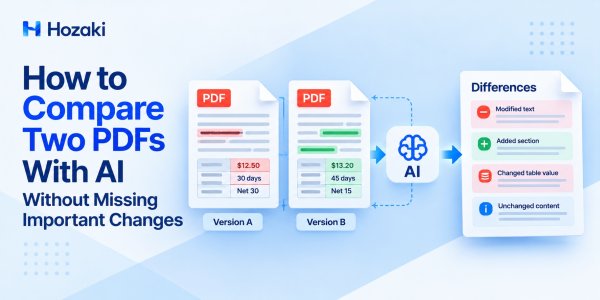
You have two versions of a PDF. One is the original, and the other contains revisions. You need to identify what changed, which differences matter, and whether anything important has been overlooked.
A traditional PDF comparison tool can highlight added, deleted, or modified content. AI can help explain the significance of those changes, particularly when the wording has been rewritten.
But neither method is foolproof. A PDF may contain scanned pages, complex tables, formatting differences, or content that an AI assistant fails to read correctly.
The most reliable practical approach is to combine PDF difference detection, AI-assisted interpretation, and verification against the original documents.
This guide shows you how to compare two PDFs with AI, check prices and tables, identify meaningful wording changes, and create a difference report that can be independently verified.
Quick Answer: How to Compare Two PDFs With AI
To compare two PDF documents:
-
Identify the original PDF and the revised PDF.
-
Check whether both files contain selectable text or require OCR.
-
Use a dedicated PDF comparison tool to detect additions, deletions, and modifications.
-
Use AI to explain important differences in wording, numbers, deadlines, or obligations.
-
Organize the findings into a structured comparison report.
-
Verify important findings against both source PDFs.
-
Check for missing sections, unreadable pages, and differences that may have been overlooked.
For a short, text-based document, an AI assistant may help compare uploaded PDFs directly. For contracts, financial records, technical specifications, and other consequential documents, AI should not be the only comparison method.
What Counts as an Important Difference Between Two PDFs?
Not every detected change has the same significance.
A comparison may reveal formatting changes, modified text, updated numbers, or entirely new sections. The challenge is identifying changes that affect meaning or decisions.
Text Changes
Text differences may include added paragraphs, deleted sentences, modified definitions, or rewritten clauses.
Consider this example:
Original: The supplier may provide replacement parts.
Revised: The supplier must provide replacement parts.
Only one word has changed, but the revised sentence expresses a different requirement.
AI can help explain that difference. Whether it creates a particular legal obligation depends on the complete agreement and applicable context.
Numerical Changes
Numbers deserve special attention because small changes may have significant consequences.
Check:
-
Prices and currencies.
-
Quantities and percentages.
-
Payment amounts.
-
Delivery periods.
-
Effective dates and deadlines.
-
Technical measurements.
-
Performance thresholds.
For example, changing a unit price from $12.50 to $13.20 represents an increase of $0.70, or 5.6%.
Table Changes
Tables are more difficult to compare when PDF extraction loses row or column relationships.
Important changes may include modified prices, added products, deleted rows, changed quantities, or updated totals.
A reliable comparison should match records by meaningful identifiers, not merely by their position in a table.
Visual and Structural Changes
Some changes are not represented accurately by extracted text.
Examples include:
-
Replaced diagrams or images.
-
Modified charts.
-
Reordered pages.
-
Added appendices.
-
Changed headers and footers.
-
Layout or formatting changes.
Visual comparison tools can help detect these differences, although not every visual change affects the meaning of the document.
Semantic Changes
Two passages may use different words while expressing essentially the same idea.
Conversely, a minor wording change can alter a requirement or exception.
AI can assist with semantic interpretation, but its explanation must be checked against the source material.
Before Comparing Two PDFs: Prepare the Documents
A useful comparison starts with reliable input files.
Step 1: Identify the Original and Revised Versions
Use clear filenames such as:
-
contract-v1.pdf -
contract-v2.pdf
Confirm the revision order using document dates, version labels, or other available evidence.
Do not assume that a filename proves which document is newer.
Step 2: Check Whether the Text Is Selectable
Open both PDFs and try selecting text from representative pages.
If the content is selectable, text-based comparison may be possible.
If the pages are images, OCR may be required.
For scanned documents, follow our guide on how to OCR a PDF and make it searchable.
Step 3: Inspect Document Structure
Record the page counts and identify major sections, tables, appendices, and attachments.
A page-count difference does not necessarily mean content was added. Different fonts or margins may cause text to flow onto additional pages.
Step 4: Define the Comparison Priorities
For supplier quotations, prioritize prices, quantities, currencies, and delivery dates.
For contracts, prioritize obligations, definitions, exclusions, payment terms, and termination conditions.
For technical documents, prioritize measurements, tolerances, materials, and performance requirements.
These priorities guide the review, but they should not be used to ignore other detected changes.
Method 1: Compare Two PDFs With a Dedicated Difference Tool
A dedicated PDF comparison tool is a useful starting point when you need systematic change detection.
Examples include Adobe Acrobat's Compare Files feature and document comparison software such as Draftable.
Their exact capabilities and interfaces vary by product and version.
Step 1: Open the Comparison Feature
In Adobe Acrobat Pro, locate the Compare Files feature.
Choose the original document and the revised document.
Check that they are assigned to the correct roles before running the comparison.
Step 2: Run the Comparison
Depending on the software, the output may identify:
-
Inserted text.
-
Deleted text.
-
Replaced content.
-
Formatting changes.
-
Image differences.
-
Page-level changes.
Step 3: Review the Detected Differences
Do not rely only on the total number of highlighted changes.
A paragraph rewrite may produce many highlights, while a single changed number may have greater practical significance.
Inspect important changes in their surrounding context.
Step 4: Export or Record the Findings
If the tool supports exporting a comparison report, save it.
Otherwise, create a spreadsheet with these fields:
| Field | Purpose |
|---|---|
| Change ID | Unique reference |
| Original Content | Text or value from the original |
| Revised Content | Text or value from the revised file |
| Original Location | Page or section reference |
| Revised Location | Page or section reference |
| Change Type | Addition, deletion, or modification |
| Potential Impact | Explanation requiring review |
| Verification Status | Verified, Needs Review, or Not Verified |
For product-specific instructions, consult Adobe's official Compare Files documentation.
When This Method Is Useful
Dedicated comparison tools are particularly helpful for detecting changes without depending entirely on AI-generated summaries.
However, a highlighted difference does not automatically explain whether the change is important.
Method 2: Use AI to Compare Two PDF Documents
AI assistants can help interpret differences between documents and organize them into a readable report.
Some AI tools support direct PDF uploads. Others require text to be extracted first.
The results depend on the tool, file support, document length, and extraction quality.
Step 1: Provide Both PDFs
Label the documents clearly:
-
Original PDF.
-
Revised PDF.
Confirm that the AI tool can access both files.
Before uploading confidential material, review your organization's policies and the service's data-handling terms.
Step 2: Use a Structured Comparison Prompt
Copy and adapt this prompt:
Compare the two attached PDF documents.
Treat the document labeled Original as the baseline and the document labeled Revised as the updated version.
Identify additions, deletions, modified wording, changed numbers, changed dates, and altered table values.
Return a table containing:
Change Type, Original Content, Revised Content, Original Page, Revised Page, Potential Significance, and Verification Status.
Distinguish directly observed differences from interpretations.
Do not invent text, values, or page references.
If a section cannot be read or compared reliably, mark it as Not Verified.
Do not claim that the comparison is exhaustive unless completeness has been independently established.
Step 3: Ask AI to Prioritize Important Changes
After reviewing the initial output, use a second prompt:
Review the identified differences and prioritize changes involving prices, payment terms, deadlines, obligations, exclusions, definitions, quantities, and technical specifications.
Explain why each change may matter.
Preserve the exact original and revised values.
Separate documented facts from possible implications.
Flag ambiguous findings for human review.
Step 4: Check the Source Evidence
For each important finding:
-
Open the original PDF.
-
Locate the cited text or value.
-
Open the revised PDF.
-
Locate the corresponding content.
-
Confirm the difference.
-
Review the surrounding context.
An AI-generated page number is not sufficient evidence by itself.
Limitations of Direct AI Comparison
AI may overlook small changes, misunderstand tables, omit sections, or generate unsupported explanations.
For a closer look at PDF extraction limitations, read Why ChatGPT Misreads PDFs and How to Fix It.
Method 3: Combine PDF Diff Results With AI Analysis
For important documents, a hybrid workflow provides a more systematic review process.
The principle is straightforward:
Detect changes with a comparison tool, interpret them with AI, and verify them against both PDFs.
Step 1: Generate a Difference Report
Run the original and revised documents through a dedicated comparison tool.
Export the report where supported, or record the detected changes.
Step 2: Separate Content Changes From Formatting Noise
Check whether highlighted differences result from line wrapping, page reflow, font changes, or section renumbering.
Do not dismiss uncertain changes without examining them.
Step 3: Ask AI to Interpret the Verified Findings
Provide the difference list to an AI assistant.
Use this prompt:
Analyze the following differences between two PDF versions.
Group related changes by topic.
Explain which changes may affect costs, deadlines, obligations, specifications, or business decisions.
Keep the original and revised values visible.
Separate factual observations from interpretations.
Identify questions that require human review.
Do not introduce unsupported changes.
Step 4: Build a Final Difference Register
The final report should include the actual source wording, document locations, possible implications, and verification status.
Step 5: Check Coverage
Before finishing, confirm that:
-
All expected sections were reviewed.
-
Tables and appendices were included.
-
Scanned pages were handled appropriately.
-
Unreadable content was flagged.
-
Important findings have source evidence.
-
Unresolved issues remain visible.
A concise summary is not necessarily a complete difference report.
How to Compare PDF Tables, Prices, Dates, and Contract Clauses
Different types of content require different verification methods.
Comparing Numbers
Consider the following illustrative example:
| Field | Original | Revised | Difference |
|---|---|---|---|
| Unit Price | $12.50 | $13.20 | +$0.70 |
| Delivery Time | 30 days | 45 days | +15 days |
| Quantity | 500 | 500 | No change |
Always check the units, currency, and surrounding conditions.
A numerical difference may be misleading if the measurement basis has also changed.
Comparing Tables
For product quotations or structured reports:
-
Extract the relevant tables from both PDFs.
-
Standardize column names and data types.
-
Match records using stable identifiers, such as product codes.
-
Identify added and deleted records.
-
Compare values in matched records.
-
Verify changed values against the original PDF pages.
Do not assume that matching row positions represent matching records.
For workflows involving several PDF files, see How to Extract Data from Multiple PDFs into Excel.
Comparing Dates and Deadlines
Determine whether each date refers to an issue date, effective date, payment deadline, delivery commitment, or expiration date.
The significance of a changed date depends on its role.
Comparing Contract Clauses
Pay attention to:
-
Optional versus mandatory language.
-
Added exceptions.
-
Removed conditions.
-
Modified definitions.
-
Liability limitations.
-
Termination provisions.
-
Payment and delivery obligations.
AI can help identify and explain wording differences, but consequential legal interpretation may require qualified professional review.
How to Compare Two Scanned PDFs
Scanned PDFs may contain page images rather than searchable text.
This creates additional challenges for text-based comparison.
Step 1: Run OCR Where Necessary
Use a suitable OCR tool to create a searchable text layer.
Step 2: Inspect OCR Accuracy
Check representative pages, particularly:
-
Decimal points.
-
Currency symbols.
-
Dates.
-
Product codes.
-
Clause numbering.
-
Table columns.
Step 3: Compare the Extracted Text
Run the comparison on the OCR-processed documents.
Be aware that recognition errors can create false differences or hide real ones.
Step 4: Cross-Check Visually
Where supported, use visual comparison to inspect page images.
This is especially useful for diagrams, stamps, signatures, and layout changes.
Step 5: Verify Against the Original Scans
For important findings, return to the original page images.
OCR output is an intermediate representation, not the authoritative source.
Practical Example: Compare Two Supplier Contract PDFs
To make this workflow reproducible, we created two fictional supplier agreements with intentional differences.
The test files are:
-
supplier-contract-v1.pdf— original version. -
supplier-contract-v2.pdf— revised version. -
reference-differences.csv— expected comparison results. -
README.txt— testing instructions.
Download the Hozaki PDF Comparison Test Kit: [Insert the verified Hozaki-hosted download URL here.]
These documents are simulated examples created for this tutorial. They are not real commercial agreements.
Step 1: Open Both PDFs
Inspect the documents and identify Version 1 as the original and Version 2 as the revised agreement.
Both sample PDFs contain selectable text.
Step 2: Run a Difference Comparison
Use your preferred PDF comparison tool.
Record changes in prices, delivery terms, payment conditions, contractual wording, and added clauses.
Step 3: Ask AI to Interpret the Changes
Use this prompt:
Compare these two versions of a fictional supplier agreement.
Identify all substantive additions, deletions, and modifications.
Separate contractual wording changes from formatting and section-number changes.
Explain possible business implications.
Cite the relevant source passages.
Mark uncertain findings for manual review.
Do not invent changes.
Step 4: Check the Expected Differences
The reference file includes five intentional changes and two unchanged control fields.
| Field | Version 1 | Version 2 | Expected Result |
|---|---|---|---|
| Unit Price | $12.50 | $13.20 | Price increased |
| Delivery Time | 30 days | 45 days | Delivery period extended |
| Payment Terms | Net 30 | Net 15 | Payment deadline shortened |
| Replacement Parts | may provide | must provide | Requirement wording changed |
| Inspection Requirement | No corresponding clause | New seven-day notice requirement | Clause added |
| Warranty | 12 months | 12 months | Unchanged |
| Quantity | 500 | 500 | Unchanged |
A useful comparison should identify the five intentional changes without incorrectly reporting the unchanged warranty and quantity as modified.
Step 5: Verify Each Finding
Open both PDFs and check the relevant text directly.
Pay attention to changes in clause numbering, which should not automatically be treated as substantive modifications.
Step 6: Compare Your Results With the Reference CSV
Review the differences detected by your chosen tool against the expected answers.
Record:
-
Correctly identified changes.
-
Missed changes.
-
False positives.
-
Findings requiring manual interpretation.
This exercise evaluates a simple text-based example. It does not establish accuracy for long contracts, scanned PDFs, complex tables, or every document layout.
How to Verify an AI-Generated PDF Comparison Report
Verification is essential when the findings could affect a decision.
Check High-Impact Changes First
Prioritize financial values, deadlines, obligations, legal conditions, safety requirements, and technical specifications.
Verify Both Versions
Confirm that the reported original and revised content matches the actual PDFs.
A correct quote from only one version is insufficient.
Check for Missing Sections
Look for deleted sections, added appendices, reordered content, missing pages, and unreadable material.
Investigate False Positives
Formatting changes may be incorrectly classified as substantive differences.
Investigate False Negatives
An AI assistant or extraction tool may miss a real change, particularly in complex tables or scanned pages.
Use Clear Verification Statuses
| Status | Meaning |
|---|---|
| Verified | Confirmed against both source PDFs |
| Needs Review | Identified but not fully checked |
| Not Verified | Supporting source evidence is unavailable or unreadable |
| False Positive | Flagged difference is not a real content change |
Do not mark a finding as verified simply because two automated tools produce similar answers.
Common Problems When Comparing PDFs With AI
AI Says the Documents Are Identical
Possible cause: A missed change, inaccessible content, or an interpretation that different wording means the same thing.
Fix: Run a dedicated difference comparison and manually inspect important sections.
The Tool Shows Hundreds of Formatting Changes
Possible cause: Font differences, line wrapping, margins, or page reflow.
Fix: Separate visual changes from substantive content differences.
Table Values Are Matched Incorrectly
Possible cause: Reordered rows or damaged table extraction.
Fix: Match records using stable identifiers and verify source values.
Scanned PDFs Produce Inaccurate Results
Possible cause: OCR recognition errors.
Fix: Inspect OCR output and cross-check the original page images.
AI Reports a Change That Does Not Exist
Possible cause: Unsupported interpretation or generated content.
Fix: Require evidence from both PDFs and remove unsupported findings from the verified report.
Important Changes Are Missing From the Summary
Possible cause: The AI generated a selective overview rather than a comprehensive comparison.
Fix: Maintain a complete difference register before preparing the executive summary.
Frequently Asked Questions
Can ChatGPT compare two PDF files?
ChatGPT can assist with comparing PDF content when the relevant file capabilities are available. However, it may miss differences or misinterpret extracted content. Important findings should be checked against both PDFs.
What is the best way to compare two PDFs for differences?
For consequential documents, combine a dedicated difference-detection tool with AI-assisted interpretation and manual source verification.
Can AI compare PDF tables?
AI can help interpret table differences, but row and column relationships may be extracted incorrectly. Structured extraction and source verification are recommended for numerical data.
Can I compare two scanned PDFs?
Yes. OCR may be necessary for text comparison, and visual comparison can provide an additional check.
Can AI identify changes in contract terms?
AI can help identify and explain wording changes. It should not replace qualified legal review when the consequences are significant.
Is an AI-generated PDF comparison report complete?
Not necessarily. AI systems can overlook changes, especially in long, complex, scanned, or poorly structured PDFs.
Can I compare confidential PDFs without uploading them to an AI service?
Some desktop or locally deployed tools may allow document processing without sending files to an external AI service. Check the specific product's processing and data-handling behavior before using confidential material.
Conclusion: Detect, Interpret, and Verify
Comparing two PDFs is about more than highlighting different words.
A useful comparison must identify what changed, explain why the change may matter, and preserve enough evidence for independent verification.
Dedicated comparison tools can help detect changes systematically. AI can help interpret those changes and organize them into a readable report.
But the original PDFs remain the source of truth.
For important documents, use this workflow:
Detect the differences → Interpret their significance → Verify against both PDFs.
This approach helps reduce the risk of overlooking important changes without treating an AI-generated summary as a guaranteed complete comparison.
Comments 0