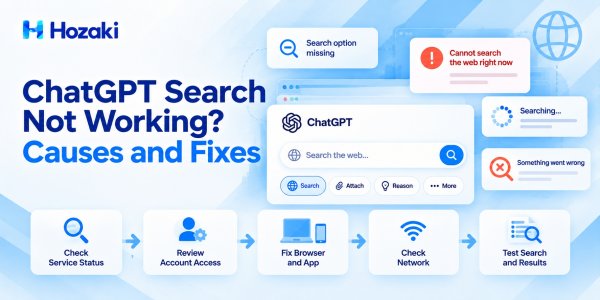
ChatGPT Search is useful when you need current information, recent developments, or answers supported by web sources. But sometimes the search option seems to disappear, a search fails to complete, or ChatGPT returns an error instead of the results you expected.
If ChatGPT Search is not working, the solution depends on what is actually failing.
A missing Search option is different from a search that keeps loading. A network error is different from a response that contains outdated information. Treating all these problems as the same issue can waste time and lead to unnecessary troubleshooting.
This guide explains how to identify the problem, try nine practical fixes, and determine when the issue may require OpenAI Support.
Why Is ChatGPT Search Not Working?
ChatGPT Search problems generally fall into several categories:
-
Service issues: ChatGPT or a related service may be experiencing an incident.
-
Interface changes: The Search control may be located somewhere different from where you expect.
-
Account or workspace restrictions: Your available tools, usage limits, or organizational settings may affect access.
-
Browser problems: Extensions, cookies, cached site data, or browser configuration may interfere.
-
App problems: An outdated app or temporary application error may affect the interface.
-
Network problems: VPNs, proxies, firewalls, or unstable connections may interrupt requests.
-
Search quality issues: Search may work technically while returning incomplete or outdated information.
The first step is to identify which category best matches your experience.
First, Identify Your ChatGPT Search Problem
Use this quick diagnostic table before changing any settings.
| What You See | Most Useful First Check | Likely Next Step |
|---|---|---|
| Search option is missing | Check the current tool interface | Review account and workspace access |
| ChatGPT says it cannot search | Start a new chat and check tool availability | Review restrictions or temporary errors |
| Search keeps loading | Check OpenAI service status | Test browser and network |
| Search returns an error | Check the error message and service status | Refresh or try another environment |
| Search works on mobile but not desktop | Compare browser and app behavior | Test extensions and site data |
| Search works on one network but not another | Compare network connections | Investigate VPN, proxy, or firewall |
| Search results are outdated | Check whether web search was actually used | Verify sources and refine the query |
Important: Do not clear all browser data or change security settings immediately. Start with reversible checks that can help identify the source of the problem.
Fix 1: Check OpenAI Service Status
Before troubleshooting your browser or account, check whether OpenAI is reporting a service problem.
Visit the official OpenAI Status page.
Look for incidents affecting ChatGPT, search functionality, or related services.
What to Do
-
Open the status page.
-
Check for active incidents or degraded performance.
-
Read the incident description to see whether it matches your symptoms.
-
If a relevant incident is active, wait for an official update rather than repeatedly changing local settings.
-
Try searching again after the incident is resolved.
What If the Status Page Shows Everything Is Operational?
That does not guarantee every individual request will succeed.
A localized network problem, browser conflict, account restriction, or intermittent issue may still affect your session.
Continue with the next checks.
Do not assume that a historical incident explains a current error. Use the current status page rather than an old outage report.
Fix 2: Start a New Chat and Find the Search Option
Sometimes the problem is not that Search has stopped working. You may simply be looking for an interface control that has changed.
ChatGPT's interface can vary across platforms, accounts, and product updates.
How to Check
-
Open ChatGPT and start a new conversation.
-
Look for the available tools or Search control in the message composer.
-
If Search is available, select it and enter a straightforward query.
-
If the interface supports automatic web searching, ask a question that clearly requires recent information and inspect whether web sources are provided.
-
Compare the result with the behavior in your previous conversation.
For example, try:
Search the web for the latest official OpenAI product update and provide the source links.
This is a diagnostic request, not a guarantee that Search will be activated in every account or interface.
Why Starting a New Chat Can Help
A new conversation provides a cleaner test of the current interface and available tools.
It can also help you determine whether the issue is limited to a particular conversation.
If Search is unavailable in every new conversation, continue with the account and access checks.
For the current official instructions, see Searching the Web with ChatGPT.
Fix 3: Check Your Account, Usage Limits, and Workspace Settings
ChatGPT features and limits may vary depending on account access, product configuration, and organizational policies.
If the Search option is missing or unavailable, check whether the issue is related to your account rather than your browser.
Check the Account You Are Using
Confirm that you are signed into the intended account.
If you have multiple accounts or workspaces, compare the available tools in each environment without assuming that their settings will be identical.
Check for Usage Restrictions
Some features may have usage limits or temporary restrictions.
If ChatGPT displays a usage-related message, follow the instructions shown in the interface.
Do not assume that upgrading a subscription will fix an unrelated network or service problem.
Check Workspace Restrictions
If you use ChatGPT through an organization, workspace settings or administrative policies may affect which tools are available.
Contact your workspace administrator when appropriate.
What Not to Assume
A missing button does not automatically mean your account has been suspended.
It also does not necessarily mean Search has been permanently removed.
Use the current interface and official documentation to determine what is available.
Fix 4: Update the App or Test ChatGPT in a Browser
If ChatGPT Search fails in the mobile or desktop app, compare its behavior with the web version.
Open ChatGPT in a supported browser.
If Search Works in the Browser
The issue may be related to the installed app, its configuration, or a temporary application problem.
Try:
-
Closing and reopening the app.
-
Checking for an official app update.
-
Installing available updates.
-
Restarting the device if the problem persists.
-
Testing the same search again.
If Search Fails in Both Places
A shared account, service, or network issue may be more likely.
Continue with the next troubleshooting steps.
Avoid Unofficial Downloads
Only install ChatGPT applications from official sources.
Do not download modified installers, unofficial browser extensions, or third-party applications claiming to unlock Search.
Fix 5: Refresh ChatGPT and Restart the Session
Temporary interface errors can sometimes be resolved with a simple refresh.
Recommended Order
-
Copy any important unsent text.
-
Refresh the ChatGPT page.
-
Start a new conversation.
-
Try a short search query.
-
If the problem persists, sign out and sign back in when convenient.
A short test query is useful because it reduces the number of variables involved.
For example:
Search the web for today's date on an official time reference website and provide the source.
Why This Helps
A refresh may resolve temporary client-side problems.
Starting a new conversation can help distinguish a conversation-specific issue from a broader failure.
Signing out and back in may help with certain session-related problems, although it is not a universal fix.
If Search still fails, avoid repeatedly refreshing the page without changing your diagnostic approach.
Fix 6: Test Private Browsing and Browser Extensions
Browser extensions can interfere with websites in unexpected ways.
Privacy tools, content blockers, script managers, and security extensions may alter how a page loads or communicates with a service.
Test in a Private Window
-
Open a private or incognito browser window.
-
Sign in to ChatGPT.
-
Start a new conversation.
-
Try the same search.
If Search works in private browsing but not in your normal browser session, a browser extension or stored site data may be involved.
This is a useful clue, not definitive proof.
Test Extensions Carefully
Temporarily disable potentially interfering extensions one at a time.
After each change, test ChatGPT again.
If the problem disappears, re-enable extensions selectively to identify the conflict.
Test Another Browser
If possible, try a different supported browser.
If Search works in one browser but not another, focus on the affected browser's configuration.
Avoid Unnecessary Changes
Do not disable essential security protections permanently.
Do not install unfamiliar extensions advertised as Search repair tools.
Use reversible tests whenever possible.
Fix 7: Check Your VPN, Proxy, Firewall, and Network
Network configuration can affect ChatGPT connectivity.
This is especially relevant when Search works on one network but fails on another.
Compare Connections
If practical, test ChatGPT using another trusted network.
For example, compare a home Wi-Fi connection with a mobile data connection.
If Search works consistently on one network but not another, the problem may involve the affected network's configuration.
Test VPN or Proxy Settings
A VPN or proxy can sometimes interfere with connectivity.
If you are authorized to do so, temporarily disconnect it and repeat the test.
Do not bypass your employer's security requirements or network policies.
Corporate and School Networks
Managed networks may use filtering, inspection, or access controls that affect web applications.
If the problem occurs only on a managed network, contact the IT administrator.
Provide the symptoms, approximate time, platform, and any error messages.
OpenAI provides additional guidance in Network Recommendations for ChatGPT Errors on Web and Apps.
What Network Tests Can Tell You
A successful search on another network suggests that network conditions may contribute to the issue.
However, a single successful or failed test does not establish the exact cause.
Look for repeatable differences before drawing conclusions.
Fix 8: Clear ChatGPT Site Data Carefully
If Search fails only in one browser and other checks have not helped, stored site data may be contributing to the problem.
Clearing site data is more disruptive than refreshing the page, so it should not be your first step.
Before You Clear Anything
Make sure important unsent content is saved.
Be prepared to sign in again.
Clearing site data may remove local preferences or session information.
Recommended Approach
-
Open your browser's site settings.
-
Find the stored data associated with the ChatGPT website.
-
Clear data for the affected site rather than clearing your entire browser history.
-
Close and reopen the browser.
-
Sign in again.
-
Test Search in a new conversation.
The exact steps depend on your browser.
When This Is Unlikely to Help
Clearing site data will not resolve an active OpenAI service outage.
It will not remove legitimate workspace restrictions.
It is also unlikely to fix a network policy that blocks required connections.
Use this step only when the earlier diagnostic results point toward a browser-specific problem.
Fix 9: Contact OpenAI Support With Useful Diagnostics
If Search remains unavailable after reasonable troubleshooting, contact OpenAI Support.
The official support entry point is available through the OpenAI Help Center.
A useful support request should explain the problem clearly and include enough information to reproduce it.
Information to Include
| Information | Example |
|---|---|
| Feature affected | ChatGPT Search |
| Symptom | Search starts but remains loading |
| Platform | Web browser or mobile app |
| Browser or app version | Version information, if available |
| Approximate time | Date, time, and time zone |
| Error message | Exact text, if displayed |
| Troubleshooting attempted | Refresh, private window, network comparison |
| Reproducibility | Every search or intermittent |
You can also include screenshots when they help illustrate the issue.
Protect Sensitive Information
Do not send passwords, authentication tokens, or confidential documents unnecessarily.
Remove personal or sensitive information from screenshots and logs.
If Support requests additional diagnostic information, follow its official instructions.
Example Support Message
Subject: ChatGPT Search Fails to Complete in Browser
Hello OpenAI Support,
I'm experiencing an issue with ChatGPT Search.
When I start a web search, the request continues loading and does not return results.
The problem occurs in [browser/app version] on [operating system]. It started around [date and time, including time zone].
I have already tested a new conversation, refreshed the page, and tried a private browsing window. The issue still occurs.
Please let me know whether there are additional diagnostic steps I should try.
Thank you.
ChatGPT Search Works, but Results Are Wrong or Outdated
Not every disappointing answer indicates a technical failure.
ChatGPT may provide an incomplete response, misinterpret a question, or use sources that do not fully answer what you asked.
These are answer-quality problems rather than necessarily problems with the Search feature itself.
Confirm That Web Search Was Used
If you need current information, check whether the response indicates that web search was performed and provides relevant sources.
Do not assume that every answer was generated using a live web search.
Refine the Query
A vague request such as:
What's the latest update?
provides little context.
A more specific request might be:
Search official OpenAI sources for ChatGPT Search documentation updated in the last 30 days. Include publication or update dates where available.
Verify Source Dates
A recently retrieved page is not necessarily a recently published page.
Check publication dates, update dates, and the period covered by the information.
Open the Sources
Do not rely only on a generated citation label.
Open the cited page and verify that it supports the statement.
If you are using ChatGPT for academic research, see How to Find Academic Papers With AI: A Practical Research Workflow.
What Not to Do When ChatGPT Search Fails
Several troubleshooting habits can create more problems than they solve.
Do Not Repeatedly Change Unrelated Settings
Changing your browser, network, account, and security configuration at the same time makes it difficult to identify the actual cause.
Test one variable at a time.
Do Not Assume Every Error Is a Service Outage
Check the official status page, but also compare browsers, apps, and networks when appropriate.
Do Not Disable Security Protections Permanently
If a temporary test suggests a security tool is interfering, investigate the configuration rather than leaving protections disabled.
Do Not Share Sensitive Credentials
Avoid websites or applications claiming to repair ChatGPT Search in exchange for passwords, session tokens, or account access.
Do Not Confuse Search With File Upload Problems
If your problem is that ChatGPT cannot upload a document, follow the separate guide: ChatGPT File Upload Not Working? Causes and Fixes.
If a PDF uploads successfully but the extracted information is incorrect, see Why ChatGPT Misreads PDFs and How to Fix It.
These issues require different troubleshooting approaches.
Frequently Asked Questions
Why is ChatGPT Search not showing up?
The interface may have changed, or the feature may be affected by account, usage, or workspace settings. Start a new conversation, inspect the available tools, and consult the current official Search documentation.
Is ChatGPT Search down right now?
Check OpenAI Status for current incidents. A historical outage does not establish that the service is currently unavailable.
Why does ChatGPT Search keep loading?
Possible causes include a temporary service problem, browser conflict, network interruption, or app issue. Compare the behavior across a new chat, private browser window, and trusted network.
Does ChatGPT Search work on mobile?
ChatGPT Search is supported across ChatGPT experiences, but the interface and available controls may differ by platform and product updates. Use the official documentation for current availability and instructions.
Why does ChatGPT say it cannot browse the web?
This may reflect the current conversation's available tools, account or workspace configuration, usage restrictions, or a temporary problem. Check the actual interface and any displayed error messages.
Can a VPN cause ChatGPT Search problems?
A VPN or proxy may contribute to connectivity problems in some configurations. Compare connections where permitted, but do not bypass organizational security requirements.
Will clearing the cache fix ChatGPT Search?
It may help if the problem is caused by browser-specific stored data. It will not resolve service outages or legitimate account restrictions.
Why does ChatGPT provide old information when Search is available?
The response may not have used web search, the sources may be outdated, or the retrieved information may not fully answer the question. Verify source dates and ask for specific, current sources.
Should I reinstall ChatGPT?
Reinstallation is usually not the first step. Try restarting the app, checking for updates, and comparing behavior with the browser version before considering more disruptive actions.
When should I contact OpenAI Support?
Contact Support when the problem persists after reasonable checks, especially if you have a reproducible error, a missing feature that should be available, or a problem that occurs across multiple environments.
Download the ChatGPT Search Troubleshooting Checklist
If ChatGPT Search keeps failing, it can be difficult to remember which fixes you have already tried and what happened during each test.
Download the free Hozaki ChatGPT Search Troubleshooting Checklist, an editable Excel workbook designed to help you diagnose problems systematically.
The workbook includes a symptom guide, a nine-step troubleshooting checklist, a test log, a search-result quality review, and a support request template.
Use it to record your browser or app environment, track the outcome of each fix, and prepare useful diagnostic information if you need to contact OpenAI Support.
The checklist is an independent troubleshooting aid. It is not an official OpenAI diagnostic tool. Avoid entering passwords, authentication tokens, or confidential information.
Download the Excel checklist:
Final ChatGPT Search Troubleshooting Checklist
Before contacting Support, review the following:
-
I identified whether the issue is a missing tool, failed search, loading problem, or result-quality issue.
-
I checked the current OpenAI service status.
-
I tested Search in a new conversation.
-
I checked the available Search controls and current documentation.
-
I reviewed relevant account and workspace restrictions.
-
I checked for app updates.
-
I refreshed ChatGPT and tested a short query.
-
I tested a private browsing window.
-
I checked whether browser extensions could be involved.
-
I compared behavior across browsers or devices where possible.
-
I tested another trusted network where permitted.
-
I considered site-data clearing only after less disruptive checks.
-
I recorded the exact error and troubleshooting results.
-
I verified whether the issue is technical or related to search-result quality.
Conclusion
If ChatGPT Search is not working, the most effective solution is to identify the type of failure before changing settings.
Start with the official service status and a new conversation. If the Search option is missing, investigate the interface, account, and workspace configuration. If a search fails or keeps loading, compare browsers, apps, and network connections.
Use reversible troubleshooting steps first, and avoid unnecessary changes to security settings or stored data.
If Search works but returns incomplete or outdated information, focus on source verification and better queries rather than treating the result as a connectivity problem.
When the issue persists, a clear support request containing the error message, platform, timing, and tests already performed is more useful than repeating the same unsuccessful fix.
The goal is not to try every possible solution. It is to find the specific cause of the problem and take the next appropriate action.
Comments 0