A scanned PDF can look perfectly readable on your screen while making it almost impossible to copy, search, or edit its text.
You might highlight a paragraph and find that nothing happens. Or you might paste the content into Word and discover missing words, incorrect numbers, and scrambled sentences.
The problem is usually that the PDF contains images of text rather than usable text itself.
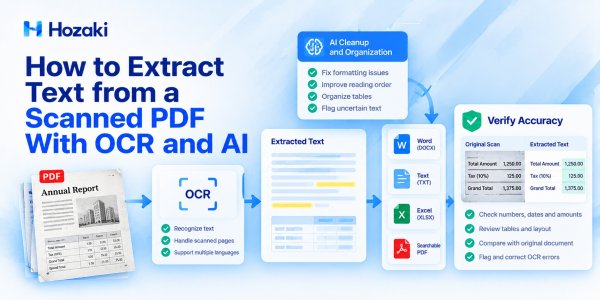
To extract text from a scanned PDF, you generally need optical character recognition (OCR). Depending on your document and intended output, you may also need AI-assisted cleanup, layout reconstruction, and manual verification.
This guide walks through practical ways to extract text from scanned PDFs using Adobe Acrobat, Google Docs, and Tesseract OCR. It also explains how to export the results, fix recognition errors, and check whether the extracted text accurately reflects the original document.
The goal is not simply to produce text that looks plausible. It is to produce editable, usable text that can be checked against its source.
Why Can't You Copy Text from a Scanned PDF?
A PDF is a container format. It can hold actual text, images, graphics, and other elements.
Two PDFs may look identical while behaving very differently.
A text-based PDF contains characters that software can usually select, search, and extract.
A scanned PDF often contains a photograph or scan of each page. The letters are visible to a person, but the software initially sees pixels rather than individual characters.
Text-Based PDF vs. Image-Based PDF
| Feature | Text-Based PDF | Scanned, Image-Based PDF |
|---|---|---|
| Text selection | Usually available | Often unavailable |
| Search within document | Usually available | Requires OCR or an existing text layer |
| Copy and paste | Usually possible | Requires text recognition |
| Editing text | Depends on PDF structure and software | Usually requires OCR first |
| Text extraction | Generally more direct | Depends on OCR quality |
| Original visual appearance | Preserved | Preserved as page images |
Some PDFs contain both scanned images and a hidden OCR text layer.
That means a document can look scanned while still allowing text selection or searching.
The presence of a text layer, however, does not guarantee that the text is accurate.
OCR and Text Extraction Are Not the Same Thing
OCR identifies characters and words from images.
Text extraction retrieves recognized or embedded text for use elsewhere.
For a scanned PDF, a complete workflow may involve:
-
Preparing the scanned pages.
-
Running OCR.
-
Extracting the recognized text.
-
Cleaning formatting and reading order.
-
Exporting to the required format.
-
Verifying important content.
OCR is an essential step in many cases, but it is not the entire process.
If your primary goal is to make a scanned PDF searchable while retaining its original appearance, see How to OCR a PDF and Make Scanned Documents Searchable.
If you need editable text for Word, Excel, or another application, continue with the extraction methods below.
How to Tell Whether a PDF Is Scanned or Text-Based
Before choosing a tool, perform a few simple checks.
Test 1: Try Selecting a Sentence
Open the PDF and drag your cursor across a sentence.
If you can select individual words, the document probably contains a text layer.
If you can only select an entire image or cannot select text at all, the page may be image-based.
However, selection can also be affected by document permissions or viewer behavior.
Test 2: Search for a Distinctive Word
Use the PDF viewer's search feature.
Choose a word that is clearly visible and unlikely to appear elsewhere.
If the viewer finds it, the PDF probably has searchable text.
If it cannot find the word, OCR may be required.
Be aware that a poorly recognized OCR layer may produce incomplete or inaccurate search results.
Test 3: Copy and Paste a Paragraph
Copy a short paragraph into a plain-text editor.
Check whether:
-
Words are missing.
-
Letters have been substituted.
-
Sentences appear in the wrong order.
-
Spaces and line breaks are incorrect.
-
Numbers differ from the original.
If these problems appear, the PDF may have a damaged or inaccurate text layer.
Test 4: Inspect a Difficult Page
Choose a page containing a table, footnote, multi-column layout, or small text.
These areas often reveal extraction problems that are not obvious on simple paragraphs.
Quick Diagnosis Table
| Symptom | Possible Cause | Next Action |
|---|---|---|
| Cannot select any text | Image-based PDF | Run OCR |
| Search finds some words but misses others | Incomplete or inaccurate OCR layer | Reprocess and verify |
| Copied text contains strange characters | Encoding or OCR errors | Try another extraction method |
| Paragraph order is scrambled | Multi-column layout | Reconstruct reading order |
| Tables become continuous text | Structure was not preserved | Use table-specific extraction |
| Copying is restricted | PDF permissions | Confirm authorization and use permitted access |
Do not attempt to bypass document restrictions without authorization.
What Is the Best Way to Extract Text from a Scanned PDF?
There is no single best method for every document.
The right choice depends on the source quality, the amount of text, the desired output, privacy requirements, and whether you need to preserve formatting.
| Method | Best For | Typical Output | Main Limitation |
|---|---|---|---|
| Adobe Acrobat OCR | PDF-centered document workflows | Searchable PDF, editable exports | Features depend on plan |
| Google Drive and Google Docs | Simple, occasional extraction | Editable Google Docs text | Complex layouts may not survive |
| Tesseract OCR | Local processing and repeatable workflows | TXT, searchable PDF and other supported formats | Requires setup and quality checks |
| AI-assisted cleanup | Organizing existing OCR output | Cleaned text, tables, structured fields | May introduce unsupported changes |
For short, straightforward documents, a simple OCR workflow may be enough.
For complex reports or high-stakes records, plan for additional verification.
For sensitive material, consider whether a locally operated tool is more appropriate than uploading the document to an external service.
Method 1: Extract Text from a Scanned PDF With Adobe Acrobat
Adobe Acrobat provides OCR features that can recognize text in scanned documents.
It is particularly useful when you want to work directly with a PDF and subsequently export recognized text into another format.
The exact menu names and available features may differ by Acrobat product, subscription, and interface version.
Step 1: Open the Scanned PDF
Open your document in an Acrobat version that supports OCR.
Check whether the PDF already contains a text layer.
If it does, test the accuracy of that text before running recognition again.
Step 2: Find the OCR Feature
Look for the Scan & OCR or Recognize Text functionality in your Acrobat interface.
Choose the relevant document or page range.
If the software offers language settings, select the correct document language.
Incorrect language selection can reduce recognition quality.
Step 3: Run Text Recognition
Allow Acrobat to process the pages.
The time required depends on factors such as file size, image quality, page count, and processing environment.
Do not assume the result is accurate merely because processing completed without an error.
Step 4: Test the Recognized Text
Select a paragraph and copy it into a plain-text editor.
Compare the result with the original page.
Test a page containing numbers, punctuation, or small print rather than checking only a large heading.
Step 5: Export the Content
Use an available export or conversion feature to save the document as an editable format, such as Word, where supported.
If your goal is plain text, you can extract recognized content and save it as a TXT file.
For documents containing tables, inspect the exported layout carefully.
OCR may recognize the words correctly without preserving the original table structure.
When This Method Works Well
Acrobat is a reasonable choice when you need a PDF-focused workflow involving recognition, review, editing, and export.
Its main limitation is that feature availability and export behavior depend on the product and subscription.
Review Uncertain OCR Results in Acrobat
After running OCR, you can review potentially misrecognized text using Acrobat's recognition correction tools.
Open All tools → Scan & OCR → Correct recognized text, enable Review recognized text, and inspect the highlighted words.
Compare each suggestion with the original scanned image before accepting a correction. Pay particular attention to numbers, dates, names, and identifiers.
Source: Adobe Acrobat — Fix text recognition errors.
Method 2: Extract Scanned PDF Text With Google Drive and Google Docs
Google Drive and Google Docs offer a convenient way to recognize text from supported image and PDF files.
This method can be useful when you have a short document and do not need exact layout preservation.
Check Google Drive's OCR Requirements First
Google recommends using PDF or supported image files of 2 MB or less for its document-to-text conversion workflow. Pages should be upright, the text should be clearly visible, and the image should have sufficient resolution.
Google Docs may recognize the text without preserving all of the original formatting. Tables, columns, and complex layouts require additional review.
For larger or more complicated scanned PDFs, consider a dedicated OCR tool or a local processing workflow instead.
Source: Google Drive Help — Convert PDF and photo files to text.
Step 1: Upload the PDF to Google Drive
Open Google Drive and upload the scanned PDF.
Make sure the file has finished uploading.
Only upload documents that you are authorized to process through the service.
Step 2: Open the File With Google Docs
Use the file's Open with Google Docs option, where available.
Google Docs may perform OCR and create an editable document containing the recognized text.
Step 3: Review the Extracted Content
Compare the editable text with the original scanned PDF.
Pay attention to:
-
Paragraph order.
-
Line breaks.
-
Headings.
-
Tables.
-
Footnotes.
-
Special characters.
-
Numbers and dates.
Complex formatting, tables, and columns may not be reproduced faithfully.
Step 4: Export the Text
Use Google Docs' download or export options to save the result in an appropriate supported format, such as DOCX or plain text.
The exact options depend on the interface and document.
When This Method Works Well
This method is suitable for occasional text extraction from relatively simple documents.
It is less suitable when exact formatting, detailed table structure, or strict confidentiality requirements are central to the task.
Method 3: Use Tesseract OCR for Local Text Extraction
Tesseract is an open-source OCR engine that can recognize text from images.
It is useful for users who want a local or scriptable workflow.
One important detail: the Tesseract command-line tool generally processes image files, not arbitrary PDF files directly.
A typical PDF workflow therefore converts scanned PDF pages into images before applying OCR.
Step 1: Install the Required Tools
You will generally need:
-
Tesseract OCR.
-
The appropriate language data.
-
A PDF-to-image conversion utility, such as Poppler's
pdftoppm.
Installation steps depend on your operating system.
After installation, verify that the commands are available.
Step 2: Convert PDF Pages Into Images
For example, a Poppler-based command can render PDF pages as PNG images:
pdftoppm -r 300 -png input.pdf pageThis produces image files with names such as:
page-1.png
page-2.png
page-3.png
The precise numbering format can vary.
A resolution around 300 DPI is a common starting point for OCR, but it is not universally optimal.
Increasing resolution cannot recover detail that was never captured in the original scan.
Step 3: Run OCR on an Image
For an English-language page:
tesseract page-1.png page-1 -l engThis generates a text output file such as:
page-1.txtFor a page with multiple languages, install the relevant language data and specify the appropriate language combination.
Step 4: Review the Extracted Text
Open the TXT file and compare it with the original page.
Check the reading order, punctuation, line breaks, and numeric values.
If the page contains columns or unusual layouts, you may need to adjust page segmentation settings or preprocess the image.
Step 5: Process Additional Pages
Repeat OCR for the remaining page images.
For larger projects, a script can automate page processing and combine the results in the correct order.
Keep page boundaries or page identifiers in the output so that extracted passages can be traced back to their sources.
Step 6: Consider a Searchable PDF Output
Tesseract also supports producing a searchable PDF from an image input.
For example:
tesseract page-1.png page-1 -l eng pdfThis creates a PDF output for that image.
For a complete multi-page scanned PDF, a dedicated PDF OCR workflow or tool may be more convenient than manually processing and merging every page.
When This Method Works Well
Tesseract is useful for local automation, repeatable extraction, and workflows where users need control over processing.
However, it requires setup, and its output may need significant cleanup when documents contain complicated layouts or poor-quality scans.
How to Use AI to Clean and Organize OCR Output
OCR can produce text that is recognizable but difficult to use.
For example, a paragraph might contain unnecessary line breaks, repeated headers, or inconsistent spacing.
AI can help reorganize this material.
However, there is a crucial distinction between formatting text and changing its meaning.
An AI system should not be allowed to silently guess unclear words, correct financial values, or fill in missing passages.
Safe Uses of AI After OCR
AI can assist with:
-
Removing unnecessary line breaks.
-
Grouping related paragraphs.
-
Identifying probable headings.
-
Separating headers and footers.
-
Organizing text into a structured table.
-
Flagging suspicious characters for review.
-
Producing a list of uncertain passages.
Risky Uses of AI After OCR
Be cautious when asking AI to:
-
Automatically fix every OCR error.
-
Reconstruct unreadable text.
-
Infer missing numbers.
-
Rewrite legal clauses.
-
Correct medical or financial records without source review.
-
Restore tables without checking their original layout.
These tasks may introduce information that was not present in the source.
Prompt 1: Clean Formatting Without Changing Content
Clean the following OCR-extracted text for readability.
Remove unnecessary line breaks and normalize spacing.
Preserve all original words, numbers, dates, punctuation, and units unless a formatting change is clearly justified.
Do not guess missing or unreadable text.
Do not paraphrase or summarize.
If a passage appears corrupted, flag it for manual review rather than silently correcting it.
Return the cleaned text followed by a list of uncertain passages.
Prompt 2: Identify Possible OCR Errors
Review the OCR text below and identify possible recognition errors.
Focus on:
Confusion between 0 and O.
Confusion between 1, I, and l.
Missing decimal points.
Missing negative signs.
Suspicious dates.
Broken words.
Incorrect reading order.
Do not automatically replace uncertain characters.
Return a table containing the original text, suspected issue, suggested verification action, and confidence description.
Treat all suggestions as unverified until compared with the scanned source.
Prompt 3: Extract Fields Without Inventing Values
Extract the following fields from the OCR text:
[FIELD LIST]
Return one row per record.
Preserve the exact source wording for names, dates, amounts, and identifiers.
If a field is missing or unreadable, mark it as "Needs Review."
Do not infer or invent missing values.
Include the source page or document identifier when available.
For source-sensitive tasks, keep both the original OCR text and the AI-cleaned version.
This makes it possible to inspect changes later.
How to Export Scanned PDF Text to Word or TXT
The best output format depends on what you want to do next.
Export to TXT for Plain Text
TXT is appropriate when you need:
-
Searchable text content.
-
Text analysis.
-
Keyword extraction.
-
Further processing in scripts.
-
Simple document archiving.
It does not preserve complex formatting, images, or table layouts.
Export to Word for Editing
DOCX is more appropriate when you need to:
-
Edit paragraphs.
-
Reconstruct headings.
-
Add comments.
-
Correct formatting.
-
Prepare a revised document.
However, OCR-to-Word conversion may not reproduce the original layout accurately.
Tables, columns, text boxes, and footnotes may need manual reconstruction.
Keep the Original PDF
Do not overwrite the source scan.
A practical folder structure is:
project/
  originals/
    report_scan.pdf

  ocr_output/
    report_raw.txt

  cleaned/
    report_cleaned.docx

  verification/
    report_quality_check.xlsx
The original PDF remains the reference source.
The extracted and cleaned versions are working copies.
How to Extract Tables and Fields From Scanned PDFs Into Excel
Extracting a paragraph and extracting a table are different tasks.
OCR may recognize every character in a table while losing the relationships between rows and columns.
For example, an invoice might contain:
| Item | Quantity | Unit Price | Total |
|---|---|---|---|
| Product A | 10 | 25.00 | 250.00 |
| Product B | 4 | 80.00 | 320.00 |
A poor extraction may return:
Product A
Product B
10
4
25.00
80.00
250.00
320.00
The characters may be correct, but the structure has been lost.
Step 1: Identify the Target Fields
Define the columns you need before extraction.
For example:
-
Document ID.
-
Invoice number.
-
Invoice date.
-
Item description.
-
Quantity.
-
Unit price.
-
Total amount.
-
Source page.
Step 2: Extract Text or Table Structure
Use an OCR or document-processing method that can preserve or reconstruct the relevant table relationships.
Plain text alone may not be sufficient.
Step 3: Build a Structured Table
Organize the recognized values into rows and columns.
If AI is used for this step, require it to preserve uncertain values rather than inventing a plausible table.
Step 4: Validate Important Fields
Check the output against the original scanned image.
For numerical tables, verify:
-
Row alignment.
-
Decimal points.
-
Currency symbols.
-
Negative signs.
-
Units.
-
Totals.
-
Duplicate or missing rows.
Step 5: Export to Excel
Save the verified table in an Excel-compatible format.
Keep source references so that questionable values can be checked later.
For more detailed workflows, see How to Extract Tables from PDF with AI: A Practical Guide.
If your project involves many PDF documents, see How to Extract Data from Multiple PDFs into Excel.
How to Extract Text From Multiple Scanned PDFs in Batches
Batch extraction can save time when you need to process many scanned documents.
But automation can also multiply errors.
A single incorrect language setting or page-layout assumption may affect hundreds of pages.
Step 1: Group Similar Documents
Separate documents by characteristics such as:
-
Language.
-
Scan quality.
-
Layout.
-
Document type.
-
Expected output.
For example, do not automatically assume that handwritten forms and machine-printed reports should use identical OCR settings.
Step 2: Test a Representative Sample
Before processing the full collection, select documents that represent both normal and difficult cases.
Include examples with small text, tables, low contrast, and multi-column pages.
Step 3: Choose Consistent Output Naming
Use a naming pattern such as:
DOC001_raw.txt
DOC001_cleaned.txt
DOC001_verified.xlsx
Keep a mapping between each original PDF and its extracted output.
Step 4: Record Processing Results
For each document, record:
-
File name.
-
OCR method.
-
Language setting.
-
Processing date.
-
Output format.
-
Extraction status.
-
Known issues.
-
Verification status.
Step 5: Review Failures and Exceptions
Do not mark every successfully processed file as accurate.
Separate technical completion from content verification.
A file can be processed successfully and still contain serious OCR errors.
Common OCR Errors and How to Fix Them
OCR accuracy depends on scan quality, language, typography, page layout, and recognition settings.
Some errors are obvious. Others are difficult to detect because the resulting text still looks reasonable.
Character Confusion
OCR may confuse similar characters:
| Original Character | Possible OCR Error |
|---|---|
| 0 | O |
| O | 0 |
| 1 | I or l |
| 5 | S |
| 8 | B |
| rn | m |
These substitutions can be especially serious in account numbers, product codes, dates, and technical identifiers.
Missing Decimal Points
A scanned value of 12.50 might be recognized as 1250.
That changes the meaning dramatically.
Financial and measurement data require special attention.
Missing Negative Signs
A value such as -125 may become 125.
For financial statements, this can reverse the meaning of a result.
Incorrect Reading Order
In a two-column document, OCR may combine lines from the left and right columns.
This can create sentences that never appeared in the original.
Broken Tables
OCR may recognize the words but lose their row and column relationships.
Use a structure-aware extraction method and verify the reconstructed table.
Headers and Footers Mixed Into Body Text
Page numbers, repeated titles, and footer notes may be inserted into the middle of paragraphs.
Mark or remove these elements only when their role is clear.
Handwriting Recognition Problems
Handwritten text is generally more difficult to recognize than clear machine-printed text.
Results depend on the handwriting style, language, image quality, and recognition model.
Do not assume a general OCR engine will reliably extract cursive or highly irregular handwriting.
How to Improve the Input
Where appropriate, try:
-
Correcting page rotation.
-
Straightening skewed pages.
-
Improving contrast.
-
Reducing background noise.
-
Cropping irrelevant borders.
-
Using the correct recognition language.
-
Separating complex layouts into regions.
Always retain the unmodified source.
Aggressive image enhancement can erase faint characters or punctuation.
How to Verify Extracted Text Against the Original PDF
Verification should be proportionate to the consequences of an error.
A personal reading note may need only a quick review.
A financial statement, contract, compliance document, or research dataset may require much more detailed checking.
Level 1: Basic Readability Review
Check whether the extracted text is readable.
Look for missing pages, broken paragraphs, and obvious character errors.
Level 2: Structural Review
Compare the original layout with the extracted output.
Check:
-
Heading order.
-
Paragraph order.
-
Tables.
-
Lists.
-
Footnotes.
-
Page boundaries.
-
Section labels.
Level 3: Critical Field Verification
Identify values where a single character error could matter.
Examples include:
-
Monetary amounts.
-
Dates.
-
Percentages.
-
Measurements.
-
Product identifiers.
-
Contract numbers.
-
Reference codes.
Compare these directly with the original scanned pages.
Level 4: Full or Risk-Based Review
For high-stakes content, use a documented review procedure appropriate to the risk.
This may involve checking every relevant field or having a second reviewer inspect critical records.
A sample check can reveal problems, but it does not guarantee that unchecked content is error-free.
Verification Log Example
| Source | Extracted Text | Issue | Status |
|---|---|---|---|
| Page 2 | Invoice total: 1250 | Decimal point may be missing | Needs Review |
| Page 4 | Date: 2O25-06-10 | Letter O may replace zero | Needs Review |
| Page 7 | Quantity: 100 | Matches original scan | Verified |
| Page 9 | Table columns merged | Structure not preserved | Needs Review |
These are fictional examples for demonstrating quality control.
Do not label a field as Verified until it has actually been compared with the source.
Download the Scanned PDF Text Extraction & OCR Quality Checklist
Extracting text from a scanned PDF is only the first step. How do you know whether the recognized text is accurate?
Download the Hozaki Scanned PDF Text Extraction & OCR Quality Checklist, a free, editable Excel workbook for tracking OCR processing, identifying recognition errors, and verifying extracted text against original scanned documents.
The workbook includes six worksheets covering document registration, extraction settings, OCR error tracking, critical field verification, and final quality checks.
Use it to document suspicious characters, missing decimal points, incorrect reading order, and other issues before relying on extracted information.
Download the OCR Quality Checklist: [Insert your verified Hozaki-hosted XLSX download URL here.]
The workbook contains fictional examples for educational purposes. No actual OCR accuracy results or document verifications have been prefilled.
Practical Example: Extracting Text From a Scanned Report
Consider a fictional 12-page report that contains paragraphs, a financial table, and several footnotes.
The goal is to create an editable Word document and extract the financial table into Excel.
Stage 1: Inspect the Original
The PDF contains scanned images without a usable text layer.
Several pages have small footnotes.
One page contains a multi-column table.
Stage 2: Run OCR
Choose an OCR tool and process the document.
Save the recognized text separately from the original PDF.
Stage 3: Inspect the Raw Output
Review representative pages.
Suppose the initial output contains:
Operating expenses: 1,25O,000
Net change: 12 5%
Reporting period: 2O25
These are fictional OCR outputs.
The text contains suspicious characters and spacing.
Stage 4: Flag Possible Errors
Ask AI to identify uncertain passages without automatically correcting them.
The AI might flag:
-
1,25O,000because the letter O appears inside a number. -
12 5%because the decimal or spacing may be incorrect. -
2O25because the letter O appears in a year.
These observations do not establish the correct values.
Stage 5: Check the Source Images
Open the original scanned pages.
Compare each suspicious value with the image.
Only then record the corrected values.
Stage 6: Reconstruct the Word Document
Organize the verified paragraphs and headings into a DOCX file.
Check whether the reading order matches the source.
Stage 7: Extract the Table Into Excel
Create the required columns.
Verify the row alignment, values, and totals.
Record the source page for each important row.
Stage 8: Complete the Quality Review
Create a verification log identifying:
-
Confirmed values.
-
Corrected OCR errors.
-
Unresolved text.
-
Layout issues.
-
Missing or inaccessible content.
The final deliverables are not merely a Word file and an Excel file.
They are editable outputs accompanied by a record of what was checked and what remains uncertain.
Frequently Asked Questions
Can I extract text from a scanned PDF without OCR?
If the PDF contains only page images and no usable text layer, some form of text recognition is generally required.
A PDF with an existing OCR layer may already allow extraction without running OCR again.
How do I copy text from a scanned PDF?
Run OCR using a compatible tool, then select or export the recognized text.
If the PDF already contains a text layer, test whether its copied text is accurate before reprocessing it.
Can I convert a scanned PDF into an editable Word document?
Yes. OCR and PDF conversion tools can create editable Word documents from scans.
However, complex formatting, tables, and footnotes may need manual correction.
Can I extract scanned PDF text for free?
Free or open-source options include workflows using Google Docs and Tesseract OCR, subject to their current service conditions and technical requirements.
Free availability does not guarantee that every feature, file size, or workflow is supported.
Is AI better than traditional OCR?
AI can help organize extracted content and identify potential problems.
Some modern document-processing systems combine recognition and AI-based interpretation.
However, an AI-generated result is not automatically more accurate, and it may introduce unsupported text.
The right method depends on the document and verification requirements.
How can I extract tables from a scanned PDF into Excel?
Use OCR or a document-processing tool capable of handling table structure.
Then reconstruct the rows and columns, validate critical values, and export the results.
Plain text extraction alone may lose the table layout.
Can I extract text from handwritten scanned PDFs?
Some recognition tools support handwriting, but accuracy varies considerably.
Unclear handwriting may require substantial manual transcription and verification.
Can I process hundreds of scanned PDFs automatically?
Yes, batch workflows can automate conversion, OCR, extraction, and export.
However, automated processing should include error logs, source tracking, and quality checks.
Why does my OCR output contain incorrect numbers?
OCR can confuse visually similar characters, miss punctuation, or misinterpret low-quality scans.
Check the original page image before correcting important values.
Does OCR preserve the original formatting?
Not necessarily.
OCR recognizes text. Preserving layout, columns, tables, and formatting requires additional processing and may not be fully reliable.
Final Checklist: Before Using Extracted PDF Text
Before treating extracted text as a reliable working document, confirm that:
-
The original scanned PDF has been preserved.
-
The source is authorized for processing.
-
The OCR language matches the document.
-
The expected pages were processed.
-
The text follows the correct reading order.
-
Important tables retain the correct relationships.
-
Numbers, dates, and identifiers have been checked.
-
Uncertain passages are flagged rather than guessed.
-
AI-assisted changes are reviewable.
-
The output format matches the intended use.
-
Important corrections are documented.
-
Unresolved issues remain clearly identified.
Conclusion
Extracting text from a scanned PDF is more than converting an image into words.
A reliable workflow combines OCR, appropriate output formatting, careful cleanup, and verification against the original source.
Adobe Acrobat can support PDF-centered recognition and export. Google Docs offers a convenient option for simpler extraction tasks. Tesseract provides a flexible local OCR engine for users who need greater control or automation.
AI can make the resulting text easier to organize, but it should not silently invent missing characters or correct uncertain values.
Whether you are converting a report into Word, extracting invoice fields into Excel, or preparing scanned documents for research, the same principle applies:
Keep the original, preserve traceability, and verify the details that matter.
For the next step in a multi-document research workflow, see How to Ask Questions Across Multiple PDFs With AI Without Mixing Up Sources.
Comments 0