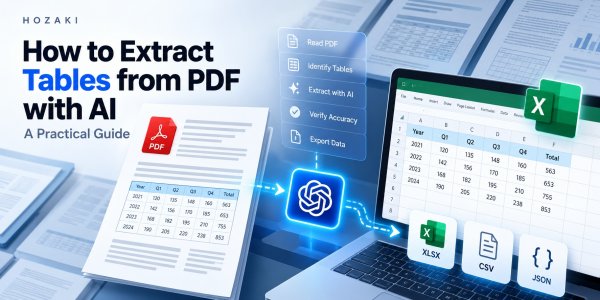
Extracting a table from a PDF should be simple. You can see the rows, columns, and numbers clearly, so why can't you just copy them into Excel?
The problem is that a PDF is primarily designed to preserve how a document looks, not necessarily how its data is structured. A table that appears perfectly organized on the page may not contain the underlying row and column relationships needed for accurate extraction.
Copying it can produce missing cells, misplaced numbers, broken headers, or an entire table pasted into one spreadsheet column.
AI can help, especially when tables have irregular layouts or require additional cleanup. But AI extraction is not automatically accurate, and it is not always the best method.
The safest way to extract tables from PDF with AI is to identify the PDF type, choose an appropriate extraction method, preserve the original data, and verify the result before using it.
This guide explains how to do that using ChatGPT, Excel, OCR-assisted workflows, and dedicated PDF table extraction tools.
Quick Answer: How to Extract Tables from PDF with AI
For a straightforward PDF table, start with this workflow:
-
Open the PDF and check whether its text can be selected.
-
Upload the document to an AI tool that supports PDF analysis.
-
Identify the exact pages and tables to extract.
-
Ask the AI to preserve column headers, row order, values, and units.
-
Request the extracted data as CSV or Excel.
-
Compare the output against the original PDF.
-
Correct any structural or numerical errors before using the data.
For scanned PDFs, an OCR step may be necessary before reliable table reconstruction is possible.
For consistent, text-based tables, a dedicated extraction tool or Excel's PDF connector may work better than a general-purpose AI assistant.
The right method depends on the document.
Why Extracting Tables from PDFs Is Difficult
A PDF can visually represent a table without storing it as a spreadsheet-like data structure.
For example, a PDF might display:
| Product | Quantity | Unit Price | Total |
|---|---|---|---|
| Item A | 12 | $25.00 | $300.00 |
| Item B | 8 | $40.00 | $320.00 |
| Item C | 15 | $18.00 | $270.00 |
This is an illustrative example, not a tested extraction result.
Although the table appears straightforward, a PDF extractor may encounter text positioned independently across the page rather than cells with explicit relationships.
The result might place prices under the wrong products or combine multiple columns into one.
Four common PDF table problems
1. Missing table structure
Some PDFs store individual text elements and coordinates without meaningful table boundaries.
2. Scanned pages
A scanned PDF may contain page images instead of selectable text. The table must first be recognized from visual content.
3. Complex layouts
Merged cells, nested headers, multi-line entries, borderless tables, and tables spanning multiple pages can confuse extraction systems.
4. Formatting-dependent meaning
Numbers may depend on column headings, currency symbols, footnotes, units, or negative-number formatting.
For example, (1,250) might represent a negative accounting value rather than ordinary parentheses around a number.
A successful extraction must preserve meaning, not just visible characters.
For a deeper explanation of document-reading problems, see Why ChatGPT Misreads PDFs and How to Fix It.
Step 1: Identify What Type of PDF You Have
Before selecting a tool, determine how the PDF was created.
This decision can save time and prevent unnecessary AI processing.
Text-based PDF
A text-based PDF contains selectable text.
You can usually highlight words, copy text, and search within the document.
These files are often easier to process using tools that detect text positions and table boundaries.
However, selectable text does not guarantee correct table extraction.
Scanned PDF
A scanned PDF typically contains images of document pages.
You may be unable to select individual words, or the text selection may come from an imperfect OCR layer.
Scanned documents often require optical character recognition (OCR) before data can be reliably exported.
Mixed PDF
Some documents contain both selectable text and scanned pages.
Others contain digitally generated text alongside embedded images of tables.
A single extraction method may not work equally well across every page.
Quick diagnostic checklist
| What you observe | Likely issue | Recommended starting point |
|---|---|---|
| Text can be selected | Text-based PDF | Excel Power Query or table extraction tool |
| Entire page behaves like an image | Scanned PDF | OCR-assisted extraction |
| Table has merged headers | Complex structure | AI-assisted reconstruction with verification |
| Table spans several pages | Repeated or split structure | Page-by-page extraction |
| Columns become mixed when copied | Reading-order problem | Layout-aware extraction |
| PDF is confidential | Data handling restrictions | Approved local or enterprise workflow |
Important: The ability to select text is only a diagnostic clue. It does not prove that the PDF contains an accurately structured table.
Step 2: Extract PDF Tables with ChatGPT
ChatGPT can work with uploaded PDF files and structured data, depending on the available features, model, and workspace settings.
For table extraction, the goal is to produce a structured representation of the original data—not a summary.
How to do it
Step 1: Upload your PDF
Open ChatGPT and attach the PDF using the file upload option available in your interface.
If the file cannot be uploaded, review ChatGPT File Upload Not Working? Causes and Fixes.
Step 2: Identify the table
Specify the page number, table title, or section where the data appears.
For example:
"Extract the table titled 'Quarterly Revenue by Region' on page 6."
Precise instructions reduce the chance of extracting an unrelated table.
Step 3: Request structured extraction
Use the following prompt:
Extract the table from page 6 of the attached PDF.
Preserve the original column headers, row order, numbers, decimal places, units, and currency symbols.
Do not summarize, estimate, or recalculate any values.
If a cell is unreadable or ambiguous, mark it as [VERIFY] rather than guessing.
Show the extracted table in a structured format and identify any rows or columns that require manual verification.
Step 4: Inspect the result
Compare the output against the source PDF.
Pay special attention to the first and last rows, repeated headings, negative numbers, and totals.
Step 5: Export the data
Once the table has been checked, request a CSV or XLSX file if file generation is available in your session.
You can ask:
"Create an Excel workbook containing the verified extracted table. Keep the original values unchanged and use the first row as column headers."
When ChatGPT is useful
ChatGPT can be particularly helpful when you need to:
-
Interpret irregular table layouts.
-
Separate headings from actual data.
-
Reconstruct a table with multi-line cells.
-
Standardize inconsistent labels after extraction.
-
Combine extracted tables into a consistent schema.
-
Explain structural ambiguities that require review.
However, ChatGPT should not be treated as an authoritative transcription system.
Depending on the document and processing path, it may omit values, misread visual relationships, or produce plausible but incorrect data.
For important datasets, verification is mandatory.
Official reference: OpenAI — Data Analysis with ChatGPT.
Step 3: Extract Tables from PDF to Excel Without AI
AI is not always necessary.
If a PDF contains a well-structured, text-based table, Excel's Power Query PDF connector may provide a more direct extraction process.
How to import PDF tables into Excel
In a supported version of Excel:
-
Open Excel.
-
Select Data.
-
Choose Get Data → From File → From PDF.
-
Select the PDF document.
-
Wait for the Navigator window to identify available tables.
-
Preview the table you want.
-
Select Load or Transform Data.
-
Review the imported data in Excel.
The exact feature availability depends on your Excel version and platform.
Microsoft documents the PDF connector and its supported environments in its official Power Query documentation.
When Power Query works well
It is worth trying first when:
-
The PDF is digitally generated.
-
Tables have consistent columns.
-
You need to repeat an extraction workflow.
-
You want to transform data inside Excel.
-
The document does not require extensive visual interpretation.
When Power Query may struggle
Potential difficulties include:
-
Scanned pages without usable text.
-
Irregular or borderless tables.
-
Multi-page tables with inconsistent headers.
-
Cells containing complex line breaks.
-
Incorrectly detected table boundaries.
If the initial import produces incorrect columns, try Transform Data before switching to another tool.
Official reference: Microsoft — Import Data from PDF Using Power Query.
Step 4: Extract Tables from Scanned PDFs with OCR and AI
Scanned PDFs require additional care because the source data may exist only as pixels.
OCR attempts to recognize characters from an image.
Table recognition then attempts to determine which recognized characters belong to which rows and columns.
These are separate problems.
A system may recognize every number correctly but still assign some numbers to the wrong columns.
Recommended workflow
Step 1: Inspect scan quality
Check whether the page is rotated, blurred, cropped, or poorly contrasted.
Small characters, handwritten annotations, and overlapping stamps can increase extraction difficulty.
Step 2: Apply OCR
Use an OCR-capable PDF tool or a document-processing workflow that supports scanned pages.
Ensure that the resulting text corresponds to the original page.
Step 3: Detect the table layout
Identify the header row, column boundaries, merged cells, and any continuation across pages.
Step 4: Use AI for reconstruction where needed
AI can help organize recognized text into a table when the OCR output has lost row or column relationships.
For example:
Reconstruct this OCR-extracted table into five columns: Date, Description, Quantity, Unit Price, and Total.
Use only the provided OCR content.
Preserve the original numerical values.
Do not fill missing cells with inferred numbers.
Mark uncertain assignments as [VERIFY].
List any text fragments that cannot be confidently assigned to a row or column.
Step 5: Verify against the original image
Do not validate the reconstructed table only against OCR text.
If the OCR itself is incorrect, both versions may contain the same mistake.
Always compare critical values against the original page image.
Example: An OCR error that changes meaning
Suppose a scanned financial table contains:
18,500.00
Poor recognition might produce:
18500.00
This may be harmless if the number is interpreted correctly.
But if the scan contains:
(18,500.00)
and the parentheses are omitted, a negative accounting value may be interpreted as positive.
That can materially change downstream analysis.
For this reason, preserve original formatting where it conveys meaning.
Step 5: Handle Complex Tables, Merged Cells, and Multiple Pages
Simple tables are not the hardest extraction problem.
The most difficult cases involve tables whose structure depends on visual layout.
Merged column headers
Consider a table with the heading "Revenue" divided into "Domestic" and "International" subcolumns.
A flat CSV cannot represent merged header cells directly.
One practical solution is to create explicit column names:
-
Revenue — Domestic
-
Revenue — International
This makes the data easier to analyze while preserving the distinction.
However, document the transformation so readers understand that the original header layout was flattened.
Multi-line cells
A single PDF cell may contain a product name, description, and note across several lines.
Extraction tools sometimes interpret each line as a separate row.
To prevent this, verify that the number of records matches the source and that descriptions remain attached to their original entries.
Tables spanning multiple pages
Multi-page tables introduce additional problems:
-
Repeated column headers
-
Page numbers inserted between rows
-
Continuation notes
-
Partial rows at page breaks
-
Subtotals repeated or separated from their sections
A reliable workflow extracts each page, checks the structure, and combines the tables only after confirming that their columns have the same meaning.
Recommended AI prompt
Extract the table from pages 8–11.
Treat repeated page headers as headers, not data rows.
Preserve the original row order.
Identify any rows split across page boundaries.
Do not merge records unless the source clearly shows they belong together.
Keep subtotal and total rows, but label them separately from ordinary records.
Report any structural ambiguity before creating the final spreadsheet.
This is more reliable than asking an AI tool to "convert the entire PDF to Excel" without additional instructions.
Step 6: Convert Extracted PDF Tables to CSV or XLSX
After extraction, choose an output format that matches your intended use.
CSV
CSV is useful for simple, flat datasets.
It works well for importing data into databases, spreadsheets, and analysis tools.
However, CSV does not preserve spreadsheet formatting, multiple worksheets, or merged cells.
XLSX
Excel workbooks support multiple worksheets, formatting, formulas, and more structured review workflows.
For multi-table PDF documents, a workbook can contain one worksheet per table.
A separate validation sheet can also be useful.
JSON
JSON may be appropriate when the extracted data will be used in software applications or automated processing pipelines.
It can represent nested structures, although the schema should be clearly defined.
Choosing the right format
| Requirement | Recommended format |
|---|---|
| Simple data analysis | CSV |
| Multiple tables | XLSX |
| Spreadsheet review | XLSX |
| Database import | CSV or structured JSON |
| Application integration | JSON |
| Preserving original PDF appearance | Keep the source PDF alongside extracted data |
Preserve the raw extraction
Do not immediately overwrite the original extracted values with cleaned data.
For high-value work, maintain separate raw and cleaned versions.
For example:
-
sales_raw.xlsx -
sales_cleaned.xlsx -
sales_validation.xlsx
These are example filenames, not files generated by this article.
Keeping a raw version makes it easier to trace errors introduced during cleaning.
Step 7: Verify PDF Table Extraction Accuracy
This is the most important step in the workflow.
A table that looks clean is not necessarily correct.
AI can generate a well-formatted spreadsheet while silently omitting rows or altering numerical values.
Check 1: Row and column counts
Compare the number of source rows and columns with the extracted output.
Exclude repeated page headers only when they are clearly not data records.
Check 2: Numerical values
Verify:
-
Decimal places
-
Negative signs
-
Thousands separators
-
Currency symbols
-
Percentages
-
Units of measurement
Pay particular attention to values that appear similar, such as 0.08 and 0.8.
Check 3: Column alignment
Confirm that values belong to the correct fields.
For example, a unit price should not appear in the quantity column.
Check 4: Totals and subtotals
Where appropriate, independently recalculate totals and compare them with the original document.
A matching total is useful evidence but does not prove that every row is correct. Two errors can sometimes cancel each other out.
Check 5: Missing and duplicate rows
Check for records omitted during page transitions and rows duplicated when tables are merged.
Check 6: Ambiguous values
Maintain a list of values that could not be confidently verified.
Do not silently replace missing values with zero.
An empty cell, a reported zero, and an unreadable value are different things.
A practical validation table
| Validation check | Example issue | Action |
|---|---|---|
| Row count | Two rows missing | Re-extract affected page |
| Column alignment | Prices under quantities | Correct mapping |
| Numerical precision | 12.75 becomes 1275 | Verify source |
| Negative values | Parentheses omitted | Restore original meaning |
| Multi-page continuity | Duplicate header as record | Remove duplicate header |
| Missing values | Blank replaced with zero | Restore blank and flag |
| Totals | Sum does not match | Investigate individual rows |
For financial, scientific, legal, or other high-impact uses, verify all material values rather than relying only on spot checks.
Best Tools for Extracting Tables from PDF
Different tools solve different parts of the extraction problem.
The following comparison is based on documented capabilities and workflow suitability, not a controlled accuracy benchmark.
| Tool | Best starting use | Main limitation |
|---|---|---|
| ChatGPT | AI-assisted extraction and restructuring | Output requires source verification |
| Excel Power Query | Structured text-based PDF tables | Complex layouts and scans can be difficult |
| Tabula | Manual extraction from text-based PDFs | Does not work directly on scanned PDFs |
| OCR-assisted PDF tools | Image-based and scanned documents | Recognition and layout errors require review |
ChatGPT
Useful when you need to interpret complex layouts, explain ambiguous structures, or organize extracted data into a consistent format.
It is particularly helpful for interactive correction.
Excel Power Query
A practical option for users already working in Excel.
It can identify available PDF tables and load or transform them within the spreadsheet environment.
Tabula
Tabula is a free, open-source tool designed to extract tables from text-based PDF documents.
You select a table region, preview the extracted data, and export the result.
It does not directly support scanned PDFs without a prior OCR or conversion step.
Official website: Tabula.
OCR-assisted extraction tools
OCR-capable workflows are necessary when the original document contains images rather than accessible text.
The important distinction is whether the tool supports both character recognition and table structure detection.
OCR alone does not guarantee correct cell relationships.
AI vs Traditional PDF Table Extraction: Which Should You Use?
The answer depends on the document's structure and the cost of errors.
| Scenario | Recommended starting method |
|---|---|
| Simple text-based PDF table | Power Query or Tabula |
| Irregular table with complex headers | AI-assisted extraction |
| Scanned financial report | OCR plus structured verification |
| Hundreds of similar PDF reports | Repeatable extraction pipeline |
| One-off research table | AI-assisted extraction with manual checking |
| Confidential business records | Approved local or enterprise solution |
AI is especially useful when the task requires interpretation.
Traditional extraction tools can be preferable when the source structure is consistent and the workflow needs to be repeatable.
In some cases, the best solution combines both approaches.
For example, use a conventional extraction tool to capture raw values, then use AI to propose a standardized schema and identify potential structural inconsistencies.
The final data should still be checked against the source.
Common PDF Table Extraction Errors and How to Fix Them
All values appear in one column
Likely cause: Column boundaries were not detected correctly.
Fix: Try a table-aware extraction method, adjust the extraction region, or split fields using verified delimiters.
Rows are merged together
Likely cause: Multi-line cells or insufficient row separation.
Fix: Compare against the original table and reconstruct row boundaries without guessing.
Some numbers are missing
Likely cause: OCR errors, cropped regions, or incomplete extraction.
Fix: Reprocess the affected page at better image quality and verify the missing cells.
Repeated headers appear as data
Likely cause: A table spans multiple pages.
Fix: Identify repeated headers and remove them from the dataset while preserving the actual data rows.
Decimal values are incorrect
Likely cause: OCR confusion, formatting conversion, or regional number conventions.
Fix: Verify the original value and explicitly define the decimal and thousands separators before conversion.
The AI invents missing values
Likely cause: The prompt encourages completion or reconstruction without requiring uncertainty reporting.
Fix: Require the AI to mark missing and ambiguous cells rather than infer values.
Privacy and Security Considerations
PDF tables sometimes contain sensitive business, financial, medical, or personal information.
Before uploading a document to an external AI service, review whether the file is permitted to leave your organization or device.
Consider:
-
Data classification and confidentiality
-
Applicable organizational policies
-
Service retention and training settings
-
Contractual or regulatory requirements
-
Access permissions
-
Whether local processing is necessary
For confidential datasets, an approved local workflow or appropriately configured enterprise service may be more suitable than a consumer-facing upload tool.
Removing names alone may not sufficiently anonymize a dataset if other fields can identify individuals.
A Reusable AI Prompt for PDF Table Extraction
Use this prompt when extracting tables from documents where accuracy matters.
You are assisting with PDF table extraction.
Extract the specified table from the attached PDF.
Source: [page numbers or table title]
Output format: [CSV, XLSX, or structured table]
Follow these rules:
Preserve every original data row in the correct order.
Preserve numerical values, decimal places, units, and signs.
Do not invent or estimate missing information.
Mark unreadable or ambiguous cells as [VERIFY].
Distinguish blank cells from reported zero values.
Identify merged headers and explain how they were converted into columns.
Keep subtotals and totals distinguishable from ordinary rows.
Identify repeated headers and page-break issues.
Report the extracted row and column counts.
List all values or structural relationships that require manual verification.
Do not claim the extraction is accurate unless it has been checked against the original document.
If you cannot access the necessary page content or table structure, explain the limitation instead of producing guessed data.
This prompt is a starting point, not a substitute for validation.
Frequently Asked Questions
Can AI extract tables from PDF files?
Yes. AI-assisted tools can help extract and reconstruct tables from PDFs, particularly when layouts are irregular. Accuracy depends on the source file, processing capabilities, and verification process.
How do I extract a PDF table into Excel using ChatGPT?
Upload the PDF, specify the table to extract, request a structured output, and review the values against the source. If file generation is available, ask ChatGPT to create an XLSX workbook from the verified data.
Can AI extract tables from scanned PDFs?
It may be possible with OCR or visual document-processing capabilities. Scanned tables are generally more challenging because both the characters and their row-column relationships must be recognized.
What is the best free tool for extracting tables from PDF?
For selectable-text PDFs, Tabula is a useful free option. Excel Power Query may also be convenient if your Excel edition supports the PDF connector. The best choice depends on the document type and available software.
Why does copying a PDF table into Excel break the columns?
PDFs do not necessarily store visible tables as structured spreadsheet cells. Copying text may follow an internal reading order that differs from the visual layout.
Can I extract multiple PDF tables at once?
Yes, depending on the tool and document structure. For better reliability, extract tables with clear identifiers, verify each table separately, and combine them only after confirming compatible columns.
Is AI PDF table extraction 100% accurate?
No. Errors can occur in text recognition, row detection, column alignment, and numerical transcription. Important results should always be validated against the original PDF.
Conclusion: Accurate PDF Table Extraction Requires More Than AI
AI has made PDF table extraction more flexible, but it has not eliminated the underlying challenges of document structure, OCR, and data accuracy.
For a simple text-based PDF, Excel Power Query or Tabula may be the most efficient starting point.
For scanned documents or irregular layouts, OCR and AI-assisted reconstruction may be more appropriate.
The essential workflow remains the same:
Identify the document type, extract the table, preserve the original values, verify the structure, and export only after checking the data.
If you are working with several research documents, you may also find How to Summarize Multiple PDFs With AI Without Losing Important Details useful for organizing extracted information across sources.
The objective is not merely to turn a PDF into a spreadsheet. It is to create data you can trace, verify, and use with confidence.
Comments 0