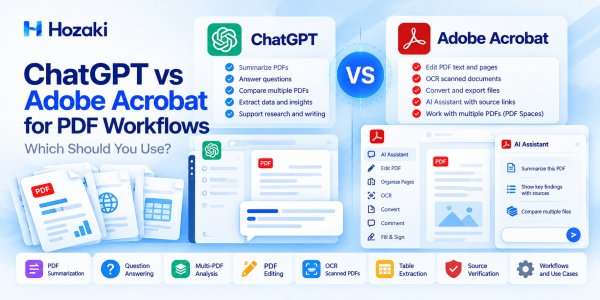
If you work with PDFs regularly, you may have wondered whether ChatGPT can replace Adobe Acrobat—or whether Acrobat's AI features make a separate AI assistant unnecessary.
The answer depends on what you need to accomplish.
ChatGPT can help you analyze documents, explain complicated passages, compare information, extract structured data, and develop insights from PDF content.
Adobe Acrobat combines established PDF editing and document-management tools with AI-powered summarization, question answering, and multi-document workspaces.
That means the choice is no longer simply between an AI chatbot and a traditional PDF editor.
Both can help you understand documents. But they differ in how they handle original PDF files, scanned documents, page layouts, source references, and downstream workflows.
This guide compares ChatGPT vs Adobe Acrobat for PDF workflows, explains the limitations that matter, and provides a practical method for choosing the right tool.
Feature availability depends on product version, subscription, region, and workspace settings. This comparison is based on documented capabilities rather than controlled performance testing.
ChatGPT vs Adobe Acrobat: Quick Verdict
Choose ChatGPT when your main goal is to analyze, interpret, compare, or transform information extracted from PDFs.
It is particularly useful when you want to ask exploratory questions, reorganize findings, generate structured summaries, or combine document analysis with a broader research or writing task.
Choose Adobe Acrobat when your main goal is to work directly with PDF files.
Acrobat is better aligned with editing PDF text, organizing pages, applying OCR, converting files, redacting information, and maintaining document-focused workflows.
Consider using both when you need to understand a document and then modify or prepare the actual PDF.
For example, you might use ChatGPT to identify inconsistencies in a report, then use Acrobat to correct the document and prepare the final version.
At-a-Glance Comparison
| Task | ChatGPT | Adobe Acrobat |
|---|---|---|
| Summarize a PDF | Supported | Supported with AI features |
| Ask questions about PDF content | Supported | Supported with AI Assistant |
| Compare information across PDFs | Supported | Supported through AI-enabled workflows, including PDF Spaces |
| Edit original PDF text and layout | Not its primary workflow | Dedicated PDF editing tools |
| Reorder, rotate, or remove PDF pages | Requires an appropriate file-processing workflow | Dedicated page organization tools |
| OCR scanned PDFs | Depends on available processing capabilities | Dedicated OCR tools |
| Extract structured information | Strong general-purpose analysis use case | PDF conversion and extraction workflows |
| Generate research insights | General-purpose AI analysis | Document-centered AI assistance |
| Check original evidence | Requires source review | Source-linked AI responses are available |
| Redact sensitive PDF content | Not a substitute for verified PDF redaction | Dedicated redaction tools in supported plans |
This table describes intended capabilities, not measured accuracy or speed.
What Are ChatGPT and Adobe Acrobat Designed to Do?
Although their capabilities overlap, the products approach PDF work from different directions.
ChatGPT: General-Purpose AI Analysis
ChatGPT is a conversational AI system that can work with uploaded documents, including PDFs.
Depending on the available tools and subscription, users can ask ChatGPT to:
-
Summarize reports.
-
Explain technical passages.
-
Compare document content.
-
Extract dates, names, or financial figures.
-
Reorganize information into tables.
-
Draft reports based on supplied material.
-
Generate new files from analyzed information.
For example, you might upload an annual report and ask:
Identify the company's major financial risks, explain how they changed from the previous reporting period, and list the source sections that support each observation.
ChatGPT can help structure the analysis, but the answer still needs verification.
Adobe Acrobat: PDF Management With AI Capabilities
Adobe Acrobat is built around working with PDF documents.
Its established capabilities include editing, converting, organizing, securing, and preparing PDF files.
Acrobat also offers AI-powered features for tasks such as:
-
Summarizing documents.
-
Asking questions about PDF content.
-
Navigating to supporting source passages.
-
Analyzing multiple sources in PDF Spaces.
-
Performing certain PDF operations through natural-language instructions.
Acrobat's AI features should not be confused with its traditional PDF editing tools. Their availability may differ by plan.
The Important Distinction
ChatGPT primarily helps users work with information.
Acrobat primarily helps users work with PDF documents, while also offering AI-assisted information analysis.
Neither description means the other product lacks those capabilities entirely.
PDF Summarization: ChatGPT vs Adobe Acrobat
Summarization is one of the most common reasons people use AI with PDFs.
Both tools can help condense lengthy documents, but the best choice depends on what you expect from the summary.
Using ChatGPT to Summarize PDFs
ChatGPT is useful when you want a customized summary.
Instead of requesting a generic overview, you can ask for:
-
An executive summary.
-
A section-by-section explanation.
-
A list of key risks.
-
A comparison of findings.
-
A summary written for a particular audience.
-
A table separating facts, interpretations, and unresolved questions.
Example prompt:
Summarize this PDF for a reader who has not seen the document.
Include:
The document's purpose.
Its main findings.
Important numerical results.
Limitations or qualifications.
Questions that require further investigation.
Identify the relevant source sections where possible.
Do not invent missing information.
The advantage is flexibility: the summary can become part of a larger analytical workflow.
However, long documents may be incompletely processed, and important qualifications may be omitted.
Using Adobe Acrobat to Summarize PDFs
Acrobat's AI capabilities provide document-centered summaries and question-answering features.
Depending on the available product and plan, users can explore generated summaries and navigate to supporting passages.
This can be useful when the primary task is understanding a document while keeping the original PDF open.
Which Is Better for Summaries?
Use ChatGPT when you need flexible analysis, specialized output formats, or follow-up reasoning tasks.
Use Acrobat when you want AI assistance closely integrated with the PDF viewing and document workflow.
Neither tool should be assumed to produce a complete or accurate summary automatically.
For high-stakes documents, compare the summary with the original source.
PDF Question Answering and Source Verification
Asking questions about a PDF is different from verifying that the answer is correct.
An AI tool may produce a convincing response while overlooking a qualification, misreading a table, or combining unrelated passages.
ChatGPT PDF Question Answering
ChatGPT can answer questions based on uploaded files and help organize responses.
For example:
According to the supplied report, what were the three largest reported expense categories?
Return the exact amounts, reporting period, and source locations.
If a figure cannot be verified from the document, mark it as unresolved.
The quality of the result depends on what information the system successfully processes.
A requested source reference is not automatically proof that the reference is correct.
Acrobat AI Assistant and Source Citations
Acrobat AI Assistant supports responses with source references that can help users navigate to relevant document passages.
This can make document-centered verification more convenient.
However, source-linked responses still require judgment.
A passage may exist but fail to support the conclusion drawn from it.
Three Levels of Verification
For either tool, check:
1. Source existence
Does the referenced passage actually exist?
2. Extraction accuracy
Were the words, numbers, and conditions extracted correctly?
3. Claim support
Does the passage genuinely support the AI-generated statement?
These checks are especially important for research, financial analysis, contracts, and regulatory documents.
For additional guidance, see Why ChatGPT Misreads PDFs and How to Fix It.
Working With Multiple PDFs
Multi-document analysis is another area where the products overlap.
ChatGPT for Cross-Document Analysis
ChatGPT can help compare information from multiple uploaded files.
Potential tasks include:
-
Identifying differences between reports.
-
Comparing research findings.
-
Combining structured data.
-
Tracking changes in terminology.
-
Creating cross-document summaries.
-
Developing a synthesis from several sources.
Example prompt:
Compare the supplied PDFs.
Create a table with:
Document name.
Relevant finding.
Supporting section.
Important differences.
Missing or conflicting information.
Keep findings from different documents separate.
Do not assume that similarly named metrics have identical definitions.
The main risk is source confusion.
When multiple documents discuss similar topics, an AI system may attribute information to the wrong source.
Adobe Acrobat PDF Spaces
Adobe offers PDF Spaces for organizing and analyzing multiple sources in a shared workspace.
PDF Spaces can bring together documents, links, notes, and AI-assisted insights.
This makes Acrobat relevant to multi-document research and collaboration, not just individual PDF editing.
Availability and usage limits depend on the applicable plan.
Which Is Better for Multiple PDFs?
Choose based on the workflow rather than assuming one product has exclusive multi-file capabilities.
ChatGPT may be more suitable when the analysis must feed into a broader writing, coding, or data-processing task.
Acrobat PDF Spaces may be more suitable when the goal is to maintain a document-centered workspace with source navigation and collaboration.
For another comparison focused on research workflows, read NotebookLM vs ChatGPT for PDFs: Which Should You Use?.
Editing PDF Text, Pages, and Layouts
This is one of the clearest differences between the products.
Can ChatGPT Edit PDF Files?
ChatGPT can help rewrite text, identify proposed changes, and generate new document content.
In supported workflows, it may also help create or transform files.
However, generating a revised PDF is not necessarily the same as editing the original PDF while preserving its exact layout, embedded elements, forms, annotations, and document structure.
For example, ChatGPT may help rewrite a policy paragraph, but that does not guarantee it can replace the paragraph in the original PDF without affecting the surrounding formatting.
Adobe Acrobat PDF Editing
Acrobat provides dedicated tools for PDF editing and document operations.
Depending on the plan, these may include:
-
Editing text.
-
Managing pages.
-
Converting PDFs.
-
Adding headers and footers.
-
Applying watermarks.
-
Redacting content.
-
Managing document security.
Adobe also documents natural-language PDF editing through Acrobat AI Assistant for supported actions and plans.
Practical Example: Correcting a Report
Suppose you need to update a report containing an outdated policy statement.
A sensible workflow is:
-
Use AI to identify the affected statement and suggest clearer wording.
-
Check the proposed wording against the authoritative policy.
-
Open the original PDF in Acrobat.
-
Apply the required change using supported editing tools.
-
Inspect the layout and surrounding content.
-
Save a revised copy.
-
Confirm that the final PDF contains the intended change.
Why Layout Verification Matters
PDFs may contain embedded fonts, complex tables, graphics, annotations, and other elements that complicate editing.
A change that looks correct in extracted text may still damage the visual document.
For precise original-file editing, Acrobat is generally the more appropriate starting point.
OCR and Scanned PDF Processing
A scanned PDF is often a collection of page images rather than a document with an accessible text layer.
This distinction matters because AI analysis and OCR are not identical operations.
What OCR Does
Optical character recognition converts text visible in images into machine-readable text.
A successful OCR workflow can make a scanned document searchable and may support further editing or extraction.
Acrobat OCR Capabilities
Acrobat includes dedicated OCR functionality in supported plans.
This makes it a practical choice for converting scanned documents into searchable or editable PDFs.
OCR accuracy depends on scan quality, language, document layout, and the complexity of the source.
ChatGPT and Scanned PDFs
ChatGPT's ability to interpret a scanned PDF depends on the available file-processing and visual-understanding capabilities.
Importantly, the ability to analyze an image is not the same as creating a corrected, searchable text layer in the original PDF.
Some ChatGPT PDF-processing workflows use extracted text rather than the complete visual content of the document.
Therefore, users should not assume that every uploaded scanned PDF will be fully understood.
Recommended Scanned-PDF Workflow
-
Inspect the PDF to determine whether text is selectable.
-
If necessary, use a suitable OCR tool.
-
Review recognition errors.
-
Confirm that the document is searchable.
-
Extract or analyze the required content.
-
Verify important values against the original page images.
For a more detailed tutorial, see How to OCR a PDF and Make Scanned Documents Searchable.
Extracting Tables and Structured Data
PDF tables are difficult because visual layout does not always translate cleanly into structured data.
A table may contain merged cells, repeated headers, footnotes, or multiple columns that become mixed during extraction.
ChatGPT for Table Analysis
ChatGPT can help reorganize extracted data into structured formats.
For example:
Extract the financial table from the supplied document.
Preserve:
Row labels.
Column headings.
Reporting periods.
Units.
Negative values.
Footnote references.
Return the results as a structured table.
Do not calculate missing values or guess unclear numbers.
Mark uncertain cells for manual review.
This can be useful when the goal is to analyze or transform the information.
Acrobat for PDF Conversion
Acrobat provides document conversion and export workflows that may be useful for moving PDF content into editable formats.
However, conversion does not guarantee that complex tables will preserve their original structure.
Which Is Better for Table Extraction?
Use Acrobat when you need a PDF-focused conversion workflow.
Use ChatGPT when you need to clean, interpret, reorganize, or analyze extracted table data.
For complex tables, combining a reliable extraction step with AI-assisted review may be more useful than relying on either tool alone.
Verify Numerical Accuracy
Always check:
-
Total rows and columns.
-
Units and currencies.
-
Decimal places.
-
Negative numbers.
-
Reporting periods.
-
Footnotes.
-
Calculated totals.
A table that looks clean may still contain incorrect values.
For a dedicated workflow, see How to Extract Tables from PDF with AI: A Practical Guide.
Pricing, Plans, and Feature Availability
Pricing comparisons can become misleading when different subscription tiers are treated as equivalent.
ChatGPT and Adobe Acrobat both have multiple plans, and feature availability can change.
ChatGPT Considerations
Before choosing a ChatGPT plan for PDF work, check:
-
File-upload availability.
-
Upload and storage limits.
-
Available analysis tools.
-
PDF visual-processing support.
-
Workspace restrictions.
-
Data handling policies.
Do not assume that every ChatGPT plan processes embedded PDF images in the same way.
Adobe Acrobat Considerations
For Acrobat, check:
-
Whether the plan includes the required PDF editing tools.
-
Whether AI Assistant is included or requires separate access.
-
Whether PDF Spaces is available.
-
OCR and conversion capabilities.
-
Document security features.
-
Usage limits.
-
Regional availability.
Compare the Cost of the Workflow
A cheaper subscription is not necessarily the more economical choice if it requires additional software or substantial manual correction.
Evaluate the total workflow:
Subscription cost + additional tools + manual verification + document preparation time.
Because prices and packaging can change, consult the current official pricing pages before purchasing.
Official resources:
Important Feature Availability Notes
Adobe Acrobat's AI-powered editing capabilities vary by subscription, platform, and supported action. For example, certain multi-tool, content-aware, and text-editing commands are limited to eligible individual Acrobat Pro or Studio plans. Check Adobe's current feature documentation before assuming that a specific AI editing action is included.
ChatGPT's PDF processing also varies by plan and upload context. OpenAI documents PDF Visual Retrieval for ChatGPT Enterprise, while other PDF workflows may rely on text extraction rather than interpreting every embedded chart or image. Users should verify the capabilities of their specific plan before relying on visual PDF analysis.
Practical Workflow: Analyze and Edit a PDF Report
Consider a fictional 30-page business report containing financial tables, charts, and several outdated policy statements.
The task is to summarize the report, identify inconsistencies, update selected wording, and prepare a corrected PDF.
This is an illustrative workflow, not a documented benchmark or a test conducted for this article.
Step 1: Inspect the PDF in Acrobat
Check:
-
Whether text is searchable.
-
Whether the pages display correctly.
-
Whether OCR is necessary.
-
Whether tables and charts are readable.
-
Whether the file has editing restrictions.
Keep an unchanged original copy.
Step 2: Prepare the Document for Analysis
If the PDF is scanned, perform OCR using an appropriate tool.
Review the OCR output before relying on extracted text.
For important charts or complex tables, inspect the original visual content separately.
Step 3: Analyze the Report With ChatGPT
Upload the permitted source material and ask:
Analyze this business report.
Identify:
The report's main conclusions.
Important financial changes.
Potential inconsistencies.
Statements that may require updating.
Numerical findings that require verification.
Reference the relevant document sections.
Do not assume that an unusual figure is an error without supporting evidence.
Step 4: Create a Correction Log
Record the proposed changes.
| Item | Source Location | Proposed Action | Verification |
|---|---|---|---|
| Financial figure | Table 2 | Check against source data | Pending |
| Policy statement | Section 4 | Review current policy wording | Pending |
| Executive summary | Page 2 | Update after verification | Pending |
Do not automatically apply AI-suggested corrections.
Step 5: Verify the Findings
Check the original tables, source documents, and authoritative policy information.
Separate confirmed errors from questions requiring further investigation.
Step 6: Edit the PDF in Acrobat
Use the appropriate Acrobat tools to make approved changes.
Inspect the affected pages after editing.
Step 7: Review the Final Document
Confirm that:
-
All approved changes are present.
-
Numerical information remains correct.
-
Page layout is intact.
-
Links and annotations work where applicable.
-
No unintended content was removed.
-
The revised file has a clear version identifier.
This combined workflow uses each tool for a task aligned with its capabilities.
When Should You Use Both ChatGPT and Adobe Acrobat?
Using both can make sense when a task involves two distinct stages:
Understanding the document and modifying the document.
Workflow 1: Financial Report Review
Use Acrobat to inspect and prepare the PDF.
Use ChatGPT to analyze extracted information and organize potential issues.
Verify the findings, then use Acrobat to apply approved edits.
Workflow 2: Academic Research
Use Acrobat to read, annotate, and prepare source documents.
Use ChatGPT to compare findings and organize research notes.
Check every important research claim against the original publications.
Workflow 3: Contract Review
Use AI to help identify clauses that may require attention.
Have qualified reviewers assess the legal meaning and risks.
Use appropriate PDF tools for approved document changes.
AI analysis should not be treated as a substitute for professional legal review.
Workflow 4: Scanned Document Processing
Use OCR tools to make scanned content searchable.
Use ChatGPT for structured analysis of the resulting text.
Check extracted values and interpretations against the original scans.
Common Mistakes When Comparing ChatGPT and Adobe Acrobat
Mistake 1: Assuming Acrobat Has No AI Features
Acrobat offers AI-assisted summaries, questions, source navigation, and multi-document capabilities in supported products.
A fair comparison must include these features.
Mistake 2: Assuming ChatGPT Is a Complete PDF Editor
ChatGPT can help transform information and generate documents, but this does not guarantee precise editing of an existing PDF's structure and layout.
Mistake 3: Treating OCR as the Same as Visual Understanding
Recognizing information in an image is not necessarily equivalent to creating a searchable and editable PDF text layer.
Mistake 4: Trusting AI Citations Without Checking Them
A citation may point to a relevant passage without fully supporting the generated conclusion.
Always inspect important evidence.
Mistake 5: Comparing Features Without Checking Plans
A capability shown in a product demonstration may not be included in the subscription being evaluated.
Mistake 6: Ignoring Data Privacy
PDFs may contain confidential, personal, financial, legal, or unpublished information.
Before uploading documents to any cloud-based AI service, check applicable permissions, organizational policies, and data handling requirements.
Mistake 7: Treating Product Marketing as Independent Testing
Vendor descriptions establish advertised capabilities, not comparative accuracy or reliability.
A credible tool comparison should distinguish documented features from results observed in a controlled test.
How to Test ChatGPT and Adobe Acrobat Fairly
If you are deciding which tool to adopt, test both using the same documents and clearly defined tasks.
Choose Representative Documents
A useful test set might include:
-
A searchable text-based report.
-
A scanned PDF.
-
A PDF containing complex tables.
-
A multi-document comparison task.
-
A PDF requiring precise text or page edits.
Use documents you are authorized to upload and process.
Define Success Criteria
For each task, record:
-
Whether the task was completed.
-
Whether the output was accurate.
-
Whether source evidence was easy to verify.
-
Whether the document layout was preserved.
-
Whether manual corrections were required.
-
Whether the feature was available in the tested plan.
Use Consistent Status Labels
Record:
-
Pass.
-
Partial.
-
Fail.
-
Not tested.
-
Not available in tested plan.
Do not label an untested feature as a failure.
Separate Objective and Subjective Measures
Objective checks might include whether a table contains the correct figures or whether a page was reordered successfully.
Subjective checks might include whether a summary is easy to understand.
Keep these judgments separate.
Record Product Versions and Plans
A useful comparison should identify the product, subscription, platform, and test date.
Without this information, later readers may incorrectly assume that the results apply to every version.
Frequently Asked Questions
Is ChatGPT better than Adobe Acrobat for PDFs?
Neither is universally better. ChatGPT is useful for flexible information analysis, while Acrobat offers dedicated PDF editing and document-management tools alongside AI features.
Can ChatGPT replace Adobe Acrobat?
ChatGPT may replace some PDF-related analysis tasks, but it is not a complete substitute for workflows requiring precise original-file editing, page management, OCR, or supported document-security operations.
Does Adobe Acrobat have an AI assistant?
Yes. Adobe offers AI-powered features for summarization, question answering, source navigation, and other supported document tasks. Availability depends on the product and plan.
Can Adobe Acrobat analyze multiple PDFs?
Yes. Adobe PDF Spaces supports organizing and analyzing multiple sources through AI-assisted workflows, subject to plan and product limits.
Can ChatGPT read scanned PDFs?
It depends on the available PDF-processing capabilities and how the scanned document is provided. For reliable searchable text, a dedicated OCR workflow may be necessary.
Which tool is better for extracting tables from PDFs?
The answer depends on the table and the desired output. Acrobat offers PDF conversion workflows, while ChatGPT can help structure and analyze extracted information. Complex tables require verification in either case.
Can ChatGPT edit text directly inside a PDF?
ChatGPT can help rewrite text and generate revised content or files in supported workflows. That should not be assumed to preserve every structural and visual detail of the original PDF.
Which tool is better for research papers?
ChatGPT can help analyze and synthesize research content. Acrobat can help manage and work with the PDF documents themselves and provides AI-assisted analysis features. The best choice depends on the research workflow.
Final Verdict: Choose Based on the PDF Task
The most useful way to compare ChatGPT and Adobe Acrobat is to ask what the final result should be.
If you need to understand a document, explore its findings, compare information, or transform extracted content into a new analysis, ChatGPT may be the more natural starting point.
If you need to edit, organize, convert, OCR, secure, or prepare the original PDF, Adobe Acrobat is generally better aligned with that work.
If your task requires both analysis and document modification, combining the tools may be appropriate.
Above all, remember that AI-generated answers and polished PDF outputs still require verification.
Choose the workflow that makes the result accurate, traceable, and suitable for its intended use—not simply the tool with the longest feature list.
Comments 0