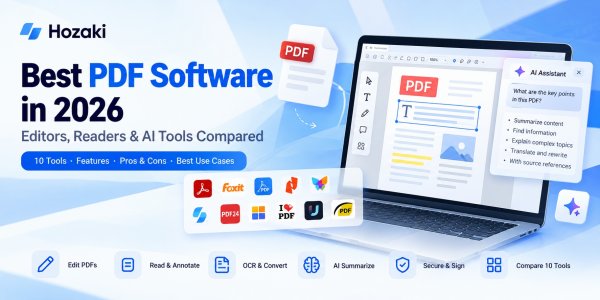
PDF software is no longer just about opening documents.
In 2026, people use PDFs to review contracts, edit reports, convert files, fill out forms, organize scanned records, collect signatures, and extract information from lengthy documents. AI-powered features have added another layer: users can now ask questions about documents, generate summaries, and locate relevant passages without manually reading every page.
But the best PDF software depends on what you actually need to do.
A student who only needs to highlight lecture notes has very different requirements from an accountant working with scanned invoices. A small business preparing contracts may need reliable editing, redaction, and electronic signatures, while a researcher may care more about searchable documents and AI-assisted reading.
That distinction matters because PDF tools are not interchangeable.
Some applications focus on reading and annotation. Others offer full text and image editing, optical character recognition (OCR), conversion, form creation, and document security. Browser-based services prioritize convenience, while desktop applications may be more appropriate when files are sensitive or offline access is essential.
The distinction between traditional PDF editors and AI PDF tools is also becoming less clear. Adobe Acrobat, for example, now supports conversational editing and document analysis alongside established editing, conversion, OCR, and signing features. However, feature availability depends on the subscription and product edition.
In this guide, we'll compare 10 PDF software options across the tasks that matter most:
-
PDF editing: Changing existing text, images, and document layouts.
-
Reading and annotation: Highlighting, commenting, bookmarking, and reviewing files.
-
Conversion: Exporting PDFs to Word, Excel, images, and other formats.
-
OCR: Making scanned documents searchable or editable.
-
Document organization: Merging, splitting, compressing, and rearranging pages.
-
Security and signatures: Protecting sensitive information and handling document approvals.
-
AI features: Summarizing documents, answering questions, and finding information.
-
Cost and compatibility: Choosing between free, paid, desktop, and browser-based software.
Our goal isn't to recommend the most expensive PDF editor or the product with the longest feature list.
It's to help you find a tool that handles your documents reliably, fits your workflow, and doesn't make you pay for capabilities you rarely use.
Quick Comparison of the Best PDF Software
What Makes Good PDF Software?
The best PDF software should do more than provide a long list of features. It should help you complete everyday document tasks accurately, efficiently, and without introducing unnecessary risks.
A PDF editor that changes your document's formatting may create more work than it saves. An AI PDF assistant that produces a convincing but inaccurate summary can be equally problematic. And a low-cost online converter may not be appropriate for confidential business files.
To compare PDF software fairly, we focus on seven important criteria.
1. Editing Accuracy and Document Integrity
Reliable editing is one of the most important qualities of professional PDF software.
Unlike a Word document, a PDF is designed to preserve the appearance of content across devices and operating systems. This makes PDFs useful for sharing finalized documents, but it can also make substantial edits more complicated.
Good PDF editing software should allow you to:
-
Modify existing text without unexpectedly changing the layout.
-
Replace, resize, or reposition images.
-
Add or remove pages.
-
Edit headers, footers, and page numbers.
-
Work with forms and annotations.
-
Save changes without damaging the document.
However, not every application supports full editing.
Some free PDF readers allow users to highlight text, add comments, or fill in forms but cannot reliably change existing paragraphs.
What to check: Test the software using a document with multiple fonts, images, tables, and page layouts. A simple one-page PDF is rarely enough to reveal editing limitations.
For complex documents, editing the original Word, PowerPoint, or design file and exporting a new PDF may be more reliable than modifying the PDF directly.
2. OCR and Scanned Document Support
Optical character recognition (OCR) converts text in scanned pages or images into machine-readable text.
This matters because a scanned PDF may look like a normal document while containing no selectable text.
Without OCR, you may be unable to search for specific terms, copy passages, or use certain document-analysis features effectively.
Good OCR functionality should support:
-
Searchable text layers.
-
Accurate recognition of printed text.
-
Multi-page scanned documents.
-
Common document layouts.
-
Relevant languages and character sets.
-
Export to editable formats where supported.
OCR accuracy can vary depending on scan quality, resolution, handwriting, language, page rotation, and document complexity.
A software product may perform well on a clean printed invoice but struggle with a faded contract or a document containing multiple columns.
What to check: Use a real scanned document and compare the recognized text against the original. Pay particular attention to numbers, dates, names, and tables.
If you frequently work with scanned invoices, contracts, or archived records, OCR should be a primary selection criterion rather than an optional extra.
3. File Conversion and Formatting Preservation
PDF conversion is useful when you need to reuse information in another application.
Common conversions include:
-
PDF to Word.
-
PDF to Excel.
-
PDF to PowerPoint.
-
PDF to JPG or PNG.
-
Office documents to PDF.
-
Images to PDF.
The important question is not simply whether a converter supports these formats.
It is how much work remains after conversion.
For example, a PDF-to-Word conversion may successfully extract text while changing paragraph spacing, fonts, or tables. A PDF-to-Excel conversion may require additional cleanup before the resulting spreadsheet is usable.
What to check: Compare the converted document with the original and evaluate text accuracy, table structure, images, and formatting.
For users who frequently convert financial reports or data-heavy documents, reliable table extraction may matter more than having dozens of supported output formats.
4. Privacy, Security, and Document Control
PDF files often contain sensitive information, including contracts, invoices, employee records, financial reports, and personal documents.
Before uploading a file to an online PDF service, consider what happens to that document.
Important questions include:
-
Is the document processed locally or uploaded to a server?
-
How long are uploaded files retained?
-
Can the provider use document content for AI model training?
-
What security controls are available?
-
Can the software apply passwords or access restrictions?
-
Does it support permanent redaction of sensitive information?
Privacy policies, data-retention practices, and security controls differ between providers and may vary by plan.
For confidential documents, desktop software that can perform the required operation locally may be preferable to a browser-based service.
However, desktop installation alone does not guarantee that every feature operates offline. Cloud synchronization, AI assistance, and some licensing features may still involve remote services.
What to check: Review the provider's official privacy and security documentation before processing sensitive documents.
Also distinguish between hiding information visually and permanently removing it. Drawing a black rectangle over text is not necessarily secure redaction.
5. AI Features and Answer Reliability
AI-powered PDF tools can help users work with long or complex documents.
Depending on the product, these features may include:
-
Summarizing reports.
-
Answering questions about a document.
-
Identifying key points.
-
Locating relevant passages.
-
Comparing document content.
-
Extracting information.
-
Generating explanations of difficult sections.
These capabilities can be useful for research, document review, and everyday information retrieval.
But AI-generated answers should not automatically be treated as verified facts.
An AI assistant may misunderstand a table, overlook a qualification, combine unrelated passages, or provide an answer that is not fully supported by the source document.
A useful AI PDF tool should make it easier to verify information, ideally by identifying relevant passages or providing navigable references to the document.
What to check: Ask the tool questions whose answers you can independently confirm. Test whether it accurately identifies page references, numerical values, exceptions, and statements that are not present in the document.
For legal, financial, medical, or other high-stakes documents, human verification remains essential.
If you primarily need document summarization rather than editing, a specialized AI reading workflow may be more appropriate than a full PDF editing subscription.
6. Platform Compatibility and Everyday Usability
The right PDF software should work with the devices and operating systems you actually use.
Consider whether you need:
-
Windows support.
-
macOS support.
-
Mobile access.
-
Browser-based access.
-
Offline functionality.
-
Cloud synchronization.
-
Collaboration and commenting.
-
Integration with existing document storage.
A lightweight Windows PDF reader may be ideal for someone who only opens documents on a desktop computer.
A remote team working across Windows, Mac, and mobile devices may benefit more from a cross-platform solution.
Usability matters just as much as compatibility.
If a common task requires navigating through several complicated menus, the software may become frustrating even when it technically supports the feature.
What to check: Complete three routine tasks during the trial period: open and annotate a document, make a required change, and export or share the result.
The fewer unnecessary steps involved, the better the fit may be.
7. Pricing and Total Cost of Ownership
PDF software pricing can be more complicated than a single subscription fee.
Some products offer free readers but charge for editing. Others include basic PDF tools at no cost while reserving OCR, advanced conversion, electronic signatures, or AI features for paid plans.
Before subscribing, check:
-
Whether pricing is monthly, annual, or perpetual.
-
Which editing features are included.
-
Whether OCR requires a higher plan.
-
Whether AI usage has separate limits or credits.
-
Whether electronic signatures cost extra.
-
Whether a license covers multiple devices.
-
Whether updates and support are included.
A free PDF tool may be sufficient for occasional merging, annotation, or conversion.
But a professional who edits complex documents every day may save time with a more capable paid application.
The goal is to match the cost to the actual workload.
What to check: List the PDF tasks you perform each month and identify which ones require paid features. Avoid paying for a full professional editing suite if you only need to read and highlight documents.
Our PDF Software Evaluation Framework
For this guide, Hozaki organizes PDF software around seven decision factors:
| Evaluation Factor | What Matters Most |
|---|---|
| Editing | Accurate changes without unnecessary layout damage |
| OCR | Searchable and usable scanned documents |
| Conversion | Reliable text, table, and formatting preservation |
| Security | Appropriate processing, privacy, and redaction controls |
| AI | Useful assistance with verifiable document references |
| Compatibility | Support for your devices and workflows |
| Cost | Features that justify the total price |
Not every user should give these factors equal weight.
A student may prioritize reading, annotation, and price. An accountant may care more about OCR and conversion accuracy. A legal professional may place greater emphasis on document integrity, secure redaction, and review workflows.
Hozaki's approach: Choose the software that performs your most important PDF tasks reliably, rather than the application that offers the greatest number of features.
Best PDF Software in 2026: 10 Tools Compared
1. Adobe Acrobat — Best Overall for Professional PDF Workflows

Best for: Professionals and teams that need a broad set of PDF editing, document management, signing, and AI capabilities.
Adobe Acrobat is a strong starting point for users who regularly work with complex PDFs and need more than basic reading or annotation.
Its feature set covers editing existing text and images, organizing pages, converting documents, preparing forms, collecting electronic signatures, and protecting sensitive information.
Acrobat also offers AI-assisted document workflows. Depending on the product and plan, users can summarize PDFs, ask questions about their contents, and follow citations back to relevant passages. Recent Acrobat updates also support certain editing actions through natural-language requests.
Key Features
-
Edit existing PDF text and images.
-
Convert PDFs into Word, Excel, PowerPoint, and other formats.
-
Combine, split, and reorganize PDF pages.
-
Create and fill forms.
-
Request and track electronic signatures.
-
Apply document security and redaction controls.
-
Use AI-assisted summaries, questions, and supported editing actions.
Limitations
Acrobat's extensive functionality may be unnecessary for users who only read documents or occasionally merge files.
Some advanced capabilities require paid subscriptions, and AI feature availability varies by product, plan, platform, and language.
Although Acrobat supports editing existing PDFs, complex layout changes may still be easier in the original source document.
Who Should Choose Adobe Acrobat?
Consider Acrobat if you regularly edit contracts, reports, business forms, scanned documents, or other professional files and want these functions within a broad PDF platform.
Hozaki's Take
Adobe Acrobat is our overall professional-workflow pick because it combines established PDF editing functions with document management, signing, and increasingly capable AI assistance.
That breadth is its main advantage. It is also the reason some users should choose a simpler alternative.
If you primarily read PDFs, Acrobat's professional features may provide little additional value.
2. Foxit PDF Editor — Best for Business PDF Editing

Foxit PDF Editor
Best for: Business users who need editing, OCR, forms, and document collaboration tools.
Foxit PDF Editor is designed for users who need to create, edit, organize, and manage PDFs as part of regular business work.
Its capabilities include editing document text and images, converting files, creating and signing forms, and processing scanned documents through OCR.
Foxit also provides AI-assisted functions, including document summarization, translation, and conversational interaction with PDF content. The availability of these features depends on the product configuration and subscription.
Key Features
-
Edit PDF text, images, and layouts.
-
Convert PDFs and create documents.
-
Perform OCR on scanned documents.
-
Merge and organize PDF pages.
-
Work with forms and signatures.
-
Use supported AI document functions.
-
Support common business document workflows.
Limitations
Foxit offers a substantial range of features, but users should carefully compare editions and subscription requirements.
Its interface and capabilities may require more familiarization than a lightweight PDF reader.
As with other PDF editors, OCR results should be reviewed when processing poor-quality scans or complex layouts.
Who Should Choose Foxit PDF Editor?
Foxit is worth considering for businesses that frequently modify documents, digitize paper records, prepare forms, or collaborate on PDFs.
It is particularly relevant for users comparing professional alternatives to Acrobat.
Hozaki's Take
Foxit is a credible choice for business-oriented PDF editing because it combines document editing, OCR, forms, and workflow features.
Rather than assuming Foxit or Acrobat is universally better, compare them using your own document types and required features.
The best choice may depend more on licensing, integrations, and everyday workflow than on their headline feature lists.
3. PDF-XChange Editor — Best for Windows Power Users

PDF-XChange Editor
Best for: Windows users who want detailed control over PDF editing, annotation, OCR, and document utilities.
PDF-XChange Editor is a Windows-focused PDF application with a wide range of document viewing, annotation, editing, and conversion tools.
Its appeal lies partly in the combination of free functionality and more advanced licensed features.
According to the developer, more than 70% of the application's features can be used without a license. However, using certain licensed features without purchasing the appropriate license can add watermarks to the resulting document.
The developer lists Windows 10 and later as supported operating systems for its September 2026 release.
Key Features
-
View and annotate PDF documents.
-
Create and edit PDF files.
-
Combine documents and convert between formats.
-
Use OCR functionality.
-
Add digital signatures.
-
Access detailed document tools and settings.
-
Upgrade to enhanced OCR and other advanced features through eligible licenses.
The developer's feature documentation distinguishes basic OCR functionality from the enhanced OCR engine included with PDF-XChange Editor Plus.
Limitations
PDF-XChange Editor is not the best fit for users who need native macOS software.
Its extensive controls may also feel more complicated than a simple PDF reader.
Most importantly, users must understand which features are free and which require licensing before editing important documents. Otherwise, they may unexpectedly introduce watermarks.
Who Should Choose PDF-XChange Editor?
Consider it if you primarily work on Windows, frequently annotate or modify PDFs, and appreciate detailed document controls.
It can be particularly appealing to users who want to explore substantial functionality before purchasing a license.
Hozaki's Take
PDF-XChange Editor is our Windows power-user pick because it offers a broad range of PDF functions and a flexible licensing model.
Its strongest advantage is control. Its main drawback is that users need to understand the interface and licensing boundaries.
For straightforward reading, a simpler application may be more comfortable.
4. Nitro PDF Pro — Best for Office Document Workflows

Nitro PDF Pro
Best for: Professionals who frequently edit, convert, review, and manage office documents in PDF format.
Nitro PDF Pro focuses on practical document workflows, including PDF creation, editing, conversion, review, and signing.
For professionals who frequently move documents between PDF and Microsoft Office formats, these capabilities can be particularly useful.
Nitro's documentation confirms support for editing existing text, modifying document content, converting PDFs into Office formats, adding annotations, and using OCR to make scanned files searchable or editable.
Nitro PDF Pro v26, released in 2026, also introduced a redesigned Windows interface and a centralized AI Smart Tools area. Its published release information describes capabilities including AI-assisted document chat, data extraction, form creation, and redaction.
Key Features
-
Create and edit PDF documents.
-
Modify existing text and images.
-
Convert PDFs into Microsoft Office formats.
-
Perform OCR on scanned documents.
-
Merge and organize files.
-
Add comments and annotations.
-
Work with electronic signatures.
-
Access supported AI document functions.
Limitations
Nitro is more suitable for users who regularly perform substantial PDF work than for someone who only needs occasional viewing.
Features may differ between operating systems, product editions, and subscription plans.
Users interested in AI functionality should confirm exactly which tools are available in their chosen version.
Who Should Choose Nitro PDF Pro?
Nitro is worth evaluating if your work involves repeated PDF-to-Office conversions, document editing, review cycles, and business document preparation.
It is also a relevant option for organizations comparing professional PDF platforms.
Hozaki's Take
Nitro PDF Pro is a strong candidate for office-centric PDF workflows.
Its value comes from combining editing, conversion, OCR, and document management in a single application.
For users who already rely heavily on Microsoft Office documents, Nitro deserves consideration alongside Adobe Acrobat and Foxit.
5. PDFgear — Best for Free Everyday PDF Editing
![[2 Modi] Come Modificare il Testo in un File PDF](https://images.openai.com/static-rsc-4/nT6QD6cXlrwdp4Z5CvRBfyAEsTwhApxo0p6SoUQ12L6OsQ9YmrJpYGIZnYJchcNuqI3gzGkxqMCAGmNC3qZZMWjlu2GeD3MocK-s50J3vTbPSFB-ceedZlCIxr7S5vwoXgRjkdlSdDgIwKggCPnSAxNXjPs4VhJbURuyaQ6cwOY?purpose=inline)
PDFgear
Best for: Students, individual users, and occasional PDF editors who want capable free tools.
PDFgear is a particularly interesting option for users who want more than a basic PDF reader without immediately purchasing a professional editing subscription.
The developer currently promotes PDFgear as a free PDF editor with support for document editing, conversion, reading, and AI-assisted interactions.
Its official product information describes the ability to modify existing text, summarize documents, translate PDF content, and interact with documents using natural-language commands.
The developer also states that its AI functionality is free at the current stage, making it important to verify future pricing and feature changes before relying on that arrangement long term.
Key Features
-
Read and annotate PDF files.
-
Edit existing PDF text.
-
Convert PDF documents.
-
Organize and manage pages.
-
Summarize PDF content using AI.
-
Ask questions about documents.
-
Use supported natural-language PDF commands.
Limitations
Free availability does not automatically mean PDFgear is the right choice for every document workflow.
Users handling confidential files should review its current privacy policy and understand how any cloud-dependent or AI features process document content.
Its advanced editing and document-management capabilities should also be evaluated against professional applications when working with complex layouts, specialized forms, or organizational requirements.
AI-generated summaries and answers still require verification against the source document.
Who Should Choose PDFgear?
PDFgear is worth trying if you need occasional PDF editing, conversion, annotation, or AI-assisted reading and want to avoid paying for features you may rarely use.
It is especially relevant to students and individuals with everyday document needs.
Hozaki's Take
PDFgear is our free everyday-editing pick because it combines useful PDF functions with accessible AI-assisted features.
Its appeal is straightforward: users can explore a broader range of PDF tasks without immediately committing to a paid professional suite.
However, users who depend on complex document workflows should test it against their actual files before treating it as a complete replacement for paid software.
6. PDF24 Creator — Best for Free Windows PDF Utilities

PDF24 Creator
Best for: Windows users who need free tools for merging, splitting, converting, compressing and organizing PDFs.
PDF24 Creator takes a different approach from full-featured professional PDF editors.
Instead of focusing primarily on complex document editing, it provides a collection of practical PDF utilities that help users handle everyday file operations.
These include merging documents, splitting pages, compressing files, converting formats, rearranging pages and creating PDFs.
One important distinction is that PDF24 Creator is a Windows desktop application. Its desktop tools are designed to work locally, making it particularly useful for users who prefer not to upload routine documents to an online converter.
The developer also offers separate browser-based PDF24 Tools, but those should not be confused with the locally installed Creator application.
Key Features
-
Merge multiple PDFs into one document.
-
Split PDFs and extract selected pages.
-
Compress large PDF files.
-
Convert files into PDF format.
-
Rearrange, rotate and delete pages.
-
Create PDFs using a virtual printer.
-
Access additional document utilities, including OCR-related tools.
Limitations
PDF24 Creator is not designed to replace every feature of a professional PDF editing suite.
Users who regularly modify existing paragraphs, work with sophisticated forms or require advanced document-review workflows may need another application.
The desktop version is also Windows-focused, making it less suitable for people who primarily use macOS.
Who Should Choose PDF24 Creator?
PDF24 Creator is a practical option for Windows users who frequently merge, compress, convert or organize PDFs but do not need expensive professional editing software.
It is particularly useful for students, administrative staff and small businesses handling routine document tasks.
Hozaki's Take
PDF24 Creator is our pick for free Windows PDF utilities.
Its value comes from offering a useful collection of document tools without requiring users to subscribe to a professional editing suite.
For many everyday PDF operations, that is enough.
7. Smallpdf — Best for Browser-Based PDF Tasks

Smallpdf
Best for: Users who want convenient PDF conversion, compression, editing and organization through a web browser.
Smallpdf focuses on making common PDF operations accessible without requiring users to learn a complicated desktop application.
Its browser-based tools cover tasks such as compressing files, converting PDFs, merging documents, splitting pages and adding content to existing PDFs.
Smallpdf also offers OCR and AI-powered document functions, although availability and usage limits depend on the tool and subscription.
For users who only occasionally work with PDFs, the ability to open a browser, complete a task and download the result can be more convenient than installing a full editing suite.
Key Features
-
Compress PDF files.
-
Convert PDFs to and from common document formats.
-
Merge and split PDFs.
-
Add text, images and annotations.
-
Organize PDF pages.
-
Access supported OCR and AI PDF features.
-
Use selected electronic-signature functions.
Limitations
Smallpdf's free usage is subject to restrictions, and some advanced features require a paid plan.
Because many browser-based operations involve uploading documents, users should review the provider's current security, privacy and file-retention policies before processing sensitive information.
Internet access may also be necessary for the tools being used.
Who Should Choose Smallpdf?
Smallpdf is a good starting point for users who occasionally need to convert, compress, organize or make simple changes to PDF files.
It is particularly convenient when working on shared computers or devices where installing desktop software is impractical.
Hozaki's Take
Smallpdf is our browser-convenience pick.
Its biggest advantage is accessibility: common PDF operations are available through a relatively straightforward web interface.
However, users who handle confidential documents or work offline regularly should evaluate desktop alternatives.
8. iLovePDF — Best for Simple PDF Conversion and Organization

iLovePDF
Best for: Users who regularly convert, merge, split, compress and organize PDF files.
iLovePDF is built around a collection of focused document utilities.
Rather than requiring users to navigate a large professional editing interface, it organizes common PDF tasks into individual tools.
For example, users can select a PDF-to-Word converter, merge several files, extract pages or reduce document size.
This task-oriented approach makes iLovePDF particularly accessible for occasional users.
The provider also offers desktop and mobile products, giving users alternatives to its browser-based workflow.
Key Features
-
Merge multiple PDFs.
-
Split documents into separate files.
-
Compress PDFs.
-
Convert PDFs to Word, Excel, PowerPoint and image formats.
-
Convert supported Office documents and images into PDFs.
-
Rotate and organize pages.
-
Add page numbers and watermarks.
-
Access OCR and other advanced functions where supported.
Limitations
Free usage limits and feature availability vary between tools and plans.
Converting complex PDFs into editable formats may still require manual formatting corrections.
As with other online document services, users should check how uploaded files are processed and retained.
Who Should Choose iLovePDF?
iLovePDF is suitable for people who primarily need straightforward document conversion and organization.
It can be especially useful when PDF work consists of short, clearly defined tasks rather than extensive editing sessions.
Hozaki's Take
iLovePDF is our pick for simple conversion and organization.
Its main strength is that it helps users accomplish common tasks without navigating a complex professional editing environment.
For users who mostly merge, split or convert files, that simplicity may matter more than advanced editing capabilities.
9. UPDF — Best for Cross-Platform PDF Editing

UPDF
Best for: Users who want PDF editing, annotation, document organization and AI-assisted reading across multiple devices.
UPDF combines traditional PDF editing with document reading, annotation, conversion and AI-assisted features.
Its cross-platform positioning makes it relevant for people who use different devices throughout the workday.
For example, someone may review a document on a tablet, edit it on a desktop computer and access related files on another device.
UPDF supports Windows, macOS, iOS and Android, although particular functions can vary between platforms and product editions.
The software also provides AI-powered document assistance for supported workflows, including summarization, translation and question answering.
Key Features
-
Edit existing PDF text and images.
-
Highlight, annotate and comment on documents.
-
Organize and rearrange pages.
-
Convert PDFs into other formats.
-
Use supported OCR functions.
-
Access AI-assisted PDF reading and analysis.
-
Work across major desktop and mobile platforms.
Limitations
Users should check whether the features they need are available on their preferred operating system.
PDF editing, cloud services and AI assistance may have different licensing requirements or usage limits.
AI-generated answers should also be checked against the original document, particularly when extracting numerical or technical information.
Who Should Choose UPDF?
UPDF is worth considering if you need more than a basic PDF reader and regularly switch between desktop and mobile devices.
It is also a relevant alternative for users comparing professional PDF editors with newer AI-assisted applications.
Hozaki's Take
UPDF is our cross-platform editing pick because it brings together conventional PDF tools and AI-assisted document functions across several operating systems.
Its main attraction is workflow flexibility.
Before purchasing, verify that your required features work on the devices you actually use.
10. SumatraPDF — Best for Lightweight PDF Reading on Windows

SumatraPDF
Best for: Windows users who primarily want a fast, simple PDF reader without extensive editing features.
Not everyone needs a PDF editor.
Some users simply want to open documents, navigate pages, search for information and read files without waiting for a large application to load.
SumatraPDF is designed around that simpler use case.
It is a free, lightweight document reader for Windows that supports PDFs as well as several other document and ebook formats.
Its minimalist approach makes it particularly appealing to users who value quick access to documents over extensive editing functionality.
Key Features
-
Read PDF documents.
-
Navigate pages and bookmarks.
-
Search within searchable documents.
-
Open several additional document and ebook formats.
-
Use a compact Windows application.
-
Access portable builds where available.
Limitations
SumatraPDF is not intended to replace a full professional PDF editor.
Users who need to modify existing text, perform advanced OCR, convert documents or manage complex forms should choose a different application.
Its focus on Windows also limits its suitability for users working primarily on macOS or mobile devices.
Who Should Choose SumatraPDF?
SumatraPDF is a good choice for Windows users who spend most of their PDF time reading rather than editing.
It can be particularly useful for people who want a lightweight secondary reader alongside a more capable PDF editor.
Hozaki's Take
SumatraPDF is our lightweight-reader pick.
It demonstrates an important principle: the best PDF software is not always the software with the most features.
For users who primarily need to open and read documents, a focused reader may provide a better experience than a complex editing suite.
Free vs Paid PDF Software: Which Is Worth It?
One of the most common questions when choosing PDF software is whether a paid subscription is actually necessary.
For many users, the answer is no.
Free PDF software can handle a surprising number of everyday tasks, including reading documents, merging files, compressing PDFs, adding annotations, and converting common file formats.
However, paid PDF software becomes more valuable when document editing is part of your regular workflow or when you need advanced features such as reliable OCR, secure redaction, business integrations, and document approval tools.
The key is understanding what you are paying for.
What Can You Do With Free PDF Software?
Depending on the application, free PDF tools may support:
-
Opening and reading PDF documents.
-
Highlighting and annotating text.
-
Merging multiple files.
-
Splitting documents into separate pages.
-
Compressing large PDFs.
-
Converting common document formats.
-
Adding basic text or images.
-
Performing selected OCR or AI-assisted tasks.
For example, PDF24 Creator is useful for common Windows document utilities, while SumatraPDF focuses on lightweight reading.
PDFgear offers a broader collection of free editing and AI-assisted functions, although users should verify current feature availability and usage conditions.
Online services such as Smallpdf and iLovePDF also provide free access to selected tools, typically with limitations that vary by service and plan.
For occasional document tasks, these options may be sufficient.
When Is Paid PDF Software Worth the Cost?
Paid PDF software becomes more attractive when your work depends on consistent document quality, advanced editing, or professional workflows.
Consider a paid application if you regularly need to:
-
Edit existing paragraphs without rebuilding the document.
-
Work with complicated tables, forms, or layouts.
-
Process large volumes of scanned documents.
-
Convert PDFs into editable Office files.
-
Permanently redact confidential information.
-
Manage document approvals and signatures.
-
Apply organization-specific security controls.
-
Use advanced automation or collaboration features.
Adobe Acrobat, Foxit PDF Editor, Nitro PDF Pro, and licensed editions of PDF-XChange Editor are relevant options for these workflows.
However, purchasing professional software does not guarantee that every feature is included in the entry-level plan.
Before subscribing, confirm which edition provides the functions you actually need.
Free vs Paid PDF Software Comparison
| Factor | Free PDF Software | Paid PDF Software |
|---|---|---|
| Reading PDFs | Usually sufficient | Usually included |
| Basic annotation | Often available | Commonly available |
| Merge and split | Widely available | Commonly available |
| Existing text editing | Varies significantly | More commonly supported |
| Advanced OCR | Often limited or product-dependent | More commonly available |
| Secure redaction | Must verify carefully | Available in selected professional products |
| AI features | May be limited or separately priced | Often plan-dependent |
| Business workflows | Usually limited | More likely to offer advanced controls |
| Support and administration | Varies | Often more extensive |
This table describes general market patterns rather than guarantees about every product.
How to Avoid Paying for Features You Don't Need
Start by identifying your three most frequent PDF tasks.
For example:
Scenario A: You only read and highlight documents.
A free reader or annotation tool may be all you need.
Scenario B: You merge invoices and compress documents several times a week.
A utility-focused application such as PDF24 Creator may be more appropriate than a full professional editor.
Scenario C: You edit contracts and convert scanned records every day.
A professional PDF editor with reliable OCR and document security tools may justify its cost.
Scenario D: You mostly summarize long research papers.
An AI PDF reading workflow may be more useful than purchasing advanced editing capabilities.
The best approach is to begin with the least expensive option that meets your requirements, then upgrade only when a specific limitation becomes a recurring problem.
Hozaki's recommendation: Don't compare PDF software by subscription price alone. Compare the cost of the software with the time, effort, and risk involved in your actual document workflow.
Traditional PDF Editors vs AI PDF Tools: What's the Difference?
AI-powered PDF features have changed how people interact with documents.
Instead of manually searching through a lengthy report, users can ask a question and receive a generated answer. AI tools may also summarize sections, extract key points, or help explain unfamiliar terminology.
But AI PDF tools and traditional PDF editors are designed to solve different problems.
Understanding that distinction can prevent unnecessary subscriptions and unrealistic expectations.
What Traditional PDF Editors Do Best
Traditional PDF editors focus on directly modifying and managing documents.
Their strengths include:
-
Editing existing text and images.
-
Rearranging pages.
-
Creating and filling forms.
-
Converting files.
-
Performing OCR.
-
Adding annotations.
-
Applying passwords and permissions.
-
Using supported redaction and signature tools.
These functions are important when you need to produce a finished document.
For example, if you must correct a contract's wording, update an invoice, or prepare a form for signing, a traditional PDF editor is usually the starting point.
What AI PDF Tools Do Best
AI PDF tools focus primarily on understanding and working with document content.
Depending on the application, they may help you:
-
Summarize lengthy reports.
-
Ask questions about a PDF.
-
Identify important arguments.
-
Explain technical terminology.
-
Locate information across sections.
-
Compare statements within documents.
-
Extract structured information.
-
Translate or rewrite selected content.
These features are particularly useful for research, studying, and reviewing information-heavy documents.
For example, a researcher reading a 70-page report might ask an AI assistant to identify the report's main findings and locate the supporting sections.
That is a different task from editing the report's existing text or changing its layout.
Traditional PDF Editors vs AI PDF Tools
| Task | Traditional PDF Editor | AI PDF Tool |
|---|---|---|
| Edit existing text | Primary strength | Product-dependent |
| Change page layout | Primary strength | Often limited |
| Merge or split PDFs | Common feature | Not always supported |
| Perform OCR | Available in selected products | May rely on OCR |
| Summarize long documents | Usually requires AI integration | Primary strength |
| Answer questions about content | Requires AI functionality | Primary strength |
| Verify source passages | Manual review | Some tools provide references |
| Prepare final business documents | Generally more suitable | Usually supplementary |
The categories increasingly overlap.
Some professional PDF editors now include AI assistants, while certain AI-powered applications also provide conventional editing features.
For that reason, the distinction should be based on the tasks a product can perform, not simply whether its marketing includes the term "AI."
Can AI PDF Tools Replace Traditional Editors?
Sometimes, but not always.
If your primary goal is to read, summarize, and understand documents, an AI PDF tool may cover much of your workflow.
If you need precise control over existing text, images, forms, signatures, or document security, a conventional PDF editor remains important.
For users who perform both types of work, an application that combines editing and AI assistance may be more convenient.
However, AI-generated output introduces an additional consideration: accuracy.
An AI assistant may misinterpret a table, omit an exception, or provide a summary that sounds correct but does not fully reflect the source.
Before relying on an AI-generated answer:
-
Check the relevant source passages.
-
Verify numbers, dates, names, and quotations.
-
Confirm whether the tool analyzed the entire document.
-
Review any citations or page references it provides.
-
Avoid treating generated explanations as professional legal, medical, or financial advice.
AI can reduce the effort required to review documents, but it does not eliminate the need for verification.
Hozaki's recommendation: Choose a traditional editor when your goal is to change the document. Choose AI-assisted tools when your goal is to understand the document. If you need both, compare applications that combine these capabilities.
How to Choose the Best PDF Software for Your Needs
The best PDF software is not necessarily the most powerful application.
It is the application that solves your most important document problems with the fewest unnecessary complications.
A practical way to choose is to start with your primary use case.
Best PDF Software for Students
Students typically need to read lecture notes, highlight textbooks, organize course materials, and occasionally convert or merge files.
Useful features include:
-
Free or affordable access.
-
Highlighting and annotations.
-
Searchable documents.
-
Simple page organization.
-
Support for common devices.
-
Optional AI-assisted summaries.
Recommended starting points: PDFgear for broader everyday functions, SumatraPDF for lightweight Windows reading, and UPDF for users who need supported cross-platform editing and annotation.
Students should avoid paying for advanced business features unless their coursework specifically requires them.
Best PDF Software for Office Workers
Office workers often need to edit reports, convert documents, prepare forms, and share PDFs with colleagues.
Useful features include:
-
Reliable text editing.
-
Microsoft Office conversion.
-
Document comments.
-
Form handling.
-
Electronic signatures.
-
OCR for scanned records.
Recommended starting points: Adobe Acrobat, Foxit PDF Editor, or Nitro PDF Pro.
The best choice depends on the organization's existing tools, security requirements, and licensing arrangements.
Best PDF Software for Small Businesses
Small businesses may handle invoices, agreements, client forms, and other important records.
In addition to editing and conversion, they should consider:
-
Document security.
-
Permanent redaction.
-
Electronic signature workflows.
-
File storage and access controls.
-
License management.
-
Total subscription costs.
Recommended starting points: Adobe Acrobat, Foxit PDF Editor, or Nitro PDF Pro for professional workflows.
For routine merging, compression, and file organization, PDF24 Creator may be sufficient on Windows.
Small businesses should also confirm whether their chosen product meets applicable document-retention and privacy requirements.
Best PDF Software for Researchers
Researchers often work with long papers, technical reports, and reference materials.
Their priorities may include:
-
Fast document navigation.
-
Text search.
-
Annotation.
-
OCR.
-
AI-assisted summaries.
-
Verifiable references to source passages.
Recommended starting points: An AI-capable PDF application such as Adobe Acrobat or UPDF, depending on supported features and plan requirements.
A lightweight reader can also remain useful for distraction-free document review.
Researchers should verify AI-generated claims against the original paper rather than citing an AI summary as the source.
Best PDF Software for Windows Users
Windows users have access to several distinct types of PDF applications.
Choose PDF-XChange Editor if you want detailed editing controls and are comfortable evaluating free versus licensed features.
Choose PDF24 Creator if you primarily merge, split, convert, and compress files.
Choose SumatraPDF if you mainly need a lightweight reader.
Choose a professional editor such as Adobe Acrobat, Foxit PDF Editor, or Nitro PDF Pro if advanced editing and business workflows are central to your work.
Best PDF Software for Mac Users
Mac users should first consider the PDF capabilities already available on their devices.
Apple's built-in Preview application supports common tasks such as reading, annotating, filling forms, and certain page-management operations.
If those features meet your needs, additional software may be unnecessary.
For more extensive editing, conversion, OCR, or AI-assisted workflows, consider compatible editions of Adobe Acrobat, UPDF, or another professional PDF application.
Check platform-specific features before purchasing, because Windows and macOS editions do not always provide identical capabilities.
Best PDF Software for Occasional Users
If you only work with PDFs a few times each month, simplicity and cost should be major priorities.
For common tasks:
-
Use PDF24 Creator for free Windows utilities.
-
Consider Smallpdf or iLovePDF for convenient browser-based operations.
-
Use a lightweight reader when you only need to open documents.
-
Evaluate PDFgear when you need occasional editing.
Avoid purchasing a full professional subscription until you encounter a recurring task that free tools cannot handle reliably.
Quick PDF Software Decision Guide
| If You Need To... | Start With... |
|---|---|
| Read PDFs on Windows | SumatraPDF |
| Merge and compress files for free | PDF24 Creator |
| Edit PDFs without an immediate subscription | PDFgear |
| Complete quick tasks in a browser | Smallpdf or iLovePDF |
| Edit professional business documents | Adobe Acrobat or Foxit |
| Convert and manage office documents | Nitro PDF Pro |
| Use detailed Windows editing tools | PDF-XChange Editor |
| Edit across desktop and mobile devices | UPDF |
| Read and analyze documents with AI | An AI-capable PDF tool with source verification |
These are starting points rather than universal rankings.
Before making a final decision, test your preferred application with a representative PDF, confirm that the required features are included in your plan, and review the provider's current security and privacy information.
The simplest rule: Choose PDF software based on what you do most often, not what the product can theoretically do.
Common PDF Software Mistakes to Avoid
Choosing PDF software seems straightforward until a document becomes difficult to edit, a conversion breaks the formatting, or a supposedly free feature requires payment.
Many of these problems can be avoided by understanding a few common mistakes before committing to a particular application.
1. Choosing Software Based Only on the Number of Features
A PDF application with dozens of advanced tools may appear more attractive than a lightweight alternative.
However, a long feature list does not automatically translate into a better experience.
For example, someone who primarily reads reports may not benefit from advanced form creation, batch processing, or electronic signature management.
Instead of comparing every available feature, identify the tasks you perform most frequently.
Better approach: Choose software that handles your three most important PDF tasks reliably. Treat additional features as secondary benefits.
2. Confusing PDF Annotation With Full Editing
Many PDF readers allow users to highlight text, add comments, draw shapes, and insert text boxes.
These functions are useful, but they are not necessarily the same as editing existing document content.
A tool that lets you place a text box over a page may not allow you to modify the original paragraph underneath it.
This distinction matters when correcting contracts, updating reports, or changing existing document layouts.
Better approach: Before choosing a PDF editor, confirm that it can modify existing text and images rather than simply adding annotations.
3. Uploading Confidential Documents Without Checking Privacy Policies
Browser-based PDF services are convenient, especially for quick conversion and compression tasks.
However, uploading a PDF to an online service may involve transferring the document to the provider's servers.
That can create additional considerations when handling contracts, financial statements, employee information, or confidential business records.
Not every online service follows the same document-retention or data-processing practices.
Better approach: Review the provider's privacy and security documentation before uploading sensitive files. Consider local processing when appropriate.
4. Assuming AI-Generated PDF Summaries Are Always Accurate
AI PDF assistants can make long documents easier to navigate.
But generated summaries and answers may contain errors, overlook important qualifications, or misinterpret numerical information.
This becomes particularly risky when users rely on AI-generated output for financial, legal, medical, or technical decisions.
Better approach: Verify important claims against the original PDF. Check page references, tables, dates, numerical values, and quoted passages.
AI should support document review rather than replace it.
5. Ignoring OCR Quality
Scanned PDFs can look identical to digital PDFs while behaving very differently.
A scanned page may contain only an image of text, making it difficult to search, copy, or edit without OCR.
Even when OCR is available, recognition accuracy can vary depending on scan quality, language, and document layout.
Better approach: Test OCR using a representative scanned document before relying on it for important records.
Pay particular attention to names, invoice amounts, dates, and table values.
6. Confusing Visual Cover-Ups With Secure Redaction
Removing sensitive information from a PDF requires more than placing a black rectangle over visible text.
If the original content remains in the document, it may still be recoverable through copying, searching, or other document-processing methods.
For confidential records, this can create a serious information-disclosure risk.
Better approach: Use a dedicated redaction feature that permanently removes the selected content, then verify the resulting file.
7. Paying for a Subscription Before Testing Real Documents
A product demonstration may look impressive, but your actual PDFs may contain complicated tables, unusual fonts, scanned pages, or specialized forms.
Software that performs well on simple documents may struggle with these more demanding files.
Better approach: Use a trial or free version to complete several real tasks before purchasing.
Check editing accuracy, conversion quality, OCR results, usability, and any feature restrictions.
8. Forgetting About Long-Term Compatibility
PDF software is often selected for an immediate problem without considering future requirements.
For example, a user may choose a Windows-only application and later need to work on a Mac or mobile device.
A team may also discover that different software versions produce inconsistent results.
Better approach: Consider your operating systems, device requirements, collaboration needs, and long-term document workflows before making a final decision.
The right PDF application should fit the way you work today without creating unnecessary problems tomorrow.
Frequently Asked Questions About PDF Software
What is the best PDF software in 2026?
Adobe Acrobat is a strong overall option for professional PDF workflows because it combines editing, conversion, OCR, signing, document management, and supported AI features.
However, the best choice depends on your needs.
PDFgear is worth considering for free everyday editing, PDF24 Creator for free Windows utilities, UPDF for cross-platform workflows, and SumatraPDF for lightweight reading.
What is the best free PDF editor?
PDFgear is a useful starting point for users who want free PDF editing and related document tools.
PDF-XChange Editor also provides substantial functionality without a license, although certain advanced features require payment and may introduce watermarks when used without the appropriate license.
For merging, splitting, and compressing files on Windows, PDF24 Creator is another strong free option.
Always check current feature restrictions before choosing a free editor.
Is Adobe Acrobat worth paying for?
Adobe Acrobat may be worth the cost if you regularly edit complex PDFs, convert documents, use OCR, prepare forms, manage signatures, or require professional document controls.
If you only read PDFs or occasionally merge files, a free alternative may be sufficient.
Compare the features included in the relevant Acrobat plan against your actual workload before subscribing.
What is the best PDF software for Windows?
The best Windows PDF software depends on your primary task.
PDF-XChange Editor is worth considering for detailed editing controls, PDF24 Creator for free PDF utilities, and SumatraPDF for lightweight reading.
Adobe Acrobat, Foxit PDF Editor, and Nitro PDF Pro are relevant options for professional editing and business workflows.
What is the best PDF software for Mac?
Apple Preview is a practical starting point for Mac users who need basic PDF reading, annotation, form filling, and page organization.
For more advanced editing, conversion, OCR, or AI-assisted workflows, consider compatible editions of Adobe Acrobat or UPDF.
Confirm that the required features are supported on macOS before purchasing.
Can AI PDF tools replace traditional PDF editors?
AI PDF tools can be useful for summarizing documents, answering questions, and extracting information.
However, they do not always provide the precise editing, layout control, forms, redaction, or document-management functions available in professional PDF editors.
Users who need both document editing and AI assistance should compare applications that combine these capabilities.
Is it safe to use free online PDF converters?
Safety depends on the provider, the document, and the way the service processes uploaded files.
Before using an online PDF converter for confidential documents, review its privacy policy, security documentation, and file-retention practices.
For sensitive information, a suitable desktop tool that performs the operation locally may be preferable.
Do I need OCR software to edit a scanned PDF?
Often, yes.
A scanned PDF may contain images of text rather than editable characters. OCR converts recognizable text into machine-readable content.
However, OCR does not guarantee perfect results. Scanned documents containing poor-quality text, unusual fonts, or complicated layouts may require manual correction.
Conclusion: Which PDF Software Should You Choose?
The best PDF software in 2026 depends on what you need to accomplish.
If you regularly edit professional documents, prepare forms, convert files, and manage signatures, Adobe Acrobat, Foxit PDF Editor, and Nitro PDF Pro are worth evaluating.
If you want detailed editing controls on Windows, PDF-XChange Editor deserves consideration.
For everyday tasks without a paid subscription, PDFgear and PDF24 Creator offer useful alternatives.
If you prefer browser-based tools, Smallpdf and iLovePDF make common document operations accessible without a complicated desktop workflow.
For cross-platform editing, UPDF is another option to explore, while SumatraPDF remains appealing for users who simply want a lightweight Windows reader.
The most important lesson is that more features do not always mean better software.
Before choosing a PDF application:
-
Identify your most frequent document tasks.
-
Confirm that the software supports your operating system.
-
Test editing, OCR, and conversion with real files.
-
Review privacy and security practices.
-
Compare the features included in free and paid plans.
-
Verify AI-generated information against the original document.
A good PDF tool should make your work easier without introducing unnecessary cost, complexity, or risk.
Explore More Software Guides
Choosing the right PDF application is only one part of building a more efficient digital workflow.
Explore more practical software recommendations, comparisons, and tutorials in the Hozaki Software Guides hub.
You can also browse our AI Tools Guides to learn how AI-powered applications can support document research, writing, and everyday productivity.
Sources & Methodology
How We Evaluated PDF Software
This guide compares PDF applications using publicly documented product capabilities and practical workflow requirements.
We considered seven primary factors:
-
PDF editing capabilities and document integrity.
-
OCR and scanned document support.
-
File conversion and formatting.
-
Privacy, security, and document controls.
-
AI-assisted document features.
-
Platform compatibility and usability.
-
Pricing structure and feature availability.
We also considered which types of users each application is designed to serve.
For example, a lightweight PDF reader was not evaluated as though it were a professional document-editing suite. Similarly, an online conversion service was not expected to provide every feature of a desktop PDF editor.
What Our Recommendations Mean
The "Best for" labels in this guide represent editorial recommendations based on documented features and intended use cases.
They are not the results of standardized performance benchmarks or hands-on testing of every application under identical conditions.
We have not assigned numerical performance scores because doing so without a consistent testing methodology would create misleading precision.
Software features, pricing, supported platforms, and AI usage limits can change. Readers should verify current details on the developer's official website before making a purchase.
Official Product Sources
For more information about how Hozaki develops and reviews its guides, read our Editorial Policy.
Comments 0