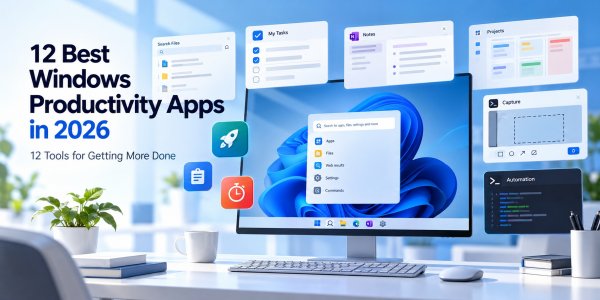
Working on Windows can feel surprisingly inefficient, even when you have a powerful computer.
You might spend too much time searching for files, switching between windows, copying the same information, organizing tasks, or repeating small actions throughout the day.
Individually, these interruptions seem minor. Together, they can make everyday work more frustrating than it needs to be.
The good news is that you don't necessarily need a new computer or an expensive software subscription to improve your workflow.
The best Windows productivity apps help you complete common tasks with less friction. Some improve features already available in Windows 11. Others make it easier to manage tasks, capture information, automate repetitive actions, or stay focused.
For example, Microsoft PowerToys adds useful Windows utilities for window management and keyboard-driven workflows. Everything helps users locate files quickly, while AutoHotkey makes it possible to automate repetitive desktop actions.
Other applications solve different problems. Obsidian and OneNote help organize information, Todoist and Microsoft To Do support task management, and ShareX simplifies screenshots and screen capture.
But installing more productivity apps does not automatically make you more productive.
A collection of overlapping tools can create additional notifications, duplicated tasks, and unnecessary complexity.
That's why this guide focuses on 12 Windows productivity apps worth considering in 2026, with recommendations based on what each application is designed to do.
We'll compare tools for:
-
File search and organization.
-
Window management and keyboard shortcuts.
-
Task and project management.
-
Notes and personal knowledge.
-
Screenshots and information capture.
-
Desktop automation.
-
Clipboard management.
-
Focus and time management.
We'll also explain which tools are available for free, where paid features may matter, and how to combine a few useful applications into a practical Windows workflow.
Our goal isn't to help you install 12 new apps. It's to help you identify the two or three tools that solve your biggest everyday problems.
Quick Comparison: Best Windows Productivity Apps
The best app for your Windows workflow depends on where you lose time.
If you frequently search for files, a file-search utility may help more than another task manager. If you repeatedly resize windows or use the same keyboard commands, a Windows customization or automation tool may be a better investment.
Here's a quick overview of the 12 apps covered in this guide.
| App | Best For | Why Consider It |
|---|---|---|
| Microsoft PowerToys | Windows customization | Window layouts, shortcuts and productivity utilities |
| Everything | File search | Fast filename searching |
| Microsoft To Do | Simple task lists | Straightforward personal task management |
| Obsidian | Knowledge management | Connected notes and local Markdown files |
| Notion | Notes and projects | Flexible databases and connected workspaces |
| ShareX | Screenshots | Capture, annotation and automated sharing workflows |
| AutoHotkey | Desktop automation | Custom shortcuts, scripts and repetitive actions |
| Ditto | Clipboard management | Searchable clipboard history |
| Microsoft OneNote | Digital notebooks | Structured notes and flexible information capture |
| Todoist | Task organization | Tasks, recurring schedules and project planning |
| Flow Launcher | Quick app access | Keyboard-first application and file launching |
| Focus To-Do | Focus sessions | Pomodoro timers and task tracking |
These apps serve different purposes, so they shouldn't all be judged using the same criteria.
A file-search utility should be evaluated on how well it helps users find files. A task manager should be judged by its organization and reminder capabilities. An automation tool should be evaluated on how reliably it performs the actions you need.
In the sections below, we'll explain what makes each app useful, where it falls short, and which types of Windows users should consider installing it.
What Makes a Good Windows Productivity App?
The best Windows productivity apps don't necessarily have the most features or the most attractive interfaces.
They make everyday tasks easier.
A useful productivity app should reduce repetitive work, simplify information management, or help you stay focused without adding unnecessary complexity to your computer.
However, different applications solve different problems. A file-search utility cannot be evaluated in exactly the same way as a task manager or a note-taking app.
To make our recommendations more useful, we consider seven important factors when comparing Windows productivity software.
1. Does It Solve a Real Workflow Problem?
Before installing a productivity app, identify the problem you want to solve.
Are you spending too much time searching for documents? Do you frequently switch between applications? Are you struggling to remember tasks or organize research notes?
Different problems require different tools.
For example:
-
Microsoft PowerToys helps users customize and streamline Windows workflows.
-
Everything focuses on finding files quickly.
-
Todoist helps organize tasks and recurring responsibilities.
-
Obsidian supports connected notes and personal knowledge management.
-
AutoHotkey allows users to automate selected keyboard and desktop actions.
Each application can be useful, but only when its purpose matches your needs.
Installing another task manager will not necessarily help if your biggest problem is finding files.
What to check: Write down one recurring frustration and identify which application addresses it directly.
2. Is It Easy to Learn and Use?
Productivity software should save time rather than create another complicated system to maintain.
An application may offer extensive customization, advanced shortcuts, or powerful automation features. But those capabilities are less valuable if you rarely use them because the learning curve is too steep.
Consider how quickly you can complete a common task after installing the software.
For example, a simple task manager should make it easy to add, organize, and complete tasks without requiring extensive configuration.
A Windows automation tool may reasonably require more setup, especially if it is designed for advanced users.
The goal is not to eliminate every learning curve. It is to make sure the effort required is justified by the benefits.
What to check: Try one real workflow during the first few days. If the app consistently requires more effort than your existing process, reconsider whether it is the right tool.
3. Does It Work Well With Windows 11?
Windows compatibility is more than simply being able to install an application.
A useful Windows productivity app should work reliably with the operating system features and hardware you use.
Important considerations include:
-
Support for your Windows version.
-
Compatibility with common keyboard shortcuts.
-
Integration with File Explorer where relevant.
-
Behavior across multiple monitors.
-
Support for high-resolution displays.
-
System tray and notification behavior.
-
Accessibility and keyboard navigation.
-
Compatibility with your organization's security restrictions.
Some applications are designed specifically for Windows, while others are cross-platform tools with Windows versions.
Neither approach is automatically better.
Windows-specific applications may offer deeper integration with desktop features. Cross-platform applications may be more convenient if you also work on a Mac, phone, or tablet.
What to check: Confirm current operating system requirements on the developer's official website and test the app on your actual Windows setup.
4. Does It Reduce Repetitive Work?
One of the clearest benefits of productivity software is reducing the number of repetitive actions required to complete a task.
This can involve:
-
Launching applications with keyboard shortcuts.
-
Searching for files without navigating multiple folders.
-
Reusing frequently copied text.
-
Automatically organizing information.
-
Capturing screenshots with predefined actions.
-
Automating repetitive keyboard and mouse operations.
For example, a clipboard manager can reduce the need to repeatedly copy the same information.
A launcher can help you open applications without searching through menus.
An automation utility can perform selected repetitive actions through scripts or shortcuts.
However, automation should be introduced carefully.
A poorly designed script can create errors, overwrite information, or behave unexpectedly when an application changes.
What to check: Identify a repetitive task, then compare the number of steps required before and after using the application.
For automation tools, begin with simple, reversible actions and test them before using them on important files.
5. Does It Respect Privacy and Security?
Productivity applications may access sensitive information.
Depending on their purpose, they may interact with:
-
Local files and folders.
-
Clipboard contents.
-
Screenshots.
-
Notes and documents.
-
Task lists.
-
Cloud accounts.
-
Keyboard shortcuts or automation scripts.
That makes privacy and security important selection criteria.
For example, a clipboard manager may retain copied information that includes passwords, account details, or confidential business content.
A screenshot utility may offer upload or sharing functions that require careful configuration.
A cloud-based note-taking application may store information differently from a local-first tool.
Before installing an app, consider what information it can access and whether that access is necessary for the features you plan to use.
What to check: Review the application's permissions, storage behavior, synchronization options, and privacy documentation.
For work devices, also confirm that the software is permitted by your organization's IT policies.
6. Does It Offer Good Value?
Not every useful productivity app requires a subscription.
Windows users can access a wide range of free utilities, including Microsoft PowerToys, Everything, ShareX, and several open-source applications.
Paid software may still be worthwhile when it provides features that save time, support collaboration, or simplify important workflows.
However, the right question is not simply whether an app is free or paid.
It is whether the software delivers enough value to justify its total cost.
Consider:
-
Free features and limitations.
-
Subscription or license requirements.
-
Advanced feature restrictions.
-
Device limits.
-
Cloud storage or synchronization costs.
-
Business and team pricing.
-
Long-term maintenance and support.
An expensive task manager may be unnecessary if a simple free checklist already meets your needs.
On the other hand, a paid tool may be worthwhile if it solves a recurring problem that consumes significant time.
What to check: Use the free version or trial period, where available, before paying for advanced features.
7. Can It Fit Into Your Existing Workflow?
A productivity app becomes more useful when it works with the tools you already rely on.
For example, someone using Microsoft 365 may prefer a task or note-taking application that fits naturally into that environment.
A user who values local Markdown files may prefer a note-taking application that supports portable text-based documents.
Someone who relies heavily on keyboard shortcuts may benefit from tools designed around keyboard-first navigation.
Consider whether the application supports:
-
Importing and exporting data.
-
Useful integrations.
-
Keyboard shortcuts.
-
Local or cloud storage options.
-
Multiple devices, when necessary.
-
Reliable backup and recovery.
-
A practical way to stop using the tool without losing important information.
Avoid creating a workflow that depends on too many overlapping applications.
For example, maintaining the same tasks in three different systems can create confusion rather than improve organization.
What to check: Determine how the new app will interact with your existing tools and whether it replaces a step, simplifies a process, or introduces additional work.
Our Windows Productivity App Evaluation Framework
For this guide, Hozaki considers seven decision factors:
| Evaluation Factor | Key Question |
|---|---|
| Workflow usefulness | Does the app solve a real problem? |
| Ease of use | Is the learning curve reasonable? |
| Windows compatibility | Does it work reliably with your setup? |
| Efficiency | Does it reduce repetitive actions? |
| Privacy and security | Does it handle information appropriately? |
| Value | Are the features worth the cost? |
| Integration | Does it fit your existing workflow? |
These criteria are not weighted equally for every application.
For a file-search tool, search functionality and Windows integration matter more than project collaboration.
For a task manager, usability and organization are more important than advanced desktop customization.
For an automation tool, reliability, safety, and the ability to control scripts are especially important.
This guide uses publicly documented features and practical use-case analysis to identify promising applications. It does not claim that every product has been independently benchmarked under identical conditions.
Hozaki's approach: Start with a specific workflow problem, choose the simplest application that solves it, and avoid adding tools that duplicate what you already have.
If you're looking beyond Windows-specific utilities, our Best Productivity Software for Work in 2026 guide compares broader tools for tasks, documents, collaboration, scheduling, and automation.
12 Best Windows Productivity Apps in 2026
The most useful Windows productivity apps solve specific problems rather than trying to manage every aspect of your work.
Some make Windows itself easier to use. Others help you locate files, manage tasks, capture information, or organize knowledge.
The following applications are worth considering based on their documented features and the workflows they support.
1. Microsoft PowerToys — Best for Windows Workflow Customization
Best for: Windows users who want better window management, keyboard shortcuts, file utilities, and desktop customization.
Official website: https://learn.microsoft.com/en-us/windows/powertoys/
Microsoft PowerToys is a collection of Windows utilities developed by Microsoft to help users customize and streamline everyday desktop workflows.
Instead of replacing Windows, PowerToys extends it with tools designed to make common actions more convenient.
One of its most recognizable features is FancyZones, which allows users to create custom window layouts. This can be particularly useful for people working with multiple monitors or several applications at the same time.
PowerToys also includes utilities for remapping keyboard shortcuts, previewing files, renaming multiple files, extracting text from images, and accessing additional desktop functions.
The exact collection of utilities may change as Microsoft updates the application.
Key Features
-
FancyZones: Create custom window layouts for multitasking.
-
Keyboard Manager: Remap keys and keyboard shortcuts.
-
PowerRename: Rename multiple files using flexible rules.
-
Text Extractor: Copy recognizable text from images or screen regions.
-
Color Picker: Identify colors displayed on the screen.
-
File utilities: Access supported preview and file-management enhancements.
-
Command and launcher tools: Use available keyboard-driven utilities to access common actions.
Limitations
PowerToys contains many separate utilities, which can make its settings feel extensive to first-time users.
Some features may overlap with capabilities already available in Windows 11.
Certain keyboard shortcuts can also conflict with shortcuts used by other applications.
Because PowerToys interacts with Windows functionality, some environments may restrict installation or specific features through organizational policies.
Who Should Choose Microsoft PowerToys?
PowerToys is especially useful for:
-
Professionals working with multiple windows.
-
Users who rely heavily on keyboard shortcuts.
-
People who frequently rename or organize files.
-
Developers and technical users.
-
Anyone who wants more control over the Windows desktop.
It is also a practical starting point for users who want to improve Windows productivity without immediately purchasing additional software.
Hozaki's Take
Microsoft PowerToys is our top starting point for Windows workflow customization.
Its biggest advantage is that it improves common desktop tasks without requiring users to replace their existing applications.
You do not need to enable every utility. Start with one feature that solves a recurring problem, such as FancyZones or Keyboard Manager, and expand only when necessary.
2. Everything — Best for Fast File Search
Best for: Windows users who frequently need to locate files and folders by name.
Official website: https://www.voidtools.com/
Everything is a Windows file-search utility developed by voidtools.
Its primary purpose is straightforward: help users find files and folders quickly without manually browsing through directories.
Everything is especially useful when you remember part of a filename but cannot remember where the file was saved.
For example, instead of opening several folders to locate a report, you can search for part of its filename and review matching results.
On supported NTFS volumes, Everything uses filesystem indexing mechanisms that allow it to build and maintain a searchable database of filenames efficiently.
This is different from searching the contents of every document.
Key Features
-
Search files and folders by name.
-
Display matching filenames as you type.
-
Use search filters and advanced expressions.
-
Search across indexed local volumes.
-
Sort results by file properties.
-
Open files or their containing folders.
-
Customize search behavior and indexing settings.
Limitations
Everything is primarily a filename and filesystem-search tool.
It should not be treated as a complete replacement for applications designed to search the full text of documents.
Its indexing capabilities and behavior depend on the filesystem, configuration, permissions, and storage location.
Network shares and non-NTFS volumes may require different indexing approaches.
The application is also Windows-focused, so users who work primarily on macOS will need another solution.
Who Should Choose Everything?
Everything is particularly useful for:
-
People managing large numbers of local files.
-
Office workers handling documents and spreadsheets.
-
Developers searching project directories.
-
Users with several drives or extensive folder structures.
-
Anyone frustrated by manually locating files.
Hozaki's Take
Everything is our file-search pick for Windows users who primarily need to find files by name.
Its value comes from doing one task well.
If your main problem is locating documents scattered across folders, Everything may be more useful than installing another general-purpose productivity platform.
However, users who need to search inside PDFs, Word documents, or other file contents should confirm whether their requirements are supported by the chosen search configuration.
3. Microsoft To Do — Best for Simple Task Management
Best for: Individuals who want a straightforward way to manage daily tasks, reminders, and personal responsibilities.
Official website: https://to-do.office.com/tasks/
Microsoft To Do is a task-management application designed around lists, reminders, and everyday planning.
It is particularly relevant for Windows users who already work within Microsoft's ecosystem.
Rather than providing a complicated project-management environment, Microsoft To Do focuses on helping users organize what they need to accomplish.
Users can create task lists, set due dates, add reminders, and break larger tasks into smaller steps.
The My Day feature provides a focused view for planning daily priorities.
Key Features
-
Create and organize task lists.
-
Set due dates and reminders.
-
Add recurring tasks.
-
Break tasks into smaller steps.
-
Use My Day for daily planning.
-
Add notes and details to tasks.
-
Synchronize supported tasks across devices.
-
Use supported integrations within the Microsoft ecosystem.
Limitations
Microsoft To Do is not designed to replace a full project-management platform.
Users who need advanced project timelines, extensive reporting, complex dependencies, or sophisticated team resource planning may find it limited.
Its integration with other Microsoft services can be convenient, but availability may depend on the account type and organizational setup.
Users should also consider whether they already have another task manager that serves the same purpose.
Who Should Choose Microsoft To Do?
Microsoft To Do is a practical option for:
-
Students organizing assignments.
-
Professionals managing daily responsibilities.
-
People who prefer simple checklists.
-
Microsoft account users.
-
Anyone who wants reminders without complex project-management features.
Hozaki's Take
Microsoft To Do is our pick for simple personal task management.
Its main strength is accessibility: users can begin organizing tasks without building a complicated productivity system.
If your requirements are limited to lists, reminders, and daily priorities, it may be sufficient.
If you need extensive collaboration, reporting, or advanced project structures, consider a more specialized platform.
4. Obsidian — Best for Personal Knowledge Management
Best for: Users who want to organize notes, connect ideas, and build a personal knowledge system using local Markdown files.
Official website: https://obsidian.md/
Obsidian is a note-taking and knowledge-management application built around Markdown files.
Unlike platforms that primarily store information inside a cloud-based workspace, Obsidian's core model centers on notes stored as files in a local folder called a vault.
This makes it appealing to users who value file ownership, portability, and flexible organization.
Obsidian allows users to connect notes through internal links, creating relationships between ideas, projects, research materials, and reference information.
Its graph view provides a visual representation of connections between notes.
For people who frequently research, write, or manage complex information, this approach can be useful.
Key Features
-
Create notes using Markdown.
-
Store notes in local vaults.
-
Link related notes together.
-
Explore connections using graph view.
-
Organize information with folders, tags, and properties.
-
Search across notes.
-
Extend functionality with supported plugins.
-
Use optional synchronization and publishing services.
Limitations
Obsidian can require more initial organization than a conventional notebook application.
Users who are unfamiliar with Markdown or linked-note systems may need time to develop a practical workflow.
Its flexibility can also encourage excessive customization.
Plugins may introduce maintenance, compatibility, or security considerations, particularly when using community-developed extensions.
Although Obsidian supports local storage, users are responsible for maintaining appropriate backups unless they use a suitable synchronization or backup solution.
Who Should Choose Obsidian?
Obsidian is especially useful for:
-
Researchers managing connected information.
-
Writers developing long-term projects.
-
Students organizing study materials.
-
Professionals maintaining personal reference notes.
-
Users who prefer portable Markdown files.
-
People building a long-term personal knowledge base.
Hozaki's Take
Obsidian is our personal knowledge-management pick because it provides flexible ways to connect information while keeping the underlying notes in a widely readable text format.
Its greatest strength is long-term organization rather than quick task management.
Start with simple notes and links before experimenting with advanced plugins or elaborate organizational systems.
The best knowledge base is one you can maintain consistently, not the one with the most complicated structure.
5. Notion — Best for Connected Notes and Projects
Best for: Individuals and teams who want to organize notes, tasks, projects, and reference information in one flexible workspace.
Official website: https://www.notion.com/
Notion is an all-in-one workspace that combines documents, databases, project organization, and collaboration features.
Unlike Windows-specific utilities such as PowerToys or Everything, Notion focuses on organizing the information and responsibilities behind your work.
It can be useful when notes, tasks, project plans, and reference materials are scattered across several applications.
For example, a freelance professional might use Notion to maintain client project pages, track deliverables, store meeting notes, and organize reusable templates.
A small team might use it to document procedures, manage content calendars, and keep shared project information accessible.
Notion provides a Windows desktop application as well as browser and mobile access, making it relevant to users who work across multiple devices.
Key Features
-
Connected pages: Organize notes, documents, and project information using linked pages.
-
Databases: Create structured collections of tasks, projects, contacts, or resources.
-
Multiple views: Display supported databases as tables, boards, calendars, or other layouts.
-
Templates: Build reusable pages for recurring workflows.
-
Collaboration: Share pages and workspaces with other users.
-
Search: Find information across accessible workspace content.
-
AI assistance: Access supported AI features for writing, searching, and organizing information, depending on the plan.
Limitations
Notion's flexibility can become a disadvantage when users create overly complicated systems.
A workspace with too many databases, properties, and templates may require more maintenance than the work it is supposed to support.
Notion is also not a replacement for every specialized application. Advanced automation, detailed project dependencies, or complex spreadsheet calculations may be better handled elsewhere.
Because Notion is a cloud-oriented workspace, users should review its offline capabilities, synchronization behavior, and data-handling policies before relying on it for sensitive or connectivity-dependent work.
AI features and some collaboration capabilities may require specific plans or additional usage allowances.
Who Should Choose Notion?
Notion is worth considering for:
-
Freelancers managing several projects.
-
Students organizing notes and assignments.
-
Content creators maintaining editorial calendars.
-
Small teams sharing documents and project information.
-
Professionals who want a connected workspace.
Hozaki's Take
Notion is our pick for connected notes and projects because it combines flexible documents with structured databases.
Its biggest strength is bringing related information together.
However, users should resist the temptation to build an elaborate productivity system before identifying their actual needs.
Start with a simple project page, a task database, and a reference area. Add complexity only when it solves a recurring problem.
6. ShareX — Best for Screenshots and Workflow Capture
Best for: Windows users who regularly capture screenshots, annotate images, record screen activity, and automate capture-related tasks.
Official website: https://getsharex.com/
ShareX is a free, open-source screen capture and productivity application for Windows.
It offers substantially more flexibility than a basic screenshot shortcut, making it useful for people who frequently create tutorials, report software issues, document processes, or share visual information.
For example, someone preparing a technical guide may need to capture a specific application window, annotate the screenshot, save it using a consistent naming convention, and place the result in a project folder.
ShareX can help streamline parts of that workflow.
It supports several capture methods and configurable actions that can run after a screenshot is taken.
Key Features
-
Screenshot capture: Capture the full screen, selected regions, or application windows.
-
Screen recording: Record supported screen activity.
-
Image annotation: Add arrows, text, shapes, and other visual markers.
-
Scrolling capture: Capture content extending beyond the visible screen in supported situations.
-
Custom hotkeys: Assign shortcuts to common capture actions.
-
After-capture tasks: Automate selected actions such as saving or editing screenshots.
-
File naming: Configure how captured files are named and organized.
-
Upload integrations: Send files to supported destinations when explicitly configured.
Limitations
ShareX provides extensive configuration options, which may feel overwhelming to users who only need occasional screenshots.
Some capture methods depend on the target application and may not work consistently with every window or type of content.
Its upload and sharing features also require careful attention.
Users should avoid configuring automatic uploads for screenshots that may contain confidential documents, account information, customer data, or other sensitive content.
ShareX is Windows-focused and is not a native solution for users working primarily on macOS.
Who Should Choose ShareX?
ShareX is particularly useful for:
-
Technical writers creating tutorials.
-
Software testers documenting bugs.
-
Customer support teams preparing visual instructions.
-
Content creators capturing application interfaces.
-
Professionals who frequently share annotated screenshots.
Hozaki's Take
ShareX is our screenshot and workflow-capture pick because it combines flexible capture methods with configurable automation.
Its greatest advantage is the ability to turn repetitive screenshot tasks into a more consistent workflow.
For beginners, start with region capture, annotation, and local saving.
Explore advanced automation only after those basic functions become familiar.
7. AutoHotkey — Best for Windows Desktop Automation
Best for: Windows users who want to create custom keyboard shortcuts, text expansions, and scripts for repetitive desktop actions.
Official website: https://www.autohotkey.com/
AutoHotkey is a free, open-source scripting language and automation utility for Windows.
It allows users to create custom behaviors that go beyond the shortcuts available in individual applications.
For example, a user might create a keyboard shortcut to open a frequently used folder, insert a standard phrase, or perform a sequence of routine actions.
AutoHotkey is particularly appealing to users who repeatedly perform the same tasks throughout the day.
Instead of navigating several menus, they can create a shortcut or script that performs a supported action.
However, AutoHotkey is more technical than most applications in this list.
Users generally need to understand basic scripting concepts to take full advantage of its capabilities.
Key Features
-
Custom hotkeys: Assign keyboard shortcuts to supported actions.
-
Text expansion: Replace short abbreviations with longer phrases.
-
Application launching: Open programs, files, or folders through scripts.
-
Window control: Interact with supported application windows.
-
Repetitive action automation: Automate selected keyboard and mouse operations.
-
Conditional logic: Create scripts that behave differently depending on defined conditions.
-
Custom workflows: Combine multiple actions into reusable automation routines.
Limitations
AutoHotkey requires more setup and technical understanding than a conventional productivity app.
Scripts may stop working when application interfaces change or when the operating environment behaves differently.
Poorly designed automation can also create unintended actions, particularly when scripts interact with files, forms, or application controls.
Users should be cautious about downloading and running scripts from unknown sources.
AutoHotkey scripts can perform powerful actions, so they should be reviewed before execution.
Another important consideration is version compatibility. AutoHotkey v1 and v2 use different syntax in many situations, and scripts written for one version may not run correctly in the other.
Who Should Choose AutoHotkey?
AutoHotkey is worth considering for:
-
Advanced Windows users.
-
Developers and technical professionals.
-
Administrative workers performing repetitive actions.
-
Users who rely heavily on keyboard shortcuts.
-
People willing to learn basic scripting to improve their workflow.
Hozaki's Take
AutoHotkey is our Windows desktop-automation pick because it allows users to create highly customized shortcuts and scripts.
Its strength is flexibility, not simplicity.
Begin with small, reversible automations, such as opening a folder or expanding a commonly used phrase.
Test scripts carefully before using them for important documents or repetitive business processes.
For users who prefer a graphical interface and do not need advanced customization, a simpler automation tool may be more appropriate.
8. Ditto — Best for Clipboard Management
Best for: Windows users who frequently copy and paste text, links, images, or other supported clipboard content.
Official website: https://ditto-cp.sourceforge.io/
Ditto is a clipboard manager that extends the standard Windows clipboard experience.
Instead of retaining only the most recently copied item, it stores clipboard history and allows users to retrieve previously copied content.
This can be useful for people who repeatedly switch between documents, spreadsheets, browsers, and communication tools.
For example, a customer support professional might copy several reference links and pieces of text while researching an issue.
A writer might collect short excerpts from multiple sources before organizing them into notes.
Ditto helps users access previous clipboard entries without copying the same information again.
Key Features
-
Clipboard history: Store previously copied items.
-
Search: Find saved clipboard entries.
-
Quick access: Retrieve clipboard history using configurable shortcuts.
-
Multiple content types: Support text and selected other clipboard formats.
-
Reusable entries: Keep frequently needed clipboard content accessible.
-
Configuration options: Adjust clipboard history and application behavior.
-
Synchronization capabilities: Support selected clipboard-sharing configurations where appropriate.
Limitations
Clipboard history introduces privacy considerations.
Users may unintentionally copy passwords, financial details, personal information, or confidential business data.
If a clipboard manager stores that information, it can remain accessible longer than intended.
For this reason, users should review clipboard retention settings, access controls, and any synchronization configuration.
Ditto also overlaps with Windows' built-in clipboard history, which can be accessed using Windows + V when enabled.
Users should compare Ditto with that built-in functionality before installing an additional application.
Who Should Choose Ditto?
Ditto is useful for:
-
Writers and editors.
-
Customer support professionals.
-
Researchers collecting information.
-
Administrative workers handling repeated text.
-
Users who frequently copy and paste between applications.
Hozaki's Take
Ditto is our clipboard-management pick for users who need more control over previously copied information.
Its biggest advantage is making clipboard history searchable and reusable.
However, users who only need basic clipboard history should first try the feature already built into Windows 11.
If that meets your needs, installing another clipboard manager may be unnecessary.
For anyone working with sensitive information, clipboard retention and synchronization settings deserve particular attention.
9. Microsoft OneNote — Best for Structured Digital Notebooks
Best for: Students, professionals, and Microsoft 365 users who want flexible digital notebooks for meeting notes, research, planning, and everyday information.
Official website: https://www.onenote.com/
Microsoft OneNote is a digital note-taking application designed to organize information into notebooks, sections, and pages.
Unlike a simple text editor, OneNote provides a flexible canvas where users can combine typed notes, handwritten content, images, tables, and other supported materials.
This makes it particularly useful for people who collect different types of information throughout the day.
For example, a student might organize lecture notes by subject and semester. A professional could maintain separate notebooks for projects, meeting records, and reference materials.
OneNote is especially relevant to Windows users who already work with Microsoft applications and services.
Its organizational structure is familiar enough for beginners while offering additional features for users who need more flexibility.
Key Features
-
Notebook organization: Arrange information into notebooks, sections, and pages.
-
Flexible note layout: Add text and other supported content to different areas of a page.
-
Handwriting support: Use digital ink on compatible touchscreen and pen-enabled devices.
-
Search: Locate information across accessible notes.
-
Multimedia notes: Insert images, files, and supported embedded content.
-
Synchronization: Access synchronized notebooks across supported devices.
-
Collaboration: Share notebooks with other users when supported by the account and storage configuration.
-
Microsoft integration: Work with supported features across the Microsoft ecosystem.
Limitations
OneNote's flexible page layout may be less suitable for users who prefer plain-text files or strict Markdown-based organization.
Notebook synchronization can also require attention, particularly when users work across several devices or accounts.
Some capabilities vary by application version, platform, or Microsoft account configuration.
Users who need advanced database views or highly structured project-management workflows may find a dedicated workspace application more appropriate.
OneNote is primarily a note-taking tool, not a replacement for a full task-management or project-planning system.
Who Should Choose Microsoft OneNote?
OneNote is particularly useful for:
-
Students organizing class notes.
-
Professionals recording meeting information.
-
Microsoft 365 users.
-
People using touchscreen or pen-enabled Windows devices.
-
Researchers collecting mixed-format reference materials.
-
Users who prefer notebooks, sections, and pages.
Hozaki's Take
Microsoft OneNote is our pick for structured digital notebooks because it provides a familiar organizational model with flexible note-taking capabilities.
Its biggest advantage is the ability to collect different types of information in one place.
If you already use Microsoft services, OneNote may fit naturally into your existing workflow.
However, users who prioritize local Markdown files and linked personal knowledge systems may prefer Obsidian.
Choose OneNote when your priority is capturing and organizing information. Choose Obsidian when connecting ideas and maintaining a file-based knowledge base matter more.
10. Todoist — Best for Task and Project Organization
Best for: Individuals and small teams who want structured task management, recurring schedules, project organization, and cross-device access.
Official website: https://www.todoist.com/
Todoist is a task-management application designed to help users capture responsibilities, organize projects, and keep track of upcoming work.
It offers more structured task-management options than a basic checklist while remaining approachable for personal use.
For example, a freelancer might organize client assignments into separate projects, create recurring administrative tasks, and track upcoming deadlines.
A student could use Todoist to manage assignments across different courses.
Todoist is available on Windows and other supported platforms, making it useful for people who switch between desktop and mobile devices.
Its main purpose is to provide a reliable place to organize tasks rather than forcing users to remember every responsibility.
Key Features
-
Task capture: Create tasks with relevant details and due dates.
-
Recurring tasks: Schedule responsibilities that repeat.
-
Projects: Organize tasks into separate areas of work.
-
Priorities: Highlight more important tasks.
-
Labels and filters: Find and group tasks using supported organizational tools.
-
Subtasks: Break larger responsibilities into smaller actions.
-
Multiple views: Use supported task and project layouts.
-
Collaboration: Share projects and assign work where supported.
-
Cross-device access: Keep tasks available across supported platforms.
Limitations
Todoist includes both free and paid functionality, and some advanced features may require a subscription.
Users should verify current plan limits before deciding whether the free version is sufficient.
Todoist is also not a complete replacement for specialized project-management platforms that provide advanced resource planning, detailed dependencies, or extensive reporting.
Its flexibility can create unnecessary complexity if users build too many projects, labels, or filters.
For someone who only needs a short daily checklist, a simpler application may be enough.
Who Should Choose Todoist?
Todoist is worth considering for:
-
Professionals managing recurring responsibilities.
-
Freelancers working across multiple projects.
-
Students tracking assignments and deadlines.
-
Individuals who want structured personal task management.
-
Small teams with straightforward shared task requirements.
-
Users who work across Windows and mobile devices.
Hozaki's Take
Todoist is our pick for task and project organization because it offers a practical balance between simple task capture and more structured planning.
Its recurring tasks, projects, and organizational features make it useful for people managing several responsibilities at once.
However, it is not automatically a better choice than Microsoft To Do.
If you only need reminders and basic lists, Microsoft To Do may be sufficient.
Choose Todoist when you need more flexible task organization and are willing to maintain a slightly more structured system.
11. Flow Launcher — Best for Keyboard-First App Launching
Best for: Windows users who prefer launching applications, finding files, and accessing common actions without repeatedly opening menus.
Official website: https://www.flowlauncher.com/
Flow Launcher is a free, open-source application launcher for Windows.
It is designed around keyboard-first navigation.
Instead of moving between the Start menu, desktop shortcuts, and application windows, users can open a search interface and quickly access supported programs, files, and actions.
For example, someone working across multiple applications may prefer typing a few characters to launch a program rather than searching through a list of installed software.
Flow Launcher can also be extended through plugins that add additional search and workflow capabilities.
This makes it particularly appealing to users who value fast keyboard-driven interaction.
Key Features
-
Application launching: Find and open installed applications.
-
Keyboard-first navigation: Access the launcher using a configurable shortcut.
-
File and folder search: Search supported locations and sources.
-
Plugin support: Extend functionality with additional commands and integrations.
-
Web search: Use configured search actions.
-
Calculator functionality: Perform supported calculations from the launcher.
-
Customizable appearance: Adjust themes and interface settings.
-
Workflow shortcuts: Access selected actions without navigating multiple menus.
Limitations
Flow Launcher is most useful for people who are comfortable using keyboard shortcuts.
Users who prefer visual menus may not benefit as much from its workflow.
Some functionality depends on plugins, external applications, or additional configuration.
Third-party plugins should be evaluated carefully, particularly if they request access to local files, network services, or account information.
Flow Launcher may also overlap with existing Windows search capabilities and launcher features available in Microsoft PowerToys.
Installing multiple launchers can create duplicate shortcuts or competing search interfaces.
Who Should Choose Flow Launcher?
Flow Launcher is useful for:
-
Keyboard-focused Windows users.
-
Developers and technical professionals.
-
People who frequently switch between applications.
-
Users who want a customizable launcher.
-
Anyone interested in reducing Start menu navigation.
Hozaki's Take
Flow Launcher is our keyboard-first app-launching pick because it provides a focused interface for opening applications and accessing common actions.
Its value depends on how often you navigate Windows using the keyboard.
If you already use a launcher provided by PowerToys and it meets your needs, there may be little reason to install another one.
Choose Flow Launcher when its customization and plugin ecosystem address a specific gap in your current workflow.
12. Focus To-Do — Best for Pomodoro and Focus Sessions
Best for: Students, remote workers, and professionals who want to combine task lists with timed focus sessions.
Official website: https://www.focustodo.cn/
Focus To-Do combines task management with a Pomodoro-style timer.
The Pomodoro Technique generally involves working in focused intervals separated by short breaks.
For people who struggle with distractions or find it difficult to begin larger tasks, a timer can provide a simple structure for getting started.
Focus To-Do allows users to associate tasks with focus sessions, making it possible to plan work and track time spent on selected activities.
For example, a student might schedule a focused study session for reading or revision.
A remote worker could use timed sessions to complete a report, process email, or work through a list of smaller responsibilities.
The application is relevant to users who prefer a structured approach to concentration rather than relying entirely on an open-ended task list.
Key Features
-
Pomodoro timer: Organize work into timed focus sessions.
-
Task lists: Track responsibilities alongside focus sessions.
-
Session planning: Associate work intervals with selected tasks.
-
Break reminders: Support structured breaks between sessions.
-
Progress tracking: Review supported activity and focus statistics.
-
Recurring tasks: Organize repeated responsibilities where supported.
-
Cross-device support: Access the application on supported platforms.
-
Customizable settings: Adjust available timer and workflow preferences.
Limitations
Timed focus methods do not work equally well for everyone.
Some tasks require uninterrupted periods that are longer than a standard Pomodoro interval.
Other activities, such as meetings, customer support, or collaborative work, may not fit neatly into a timer-based system.
Focus To-Do also overlaps with standalone task managers and other timer applications.
Some functionality may vary by platform or subscription plan, so users should verify current features before paying.
Users should avoid treating time-tracking statistics as a complete measure of productivity.
Spending more time in a focus session does not necessarily mean producing better work.
Who Should Choose Focus To-Do?
Focus To-Do is worth considering for:
-
Students preparing for exams.
-
Remote workers managing independent tasks.
-
People who benefit from structured work intervals.
-
Freelancers organizing focused work sessions.
-
Users who want task lists and timers in one application.
Hozaki's Take
Focus To-Do is our pick for Pomodoro-style focus sessions because it combines task organization with a structured timer.
Its main benefit is helping users create a repeatable routine for starting and completing focused work.
However, it should not become another system that requires constant maintenance.
Start with one or two focus sessions per day and adjust the duration to match your work.
If your existing task manager and a simple timer already solve the problem, an additional application may be unnecessary.
Best Free Windows Productivity Apps
You don't need to pay for a collection of software subscriptions to make Windows 11 more productive.
Some of the most useful Windows productivity tools are available for free, including utilities for window management, file search, screenshots, keyboard automation, and clipboard history.
The key is choosing applications that solve specific problems without duplicating features already available in Windows.
Best Free Windows Productivity Apps at a Glance
| App | Best Free Use Case | Important Consideration |
|---|---|---|
| Microsoft PowerToys | Window management and Windows customization | Some utilities overlap with built-in Windows features |
| Everything | Searching for local files by name | Not primarily a full-document content search tool |
| ShareX | Screenshots, annotation, and capture workflows | Advanced settings require configuration |
| AutoHotkey | Custom keyboard shortcuts and desktop automation | Requires scripting knowledge |
| Ditto | Searchable clipboard history | Review retention and privacy settings |
| Flow Launcher | Keyboard-first application launching | Plugins and search sources may require setup |
| Microsoft To Do | Personal task lists and reminders | Limited advanced project-management functionality |
| Obsidian | Local Markdown notes and knowledge management | Optional services may involve additional costs |
These applications offer useful functionality without requiring every user to purchase a subscription.
However, free software does not automatically mean that every feature, service, or usage scenario is unrestricted.
Always review current licensing terms, optional paid services, and business-use requirements on the developer's official website.
Which Free Apps Should You Install First?
For most Windows users, starting with two or three carefully selected tools is more effective than installing everything on this list.
If you frequently switch between windows: Start with Microsoft PowerToys and explore FancyZones or other relevant utilities.
If you struggle to find downloaded files: Try Everything for filename-based searching.
If you create tutorials or document software problems: ShareX can simplify screenshot capture and annotation.
If you repeat the same keyboard actions: AutoHotkey may be useful once you're comfortable creating and reviewing scripts.
If you frequently reuse copied text: Compare Ditto with Windows' built-in clipboard history before deciding whether you need a separate manager.
If you want a simple task list: Microsoft To Do may already provide enough functionality.
If you manage research notes: Obsidian is worth considering, particularly if you prefer local Markdown files.
The best free productivity setup is not the one with the most applications. It is the one that removes the most friction from your daily routine.
Windows 11 Built-In Features vs Third-Party Apps
Before downloading additional software, check what Windows 11 can already do.
Windows includes several features that may cover common productivity needs.
| Windows Feature | What It Helps With | When a Third-Party App May Help |
|---|---|---|
| Snap Layouts | Arrange application windows | PowerToys FancyZones offers more customized layouts |
| Clipboard History | Access previously copied items | Ditto provides additional clipboard organization and search options |
| Windows Search | Find apps, settings, and files | Everything specializes in fast filename searching |
| Snipping Tool | Capture screenshots and supported recordings | ShareX offers more capture and workflow automation options |
| Virtual Desktops | Separate workspaces | Additional tools may help with more specialized window workflows |
| Focus Features | Reduce distractions during work | Dedicated timers may provide additional session planning and tracking |
These comparisons do not mean that third-party applications are always better.
Windows' built-in tools are often sufficient for occasional tasks.
For example, if you take one screenshot per week, Snipping Tool may be all you need.
If you regularly capture, annotate, rename, and organize dozens of screenshots, ShareX may offer more flexibility.
Similarly, Windows Clipboard History may be enough for basic copying and pasting, while Ditto may be useful for people who need more extensive clipboard retrieval.
When Is Paid Productivity Software Worth It?
Paid productivity software becomes more attractive when it provides capabilities that are difficult to replace with free tools.
Examples may include:
-
Advanced team collaboration and administrative controls.
-
Specialized project views and reporting.
-
More extensive integrations and automation.
-
Additional synchronization or storage options.
-
Business support and account-management features.
-
Features required for a specific professional workflow.
However, a subscription should be justified by a real requirement.
Before upgrading, ask three questions:
-
Which specific feature am I paying for?
-
How often will I use that feature?
-
Can an existing application solve the same problem?
If you cannot identify a clear benefit, the free version may be sufficient.
If you're comparing broader work tools beyond Windows-specific utilities, see our Best Productivity Software for Work in 2026 guide for more options across task management, collaboration, documents, and everyday workflows.
How to Avoid Paying for Duplicate Tools
One of the most common productivity mistakes is subscribing to several applications that perform similar functions.
For example, you may not need three task managers, two note-taking systems, and multiple application launchers.
A simpler approach is to assign one primary application to each major workflow.
You might use:
-
Microsoft To Do or Todoist for tasks.
-
OneNote or Obsidian for notes.
-
PowerToys or Flow Launcher for selected desktop shortcuts.
-
Windows Clipboard History or Ditto for clipboard management.
These are choices, not requirements to install both applications in each category.
Review your setup periodically and remove tools that no longer serve a clear purpose.
Bottom line: Free Windows productivity apps can handle many everyday workflows. Pay for additional software only when you can explain what the upgrade will improve.
Windows Productivity Apps by Use Case
The best Windows productivity setup depends on what you do every day.
A student managing research notes has different requirements from a developer writing code or a remote worker attending meetings.
Rather than installing all 12 applications, start with a small combination of tools that supports your most important tasks.
Here are practical recommendations for six common Windows workflows.
Best Windows Productivity Apps for Students
Students often need to organize class notes, manage assignments, find downloaded materials, and stay focused while studying.
Recommended apps:
-
Microsoft OneNote: Organize lecture notes into notebooks, sections, and pages.
-
Microsoft To Do: Track assignments, reminders, and daily study tasks.
-
Everything: Locate downloaded documents and course materials by filename.
-
Focus To-Do: Structure independent study sessions with a Pomodoro-style timer.
For most students, OneNote and Microsoft To Do provide a reasonable starting point.
Add Everything if finding files is a recurring problem. Consider Focus To-Do if timed study sessions help you maintain concentration.
Students who prefer linked notes and local Markdown files may choose Obsidian instead of OneNote.
Suggested workflow: Capture lecture notes in OneNote, record assignment deadlines in Microsoft To Do, and use Everything to find saved study materials.
Avoid maintaining the same assignment list in multiple task managers.
Best Windows Productivity Apps for Office Workers
Office workers frequently switch between documents, spreadsheets, email, meetings, and shared project information.
Their biggest productivity problems often involve window management, repetitive actions, and keeping track of responsibilities.
Recommended apps:
-
Microsoft PowerToys: Improve window layouts and keyboard-driven workflows.
-
Microsoft To Do: Maintain daily task lists and reminders.
-
Microsoft OneNote: Organize meeting notes and reference information.
-
Everything: Find locally stored documents by filename.
PowerToys is particularly useful for people who work with multiple applications side by side.
For example, FancyZones can help maintain a consistent arrangement of a spreadsheet, browser, and communication application.
OneNote can serve as a central location for meeting notes, while Microsoft To Do tracks follow-up actions.
Suggested workflow: Use PowerToys to organize your desktop, OneNote to record meeting decisions, and Microsoft To Do to track next steps.
Before installing additional tools on a company-managed computer, check your organization's software and security policies.
Best Windows Productivity Apps for Remote Workers
Remote workers often manage independent tasks while coordinating with colleagues across different applications and devices.If you also need tools for broader team collaboration and work management, explore our Best Productivity Software for Work in 2026 guide.
A useful setup should support planning, information organization, and efficient navigation.
Recommended apps:
-
Notion: Organize connected project information and shared documentation.
-
Todoist: Manage personal responsibilities and recurring tasks.
-
Microsoft PowerToys: Arrange windows for multitasking.
-
ShareX: Capture and annotate screenshots for visual explanations.
Notion may be useful when a remote team needs shared project pages or documentation.
Todoist can help individuals maintain a clear list of responsibilities.
ShareX is particularly relevant when screenshots make technical instructions or issue reports easier to understand.
Suggested workflow: Maintain project references in Notion, track individual tasks in Todoist, and use ShareX when visual explanations are more effective than long written descriptions.
Be careful when sharing screenshots that may contain confidential business information.
Best Windows Productivity Apps for Developers
Developers frequently switch between code editors, terminals, browsers, documentation, and project directories.
Keyboard shortcuts and repetitive workflow automation can be especially valuable.
Recommended apps:
-
Microsoft PowerToys: Customize window layouts and keyboard behavior.
-
Everything: Locate files and project directories by name.
-
AutoHotkey: Create custom shortcuts and automation scripts.
-
Flow Launcher: Open applications and access supported commands using the keyboard.
PowerToys and Everything are useful starting points because they address common desktop navigation problems.
AutoHotkey can provide additional flexibility for developers who want to create customized actions.
Flow Launcher may be useful for keyboard-first navigation, although users should compare it with any launcher they already use.
Suggested workflow: Use PowerToys to organize development windows, Everything to locate project files, and AutoHotkey for a small number of repetitive actions.
Review automation scripts before running them, especially when they modify files or interact with sensitive information.
Best Windows Productivity Apps for Content Creators
Writers, editors, educators, and content creators frequently collect references, organize ideas, capture screenshots, and manage publishing schedules.
Their workflows benefit from a combination of information management and content-production utilities.
Recommended apps:
-
Obsidian: Build a connected collection of research notes and ideas.
-
Notion: Organize editorial calendars and project information.
-
ShareX: Capture and annotate software screenshots.
-
Ditto: Retrieve previously copied text and links.
Obsidian is useful for personal research and long-term knowledge organization.
Notion may be more appropriate when the workflow involves shared editorial calendars, structured content databases, or collaboration.
ShareX helps create visual documentation, while Ditto may reduce repetitive copying and pasting.
Suggested workflow: Maintain research notes in Obsidian, manage publishing tasks in Notion, and use ShareX to capture supporting visuals.
You may not need both Obsidian and Notion. Choose one primary information-management system unless they serve clearly different purposes.
Best Windows Productivity Apps for Freelancers
Freelancers often manage client projects, deadlines, research materials, and administrative tasks without a dedicated operations team.
A useful productivity setup should be simple enough to maintain while supporting several independent projects.
Recommended apps:
-
Todoist: Organize client deliverables and recurring responsibilities.
-
Notion: Store project briefs, reference materials, and reusable templates.
-
Microsoft PowerToys: Improve multitasking across client work.
-
Focus To-Do: Structure independent work sessions.
Todoist can provide a central task list for deadlines and recurring activities.
Notion can help keep project information organized, especially when each client requires separate documentation.
PowerToys may reduce friction when switching between applications, while Focus To-Do can help users establish a consistent work routine.
Suggested workflow: Track deadlines in Todoist, maintain client project documentation in Notion, and use PowerToys to organize your workspace.
Avoid creating separate task systems for every client unless a specific collaboration requirement makes that necessary.
Quick Recommendations by User Type
| User Type | Start With | Add If Needed |
|---|---|---|
| Students | OneNote + Microsoft To Do | Everything, Focus To-Do |
| Office workers | PowerToys + Microsoft To Do | OneNote, Everything |
| Remote workers | Notion + Todoist | PowerToys, ShareX |
| Developers | PowerToys + Everything | AutoHotkey, Flow Launcher |
| Content creators | Obsidian + ShareX | Notion, Ditto |
| Freelancers | Todoist + Notion | PowerToys, Focus To-Do |
These combinations are starting points, not mandatory software bundles.
For example, an office worker who already uses OneNote may not need Obsidian. A developer who is satisfied with an existing application launcher may not benefit from Flow Launcher.If your workflow involves editing, converting, or organizing PDF documents, our Best PDF Software in 2026 guide compares dedicated tools for those tasks.
The most effective Windows productivity setup usually begins with one primary tool for each important workflow, not several overlapping applications.
How to Build a Better Windows Workflow
Installing productivity apps is easy. Building a workflow that consistently saves time requires a little more planning.
The goal is not to use every available Windows utility. It is to reduce unnecessary steps, organize important information, and make common tasks easier to complete.
You can build a more efficient Windows 11 workflow using the following seven steps.
Step 1: Identify Your Biggest Daily Time Wasters
Before downloading another application, think about where your time goes during a normal workday.
Common sources of friction include:
-
Searching through folders to locate documents.
-
Switching repeatedly between application windows.
-
Copying the same information multiple times.
-
Forgetting tasks or deadlines.
-
Managing notes across several disconnected applications.
-
Taking and organizing screenshots manually.
-
Repeating keyboard and mouse actions.
-
Losing focus because of unnecessary notifications.
Choose two or three problems that occur frequently.
For example, if you spend time locating files and rearranging windows, Everything and Microsoft PowerToys may be more relevant than another task manager.
If your biggest challenge is remembering assignments or project deadlines, Microsoft To Do or Todoist may be a better starting point.
Practical action: Write down three repetitive problems you encounter during a typical workday. Focus on solving those before adding more software.
Step 2: Start With Two or Three Core Apps
A common mistake is installing several productivity applications at once.
This makes it difficult to determine which tools are actually useful.
Instead, begin with a small setup that addresses your most important needs.
For example:
| Workflow Problem | Suggested App |
|---|---|
| Too much window switching | Microsoft PowerToys |
| Difficulty locating files | Everything |
| Forgotten tasks | Microsoft To Do |
| Disorganized notes | OneNote or Obsidian |
| Repetitive desktop actions | AutoHotkey |
| Frequent screenshots | ShareX |
| Repeated copying and pasting | Ditto |
You do not need every application in this table.
Choose the smallest combination that solves your current problems.
Practical action: Install one application at a time, learn its essential features, and evaluate whether it improves your workflow before adding another.
Step 3: Organize Your Windows Desktop
A cluttered desktop and inconsistent window layout can make everyday work harder.
Windows 11 includes Snap Layouts, which help arrange applications into predefined positions.
For users who need more control, Microsoft PowerToys includes FancyZones, a utility for creating custom window layouts.
For example, an office worker might organize a typical workspace with:
-
A browser for research.
-
A document or spreadsheet editor.
-
A communication application.
-
A task list.
Instead of repeatedly resizing each window, a consistent layout can make it easier to return to the same working arrangement.
Users with multiple monitors may benefit from different layouts for different types of work.
Practical action: Create one window arrangement for your most common task. Use it consistently before experimenting with additional layouts.
Step 4: Reduce Unnecessary Mouse Navigation
Keyboard shortcuts can simplify actions that otherwise require several clicks.
Windows already includes useful shortcuts:
| Shortcut | Function |
|---|---|
| Windows + E | Open File Explorer |
| Windows + V | Open Clipboard History when enabled |
| Windows + Shift + S | Open the screen-snipping interface |
| Windows + Tab | Open Task View |
| Alt + Tab | Switch between open windows |
| Windows + D | Show or hide the desktop |
| Windows + L | Lock the computer |
These shortcuts are a useful starting point because they do not require additional applications.
If you regularly perform actions that lack convenient shortcuts, consider Microsoft PowerToys or AutoHotkey.
PowerToys can help remap selected keys and shortcuts.
AutoHotkey allows more customized behavior through scripts, although it requires additional setup and care.
Practical action: Choose three shortcuts relevant to your daily work and practice using them for one week.
Step 5: Create One Reliable Task and Notes System
Task management and note-taking are related, but they serve different purposes.
A task manager answers:
What do I need to do next?
A note-taking application answers:
What information do I need to remember or reference?
Keeping these roles separate can make your workflow easier to maintain.
For example:
-
Use Microsoft To Do or Todoist for tasks, deadlines, and reminders.
-
Use OneNote or Obsidian for notes, research, and reference information.
-
Use Notion when connected project documentation and structured databases are central to your workflow.
Avoid copying the same task into several applications.
Likewise, avoid storing important project notes in multiple disconnected locations unless you have a clear reason.
Practical action: Select one primary task manager and one primary note-taking system. Decide what belongs in each application.
Step 6: Automate One Repetitive Task
Automation is most useful when it eliminates a task you perform frequently.
Start with something simple.
Examples include:
-
Opening a frequently used folder with a shortcut.
-
Inserting a standard phrase.
-
Renaming files using a consistent pattern.
-
Capturing screenshots with predefined settings.
-
Launching a group of commonly used applications.
Microsoft PowerToys, ShareX, and AutoHotkey can help with different types of workflow automation.
However, automation should not be introduced without testing.
A script that interacts with files or application controls may behave unexpectedly if the environment changes.
Start with actions that are easy to reverse.
Avoid running unfamiliar scripts from untrusted sources, and test any automation involving important files on nonessential data first.
Practical action: Choose one repetitive action, automate it, and verify that the result is reliable before expanding the workflow.
Step 7: Review Your Setup Every Week
Productivity software is only useful when it continues to solve real problems.
A tool that initially seems helpful may become unnecessary as your workflow changes.
Set aside a few minutes each week to review your setup.
Ask yourself:
-
Which application saved me the most time?
-
Which tool did I rarely use?
-
Am I maintaining duplicate tasks or notes?
-
Did any shortcut or automation create problems?
-
Is there a built-in Windows feature that could replace an additional application?
If a tool adds complexity without delivering a clear benefit, consider removing it.
You should also keep important applications updated and review relevant backup and privacy settings.
Practical action: Remove or simplify one unnecessary part of your workflow before installing another tool.
Example: A Simple Windows 11 Productivity Setup
Here is an example of a lightweight setup for someone who works with documents, browser research, and daily tasks.
| Need | Tool | Workflow |
|---|---|---|
| Window management | Microsoft PowerToys | Arrange browser and document windows |
| File search | Everything | Locate saved documents by filename |
| Task management | Microsoft To Do | Track daily priorities and reminders |
| Notes | Microsoft OneNote | Organize meeting notes and references |
| Screenshots | Windows Snipping Tool | Capture occasional visual information |
This setup does not require five separate paid subscriptions.
It also avoids installing advanced tools when built-in Windows features are sufficient.
A developer, designer, student, or researcher may need a different combination.
The important principle remains the same: choose tools based on the work you actually do.
A Simple Seven-Day Windows Productivity Plan
If you're unsure where to begin, try this one-week approach.
| Day | Action |
|---|---|
| Day 1 | Identify three recurring workflow problems |
| Day 2 | Review the Windows features you already have |
| Day 3 | Install one tool that solves your biggest problem |
| Day 4 | Configure useful shortcuts or window layouts |
| Day 5 | Simplify your task and note organization |
| Day 6 | Test one small automation or workflow improvement |
| Day 7 | Review what worked and remove unnecessary complexity |
You do not need to rebuild your entire workflow in a single day.
Small improvements are easier to maintain and evaluate.
The best Windows productivity system is one that makes your work simpler, not one that requires constant attention to keep running.
Common Windows Productivity Mistakes
Installing the right productivity apps can make Windows easier to use, but software alone will not fix an inefficient workflow.
In fact, adding too many tools can create new problems, including duplicated information, unnecessary notifications, security risks, and additional maintenance.
Here are eight common Windows productivity mistakes and how to avoid them.
1. Installing Too Many Productivity Apps
One of the easiest mistakes is assuming that more productivity software means better productivity.
You might install several task managers, multiple note-taking applications, a few launchers, and different automation tools.
Each application may be useful individually, but using all of them together can make your workflow harder to manage.
For example, maintaining tasks in Microsoft To Do, Todoist, and Notion at the same time may create duplicated reminders and inconsistent project information.
You may spend more time organizing the tools than completing your work.
How to avoid it:
Start with one application for each major need.
Choose a primary task manager, a primary note-taking system, and only the desktop utilities that solve recurring problems.
Before installing another app, ask whether an existing tool already provides the functionality you need.
2. Ignoring Built-In Windows 11 Features
Windows 11 already includes several productivity features that many users overlook.
Examples include:
-
Snap Layouts for arranging windows.
-
Clipboard History for accessing previously copied items.
-
Snipping Tool for screenshots and supported screen recordings.
-
Virtual Desktops for organizing different workspaces.
-
Keyboard shortcuts for navigating applications.
-
Focus features for reducing selected distractions.
Installing third-party software without checking these features can introduce unnecessary complexity.
For example, Ditto may provide additional clipboard-management capabilities, but some users only need the built-in Windows Clipboard History.
Similarly, ShareX offers extensive capture options, but occasional screenshots may not justify installing a more advanced tool.
How to avoid it:
Test the relevant Windows feature first.
Install a third-party application when it solves a specific limitation or provides functionality that meaningfully improves your workflow.
3. Using Multiple Task Managers Without a Clear System
Task managers are designed to reduce the mental effort required to remember responsibilities.
However, they can become a source of confusion when tasks are scattered across several applications.
For example, you might record a deadline in Todoist, create a reminder in Microsoft To Do, and maintain a separate checklist in Notion.
If those systems are not intentionally coordinated, it becomes difficult to know which list is accurate.
You may miss tasks or spend time checking several applications.
How to avoid it:
Choose one primary location for personal tasks.
If your organization requires a separate team-management system, establish a clear distinction between shared project tasks and your personal daily priorities.
Avoid copying every task into multiple applications unless there is a specific reason.
4. Spending Too Much Time Customizing Tools
Customization can improve productivity, but it can also become a distraction.
PowerToys, Obsidian, Notion, AutoHotkey, and Flow Launcher offer different levels of configuration and extensibility.
These capabilities are valuable when they solve real problems.
However, users can spend hours adjusting themes, creating elaborate dashboards, experimenting with plugins, or rewriting automation scripts.
The result may be an impressive setup that provides little practical benefit.
How to avoid it:
Start with the default configuration.
Make changes only when you encounter a recurring problem.
Evaluate customization by asking whether it reduces steps, prevents mistakes, or makes important information easier to access.
A simple workflow that you use consistently is usually more valuable than a complicated system that requires constant maintenance.
5. Running Untrusted Automation Scripts
Windows automation tools can perform powerful actions.
AutoHotkey, for example, allows users to create scripts that interact with applications, keyboard input, windows, and files.
This flexibility also creates risks.
A poorly written script may perform unintended actions, overwrite information, or stop working after an application update.
Scripts obtained from unknown sources may contain unsafe or malicious instructions.
How to avoid it:
-
Download automation software from official sources.
-
Review scripts before running them.
-
Avoid executing unfamiliar code from untrusted websites.
-
Test automation on nonessential files first.
-
Keep backups of important documents.
-
Use the minimum permissions required for the task.
-
Stop using scripts that behave unexpectedly.
If you are unfamiliar with scripting, begin with simple shortcuts or built-in Windows features before attempting complex automation.
6. Overlooking Clipboard and Screenshot Privacy
Clipboard managers and screenshot utilities can save time, but they may also handle sensitive information.
A clipboard manager can retain copied content such as account details, customer information, internal messages, or confidential business text.
A screenshot may accidentally include private browser tabs, personal information, or internal documents.
Some screenshot applications also support uploading captured files to external services.
If upload features are configured incorrectly, information may be shared more broadly than intended.
How to avoid it:
Review clipboard-history retention and synchronization settings.
Clear sensitive clipboard entries when appropriate.
Check screenshots before sharing them, and avoid enabling automatic uploads unless you understand where files will be sent.
On company-managed computers, follow organizational security and data-handling policies.
7. Ignoring Updates, Backups, and Compatibility
Productivity apps can become less reliable when they are outdated or poorly maintained.
Software updates may include bug fixes, security improvements, and compatibility changes.
However, updates can also affect plugins, scripts, integrations, or existing workflows.
For example, automation scripts may require adjustments after changes to an application interface.
Note-taking applications may also depend on plugins or synchronization settings that need ongoing attention.
How to avoid it:
-
Obtain updates from trusted sources.
-
Review important changes before updating complex workflows.
-
Back up notes, scripts, and configuration files.
-
Confirm compatibility before changing major software versions.
-
Remove unused plugins and integrations.
-
Test important automations after updates.
For critical workflows, avoid making several major changes at the same time.
This makes it easier to identify and resolve problems.
8. Measuring Productivity by App Usage Instead of Results
A productivity dashboard can make activity feel measurable.
You might track completed tasks, focus sessions, time spent working, or the number of automated actions performed.
These metrics can be useful, but they do not always reflect meaningful progress.
Completing many minor tasks does not necessarily mean that your most important work is finished.
Similarly, spending several hours in a focus timer does not guarantee high-quality output.
How to avoid it:
Evaluate tools based on practical outcomes.
Ask yourself:
-
Am I completing important tasks more reliably?
-
Am I spending less time searching for information?
-
Have I reduced repetitive work?
-
Am I making fewer avoidable mistakes?
-
Is my workflow easier to maintain?
The purpose of productivity software is to support useful work, not to create more activity to measure.
Quick Checklist: Avoid These Windows Productivity Mistakes
| Common Mistake | Better Approach |
|---|---|
| Installing too many apps | Start with two or three essential tools |
| Ignoring Windows features | Test built-in functionality first |
| Using multiple task managers | Choose one primary task system |
| Excessive customization | Configure only what solves a real problem |
| Running unknown scripts | Review and test automation carefully |
| Overlooking privacy | Check clipboard and screenshot settings |
| Ignoring maintenance | Keep backups and review updates |
| Focusing on activity metrics | Measure meaningful workflow improvements |
The takeaway: A productive Windows setup should be easy to understand, secure enough for your work, and simple to maintain.
If a new application adds more complexity than value, it may not belong in your workflow.
Frequently Asked Questions About Windows Productivity Apps
What are the best productivity apps for Windows 11 in 2026?
Some of the best Windows productivity apps to consider in 2026 include Microsoft PowerToys, Everything, Microsoft To Do, Obsidian, Notion, ShareX, AutoHotkey, Ditto, Microsoft OneNote, Todoist, Flow Launcher, and Focus To-Do.
The best choice depends on your workflow.
Microsoft PowerToys is useful for desktop customization and window management. Everything helps users find files by name, while Microsoft To Do and Todoist support task management.
For notes, OneNote and Obsidian offer different approaches to organizing information. ShareX is useful for screenshots, and AutoHotkey supports custom desktop automation.
Rather than installing every application, choose two or three tools that address your most frequent problems.
What are the best free productivity apps for Windows?
Microsoft PowerToys, Everything, ShareX, AutoHotkey, Ditto, and Flow Launcher are useful free Windows productivity tools.
Microsoft To Do is another option for personal task management, while Obsidian provides a free core note-taking experience under its current licensing model.
Each application solves a different problem:
-
PowerToys improves selected Windows workflows.
-
Everything helps locate files.
-
ShareX provides advanced screenshot capabilities.
-
AutoHotkey supports custom shortcuts and scripts.
-
Ditto extends clipboard history.
-
Flow Launcher provides keyboard-first navigation.
Some applications offer optional paid services or have licensing conditions that should be checked before use.
For basic tasks, Windows 11's built-in tools may already be sufficient.
Is Microsoft PowerToys worth installing on Windows 11?
Microsoft PowerToys is worth considering if you frequently manage multiple windows, use keyboard shortcuts, rename files, or want additional Windows utilities.
Its FancyZones feature can help users create customized window layouts. Keyboard Manager allows selected keys and shortcuts to be remapped, while other utilities address specific desktop tasks.
However, not every Windows user needs PowerToys.
If the built-in Snap Layouts and standard keyboard shortcuts already meet your needs, installing additional utilities may provide limited benefit.
A practical approach is to install PowerToys for one specific feature rather than enabling every available tool.
Is Windows 11 good enough for productivity without extra apps?
Yes. Windows 11 includes several built-in features that can support everyday productivity.
These include Snap Layouts, Clipboard History, Snipping Tool, Virtual Desktops, Windows Search, and keyboard shortcuts.
For users with straightforward workflows, these features may be sufficient.
Third-party productivity apps become more useful when they solve a limitation in the built-in tools.
For example, Everything specializes in filename searching, while ShareX offers more configurable screenshot workflows.
Before installing new software, identify what Windows already does well and what you actually need to improve.
Which is better for Windows task management: Microsoft To Do or Todoist?
Microsoft To Do is a practical choice for users who want straightforward task lists, reminders, recurring tasks, and daily planning.
Todoist may be more suitable for people who need flexible project organization, labels, filters, and additional task-management options.
Neither application is automatically better for everyone.
Choose Microsoft To Do if simplicity and compatibility with your existing Microsoft workflow are your priorities.
Consider Todoist if you manage several projects and want more ways to organize responsibilities.
You generally do not need both applications for the same personal task list.
Which is better for Windows notes: OneNote, Obsidian, or Notion?
OneNote, Obsidian, and Notion serve different note-taking and information-management needs.
OneNote is useful for traditional digital notebooks, meeting notes, handwritten content, and mixed-format information.
Obsidian is designed around local Markdown files and linked notes, making it attractive for personal knowledge management.
Notion combines documents, databases, and collaborative workspaces, which can be useful for connected project information.
Choose OneNote for flexible notebooks, Obsidian for a file-based personal knowledge system, or Notion for structured workspaces and collaboration.
The best option is the one that fits how you capture, organize, and retrieve information.
Can productivity apps slow down a Windows computer?
They can, depending on the application, its configuration, and the number of background processes running.
Some productivity utilities are lightweight, while others may use additional memory, processing power, storage, or network resources.
Running several applications at startup can also increase system activity.
To reduce unnecessary overhead:
-
Disable startup apps you do not need.
-
Close unused background applications.
-
Review resource usage in Task Manager.
-
Remove duplicate utilities.
-
Keep software updated.
-
Avoid installing plugins without a clear purpose.
Do not assume that every productivity app causes noticeable performance problems. Evaluate the actual impact on your computer.
Are Windows productivity apps safe to use?
Many established productivity applications provide useful features, but safety depends on the software, its source, permissions, configuration, and maintenance.
Download applications from official developer websites or other trusted distribution channels.
Be particularly careful with tools that access clipboard contents, screenshots, local files, or automation scripts.
For example, clipboard managers may retain sensitive copied information, while screenshot tools may include upload capabilities.
Automation scripts can also perform unintended actions if they are poorly written or obtained from untrusted sources.
Review permissions, privacy settings, and organizational policies before installing software on a work computer.
How many productivity apps should I install on Windows?
There is no ideal number for everyone.
A useful starting point is two or three applications that solve your biggest recurring workflow problems.
For example, an office worker might begin with Microsoft PowerToys for window management, Microsoft To Do for tasks, and OneNote for notes.
A developer might prefer PowerToys, Everything, and AutoHotkey.
Add another application only when you can identify a specific benefit.
Avoid installing multiple tools that perform the same function unless there is a clear reason to use them together.
Do I need paid productivity software for Windows 11?
Not necessarily.
Many everyday productivity tasks can be handled with free software or Windows' built-in features.
Paid applications may become worthwhile when you need advanced collaboration, specialized integrations, additional storage, administrative controls, or professional support.
Before subscribing, identify the specific feature you need and determine whether a free tool already provides a suitable alternative.
For many individual users, a carefully selected combination of free Windows utilities can support an effective daily workflow.
Conclusion: Which Windows Productivity Apps Should You Install?
The best Windows productivity apps in 2026 aren't necessarily the most expensive or feature-rich options. They're the tools that help you solve everyday problems with less effort.
If you spend too much time arranging application windows, Microsoft PowerToys is an excellent place to start.
If you frequently struggle to locate files, Everything offers a focused solution for filename searching.
For everyday task management, Microsoft To Do is a straightforward choice, while Todoist offers more flexible ways to organize tasks and projects.
If your priority is organizing information, OneNote, Obsidian, and Notion each offer a different approach to notes and knowledge management.
For more specialized workflows, ShareX can simplify screenshots, AutoHotkey supports custom automation, Ditto extends clipboard management, and Flow Launcher provides keyboard-first navigation.
Users who benefit from timed work sessions may also find Focus To-Do helpful.
Our Recommendations at a Glance
| Your Main Priority | Recommended App |
|---|---|
| Customize Windows workflows | Microsoft PowerToys |
| Find files quickly | Everything |
| Manage simple daily tasks | Microsoft To Do |
| Organize personal knowledge | Obsidian |
| Connect notes and projects | Notion |
| Capture screenshots efficiently | ShareX |
| Automate repetitive desktop actions | AutoHotkey |
| Manage clipboard history | Ditto |
| Keep structured digital notebooks | Microsoft OneNote |
| Organize tasks across projects | Todoist |
| Launch apps using the keyboard | Flow Launcher |
| Build timed focus sessions | Focus To-Do |
You don't need to install all 12 applications.
In fact, most users will benefit more from choosing a small number of complementary tools than from maintaining several overlapping productivity systems.
Start With One Problem, Not Another App
Before downloading anything, ask yourself:
-
What task wastes the most time during my day?
-
Does Windows 11 already include a feature that solves it?
-
Which application directly addresses the remaining problem?
-
Will the new tool replace an unnecessary step or create more work?
Start with one application and use it consistently.
If it improves your workflow, keep it. If it introduces complexity without providing a clear benefit, consider removing it.
Then address your next problem.
This approach makes it easier to build a Windows productivity system that remains useful over time.
Explore More Practical Software Guides
Improving your Windows workflow is only one part of choosing better software.
You may also need tools for document management, collaboration, scheduling, or broader business productivity.
Explore the Hozaki Software Guides for practical software comparisons, selection advice, and everyday workflow recommendations.
You can also read our Best Productivity Software for Work in 2026 guide to compare tools for tasks, documents, collaboration, and professional workflows.
At Hozaki, our goal is to help you choose software based on what it actually helps you accomplish—not how many features it promises.
The bottom line: Start with the tools you already have, add software only when it solves a real problem, and keep your Windows workflow as simple as possible.
Sources & Methodology
How We Selected These Windows Productivity Apps
Hozaki created this guide to help Windows users identify practical applications for common productivity problems.
Rather than focusing only on popularity or the number of features offered, we selected applications that address different aspects of everyday Windows workflows.
The 12 apps in this guide cover:
-
Windows customization and window management.
-
File and folder search.
-
Personal task management.
-
Note-taking and knowledge organization.
-
Project information and collaboration.
-
Screenshots and screen capture.
-
Desktop automation.
-
Clipboard management.
-
Keyboard-first application launching.
-
Focus sessions and time management.
We also considered whether an application offers a useful alternative to functionality already included in Windows 11.
The goal was to create a balanced selection of tools for different users, rather than suggest that everyone needs the same collection of applications.
Our Evaluation Criteria
We considered seven factors when preparing this guide.
1. Practical usefulness
Does the application address a recurring problem, such as locating files, organizing tasks, or reducing repetitive actions?
2. Ease of use
Can the intended audience learn the essential features without unnecessary complexity?
3. Windows compatibility
Is the application designed for Windows or available as a supported Windows desktop application?
4. Workflow efficiency
Does the software provide features that may reduce manual steps, improve organization, or simplify everyday tasks?
5. Privacy and security considerations
What information might the application access, store, synchronize, or share?
6. Value
Does the software provide useful functionality through its free offering, paid features, or optional services?
7. Integration and maintainability
Can the application fit into an existing workflow without creating unnecessary duplication or maintenance?
These criteria are applied according to each application's purpose.
For example, filename search is central to evaluating Everything, while task organization is more relevant to Microsoft To Do and Todoist.
A single scoring system would not accurately represent those differences.
How We Use Official Sources
Our product descriptions are based on publicly available information, including developer websites, official documentation, product help centers, and published feature descriptions.
Official sources are useful for understanding what an application is designed to do, which platforms it supports, and how its features are documented.
However, official product descriptions are not independent evidence of performance, reliability, or superiority over competing products.
We therefore distinguish documented capabilities from our editorial recommendations.
Testing and Review Transparency
This article is an editorial comparison of Windows productivity applications.
It does not represent a standardized hands-on benchmark of all 12 products.
We have not presented independently measured speed results, memory-usage comparisons, battery-impact figures, or controlled productivity improvements.
Descriptions such as "best for file search" or "best for desktop automation" identify the use case for which we consider an application particularly relevant. They are not claims that it outperformed every competing product in laboratory testing.
Individual results may vary depending on Windows version, hardware, application settings, account permissions, and personal workflow.
Readers should test an application in their own environment before relying on it for important work.
Pricing, Features, and Compatibility
Software features, subscription plans, licensing conditions, and system requirements can change.
Some applications are free to use, while others offer optional paid services, premium features, or business plans.
Availability may also differ between Windows versions, account types, and organizational environments.
We recommend checking the developer's official website before purchasing a subscription, deploying software across a business, or relying on a specific feature.
Editorial Independence
Hozaki aims to provide practical software guidance based on user needs, documented functionality, and transparent editorial analysis.
A product's inclusion in this guide does not mean that every feature has been independently tested or that the application is suitable for every user.
Recommendations should be interpreted in the context of the use cases and limitations described throughout the article.
For more information about how Hozaki approaches content quality and corrections, read our Editorial Policy.
Official Product Sources
The following official websites and documentation resources provide additional information about the applications discussed in this guide.
-
Microsoft PowerToys: https://learn.microsoft.com/en-us/windows/powertoys/
-
Everything by voidtools: https://www.voidtools.com/
-
Microsoft To Do: https://to-do.office.com/tasks/
-
Obsidian: https://obsidian.md/
-
Notion: https://www.notion.com/
-
ShareX: https://getsharex.com/
-
AutoHotkey: https://www.autohotkey.com/
-
Microsoft OneNote: https://www.onenote.com/
-
Todoist: https://www.todoist.com/
-
Flow Launcher: https://www.flowlauncher.com/
-
Focus To-Do: https://www.focustodo.cn/
These links are provided to help readers verify product information directly.
Last reviewed: See the article's published and updated dates for the most recent editorial review information.
Comments 0