Paying for productivity software is not always necessary. Whether you need to write documents, organize notes, manage tasks, or collaborate with others, free applications may already offer the features your workflow requires.
But choosing a free alternative is not simply about finding an application that costs nothing.
The real challenge is finding software that handles your essential tasks, works with your existing files, protects your information, and remains practical over time.
Some free tools provide extensive functionality. Others impose limits on storage, collaboration, integrations, or advanced features. And switching applications can introduce compatibility problems or additional setup work.
In this guide, we explore free alternatives to paid productivity software across several common categories, including office suites, note-taking apps, task managers, project management platforms, cloud storage, and team communication.
For each category, we focus on practical use cases, important trade-offs, and what to check before replacing a paid application.
If you are still deciding whether to cancel an existing subscription, explore our related guide to the best productivity software for work in 2026.
The goal is not to avoid paying for software at all costs. It is to find tools that meet your needs without unnecessary subscriptions.
What Makes a Good Free Alternative to Paid Software?
A good free alternative to paid productivity software should do more than eliminate a subscription fee. It should help you complete essential tasks reliably without introducing limitations that make your workflow more difficult.
The best choice depends on what you actually need. A student preparing assignments may prioritize document compatibility and offline access, while a freelancer may care more about file sharing, task organization, and exporting client work.
Before replacing a paid application, evaluate these six factors.
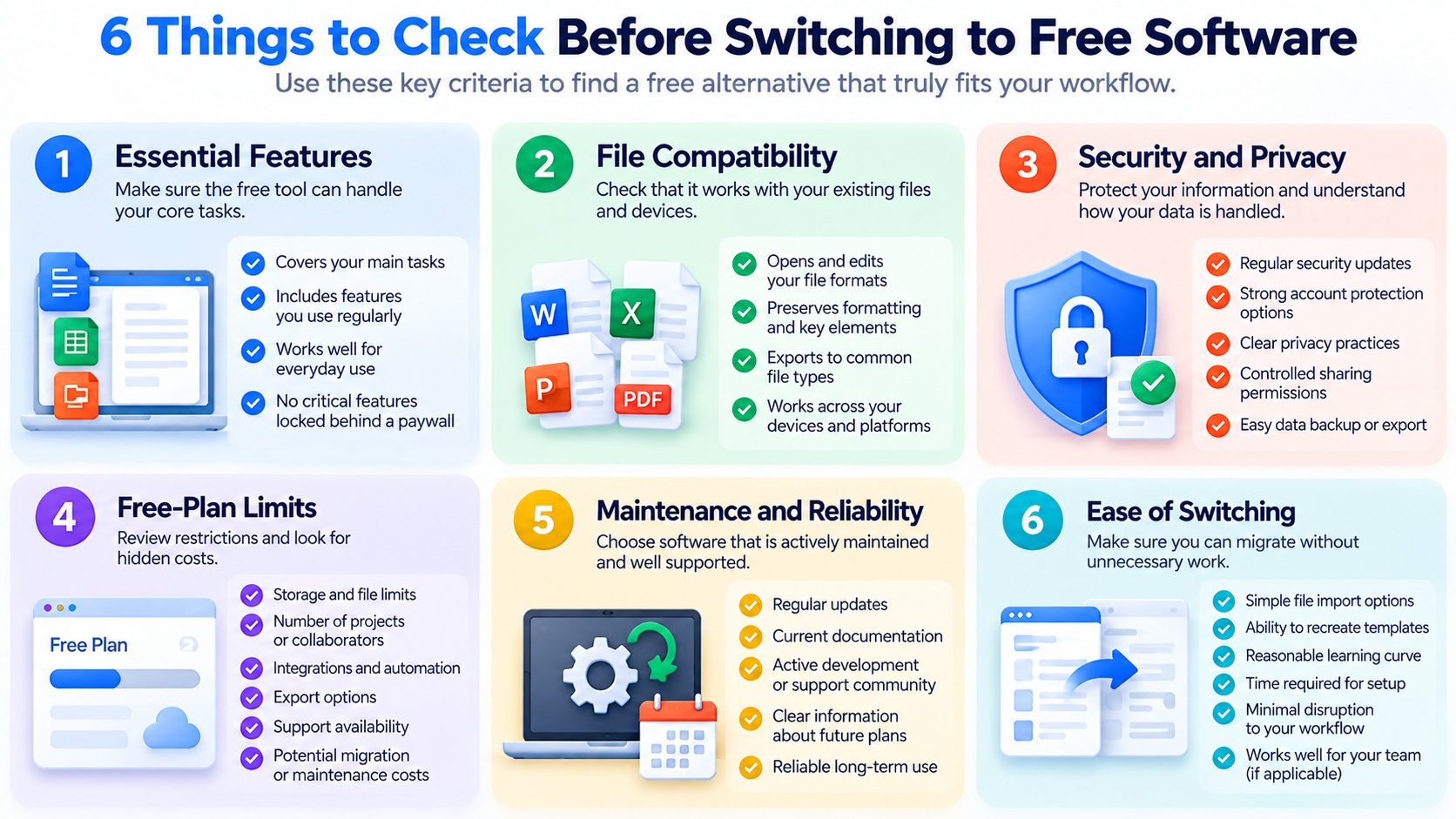
1. Essential Features and Everyday Usability
Start by identifying the features you use regularly in your current software.
For example, if you are replacing a paid office suite, your essential requirements might include document formatting, spreadsheets, presentations, and compatibility with common file types.
If you are replacing a task manager, you may need recurring tasks, reminders, project organization, or access across multiple devices.
A free alternative does not need every premium feature. It needs to perform your most important tasks effectively.
Ask yourself:
-
Can I complete my regular work without paying?
-
Are essential features included in the free version?
-
Does the application feel practical for everyday use?
-
Are important capabilities restricted behind a subscription?
For instance, LibreOffice provides a free office suite that may suit users who primarily need desktop document editing, spreadsheets, and presentations.
2. File Compatibility and Data Portability
A free application is not a useful replacement if it cannot handle the files you already use.
Check whether it can open, edit, and export the formats required by your work.
This is especially important for documents containing complex layouts, formulas, macros, or presentation elements.
Compatibility should be tested with your actual files rather than assumed from a list of supported formats.
Data portability matters too. You should understand how to export your notes, tasks, documents, or project information if you decide to switch again.
For supported Google services, Google Takeout provides options for exporting account data.
Practical tip: Test a copy of an important file in the new application before migrating your entire workflow.
3. Security and Privacy
Free software is not automatically insecure, just as paid software is not automatically secure.
Evaluate the application's security features, update practices, account protections, sharing permissions, and privacy documentation.
If you work with confidential business information, consider whether the product meets your organization's requirements.
Questions worth asking include:
-
Does the application receive security updates?
-
Can you protect your account with appropriate authentication methods?
-
What information does the provider collect?
-
Can you control who accesses shared files?
-
Is there a suitable way to back up or export important data?
The NIST Cybersecurity Framework offers a useful foundation for understanding cybersecurity risk management.
4. Free-Plan Limits and Hidden Costs
Some applications are free without requiring a premium subscription for core functionality. Others use a freemium model, offering basic features at no cost while reserving additional capabilities for paid plans.
Neither approach is inherently better.
What matters is whether the available functionality meets your requirements.
Review potential restrictions on:
-
Storage or file capacity.
-
Number of projects or collaborators.
-
Integrations and automation.
-
Device synchronization.
-
Export options.
-
Support and administrative features.
Also consider costs that do not appear on the pricing page.
Migrating data, learning a new interface, troubleshooting compatibility issues, or maintaining a self-hosted application can require time and resources.
Free to download does not always mean free to operate.
5. Updates, Maintenance, and Long-Term Reliability
A productivity application should remain dependable as your needs change.
Look for signs that the software is actively maintained, such as product updates, current documentation, and clear support information.
For open-source applications, review the project's official website and available documentation to understand how development and support are organized.
Open-source licensing and pricing are separate concepts. An open-source product may be available without a license fee while optional hosting, support, or managed services carry additional costs.
The Open Source Initiative explains the principles behind open-source software licensing.
Avoid assuming that an application is reliable simply because it has existed for many years or has a large feature list.
6. Ease of Switching and Learning Curve
Even a capable free alternative may not be worthwhile if switching creates more work than it saves.
Consider how much time you will need to:
-
Import existing files or records.
-
Recreate templates and workflows.
-
Learn unfamiliar controls.
-
Configure integrations.
-
Train other users.
-
Verify that important information transferred correctly.
For individual users, the transition may be relatively simple. For teams with shared processes, migration can require more planning.
A gradual transition is often safer than immediately canceling your current subscription.
Test the replacement alongside your existing software until you are confident that essential tasks work as expected.
Free Software Evaluation Checklist
Use the following framework to compare potential alternatives.
| Evaluation Area | What to Check | Why It Matters |
|---|---|---|
| Essential features | Can it complete your core tasks? | Prevents missing functionality |
| Compatibility | Does it work with your files and devices? | Reduces workflow disruption |
| Security and privacy | Are protections appropriate for your needs? | Helps manage information risks |
| Usage limits | Are restrictions acceptable? | Avoids unexpected obstacles |
| Maintenance | Is the software actively supported? | Supports long-term reliability |
| Migration | Can you switch without excessive effort? | Reduces transition costs |
How to Decide Whether a Free Alternative Is Good Enough
Start with a short list of your essential requirements.
Then choose one or two suitable applications and test them using realistic tasks.
If a free tool handles your important work, supports your required file formats, and meets your security and reliability expectations, it may be a practical replacement for a paid application.
If the alternative introduces significant limitations or ongoing maintenance work, keeping your existing software—or considering another option—may make more sense.
The best free productivity software is not necessarily the application with the most features. It is the one that meets your requirements with the fewest unnecessary compromises.
Best Free Alternatives to Microsoft Office
Microsoft Office and Microsoft 365 are widely used for documents, spreadsheets, and presentations. However, not everyone needs a paid office subscription to complete everyday work.
If your main tasks involve writing reports, editing spreadsheets, preparing presentations, or sharing basic documents, several free applications may meet your requirements.
Three options worth considering are LibreOffice, ONLYOFFICE Desktop Editors, and Google's free document editing apps.
Each takes a different approach to productivity, so the best alternative depends on whether you prioritize offline access, Microsoft Office file compatibility, or browser-based collaboration.
1. LibreOffice — Best for Free Offline Office Work
Official website: LibreOffice
LibreOffice is a free, open-source office suite that includes applications for word processing, spreadsheets, presentations, and other productivity tasks.
Its main applications include:
-
Writer: Create and edit text documents.
-
Calc: Work with spreadsheets, formulas, and tables.
-
Impress: Build and edit presentations.
-
Draw: Create diagrams and drawings.
-
Base: Work with databases.
-
Math: Create mathematical formulas.
Unlike cloud-first office platforms, LibreOffice is primarily designed for local desktop use.
This makes it particularly attractive to users who prefer working without a constant internet connection or who want to keep their documents on their own devices.
What LibreOffice Does Well
LibreOffice offers a broad set of office tools without requiring a recurring subscription for the software itself.
It supports common Microsoft Office file formats, including DOCX, XLSX, and PPTX.
For students, home users, and professionals who mainly work with documents and spreadsheets, this can make LibreOffice a practical alternative to a paid office suite.
It also uses the OpenDocument Format (ODF), an open document standard.
Important Limitations
File compatibility does not guarantee identical rendering or behavior.
Documents with complex layouts, advanced Excel features, VBA macros, specialized fonts, or sophisticated presentation elements may require additional checking.
LibreOffice also does not provide the same integrated cloud collaboration experience as Microsoft 365 or Google Workspace.
Best for: Students, individual professionals, and users who need a comprehensive offline office suite without subscription fees.
Choose LibreOffice if: You primarily edit documents on your own computer and can test compatibility with the files you regularly exchange.
2. ONLYOFFICE Desktop Editors — Best for Users Working With Microsoft Office Formats
Official website: ONLYOFFICE Desktop Editors
ONLYOFFICE Desktop Editors is a free desktop office application that supports text documents, spreadsheets, presentations, and PDF-related workflows.
It is designed around common office document formats and offers an interface that may feel familiar to users accustomed to modern office applications.
For people who regularly exchange DOCX, XLSX, and PPTX files, ONLYOFFICE is another option worth testing.
What ONLYOFFICE Does Well
ONLYOFFICE Desktop Editors provides tools for everyday document creation and editing without requiring a paid desktop software license for its standard free offering.
Its document-focused interface may reduce the learning curve for users switching from Microsoft Office.
The desktop application can also be used for local file editing without relying on a browser-based workflow.
ONLYOFFICE offers separate collaboration and server-based products, but their capabilities, deployment requirements, and licensing should not be confused with those of the free desktop application.
Important Limitations
Although ONLYOFFICE supports Microsoft Office formats, users should still test complex files before switching.
Advanced spreadsheets, macros, custom templates, and specialized document features may not behave exactly as they do in Microsoft Office.
Some collaboration, administration, or enterprise capabilities belong to separate ONLYOFFICE products and may involve additional requirements or costs.
Best for: Individuals who frequently work with Microsoft Office document formats and prefer a familiar desktop editing experience.
Choose ONLYOFFICE if: Compatibility with common Office files is a major consideration and your own document tests produce acceptable results.
3. Google Docs, Sheets, and Slides — Best for Browser-Based Collaboration
Official websites:
Google provides browser-based applications for creating documents, spreadsheets, and presentations.
These applications are available for personal use with a Google account, although storage allowances, organizational controls, and additional services vary by account type and plan.
Unlike traditional desktop office suites, Google's productivity apps are designed around cloud-based access and sharing.
What Google's Free Office Apps Do Well
Google Docs, Sheets, and Slides are useful when several people need to contribute to the same file.
Depending on access permissions, users can share documents, leave comments, suggest changes, and work together without repeatedly exchanging attachments.
The browser-based approach also makes it convenient to access files from different devices.
For students, small groups, and individuals who collaborate frequently, these features may be more valuable than having a large collection of advanced desktop functions.
Important Limitations
Google's applications are not complete replacements for every advanced Microsoft Office workflow.
Complex spreadsheet models, macros, specialized formatting, and some document features may not transfer perfectly between platforms.
Offline editing is available in supported configurations but requires appropriate setup and should be tested before relying on it.
Users should also consider cloud storage limits, account access, privacy requirements, and the need for an internet connection for many collaborative activities.
Best for: Students, remote collaborators, and users who primarily create and share documents through a browser.
Choose Google's free office apps if: Real-time collaboration and easy sharing matter more than advanced desktop-specific functionality.
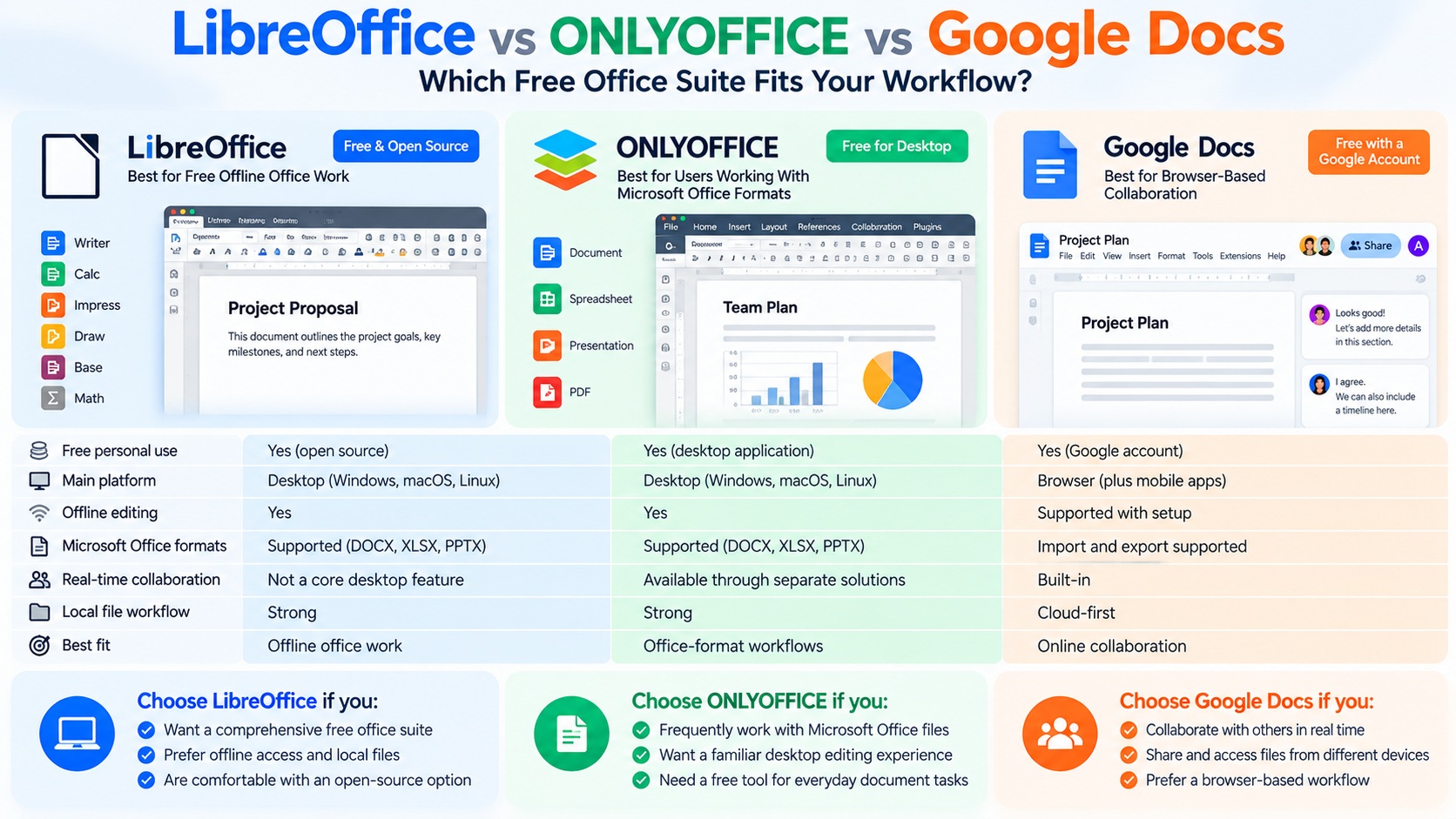
LibreOffice vs ONLYOFFICE vs Google Docs: Quick Comparison
| Feature | LibreOffice | ONLYOFFICE Desktop Editors | Google Docs / Sheets / Slides |
|---|---|---|---|
| Free personal use | Yes | Yes | Yes |
| Main platform | Desktop | Desktop | Browser |
| Offline document editing | Yes | Yes | Supported with setup |
| Microsoft Office formats | Supported | Supported | Import and export supported |
| Real-time collaboration | Not a core desktop feature | Available through separate collaboration solutions | Built-in |
| Local file workflow | Strong | Strong | Cloud-first |
| Best fit | Offline office work | Office-format workflows | Online collaboration |
This comparison describes general product positioning rather than independently measured compatibility or performance. Features and plan conditions may change.
Which Free Microsoft Office Alternative Should You Choose?
There is no single office suite that works best for everyone.
Choose LibreOffice when you want a broad collection of desktop office applications, offline access, and an open-source software option.
Choose ONLYOFFICE Desktop Editors when you frequently exchange Microsoft Office documents and want to evaluate another desktop editor with a familiar workflow.
Choose Google Docs, Sheets, and Slides when your work depends on sharing files, collecting feedback, and collaborating through a browser.
Before switching, test each candidate with the files that matter most to you.
For example, open a complex spreadsheet, edit a formatted report, or export a presentation to the required format. Check whether formulas, layouts, fonts, and other important elements remain usable.
If you work in a team, confirm that everyone can access and edit the documents as needed.
Can Free Office Software Completely Replace Microsoft 365?
For many everyday tasks, a free office suite may provide enough functionality.
However, it may not replace every Microsoft 365 application, service, or organizational capability.
Advanced Excel workflows, Outlook-related requirements, cloud administration, business security controls, and integrations with other Microsoft services can affect the decision.
Review the official Microsoft 365 plan comparison to identify the features you currently use before deciding whether to cancel a subscription.
Bottom line: Free office software can be an effective alternative to paid productivity tools, but the right choice depends on your files, collaboration needs, and daily workflow—not simply whether the application costs money.
Best Free Alternatives to Paid Note-Taking Apps
A good note-taking app should make it easy to capture ideas, organize information, find important details, and access notes when you need them.
While paid applications may offer additional storage, collaboration features, or advanced organization tools, many everyday note-taking tasks can be handled by free software.
Three options worth considering are Joplin, Obsidian, and Microsoft OneNote.
Each offers a different approach to managing information. The best choice depends on whether you prioritize open-source software, local Markdown files, or a familiar digital notebook experience.
1. Joplin — Best for Open-Source Note-Taking and Data Control
Official website: Joplin
Joplin is an open-source note-taking application designed for organizing notes, notebooks, and to-do items.
It supports Markdown-based note editing and is available on desktop and mobile platforms.
One of its main attractions is the ability to manage notes locally while choosing how synchronization is handled.
What Joplin Does Well
Joplin offers several capabilities that make it useful as a free note-taking solution:
-
Organizing notes into notebooks.
-
Creating notes using Markdown.
-
Managing to-do items.
-
Working with locally stored notes.
-
Supporting synchronization through compatible services.
-
Importing and exporting notes using supported formats.
Joplin also provides end-to-end encryption functionality for supported synchronization workflows, although users must configure and manage it appropriately.
For users who want more control over their notes and prefer an open-source application, Joplin is worth considering.
Important Limitations
Joplin's interface and Markdown-oriented workflow may require adjustment for users accustomed to highly visual note editors.
Synchronization depends on the service and configuration you choose. Some options may involve third-party storage costs or a separate paid service.
Users should also test the import process before migrating large collections of notes, especially when those notes contain attachments or complex formatting.
Best for: Privacy-conscious users, students, researchers, and individuals who prefer an open-source note-taking workflow.
Choose Joplin if: You want a free application with local note storage, Markdown support, and flexibility over synchronization.
2. Obsidian — Best for Personal Knowledge Management
Official website: Obsidian
Obsidian is a note-taking and knowledge management application built around locally stored Markdown files.
Instead of treating every note as an isolated document, Obsidian encourages users to connect related ideas through internal links.
This makes it particularly useful for building a personal knowledge base, organizing research, and maintaining long-term reference material.
What Obsidian Does Well
Obsidian provides several capabilities that are useful for managing connected information:
-
Local Markdown-based notes.
-
Links between related notes.
-
Graph-based visualization of note connections.
-
Search and organization features.
-
Customizable workflows.
-
Support for plugins and themes.
Its local-file approach also makes it possible to access notes without relying entirely on a cloud-hosted workspace.
For writers, researchers, and professionals managing large amounts of reference information, these features can support a flexible knowledge management system.
Important Limitations
Obsidian's flexibility can create a learning curve.
Users may spend time configuring plugins, organizing folders, or developing a system for linking notes.
Its optional official synchronization service is separate from the free core application. Users can also explore other synchronization methods, but those methods may require additional setup and maintenance.
Plugins should be evaluated carefully because third-party extensions can introduce compatibility, reliability, or security considerations.
Best for: Writers, researchers, students, and users building a personal knowledge base.
Choose Obsidian if: You want to organize interconnected notes using local Markdown files and prefer a customizable environment.
3. Microsoft OneNote — Best for Digital Notebooks and Everyday Notes
Official website: Microsoft OneNote
Microsoft OneNote provides a digital notebook environment for collecting notes, organizing information, and working with different types of content.
It uses a notebook, section, and page structure that can feel familiar to people who organize information by subject, project, or course.
OneNote is available through Microsoft's ecosystem, with free usage options and additional capabilities or storage depending on the account and associated services.
What OneNote Does Well
OneNote is particularly useful for users who prefer a flexible notebook layout.
Depending on the supported application and platform, users can:
-
Create notebooks, sections, and pages.
-
Combine typed text with other supported content.
-
Organize class notes, meeting records, and project information.
-
Search for information across notes.
-
Access notebooks through supported devices.
-
Share notebooks when the relevant account and permissions allow it.
Its notebook-based structure may be easier to understand for users who do not want to build a custom knowledge management system.
OneNote can also be a convenient option for people already using Microsoft accounts and services.
Important Limitations
OneNote's features and offline behavior can differ between platforms and application versions.
Cloud storage allowances depend on the associated Microsoft account and service plan.
Data export and migration also deserve attention. Moving an entire notebook to another application may require more work than exporting individual text notes.
Before switching, confirm that the version you plan to use supports your required features, devices, and export workflow.
Best for: Students, meeting notes, everyday planning, and users who prefer a familiar notebook structure.
Choose OneNote if: You want a flexible digital notebook without building a complex Markdown-based system.
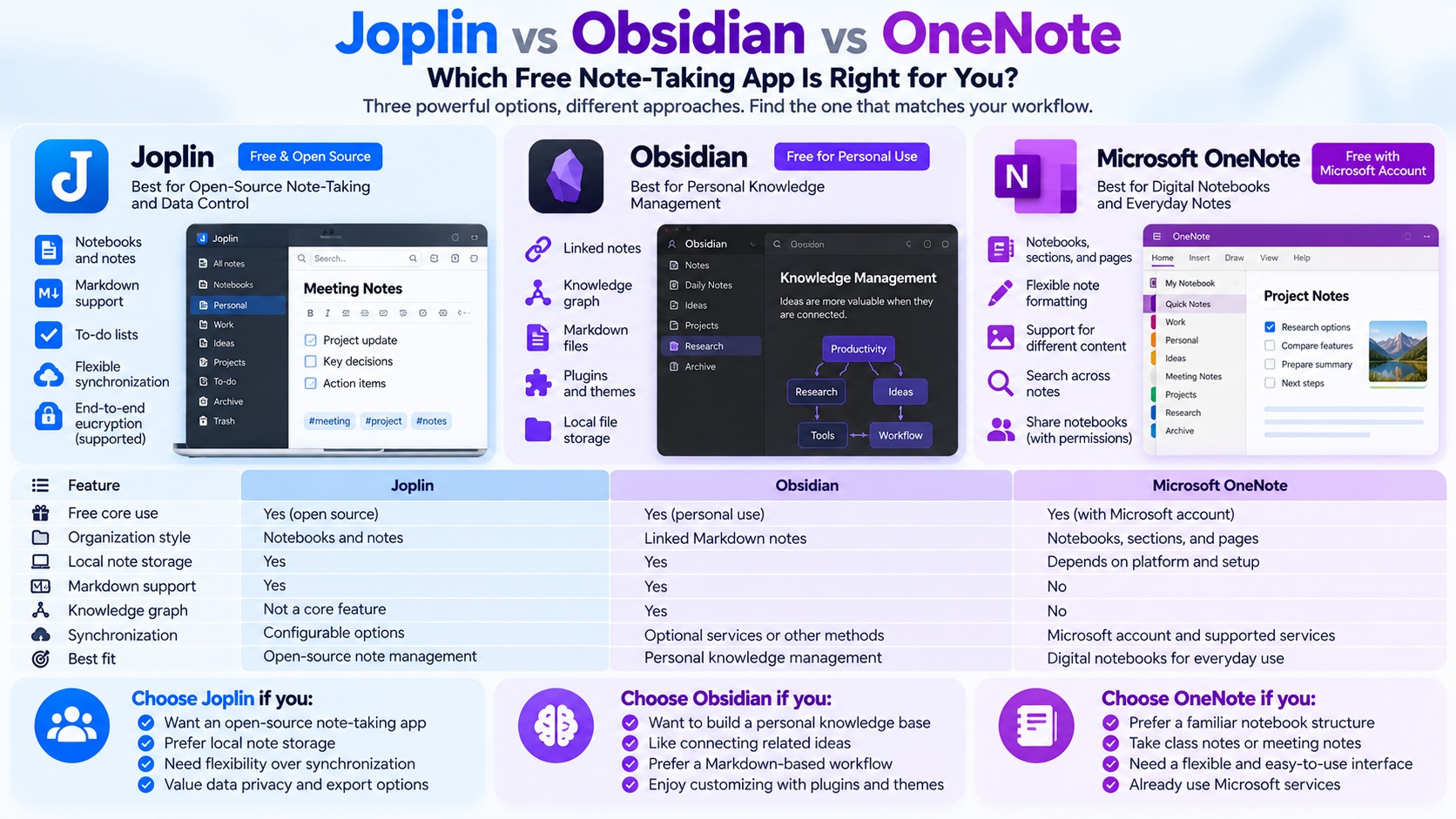
Joplin vs Obsidian vs OneNote: Quick Comparison
| Feature | Joplin | Obsidian | Microsoft OneNote |
|---|---|---|---|
| Free core use | Yes | Yes | Yes, with account and service conditions |
| Main organization style | Notebooks and notes | Linked Markdown notes | Notebooks, sections, and pages |
| Local note workflow | Yes | Yes | Depends on platform and setup |
| Markdown-oriented | Yes | Yes | No |
| Built-in knowledge graph | Not a core feature | Yes | No |
| Synchronization | Configurable options | Optional services or other methods | Microsoft account and supported services |
| Best fit | Open-source note management | Personal knowledge management | Digital notebooks |
This table summarizes general product positioning. Synchronization, storage, export, and platform-specific features should be checked against current official documentation.
Which Free Note-Taking App Should You Choose?
Choose Joplin if open-source software, local notes, and configurable synchronization are important to you.
Choose Obsidian if you want to connect ideas, build a personal knowledge base, and keep notes in Markdown files.
Choose Microsoft OneNote if you prefer a familiar notebook structure for class notes, meetings, and everyday information.
Before choosing, consider how you currently organize information.
A simple notebook application may be sufficient if you mostly record meeting notes and short reminders. A linked-note system may be more useful if you manage research, references, and interconnected ideas.
The best option is the one you can use consistently without adding unnecessary complexity.
How to Switch From a Paid Note-Taking App
If you currently use a paid note-taking application, avoid canceling your subscription before checking whether your information can be transferred.
Follow these steps:
-
Review your existing notes. Identify important notebooks, attachments, tags, and formatting.
-
Check export options. Find out which formats your current application supports.
-
Test a small import. Move a few representative notes into the new application.
-
Verify the results. Check formatting, attachments, links, and organization.
-
Confirm synchronization. Make sure your notes are accessible on the devices you actually use.
-
Keep a backup. Retain a separate copy of important information before completing the migration.
If you are leaving Evernote, review the available export options and test whether your chosen replacement can import the exported content.
Joplin, Obsidian, and OneNote do not necessarily support identical import and export workflows.
Bottom line: Free note-taking apps can replace paid software for many everyday needs, but organization style, synchronization, and data portability matter more than the number of features advertised.
Best Free Alternatives to Paid Task Managers
A task manager does not need to be expensive to be useful. For many people, the most important features are simple: capturing tasks, organizing priorities, setting due dates, and keeping track of what needs to be done.
Free task management apps can handle many of these everyday requirements without a recurring subscription.
Three options worth considering are Microsoft To Do, Todoist Free, and TickTick Free.
Although all three help users organize tasks, they differ in their approach to simplicity, project organization, scheduling, and additional productivity features.
1. Microsoft To Do — Best for Simple Everyday Task Management
Official website: Microsoft To Do
Microsoft To Do is a task management application designed for creating to-do lists, organizing daily activities, and keeping track of personal responsibilities.
It is particularly suitable for users who prefer a straightforward interface instead of a complex project management system.
What Microsoft To Do Does Well
Microsoft To Do provides practical features for everyday planning, including:
-
Creating tasks and organizing them into lists.
-
Setting due dates and reminders.
-
Configuring recurring tasks.
-
Adding notes and steps to tasks.
-
Planning daily priorities through My Day.
-
Synchronizing tasks across supported devices.
For people who already use a Microsoft account, the application can fit naturally into their existing workflow.
The My Day feature is particularly useful for focusing on the tasks that matter today without becoming distracted by a large backlog.
Important Limitations
Microsoft To Do is primarily a personal task management application rather than a full project management platform.
Although lists can be shared, users who require advanced reporting, complex dependencies, extensive automation, or sophisticated project planning may need another solution.
Some integrations with Microsoft services depend on the products and accounts involved.
Best for: Students, individuals, and professionals who want a simple task manager with reminders and recurring tasks.
Choose Microsoft To Do if: You need a straightforward way to organize daily responsibilities without paying for a premium task management subscription.
2. Todoist Free — Best for Structured Personal Task Management
Official website: Todoist
Todoist is a task management application designed to help users organize tasks, projects, and recurring responsibilities.
Its interface emphasizes quick task entry and structured organization, making it useful for people who manage multiple areas of work or personal life.
Todoist offers a free plan alongside paid subscription options.
What Todoist Free Does Well
Todoist provides a flexible approach to managing tasks through features such as:
-
Creating and organizing tasks.
-
Grouping tasks into projects.
-
Setting due dates.
-
Managing recurring responsibilities.
-
Using priorities and organizational features where supported.
-
Accessing tasks across supported devices.
One of Todoist's strengths is its ability to support both simple to-do lists and more structured personal workflows.
For example, a freelancer might organize tasks into separate projects for client work, administration, and personal responsibilities.
Important Limitations
Todoist's free plan has restrictions compared with its paid tiers.
Depending on the current plan, limits may apply to the number of projects, available views, reminders, activity history, or other advanced capabilities.
These details can change, so check the official Todoist pricing page before relying on a specific feature.
Users who need extensive team coordination or advanced workflow features should confirm whether the free plan meets their requirements.
Best for: Freelancers, students, and individuals who want structured task and project organization.
Choose Todoist Free if: You want a flexible task manager and can work comfortably within the current free-plan limits.
3. TickTick Free — Best for Combining Tasks With Personal Planning
Official website: TickTick
TickTick is a productivity application that combines task management with planning-oriented features.
It is designed for users who want to organize to-do lists while also managing schedules and personal productivity routines.
TickTick offers a free version as well as a premium subscription.
What TickTick Free Does Well
TickTick supports common task management activities, including:
-
Creating and organizing tasks.
-
Managing lists.
-
Setting due dates.
-
Scheduling recurring responsibilities.
-
Organizing personal priorities.
-
Accessing tasks across supported devices.
TickTick also offers productivity-oriented features such as calendar-related views, focus tools, and habit tracking, although the availability and limits of these features differ between free and premium plans.
This combination can appeal to users who prefer keeping several personal planning activities within one application.
Important Limitations
Some TickTick features are restricted or expanded under its premium subscription.
Advanced calendar functionality, certain productivity tools, and usage allowances may depend on the plan.
Users should verify current availability rather than assuming every feature shown in the application is included in the free version.
The official TickTick Premium page provides information about additional paid capabilities.
Best for: Individuals who want a task manager with additional personal planning features.
Choose TickTick Free if: You prefer combining to-do lists and scheduling in one application and the free plan includes the features you need.
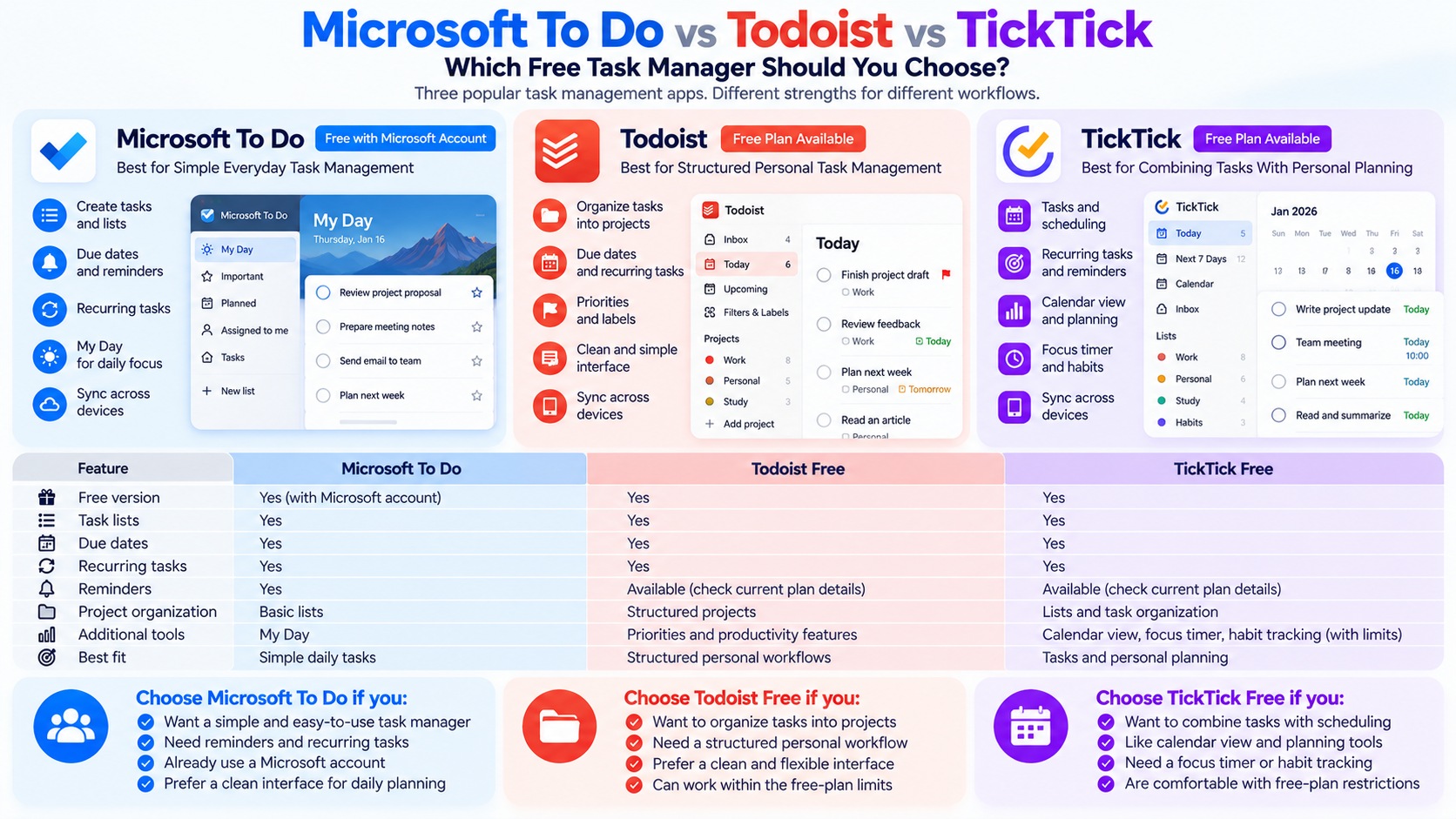
Microsoft To Do vs Todoist vs TickTick: Quick Comparison
| Feature | Microsoft To Do | Todoist Free | TickTick Free |
|---|---|---|---|
| Free version | Yes | Yes | Yes |
| Task lists | Yes | Yes | Yes |
| Due dates | Yes | Yes | Yes |
| Recurring tasks | Yes | Yes | Yes |
| Reminders | Available | Check current free-plan terms | Check current free-plan terms |
| Project organization | Basic lists | Structured projects | Lists and task organization |
| Additional planning tools | My Day | Project and priority tools | Calendar, focus, and habit-related tools with plan restrictions |
| Best fit | Simple daily tasks | Structured personal workflows | Tasks and personal planning |
Feature availability and free-plan restrictions can change. This comparison summarizes general product positioning and should be checked against current official documentation.
Which Free Task Manager Should You Choose?
Choose Microsoft To Do if you mainly need reminders, recurring tasks, and a simple way to organize daily responsibilities.
Choose Todoist Free if you want a more structured approach to organizing tasks across different projects.
Choose TickTick Free if you are interested in combining task management with personal planning features.
Before choosing, consider how you actually manage your work.
If you only need to remember appointments and daily responsibilities, a simple task list may be sufficient.
If you regularly manage several projects, a more structured application may be helpful.
If your workflow combines tasks, schedules, and productivity routines, a planning-focused tool may be more appropriate.
When Is a Paid Task Manager Worth Considering?
A paid task manager may be useful when you repeatedly encounter restrictions that interfere with important work.
Examples include needing a particular reminder feature, additional project capacity, advanced views, automation, or more extensive collaboration capabilities.
However, upgrading is not necessary simply because a premium version exists.
First, identify the specific limitation you need to solve. Then compare the available paid features with the cost and your actual requirements.
If your free task manager already helps you capture, organize, and complete tasks reliably, there may be little reason to change.
Tips for Switching From a Paid Task Manager
Before canceling an existing subscription, take a few precautions:
-
Review your current tasks. Identify active projects, recurring tasks, and important deadlines.
-
Check export options. Determine whether your existing application supports a usable export format.
-
Test importing data. Confirm that the new application can handle the information you need.
-
Recreate essential reminders. Check recurring schedules and notifications carefully.
-
Verify synchronization. Make sure tasks appear correctly on your main devices.
-
Keep a backup. Retain important task information until the transition is complete.
Do not assume that every task manager can transfer all reminders, recurring schedules, attachments, or project structures automatically.
Bottom line: The best free task manager is the application that makes it easier to remember and complete important work without introducing unnecessary complexity or subscription costs.
Best Free Alternatives to Paid Project Management Tools
Project management software helps individuals and teams organize tasks, assign responsibilities, track deadlines, and understand how work is progressing.
While paid project management platforms often provide advanced reporting, automation, workload management, and administrative controls, many basic workflows can be handled with free tools.
Three options worth considering are Trello, Asana, and ClickUp.
All three offer free plans, but they approach project management differently. Trello emphasizes visual boards, Asana focuses on structured task coordination, and ClickUp combines multiple project organization features in one workspace.
The best choice depends on your team's size, workflow complexity, and the limitations of each free plan.
1. Trello — Best for Simple Kanban Boards and Visual Workflows
Official website: Trello
Plan information: Trello Pricing
Trello is a visual project management tool built around boards, lists, and cards.
A board can represent a project, while lists represent stages of work. Cards contain individual tasks that can move between stages as progress is made.
For example, a content team might create a board with the following lists:
-
Ideas
-
Research
-
Writing
-
Editing
-
Ready to Publish
-
Published
Each article becomes a card that moves through the workflow.
What Trello Does Well
Trello is especially useful when a team needs a clear overview of work without a complicated project management system.
Its strengths include:
-
Visual Kanban-style boards.
-
Task cards and checklists.
-
Due dates and task assignments.
-
Comments and collaboration.
-
A straightforward workflow for tracking progress.
-
Integrations and automation capabilities, subject to plan restrictions.
For small projects, Trello's board-based interface can make it easy to understand what needs attention.
It is also suitable for personal planning, editorial calendars, and simple operational workflows.
Important Limitations
Trello's free plan has restrictions compared with its paid subscriptions.
Limits can apply to workspace boards, collaborators, automation, attachments, and advanced views.
Features such as expanded project views or additional administrative controls may require a paid plan.
Always check the current Trello pricing page before relying on a particular free-plan allowance.
Best for: Small teams, content creators, freelancers, and users who prefer visual Kanban boards.
Choose Trello if: You want a simple way to move tasks through clearly defined stages.
2. Asana — Best for Structured Team Task Coordination
Official website: Asana
Plan information: Asana Pricing
Asana is a work management platform designed to help users organize tasks, coordinate responsibilities, and track projects.
It supports structured task management and offers different ways to organize work, depending on the plan.
Asana's free offering can be useful for individuals or small groups with straightforward coordination needs, provided they fit the current eligibility and usage limits.
What Asana Does Well
Asana helps users turn projects into organized collections of tasks.
Depending on the available plan features, users can work with:
-
Projects and task lists.
-
Task assignments.
-
Due dates.
-
Task descriptions and comments.
-
Subtasks.
-
Project organization and progress tracking.
For example, a freelancer managing several client deliverables could use Asana to organize tasks by project, assign deadlines, and track completed work.
Its structured approach can also help teams clarify who is responsible for each task.
Important Limitations
Asana's free plan is not intended to provide every capability available in its paid products.
Team-size allowances, project views, reporting, automation, and administrative features can vary by subscription tier.
Some features commonly associated with advanced project management may require an upgrade.
Check Asana's official plan comparison for current free-plan conditions before choosing it for a team.
Best for: Individuals and eligible small teams that want structured tasks, deadlines, and clear responsibilities.
Choose Asana if: Your main priority is organizing work into projects and assigning responsibilities rather than managing a highly customized workspace.
3. ClickUp — Best for Flexible Project Organization
Official website: ClickUp
Plan information: ClickUp Pricing
ClickUp is a productivity and project management platform designed to combine task organization, project tracking, and additional work management capabilities.
It offers a free plan alongside paid subscriptions.
ClickUp may appeal to users who want more flexibility in how projects and tasks are structured.
What ClickUp Does Well
ClickUp provides tools for organizing tasks within a workspace.
Depending on the plan and available features, its capabilities include:
-
Tasks and subtasks.
-
Project and workspace organization.
-
Multiple task views.
-
Task assignments and due dates.
-
Comments and collaboration.
-
Customizable workflows.
-
Additional productivity features and integrations.
For users who manage different types of projects, ClickUp's flexibility can be useful.
A small business might organize marketing tasks, administrative work, and internal projects within separate areas of the same workspace.
Important Limitations
ClickUp's broad feature set can create a learning curve.
Users who only need a simple checklist may find the interface more complex than necessary.
The free plan also has restrictions that can affect storage, advanced views, custom functionality, automation, or other capabilities.
These restrictions should be checked directly against the current ClickUp pricing page.
Best for: Freelancers, small teams, and users who want flexible project organization within a single workspace.
Choose ClickUp if: You are comfortable with a more configurable interface and want to explore different ways to organize projects.
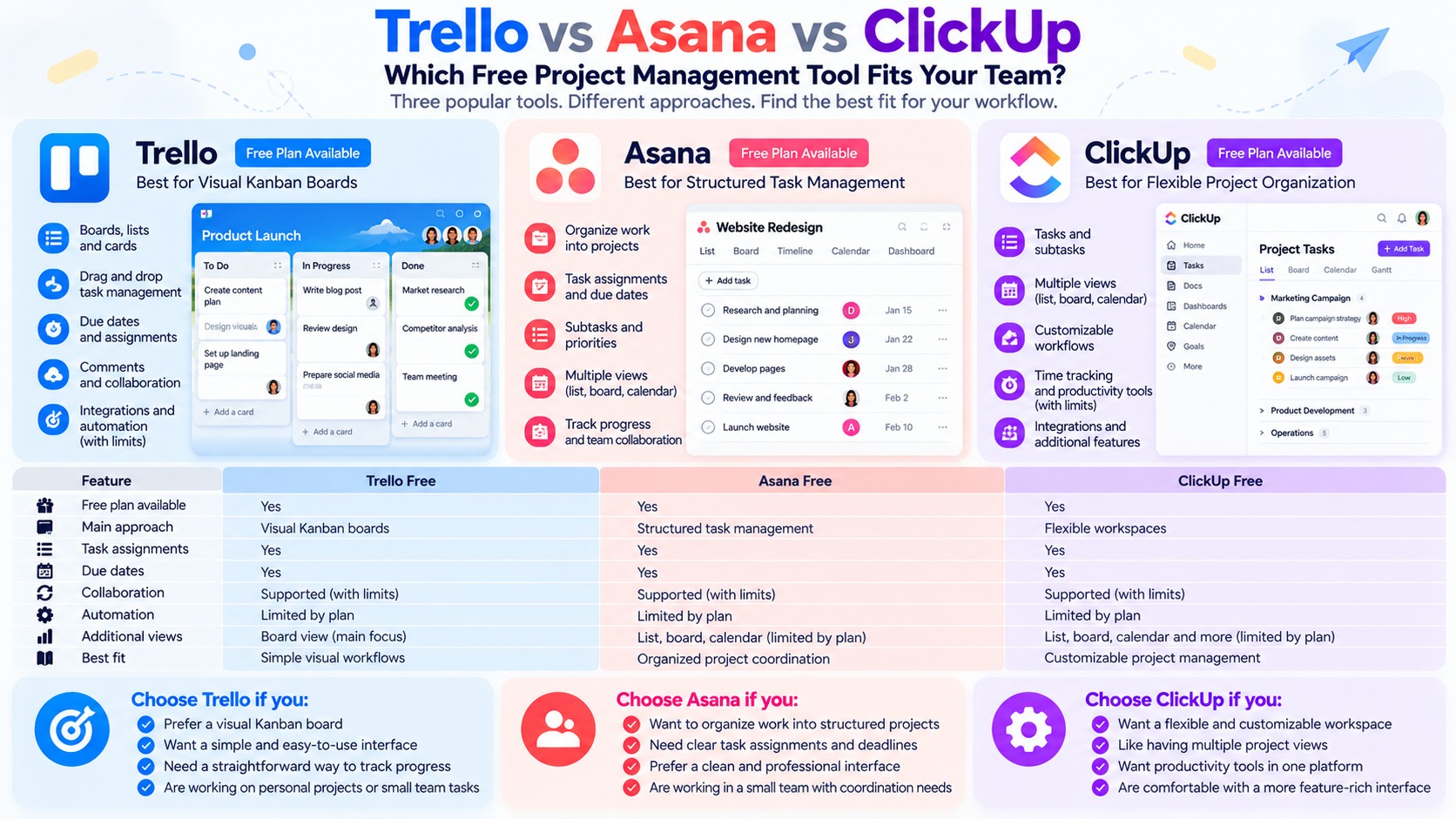
Trello vs Asana vs ClickUp: Quick Comparison
| Feature | Trello Free | Asana Free | ClickUp Free |
|---|---|---|---|
| Free plan available | Yes | Yes | Yes |
| Main approach | Visual Kanban boards | Structured task coordination | Flexible workspaces |
| Task assignments | Supported | Supported | Supported |
| Due dates | Supported | Supported | Supported |
| Collaboration | Subject to free-plan limits | Subject to free-plan limits | Subject to free-plan limits |
| Multiple project views | Limited by plan | Limited by plan | Limited by plan |
| Advanced automation | Limited by plan | Plan-dependent | Limited by plan |
| Learning curve | Generally straightforward | Moderate | Potentially higher |
| Best fit | Visual workflows | Organized responsibilities | Customizable project management |
This comparison describes general product positioning rather than independently tested performance. Free-plan limits, collaboration allowances, and available views may change.
Which Free Project Management Tool Should You Choose?
The right choice depends on how your work is organized.
Choose Trello if your team needs a simple visual board to track tasks from one stage to another.
Choose Asana if you prefer structured projects with clear responsibilities, tasks, and deadlines.
Choose ClickUp if you want a more flexible workspace and are willing to spend time configuring it.
For example:
A freelance writer managing an editorial calendar may find Trello sufficient.
A small team coordinating recurring deliverables may prefer Asana's task-oriented approach.
A business organizing several types of internal work may want to evaluate ClickUp's customizable structure.
These are illustrative use cases, not claims that one application performs better than another in independent testing.
When Is Free Project Management Software Enough?
A free project management tool may be sufficient when your team has relatively simple requirements.
Typical examples include:
-
Tracking a manageable number of projects.
-
Assigning tasks and deadlines.
-
Maintaining a shared task list.
-
Recording comments and updates.
-
Monitoring progress through basic views.
Paid software becomes more relevant when your workflow requires capabilities unavailable in the free plan.
These might include advanced reporting, extensive automation, complex dependencies, additional administrative controls, or larger collaboration allowances.
However, not every team needs these features.
A well-organized workflow using a free tool can be more practical than an expensive platform that introduces unnecessary complexity.
What Should Small Teams Check Before Switching?
Before moving your team to a free project management application, review the following:
-
Team eligibility: Confirm that the free plan supports the number and type of users you need.
-
Project limits: Check whether you can create and manage the required projects or boards.
-
Task migration: Determine how existing tasks, attachments, and comments can be transferred.
-
Permissions: Verify that sharing and access controls meet your requirements.
-
Integrations: Confirm compatibility with your communication and document tools.
-
Long-term costs: Consider whether future growth could require an upgrade.
Start with a small pilot project before migrating an entire team's workflow.
Use real tasks, invite the necessary participants, and verify that everyone can work effectively within the available features.
Bottom line: Trello, Asana, and ClickUp can all be useful free alternatives to paid project management software. The best choice is the one that matches your workflow, supports your team, and avoids unnecessary complexity or subscription costs.
Best Free Alternatives for Cloud Storage and File Sharing
Cloud storage makes it easier to access documents, share files, and keep important information available across different devices.
However, a paid cloud storage subscription is not always necessary.
If you mainly store documents, spreadsheets, presentations, and a limited number of personal files, a free cloud storage plan may provide enough capacity for your everyday needs.
Three services worth considering are Google Drive, Microsoft OneDrive, and Dropbox Basic.
Each offers a different combination of storage, synchronization, file sharing, and integration with other productivity tools.
1. Google Drive — Best for Google Workspace Users and Everyday File Sharing
Official website: Google Drive
Storage information: Google Account Storage
Google Drive is a cloud storage service that allows users to store files, organize folders, and share content through a Google account.
It is closely integrated with Google Docs, Sheets, and Slides, making it useful for people who regularly create and collaborate on documents.
What Google Drive Does Well
Google Drive provides several useful capabilities for everyday file management:
-
Uploading and storing files in the cloud.
-
Organizing documents into folders.
-
Sharing files and folders with other people.
-
Managing supported sharing permissions.
-
Accessing files through browsers and supported applications.
-
Working with Google Docs, Sheets, and Slides.
-
Synchronizing files through supported desktop and mobile applications.
Google accounts generally include 15 GB of free storage shared across Google Drive, Gmail, and Google Photos.
This shared-storage arrangement is important because email attachments, photos, and other eligible account data can contribute to the same storage allowance.
For students, freelancers, and people already using Google's productivity applications, Drive can be a convenient option.
Important Limitations
The free storage allowance is not dedicated exclusively to Google Drive.
If Gmail or Google Photos consumes a significant amount of storage, less space remains available for other files.
Large videos, photo collections, and frequent backups can also fill the free allowance quickly.
Users should review sharing settings carefully, especially when handling confidential documents.
Best for: Google account users, students, document collaboration, and everyday file sharing.
Choose Google Drive if: You regularly use Google Docs or other Google services and want convenient cloud access without immediately purchasing additional storage.
2. Microsoft OneDrive — Best for Windows and Microsoft 365 Workflows
Official website: Microsoft OneDrive
OneDrive is Microsoft's cloud storage service.
It provides online file storage, synchronization, and sharing, with integration across supported Microsoft applications and Windows devices.
For users who already work with Microsoft accounts, OneDrive can provide a familiar way to manage documents.
What OneDrive Does Well
OneDrive supports common cloud storage tasks, including:
-
Uploading files and folders.
-
Accessing files through supported devices.
-
Synchronizing files with a computer.
-
Sharing files using available permissions.
-
Working with Microsoft Office applications where supported.
-
Managing documents through a Microsoft account.
Microsoft's free consumer storage offering generally includes 5 GB of cloud storage.
This can be sufficient for basic documents, spreadsheets, and other relatively small files.
OneDrive may be particularly convenient for users who want their files to work with Microsoft's productivity ecosystem.
Important Limitations
A 5 GB allowance can become restrictive when storing large files, photos, or backups.
Some storage, sharing, security, and recovery capabilities differ between free and paid Microsoft plans.
Users should also understand how OneDrive synchronization interacts with local folders before enabling automatic backup or moving important files.
Best for: Windows users, Microsoft account holders, and individuals working with Office documents.
Choose OneDrive if: You prefer Microsoft's ecosystem and need cloud storage mainly for everyday documents rather than large media collections.
3. Dropbox Basic — Best for Simple File Synchronization and Sharing
Official website: Dropbox
Free plan information: Dropbox Basic
Dropbox is a cloud storage and file synchronization service designed to make files accessible across supported devices.
Its core workflow focuses on storing, syncing, and sharing files rather than providing a complete office productivity suite.
Dropbox Basic is the company's free individual plan.
What Dropbox Basic Does Well
Dropbox Basic supports common file management activities such as:
-
Uploading files to cloud storage.
-
Organizing files and folders.
-
Synchronizing files on supported devices.
-
Sharing files through available sharing options.
-
Accessing stored files through a browser or supported application.
Dropbox's synchronization-focused approach may appeal to users who want a straightforward file-sharing service.
Its free plan can be useful for keeping a small selection of important documents accessible.
Important Limitations
Dropbox Basic generally includes 2 GB of free storage.
This is considerably less than the standard free allowances associated with Google Drive and OneDrive.
The Basic plan also has device and feature restrictions that should be reviewed before relying on it for a multi-device workflow.
Certain advanced sharing, recovery, and administrative capabilities are available only with eligible paid plans.
Best for: Individuals who need lightweight file synchronization and occasional sharing.
Choose Dropbox Basic if: You primarily need to synchronize a small number of files and do not require substantial free storage.
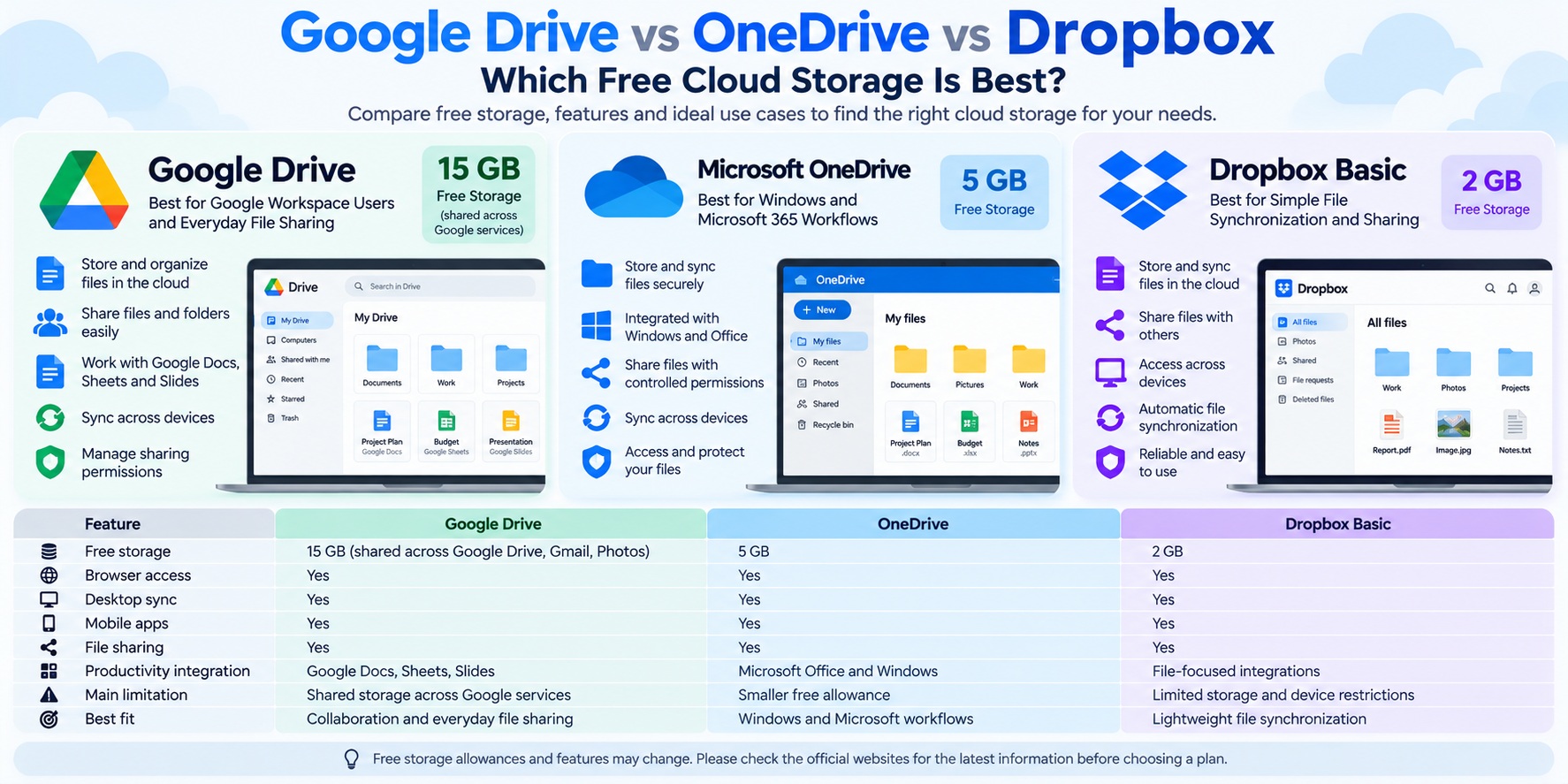
Google Drive vs OneDrive vs Dropbox: Free Storage Comparison
| Feature | Google Drive | OneDrive | Dropbox Basic |
|---|---|---|---|
| Free storage | 15 GB shared across eligible Google services | 5 GB | 2 GB |
| Browser access | Yes | Yes | Yes |
| Desktop synchronization | Supported | Supported | Supported |
| Mobile applications | Available | Available | Available |
| File sharing | Supported | Supported | Supported |
| Productivity integration | Google Docs, Sheets, Slides | Microsoft ecosystem | File-focused integrations |
| Main limitation | Shared account storage | Smaller free allowance | Limited storage and device restrictions |
| Best fit | Google-based workflows | Windows and Office users | Lightweight file synchronization |
Storage allowances reflect commonly published consumer free-plan offerings and may change. Regional availability, account conditions, and specific features should be verified on official provider pages before publication.
Which Free Cloud Storage Service Should You Choose?
The right service depends on your existing applications, file sizes, and sharing requirements.
Choose Google Drive if you already use Google's productivity tools and want a relatively generous free storage allowance for documents and everyday files.
Choose OneDrive if you work primarily on Windows or use Microsoft applications and want storage integrated with that environment.
Choose Dropbox Basic if your main priority is simple file synchronization and you only need to store a small collection of files.
Storage capacity matters, but it should not be the only consideration.
A service with more free space may still be inconvenient if it does not fit your workflow or sharing requirements.
Are Free Cloud Storage Services Safe?
Free cloud storage services can provide useful account and sharing protections, but security depends on the provider, your account configuration, and how you use the service.
Important precautions include:
-
Enabling multi-factor authentication where available.
-
Using strong, unique account credentials.
-
Reviewing file and folder sharing permissions.
-
Avoiding unnecessary public sharing links.
-
Keeping separate backups of important files.
-
Understanding how the provider handles stored information.
A paid subscription does not automatically guarantee that every security or privacy requirement is satisfied.
For general account security guidance, see CISA's Secure Our World resources.
What Happens When Free Cloud Storage Runs Out?
When a free account reaches its storage limit, the consequences depend on the provider.
You may be unable to upload additional files, complete certain synchronization operations, or use related services normally.
Some providers may also restrict specific account activities when shared storage is full.
Before upgrading, review which files consume the most space.
You may be able to free up capacity by deleting unnecessary files, removing duplicate content, or moving suitable files to local storage.
However, do not delete important information until you have verified that a separate backup exists.
How to Switch Cloud Storage Providers Safely
Changing cloud storage services requires more than downloading a few files.
Follow these steps to reduce migration problems:
-
Review your storage usage. Identify which files and folders need to move.
-
Check available capacity. Confirm that the destination account can accommodate the files.
-
Export or download important data. Use supported provider tools where appropriate.
-
Upload a small test folder. Verify filenames, file formats, and folder structure.
-
Recreate sharing permissions. Existing shared links and access settings may not transfer automatically.
-
Confirm synchronization. Check that the files appear correctly on your devices.
-
Keep an independent backup. Retain a separate copy until the migration is verified.
For supported Google services, Google Takeout provides data export options.
Remember that cloud synchronization is not always equivalent to a complete backup strategy. Deletions or unwanted changes may synchronize across connected devices.
Bottom line: Google Drive, OneDrive, and Dropbox Basic can all provide useful free cloud storage. Choose based on your storage needs, existing software ecosystem, sharing requirements, and the restrictions you can comfortably accept.
Best Free Alternatives for Team Communication
Effective communication is an essential part of a productive workflow. Whether you work remotely, manage a small business, or collaborate on projects, you need a reliable way to exchange messages, share files, and coordinate decisions.
However, not every team needs an expensive communication platform.
Several popular applications offer free versions that can support everyday conversations and basic collaboration.
Three options worth considering are Slack, Microsoft Teams, and Discord.
Although these tools share some capabilities, they serve different types of users. Slack emphasizes organized workplace messaging, Microsoft Teams integrates communication with Microsoft's productivity ecosystem, and Discord focuses on persistent communities with text and voice channels.
1. Slack Free — Best for Organized Workplace Messaging
Official website: Slack
Plan information: Slack Pricing
Slack is a workplace communication platform that organizes conversations into channels and direct messages.
Instead of managing every discussion through email, teams can create channels for departments, projects, clients, or specific topics.
For example, a small marketing team might organize its workspace into channels such as:
-
#general — Company-wide announcements.
-
#content — Editorial planning and article updates.
-
#design — Creative requests and feedback.
-
#projects — Project coordination.
-
#support — Internal questions and assistance.
This structure helps keep conversations associated with the work they concern.
What Slack Does Well
Slack's core strengths include:
-
Topic-based communication channels.
-
Direct messaging between team members.
-
Threaded discussions.
-
File sharing.
-
Searchable conversations within plan limits.
-
Integrations with other productivity services.
-
Basic audio and video collaboration features, subject to plan restrictions.
For teams that want to reduce internal email and keep project discussions organized, Slack can be a practical option.
Its channel-based structure also makes it easier to separate different conversations without creating numerous unrelated group chats.
Important Limitations of Slack Free
Slack's free plan restricts access to message and file history. Under its published free-plan model, searchable history is generally limited to recent activity, and older data may be subject to deletion under the provider's retention rules.
The free plan also has restrictions affecting meetings, integrations, and other advanced collaboration features.
These limitations matter if your team needs to preserve discussions for long-term reference, auditing, or knowledge management.
Before adopting Slack, review its current pricing and feature comparison and message retention documentation.
Best for: Small workplace teams, project-based discussions, and organizations that prefer structured channels.
Choose Slack if: Your main priority is organized team messaging and you can work within the free plan's history and collaboration limits.
2. Microsoft Teams Free — Best for Microsoft-Based Collaboration
Official website: Microsoft Teams
Plan information: Microsoft Teams Plans
Microsoft Teams combines messaging, meetings, and collaboration features within Microsoft's software ecosystem.
It is particularly relevant for users who already rely on Microsoft accounts and applications.
However, it is important to distinguish Microsoft Teams Free from the business and enterprise versions included with certain paid Microsoft 365 subscriptions.
These products do not necessarily offer the same channels, administration, storage, or collaboration capabilities.
What Microsoft Teams Free Does Well
Depending on the current consumer free offering, Teams can provide:
-
Individual and group messaging.
-
Audio and video calls.
-
Scheduled online meetings.
-
Screen sharing.
-
File sharing.
-
Access through supported desktop, mobile, and web applications.
For users who already work with Microsoft services, Teams can reduce the need to adopt another communication application.
For example, a small group coordinating a project may use Teams to discuss updates, hold video meetings, and exchange working documents.
Important Limitations of Microsoft Teams Free
The free version is not equivalent to a paid Microsoft Teams business environment.
Meeting duration, participant allowances, storage, administrative controls, and advanced collaboration capabilities may differ.
Some workplace features associated with Microsoft 365 subscriptions may not be included in the consumer free version.
If your organization needs formal business channels, managed user identities, compliance features, or advanced administration, confirm which Teams product and subscription actually provides them.
Best for: Individuals and small groups already using Microsoft accounts who need messaging and online meetings.
Choose Microsoft Teams Free if: You want basic communication and meetings in a Microsoft-oriented workflow without requiring enterprise collaboration features.
3. Discord — Best for Community-Style Collaboration and Voice Channels
Official website: Discord
Plan information: Discord Nitro
Discord is a communication platform built around servers containing text and voice channels.
Although it is widely associated with gaming and online communities, its communication structure can also support study groups, creator communities, volunteer organizations, and informal project teams.
A Discord server can include separate channels for different activities.
For example:
-
#announcements — Important updates.
-
#general — Everyday discussions.
-
#resources — Shared links and materials.
-
#feedback — Questions and suggestions.
-
Voice channels — Live conversations.
What Discord Does Well
Discord provides several useful capabilities without requiring every participant to purchase a subscription:
-
Text channels.
-
Voice channels.
-
Direct messages.
-
Screen sharing and video communication.
-
Server roles and permissions.
-
Community organization.
-
File sharing within applicable limits.
One of Discord's strengths is its support for ongoing voice conversations.
Participants can join an available voice channel when they need to discuss something, rather than always scheduling a formal meeting.
This can work well for communities and informal collaborative groups.
Important Limitations of Discord
Discord is not primarily designed as a traditional business project management platform.
Teams that require formal compliance controls, enterprise administration, or specialized workplace integrations may find it unsuitable.
Free accounts also face restrictions on file uploads and certain enhanced communication features.
Discord's paid Nitro subscription provides additional benefits, but many basic server and communication functions remain available without it.
Review Discord's official support documentation for current limits and account requirements.
Best for: Creator communities, study groups, informal teams, and groups that frequently use voice communication.
Choose Discord if: Your collaboration is community-oriented and you value persistent text and voice channels more than formal workplace administration.
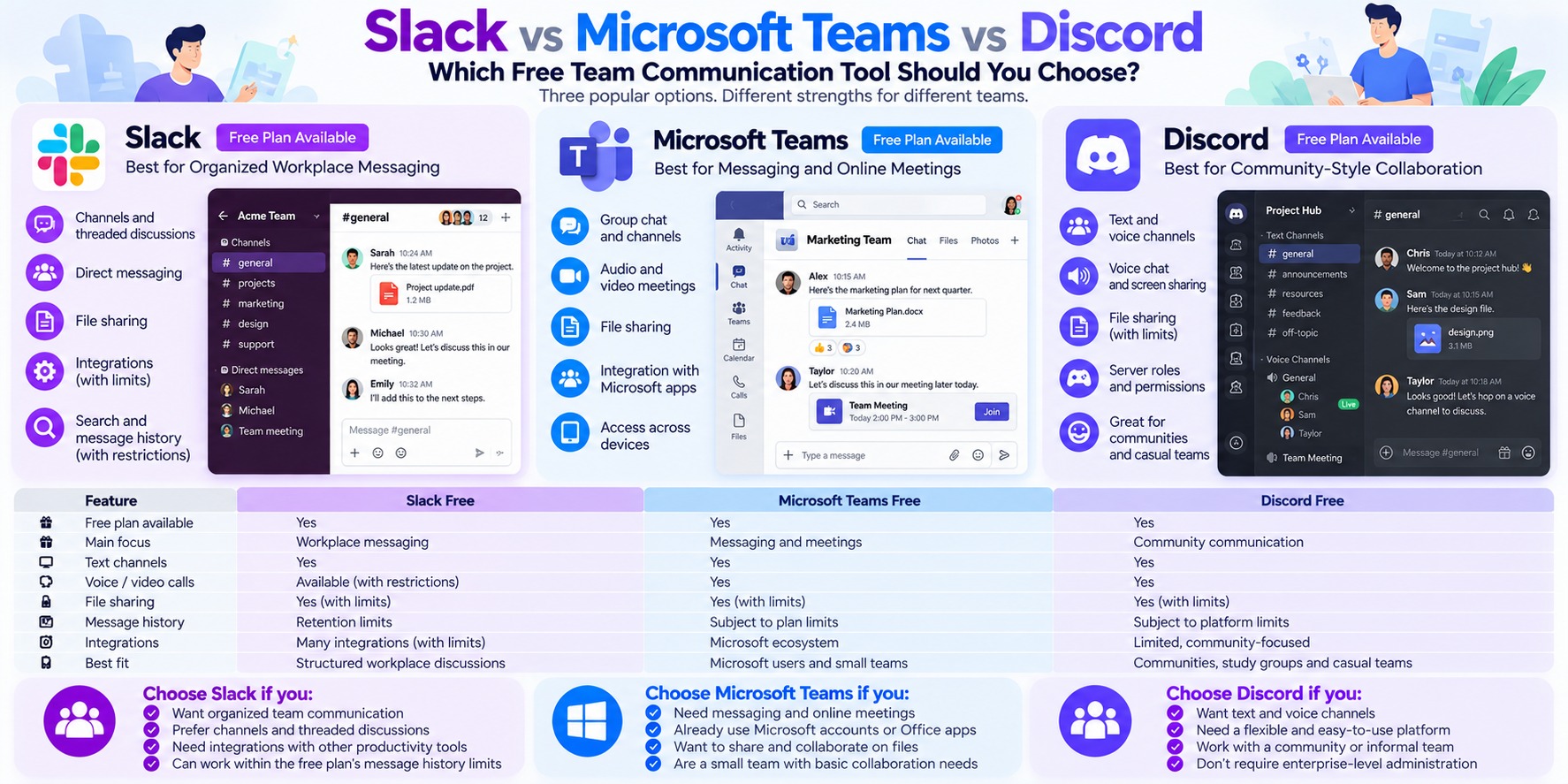
Slack vs Microsoft Teams vs Discord: Free Plan Comparison
| Feature | Slack Free | Microsoft Teams Free | Discord Free |
|---|---|---|---|
| Free option | Yes | Yes | Yes |
| Main focus | Workplace messaging | Messaging and meetings | Community communication |
| Text messaging | Yes | Yes | Yes |
| Organized channels | Yes | Product-dependent; not equivalent to business Teams | Yes |
| Voice communication | Available with restrictions | Yes | Yes |
| Video communication | Available with restrictions | Yes | Yes |
| File sharing | Yes, with limits | Yes, with limits | Yes, with limits |
| Message history | Retention and access limits | Subject to service rules | Subject to platform rules |
| Business administration | Limited | Limited in consumer free version | Not enterprise-focused |
| Best fit | Structured workplace discussions | Microsoft-based meetings | Communities and voice collaboration |
Features and limitations may change. Check each provider's current free-plan documentation, especially for meeting limits, retention policies, file uploads, and administrative controls.
Which Free Team Communication Tool Should You Choose?
The best choice depends on how your team communicates.
Choose Slack Free if your team needs organized project conversations, threaded discussions, and a familiar workplace messaging experience.
Choose Microsoft Teams Free if online meetings are important and participants already use Microsoft's ecosystem.
Choose Discord if your group prefers community-style text channels and easy access to voice conversations.
Consider these examples:
A small content team coordinating articles and design requests may prefer Slack.
A study group that regularly schedules online meetings may find Microsoft Teams Free convenient.
A creator community that hosts frequent voice discussions may benefit from Discord.
These examples illustrate typical use cases rather than independently measured performance differences.
What Are the Hidden Costs of Free Team Communication Tools?
A free communication platform may not charge a subscription fee, but limitations can still affect productivity.
The most important areas to examine are:
1. Message history and retention
If older conversations become inaccessible or are deleted, teams may lose information they expected to reference later.
Do not rely on a free chat platform as the only record of important business decisions.
2. Meeting limitations
Some free plans restrict meeting duration, participants, recording, or other conferencing features.
Verify these limits before using the service for recurring client meetings.
3. File sharing restrictions
Upload limits, storage allowances, and file retention policies can affect how documents are exchanged.
Important files should also be stored in an appropriate document management or backup system.
4. Administrative controls
Free plans may not provide the account management, access controls, or compliance features required by a business.
5. Integrations and workflow automation
Connections to project management tools, calendars, and other applications may be limited or require a paid subscription.
How to Choose a Free Communication Tool for a Small Team
Before committing to one platform, ask the following questions:
-
Do we primarily need text messaging, video meetings, or voice channels?
-
How important is access to older conversations?
-
Do we need formal administration or compliance features?
-
Which document and project management tools do we already use?
-
Can everyone access the platform on their preferred devices?
-
What happens if we eventually need to upgrade or move elsewhere?
It is also worth running a short trial with real team members.
Create a few channels or group conversations, share a document, hold a meeting, and confirm that the platform supports your daily workflow.
For important business information, establish a separate system for storing final decisions, project documents, and essential records.
Bottom line: Slack, Microsoft Teams, and Discord can all provide useful free communication capabilities. Slack is well suited to structured workplace messaging, Teams Free is worth considering for Microsoft-based messaging and meetings, and Discord is particularly useful for community-style collaboration. The right choice depends on your workflow and the free-plan limitations your team can accept.
Free vs Paid Alternatives: Feature Comparison
Choosing between free and paid productivity software is not simply about comparing the number of available features.
A free application may handle everything an individual needs, while a paid subscription may become essential for a business managing complex projects, large files, or sensitive information.
The real question is whether the additional capabilities of paid software solve a problem you actually have.
To make that decision easier, it helps to compare free and paid productivity tools across the most common software categories.
Free vs Paid Productivity Software: Quick Comparison
| Software Category | Free Options | What Free Software Can Often Handle | Why Users May Upgrade |
|---|---|---|---|
| Office suites | LibreOffice, ONLYOFFICE Desktop Editors, Google Docs | Documents, spreadsheets, presentations, basic collaboration | Advanced enterprise administration, specialized workflows, additional storage or services |
| Note-taking | Joplin, Obsidian, OneNote | Personal notes, organization, search, local knowledge management | Paid synchronization services, advanced collaboration, additional storage or business features |
| Task management | Microsoft To Do, Todoist Free, TickTick Free | Personal tasks, lists, deadlines, recurring activities | Advanced planning, expanded project allowances, premium reminders or specialized features |
| Project management | Trello Free, Asana Free, ClickUp Free | Basic projects, task assignments, progress tracking | Automation, reporting, advanced views, larger-team features |
| Cloud storage | Google Drive, OneDrive, Dropbox Basic | Basic storage, file access, synchronization and sharing | More storage, advanced recovery, business administration or security capabilities |
| Team communication | Slack Free, Microsoft Teams Free, Discord Free | Messaging, group discussions, voice or video communication | Extended history, meeting capabilities, administration, compliance or additional integrations |
This table summarizes typical differences rather than guaranteeing specific features in every free plan. Availability varies by product, account type, platform, and subscription.
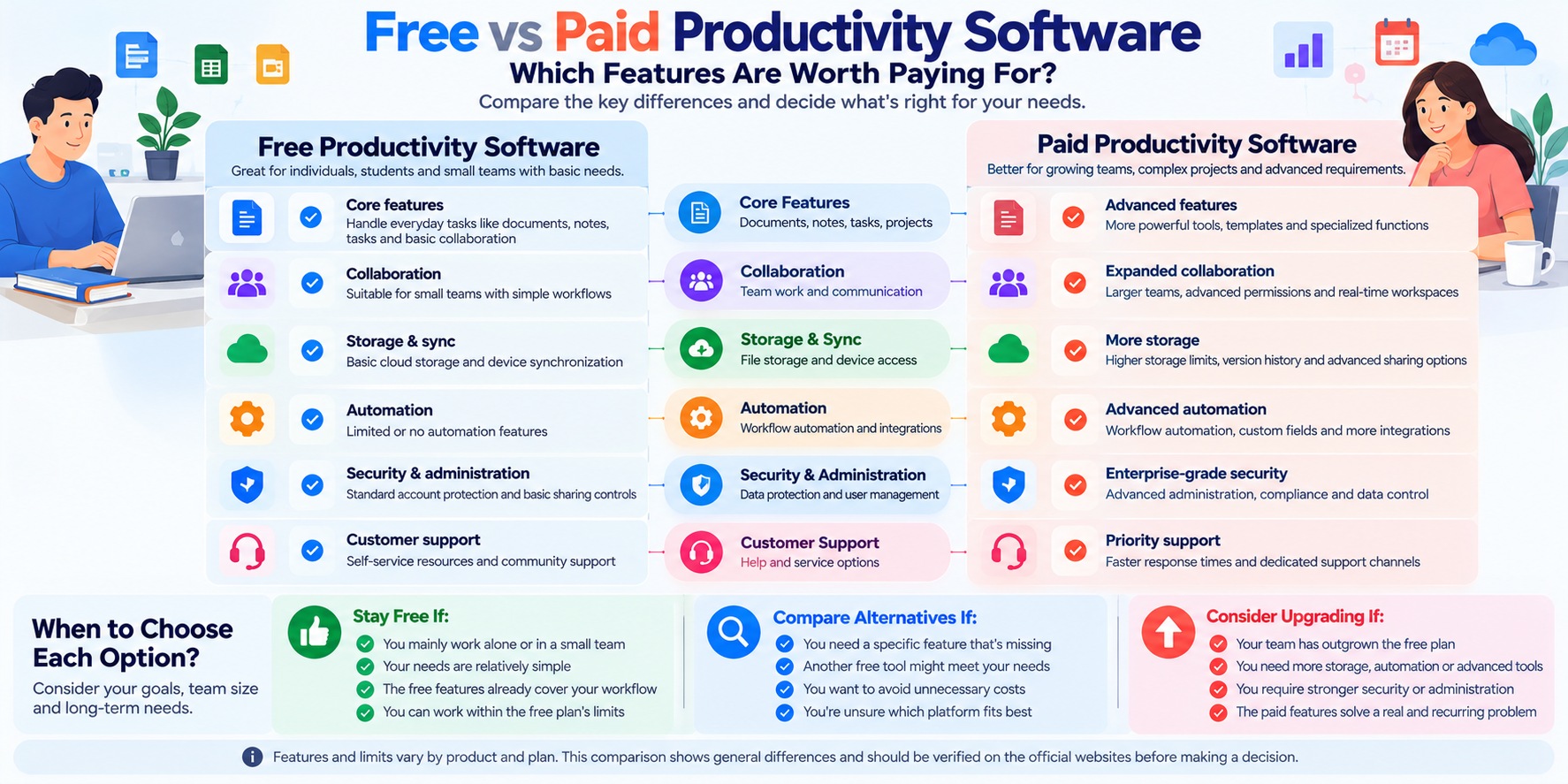
1. Core Features: Free Software Often Covers Everyday Work
For many individuals, the most important productivity features are relatively simple.
They include writing documents, maintaining task lists, taking notes, storing files, and communicating with collaborators.
Free tools can often support these activities without requiring a recurring subscription.
For example, LibreOffice provides desktop applications for common document and spreadsheet tasks.
Microsoft To Do supports personal task organization.
Joplin offers a note-taking application with local-first capabilities and optional synchronization approaches.
These products differ substantially in design and functionality, but they illustrate an important point: basic productivity does not always require paid software.
However, users should verify that the free alternative supports the specific features and file formats they rely on.
2. Collaboration: The Biggest Differences Often Appear in Team Workflows
Free productivity software can be particularly attractive to individuals.
Team requirements are often more complicated.
A group may need shared workspaces, access permissions, simultaneous editing, project assignments, meeting tools, or a searchable record of discussions.
Some free products provide useful collaboration capabilities, but their limitations may become noticeable as more people participate.
For example, free project management plans may restrict collaborators, advanced views, or administrative features.
Communication platforms may impose limits on message history or meeting capabilities.
Cloud storage services may provide basic sharing without the management controls available in business subscriptions.
Before upgrading, identify the exact collaboration problem your team is experiencing.
A paid plan is easier to justify when it removes a recurring obstacle rather than simply adding optional features.
3. Storage and Synchronization: Free Plans Can Have Practical Limits
Storage is one of the clearest differences between free and paid cloud-based productivity services.
Google Drive, OneDrive, and Dropbox Basic all offer free consumer storage, but their allowances and restrictions differ.
The same issue can affect note-taking tools, communication platforms, and applications that synchronize data across devices.
When evaluating storage-related upgrades, consider:
-
How much space you currently use.
-
How quickly your files are growing.
-
Whether storage is shared with other services.
-
Whether you need large file uploads.
-
Whether multiple devices require synchronization.
-
Whether recovery and version history meet your needs.
If your documents occupy only a small amount of space, a free plan may be sufficient.
If you regularly work with large media files or extensive shared folders, additional storage may be worth paying for.
Storage capacity alone should not determine the choice. Reliability, permissions, portability, and backup requirements also matter.
4. Automation and Advanced Features: Pay Only When They Save Meaningful Work
Many productivity platforms reserve some advanced features for paid subscribers.
Depending on the product, these may include:
-
Workflow automation.
-
Advanced reporting.
-
Custom project fields or views.
-
Additional integrations.
-
Expanded search or history capabilities.
-
AI-assisted features.
-
Administrative and security controls.
These features can be valuable, but they are not equally useful to every user.
Consider a freelancer who manages a small number of recurring tasks.
A free task manager may be enough to track deadlines and daily priorities.
Now consider a team that repeatedly transfers information between applications, prepares status reports, and manages complex approvals.
Automation and reporting could reduce manual work in that environment.
The difference is not simply that one user has more tasks. It is that the second workflow has requirements that the free tool may not support efficiently.
Before purchasing a subscription, estimate how frequently you would use the paid feature and what practical benefit it would provide.
5. Privacy, Security, and Control: Free Does Not Automatically Mean Less Secure
It is a mistake to assume that all paid software is more secure than all free software.
Security depends on the product's design, maintenance, configuration, and the user's practices.
Some free and open-source applications provide strong local data control.
Other cloud-based services may offer useful account protections even on free plans.
At the same time, paid business subscriptions may include additional administrative features, audit capabilities, identity management, or compliance support.
These distinctions are particularly important for organizations handling confidential information.
When comparing products, ask:
-
Where is the data stored?
-
Can you export it in a usable format?
-
Is multi-factor authentication available?
-
What sharing and access controls are supported?
-
How does the provider handle backups and recovery?
-
Does your organization require specific compliance capabilities?
Do not choose a product solely because it is free or paid. Evaluate whether its documented security controls meet your actual requirements.
6. Support and Reliability: Understand What Is Included
Another difference between free and paid software can be the level of customer support.
Some free tools rely primarily on documentation, community forums, or self-service resources.
Paid subscriptions may offer additional support channels, service commitments, or administrative assistance.
However, support availability varies considerably.
A mature free application with strong documentation may be easier to use than a paid product with poor support.
For critical business workflows, consider how quickly you would need assistance if something stopped working.
If downtime could seriously disrupt operations, the availability of appropriate support may influence your purchasing decision.
When Is a Free Productivity Tool Enough?
A free alternative is often a reasonable choice when:
-
You mainly work independently.
-
Your projects are relatively simple.
-
You do not require advanced automation.
-
Your storage requirements fit the available allowance.
-
You can export or back up important information.
-
The software supports your essential file formats.
-
Free-plan restrictions do not interrupt your workflow.
For example, an individual managing documents, personal notes, and everyday tasks may be able to combine free office software, a free note-taking application, and a basic task manager.
There is little reason to purchase multiple subscriptions if those tools already meet the user's requirements.
When Is Paid Productivity Software Worth It?
An upgrade becomes more reasonable when a specific limitation creates measurable inconvenience, additional work, or business risk.
Common examples include:
Your team has outgrown the free collaboration allowance.
If the platform no longer supports the people who need access, a paid subscription or different tool may be necessary.
Important work depends on restricted features.
Advanced project views, automation, or administrative controls may be essential to your workflow rather than optional extras.
You regularly exceed storage or file limits.
Paying for more capacity may be more practical than repeatedly reorganizing files to remain within a free allowance.
Your organization has formal security or compliance requirements.
Business-specific capabilities may be required, but they should be verified against the relevant subscription and organizational policies.
The paid feature produces a clear productivity benefit.
If an upgrade removes recurring manual work, its value may justify the cost.
The key is to connect the subscription to a specific need.
A Simple Framework for Deciding Whether to Upgrade
Before paying for productivity software, work through five questions:
-
What problem does the free version fail to solve? Identify a specific limitation rather than a general desire for more features.
-
How often does that limitation affect your work? A rare inconvenience may not justify a recurring payment.
-
Is there another free solution? Compare alternative products before assuming an upgrade is necessary.
-
What would switching cost? Consider setup time, training, migration, and compatibility.
-
Would the paid feature provide enough value? Compare its practical benefits with the full subscription cost.
A paid plan can be the right decision when it improves a workflow that matters.
But upgrading without a clear reason can increase software expenses without making everyday work meaningfully easier.
Bottom line: Free alternatives to paid productivity software can handle many everyday tasks, including document creation, note-taking, project organization, file sharing, and communication. Paid plans become more valuable when collaboration, storage, automation, administration, or other requirements exceed what the free tools can reliably provide.
Hidden Limitations of Free Software
Free productivity software can be an excellent way to reduce subscription costs. Many free applications provide reliable tools for writing documents, organizing tasks, managing projects, and communicating with others.
However, free does not always mean unlimited, risk-free, or cost-free in the long term.
Some applications restrict advanced features. Others place limits on storage, collaboration, or access to older information. Switching platforms can also require time, training, and data migration.
Understanding these limitations is essential before making a free application part of your daily workflow.
1. Free Plans May Restrict Features You Eventually Need
One of the most common limitations of free productivity software is restricted functionality.
A free plan may provide the essential tools needed to get started while reserving more advanced capabilities for paid subscribers.
Depending on the product, these restrictions may affect:
-
The number of projects, boards, or workspaces.
-
Advanced task views and reporting.
-
Workflow automation.
-
Integrations with other applications.
-
Collaboration and administrative controls.
-
File uploads and storage.
-
Access to advanced productivity features.
For example, Trello, Asana, and ClickUp all offer free options, but their plan structures and advanced capabilities differ.
A freelancer managing a few projects may never encounter a significant restriction.
A growing team with more complex workflows may eventually require capabilities unavailable in its chosen free plan.
What to do: Identify your essential features before choosing a platform. Review the official pricing comparison rather than assuming that every advertised feature is included for free.
2. Storage, Synchronization, and Usage Limits Can Become Expensive
Free cloud-based applications frequently impose storage or usage allowances.
These restrictions can be easy to overlook when an account is new.
For example, Google accounts commonly provide 15 GB of storage shared across eligible Google services, while free consumer offerings from Microsoft OneDrive and Dropbox Basic provide smaller allowances.
As files accumulate, the available capacity may become insufficient.
Similar issues can arise with applications that limit file attachments, synchronization features, or access across devices.
The consequences depend on the service.
A user may need to delete files, move data elsewhere, change workflows, or purchase additional capacity.
There is also an indirect cost: repeatedly managing storage limits takes time.
What to do: Estimate how much storage you need today and how quickly that requirement may grow. Check whether storage is shared with other services and whether the free plan supports your devices.
3. Vendor Lock-In Can Make Switching Difficult
Vendor lock-in occurs when moving from one software provider to another becomes difficult because of how data, workflows, or integrations are structured.
This risk is not limited to paid software.
A free application may encourage users to build their entire workflow around a proprietary system.
Over time, they may accumulate:
-
Documents stored in application-specific formats.
-
Projects with custom fields and relationships.
-
Notes containing internal links and attachments.
-
Automations tied to a particular platform.
-
Shared workspaces with complex permissions.
-
Integrations that cannot be recreated easily elsewhere.
Even if the application provides an export function, the exported files may not preserve every feature.
For example, exporting a project as a spreadsheet may preserve task names and dates but not necessarily every dependency, comment, automation, or permission.
That means switching can involve manual reconstruction.
What to do: Before adopting a tool, check which export formats are available and whether your essential information can be imported into another application.
Where appropriate, prefer widely supported formats such as TXT, Markdown, CSV, PDF, or standard office documents.
These formats can improve portability, although they do not guarantee that every application-specific feature will transfer.
4. Privacy and Data Ownership Require Careful Review
A zero-dollar subscription does not automatically tell you how an application handles personal or business information.
Free products can follow different business models.
Some are open-source applications supported through donations, services, or paid offerings.
Others use subscription upgrades, advertising, or broader commercial ecosystems.
These differences do not automatically make one model safer than another.
Instead, evaluate the product's documented data practices.
Important questions include:
-
What information does the application collect?
-
Where is user content stored?
-
Is data processed locally or on remote servers?
-
Can the provider access stored content?
-
Is encryption available, and what does it protect?
-
Can you download or delete your data?
-
What happens to account information after cancellation?
For example, Obsidian emphasizes locally stored Markdown notes, while cloud-based productivity services generally rely on remote infrastructure for at least some features.
Local storage can provide additional control, but it also creates responsibilities for backups and device security.
Cloud storage can make collaboration easier, but users must understand account access, sharing permissions, and the provider's policies.
What to do: Read the official privacy policy, security documentation, and data export information before uploading sensitive material.
5. Free Software May Offer Limited Customer Support
Customer support can be another important difference between free and paid software.
Some free applications provide extensive documentation and active user communities.
Others offer only basic help articles or limited support channels.
A paid subscription may include additional support options, but this depends on the provider and plan.
For casual personal use, self-service documentation may be sufficient.
For business-critical workflows, delayed assistance can create operational problems.
Consider what would happen if:
-
You could not access your account.
-
A synchronization issue affected important files.
-
An integration stopped working.
-
A team member lost access to shared information.
-
A migration produced unexpected errors.
The real issue is not whether support is labeled free or premium. It is whether the available assistance meets your needs.
What to do: Review official support options, documentation quality, community resources, and any published service commitments before depending on a tool for essential work.
6. Free Plans Can Change or Disappear
A free plan available today may not remain unchanged indefinitely.
Software companies can revise their pricing, introduce new restrictions, change feature availability, or discontinue products.
Open-source projects can also experience changes in development activity or maintenance.
These possibilities do not mean that free software is inherently unreliable.
They do mean that users should avoid assuming a product's current offering is permanent.
Changes may affect:
-
Free storage allowances.
-
User or collaborator limits.
-
Previously available features.
-
Third-party integrations.
-
Platform compatibility.
-
Data export options.
-
Support and maintenance.
A workflow that depends heavily on one application may be vulnerable to these changes.
What to do: Keep independent backups of important data, periodically review plan terms, and maintain a practical exit strategy.
For open-source tools, consider whether the project has current releases, documentation, and an active maintenance process.
7. Migration and Training Can Create Hidden Costs
Switching from paid software to a free alternative may reduce subscription expenses, but the transition itself can require work.
Users may need to:
-
Export existing data.
-
Convert files into compatible formats.
-
Recreate projects or folder structures.
-
Configure new integrations.
-
Train colleagues.
-
Update internal documentation.
-
Troubleshoot formatting or synchronization problems.
These activities consume time.
For a single user with a few documents, the transition may be straightforward.
For an organization with years of stored information and established workflows, migration can be significantly more complicated.
A free alternative is not necessarily the cheapest option if adopting it requires extensive manual work or disrupts important processes.
What to do: Test the migration with a small, representative sample before moving everything.
Compare the expected subscription savings with the effort required to switch and maintain the new system.
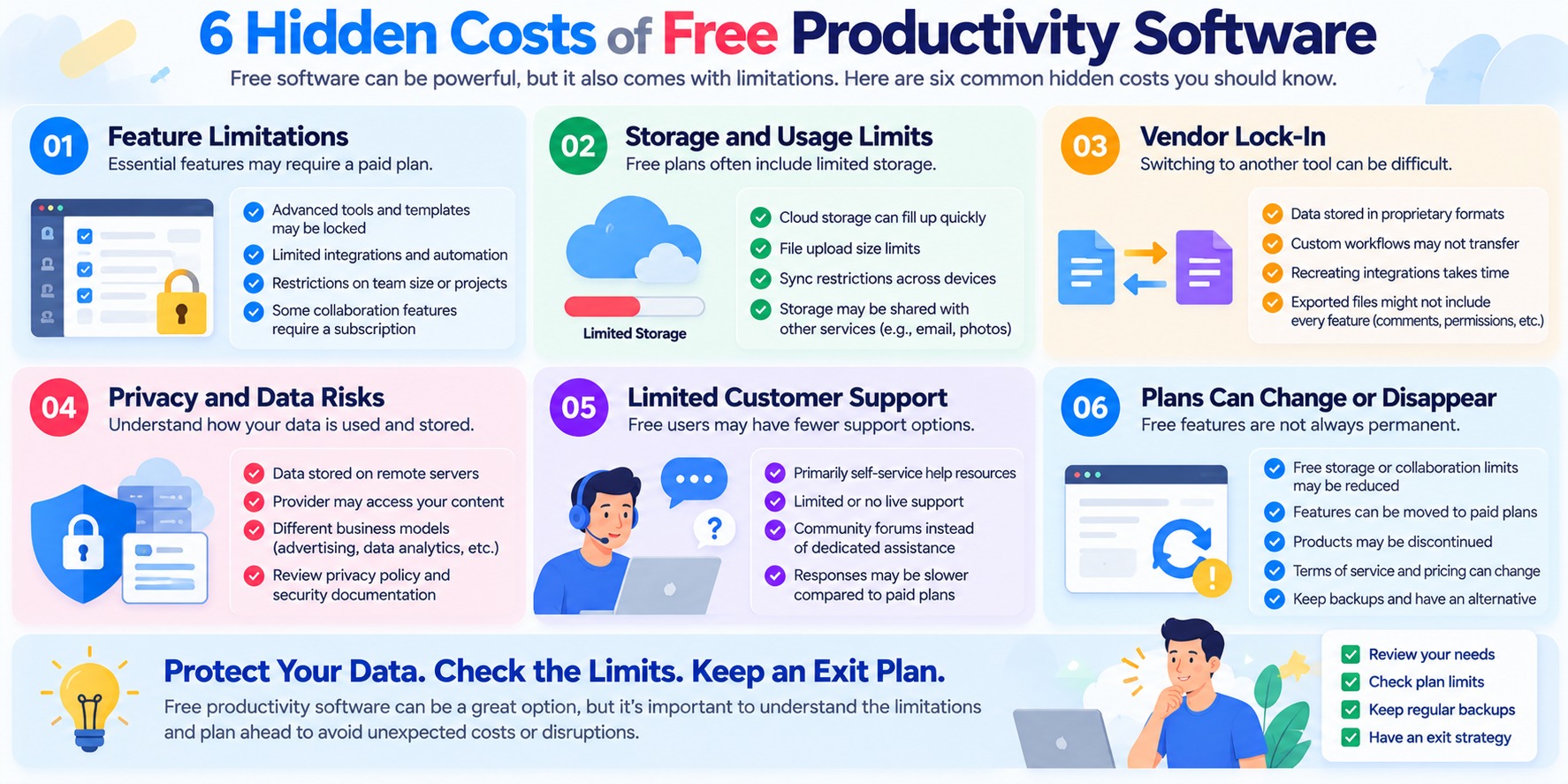
Hidden Limitations of Free Software: Risk Comparison
| Potential Limitation | What Can Go Wrong? | How to Reduce the Risk |
|---|---|---|
| Feature restrictions | Essential capabilities require payment | Review the current free-plan feature list |
| Storage limits | Uploads or synchronization may be affected | Monitor usage and plan capacity |
| Vendor lock-in | Data and workflows become difficult to move | Test exports and use portable formats |
| Privacy concerns | Data handling does not match your requirements | Review privacy and security documentation |
| Limited support | Problems take longer to resolve | Evaluate support before relying on the tool |
| Plan changes | Free features or allowances change | Maintain backups and alternative options |
| Migration costs | Switching consumes time and resources | Run a small pilot before full adoption |
Real-World Examples of Free-Plan Limitations
Free productivity plans can be useful, but their restrictions vary significantly.
For example, Slack's free plan limits access to recent message history and applies a separate retention policy to older workspace data. Asana's Personal plan is designed for up to two users, while ClickUp's Free Forever plan includes a limited amount of file storage. Todoist's free Beginner plan also limits the number of personal projects.
These differences matter because a tool that works well for one person may not meet the needs of a growing team.
Before choosing a free plan, check the provider's current pricing and help documentation. Pay particular attention to user limits, storage, data retention, exports, and collaboration features.
Free-plan terms may change after this article is published.
Are Open-Source Alternatives Better Than Freemium Software?
Open-source and freemium software are not interchangeable concepts.
Open-source software makes its source code available under an open-source license. Depending on the project, users may be able to inspect, modify, and redistribute the software under the applicable license terms.
Freemium software typically offers a free product or plan alongside paid upgrades.
An open-source application may still charge for hosting, synchronization, support, or other services.
A freemium application may offer a useful free plan without providing access to its source code.
Neither model is automatically superior.
Open-source tools may be attractive to users who value transparency, customization, or local data control.
Freemium services may appeal to users who prefer managed infrastructure, convenient account synchronization, or integrated collaboration.
The right choice depends on your technical skills, workflow requirements, and willingness to manage software and data.
How to Evaluate the True Cost of Free Software
A useful way to compare software is to consider its total cost of ownership, not only its subscription price.
For an individual, the total cost may include:
-
Subscription fees.
-
Setup and learning time.
-
Migration effort.
-
Additional storage or services.
-
Ongoing maintenance.
-
Time spent working around restrictions.
For a team, it may also include training, administration, support requirements, and workflow disruption.
You do not need a complex financial model to make a reasonable decision.
Start by identifying the costs that actually apply to your situation.
For example, a free tool that requires an occasional manual export may still be an excellent choice.
A free tool that forces several employees to repeat time-consuming tasks every day may be less attractive.
The objective is not to avoid every limitation.
It is to select software whose limitations are manageable and whose benefits outweigh the costs.
A Practical Checklist Before Committing to Free Software
Before relying on a free productivity tool for important work, verify the following:
-
Essential features: Does the free plan support the tasks you perform regularly?
-
Usage allowances: Are storage, collaboration, and synchronization limits sufficient?
-
Data portability: Can you export your information in usable formats?
-
Privacy: Do the provider's data practices meet your requirements?
-
Security: Are the necessary account and access protections available?
-
Support: Can you obtain appropriate help when something goes wrong?
-
Continuity: Do you have backups and an alternative if the product changes?
If the answers are satisfactory, a free application may be a sustainable long-term choice.
If several answers remain unclear, investigate further before migrating important work.
Bottom line: The biggest hidden cost of free software is not always a missing feature. It can be the time, complexity, or risk created when a tool no longer fits your workflow. Choose free alternatives that meet your current needs while keeping your data portable and your future options open.
How to Switch From Paid Software to Free Alternatives
Switching from paid productivity software to a free alternative can reduce recurring expenses, but a successful transition requires more than installing a new application.
Your existing software may contain documents, notes, tasks, shared files, project histories, and settings that are important to your daily work.
Moving this information without proper preparation can lead to missing data, broken workflows, formatting problems, or interrupted collaboration.
The safest approach is to treat the transition as a small software migration project.
Follow these eight steps to reduce unnecessary risks.
Step 1: Audit Your Current Software and Essential Features
Before choosing a replacement, identify what you actually use in your current paid application.
Start by reviewing your everyday workflow.
Ask yourself:
-
Which features do I use every day?
-
Which features do I use occasionally?
-
Which features are essential to completing my work?
-
Which paid capabilities could I live without?
-
Which integrations connect this software to other tools?
-
Who else depends on the application?
For example, someone using a paid task manager may rely primarily on task lists, due dates, and recurring reminders.
If those features are available in a free alternative, switching may be straightforward.
However, if the current workflow depends on advanced automation, custom fields, or team permissions, the replacement needs more careful evaluation.
Create a short list of must-have features and nice-to-have features.
This helps prevent choosing a free tool based only on its appearance or advertised feature count.
Step 2: Choose a Free Alternative That Matches Your Workflow
Once you understand your requirements, compare suitable replacements.
Do not assume that the most feature-rich application is automatically the best option.
A simpler tool may be more effective if it handles your essential tasks without additional setup.
For example:
| Current Software Need | Free Alternatives to Evaluate | Important Compatibility Check |
|---|---|---|
| Office documents | LibreOffice, ONLYOFFICE Desktop Editors, Google Docs | Formatting, formulas, macros, file compatibility |
| Personal notes | Joplin, Obsidian, OneNote | Attachments, links, notebooks, export formats |
| Task management | Microsoft To Do, Todoist Free, TickTick Free | Recurring tasks, reminders, project organization |
| Project management | Trello Free, Asana Free, ClickUp Free | Assignments, comments, custom fields, team limits |
| Cloud storage | Google Drive, OneDrive, Dropbox Basic | Capacity, synchronization, sharing permissions |
| Team communication | Slack Free, Microsoft Teams Free, Discord Free | Message retention, meetings, access controls |
These are tools to evaluate, not guaranteed one-click replacements.
The best option depends on your data, current workflow, and the features available in each product's free plan.
Review the official documentation before making a final decision.
Step 3: Back Up Your Data Before Changing Anything
Never cancel your existing subscription or delete your original data before creating a verified backup.
This is one of the most important precautions in the migration process.
Depending on the application, important data may include:
-
Documents and spreadsheets.
-
Notes and attachments.
-
Tasks, subtasks, and project records.
-
Calendar information.
-
Shared folders and files.
-
Contact lists.
-
Workflow settings.
-
Relevant conversation or decision records.
Use the current application's official export or backup tools where available.
Save the exported information somewhere independent of the application you plan to leave.
For important files, consider keeping more than one copy, such as a local backup and a separate secure storage location.
After the backup finishes, open a sample of the files to verify that the data is readable.
A completed download does not necessarily mean every important item was exported correctly.
For general backup guidance, see CISA's Secure Our World resources.
Step 4: Export Data in Portable Formats
Data portability can determine how difficult a software migration becomes.
Whenever possible, choose export formats supported by multiple applications.
Common examples include:
| Data Type | Common Portable Formats | What to Verify |
|---|---|---|
| Documents | DOCX, ODT, PDF | Layout, fonts, comments, editing capabilities |
| Spreadsheets | XLSX, ODS, CSV | Formulas, charts, data types, formatting |
| Notes | Markdown, HTML, TXT | Attachments, internal links, metadata |
| Task lists | CSV or supported export formats | Due dates, recurrence, priorities |
| Calendar data | ICS | Events, time zones, recurring appointments |
| Contacts | CSV, VCF | Names, email addresses, field mapping |
| Project data | CSV, JSON or provider-specific formats | Task relationships, comments, permissions |
Not every application supports all of these formats.
Some formats also preserve only part of the original information.
For example, a CSV export may contain task names and due dates but omit attachments, discussion threads, automations, or complex project relationships.
Similarly, exporting a document to PDF preserves a readable representation but may not preserve the same editing capabilities.
Before exporting everything, test whether the destination application can actually import the selected format.
If an application uses a proprietary export format, review its official migration documentation.
Step 5: Test File Compatibility and Important Features
A successful import does not guarantee that everything works correctly.
After transferring a small sample, inspect the content in the new application.
For office documents, check:
-
Headings and paragraph formatting.
-
Tables and page layouts.
-
Fonts and special characters.
-
Spreadsheet formulas.
-
Charts and embedded objects.
-
Comments and tracked changes.
-
Macros or other specialized features, if applicable.
For note-taking applications, verify:
-
Note titles and organization.
-
Tags and notebooks.
-
Embedded images.
-
Attachments.
-
Internal links.
-
Search functionality.
For project management tools, review:
-
Task assignments.
-
Due dates.
-
Task status.
-
Subtasks.
-
Dependencies.
-
Comments and attachments.
-
Custom fields and permissions.
Some application-specific capabilities may need to be recreated manually.
If the new tool cannot reproduce a feature your workflow depends on, reconsider the migration before proceeding.
Step 6: Run a Small Pilot Before Migrating Everything
Instead of moving all your information immediately, begin with a representative test.
For an individual, this might involve one project, one notebook, or a small folder of documents.
For a team, select a low-risk project and a few participants.
The pilot should test real activities rather than simply confirming that the application opens.
For example:
-
Import a small set of files or tasks.
-
Recreate the necessary folder or project structure.
-
Complete several normal work activities.
-
Share content with the appropriate people.
-
Test synchronization across relevant devices.
-
Export a sample from the new application.
-
Record any missing features or unexpected behavior.
The final export test is especially useful.
It helps confirm that you can leave the new application later if necessary.
If the pilot reveals serious compatibility problems, you can adjust your plan without disrupting your entire workflow.
Step 7: Run Both Tools in Parallel During the Transition
For important workflows, avoid switching every user and every process at once.
A short period of parallel operation can make the transition safer.
During this period, keep the original application available while using the replacement for selected tasks.
The purpose is to verify that the new workflow is reliable before retiring the old one.
However, parallel operation creates a risk of inconsistent data.
If team members edit the same information in two different systems, it may become unclear which version is authoritative.
To reduce confusion:
-
Define which application is the source of truth.
-
Avoid unnecessary duplicate editing.
-
Establish a clear migration cutoff.
-
Communicate the transition plan to collaborators.
-
Verify final changes before completing the switch.
For example, a team may agree that the original project management tool remains authoritative until a specific migration date.
After that date, all new task updates occur in the replacement application.
This approach can prevent fragmented project information.
Step 8: Verify the Migration Before Canceling Your Subscription
Canceling the original subscription should be one of the final steps, not the first.
Before cancellation, confirm that:
-
Important data has been transferred.
-
Backup copies are accessible.
-
Essential workflows function correctly.
-
Required users have appropriate access.
-
Sharing permissions have been recreated.
-
Integrations have been reviewed.
-
The new application's limitations are acceptable.
-
Any remaining information has been exported.
Also review the original provider's cancellation policy.
Cancellation may affect account access, storage allowances, premium features, or data retention.
Some subscriptions remain active until the end of the billing period, while others follow different terms.
Do not assume that canceling a subscription automatically deletes your account or that all data will remain available indefinitely.
Check the provider's official documentation before taking action.
Once the migration is complete, remove unnecessary access permissions and review any integrations that still connect to the old application.
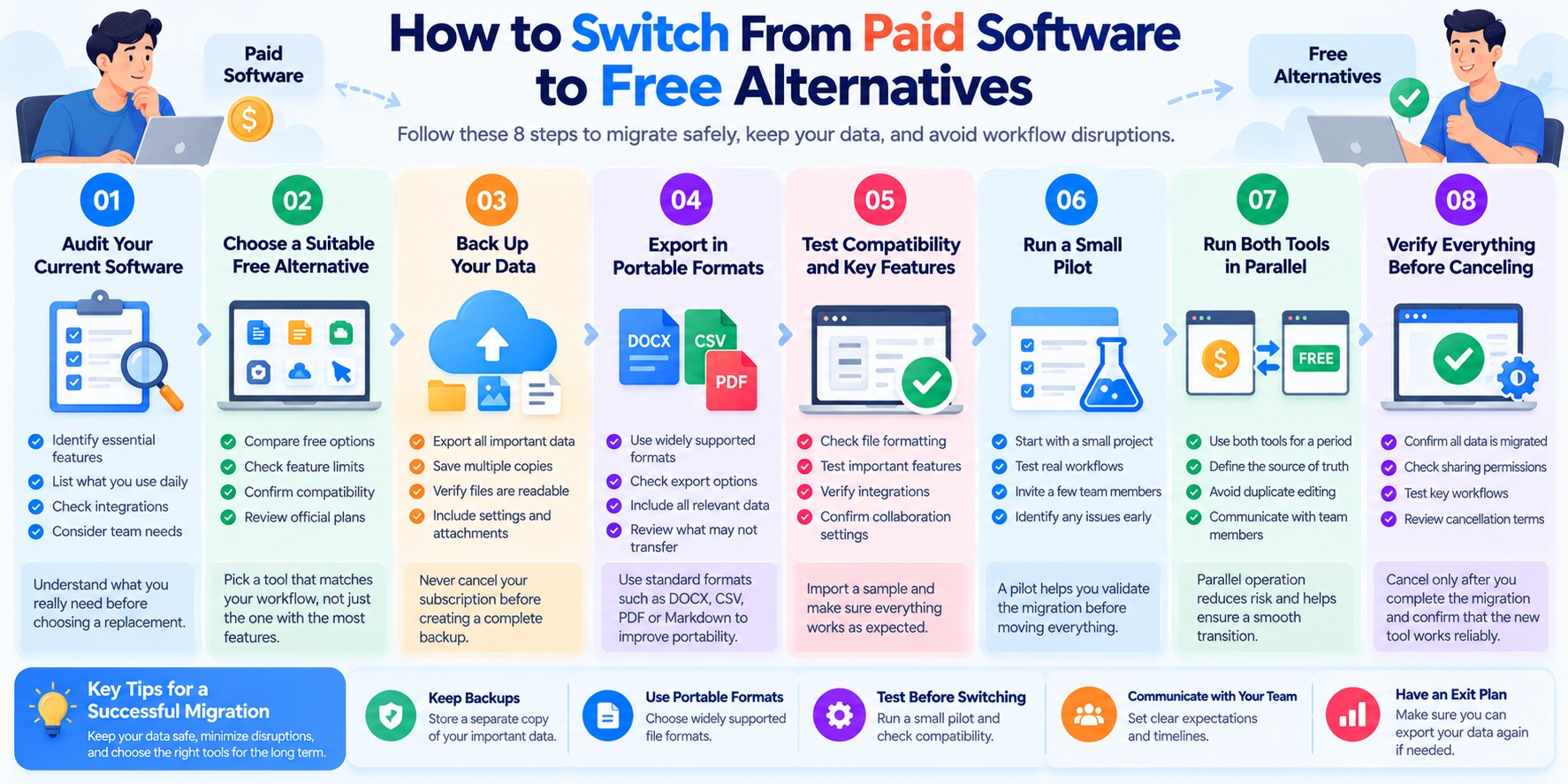
Free Software Migration Checklist
Use this checklist before fully replacing a paid productivity application.
| Migration Task | Why It Matters |
|---|---|
| Identify essential features | Prevents choosing an unsuitable replacement |
| Review free-plan restrictions | Avoids unexpected limitations |
| Back up original data | Reduces the risk of permanent data loss |
| Test export and import formats | Confirms basic data portability |
| Check file compatibility | Identifies missing formatting or functionality |
| Run a pilot project | Reveals workflow problems early |
| Verify sharing and permissions | Protects access and collaboration |
| Establish a migration cutoff | Prevents conflicting versions |
| Confirm backup and recovery options | Supports future data protection |
| Review cancellation terms | Reduces the risk of losing access too early |
Common Mistakes When Switching to Free Software
Even a promising free alternative can become frustrating if the transition is rushed.
Avoid these common mistakes.
Mistake 1: Canceling the paid subscription too early
You may lose access to important export features or historical information before completing the migration.
Better approach: Confirm that your data is backed up and the replacement works before canceling.
Mistake 2: Assuming file compatibility is perfect
Documents may look different, formulas may behave differently, and specialized application features may not transfer.
Better approach: Test representative files, especially complex documents and spreadsheets.
Mistake 3: Ignoring collaboration permissions
A migrated folder or project may not retain the same sharing rules.
Better approach: Recreate permissions deliberately and verify access using appropriate accounts.
Mistake 4: Moving too many tools at once
Replacing several applications simultaneously can make troubleshooting difficult.
Better approach: Prioritize one software category or workflow at a time.
Mistake 5: Failing to test data export from the new application
A free tool may be easy to adopt but difficult to leave.
Better approach: Confirm that you can export your important information before relying on the new platform.
Mistake 6: Forgetting to train collaborators
A new application can introduce unfamiliar terminology, menus, and processes.
Better approach: Provide simple instructions and establish consistent usage rules.
How Long Does Switching to Free Software Take?
Migration time varies widely.
Moving a small collection of ordinary documents may be relatively straightforward.
Transferring years of notes, project records, attachments, or team workflows may require significantly more preparation.
The main factors include:
-
Amount and complexity of existing data.
-
Compatibility between export and import formats.
-
Number of users involved.
-
Dependencies on integrations or automation.
-
Required security and permission settings.
-
Time needed for testing and training.
Rather than relying on a fixed timeline, divide the work into manageable stages.
Complete the backup and pilot first, then estimate the remaining effort based on what you learn.
When Should You Keep Your Paid Software?
Switching is not always the best decision.
You may be better off retaining your paid application when:
-
Essential features have no suitable free replacement.
-
Migration would introduce unacceptable data loss.
-
Business workflows depend on specialized integrations.
-
Security or compliance requirements are not met.
-
Team disruption would outweigh the subscription savings.
-
The existing paid software provides clear ongoing value.
The goal is not to eliminate every subscription.
It is to avoid paying for capabilities you do not need while preserving the tools that genuinely support your work.
Bottom line: Switching from paid software to free alternatives works best when you audit your requirements, back up your data, test compatibility, run a pilot, and cancel the original subscription only after verifying the new workflow. A careful migration can reduce recurring costs without creating unnecessary disruption.
Which Free Alternatives Are Best for Your Workflow?
There is no single combination of free productivity software that works best for everyone.
A student organizing assignments has different requirements from a freelance designer, a remote employee, or a small business coordinating multiple projects.
The most useful approach is to build a simple software toolkit around the work you actually do.
Start with your essential activities, then select free applications that support them without creating unnecessary complexity.
The following recommendations are based on common workflow requirements and product capabilities, not independent performance testing.
1. Best Free Productivity Software for Personal Use
For everyday personal productivity, simplicity is often more valuable than an extensive feature list.
Most individuals need a few basic tools to manage documents, notes, reminders, and files.
Suggested free software stack:
| Need | Suggested Tool | Why Consider It |
|---|---|---|
| Documents and spreadsheets | LibreOffice | Free desktop office applications |
| Notes | Joplin | Organized notes with local-first capabilities |
| Tasks and reminders | Microsoft To Do | Straightforward daily task management |
| Cloud storage | Google Drive | File access and sharing through a Google account |
This combination may be useful for managing household documents, personal projects, shopping lists, and everyday reminders.
However, using several applications also means maintaining separate accounts, settings, and synchronization arrangements.
If you prefer fewer tools, consider choosing applications that already fit your existing device and account ecosystem.
Best for: Individuals who want basic productivity without recurring subscriptions.
Main consideration: Keep the setup simple and verify how your notes and files are backed up.
2. Best Free Productivity Software for Students
Students often need tools for writing assignments, organizing research, managing deadlines, and collaborating on group projects.
File compatibility is particularly important because schools and instructors may require specific document formats.
Suggested free software stack:
| Need | Suggested Tool | Why Consider It |
|---|---|---|
| Writing and collaboration | Google Docs | Browser-based documents and collaborative editing |
| Research notes | Obsidian | Markdown notes and linked knowledge organization |
| Assignment tracking | Microsoft To Do | Task lists and deadline management |
| File storage | Google Drive | Shared access to documents and coursework |
A student could use Google Docs to prepare assignments, Obsidian to organize research notes, and Microsoft To Do to track upcoming deadlines.
For group work, shared documents can help participants collaborate without repeatedly exchanging attachments.
Before choosing a tool, confirm that it supports your institution's requirements.
Some schools provide access to paid software through institutional licenses, which may make an additional free alternative unnecessary.
Best for: Students managing coursework, research notes, and group assignments.
Main consideration: Check required file formats, institutional policies, and the availability of school-provided software.
3. Best Free Productivity Software for Freelancers
Freelancers often need to balance client work, deadlines, documents, and communication.
The right tools should support reliable delivery without introducing unnecessary administration.
Suggested free software stack:
| Need | Suggested Tool | Why Consider It |
|---|---|---|
| Client documents | ONLYOFFICE Desktop Editors | Desktop editing of common office file formats |
| Project tracking | Trello | Visual organization of client deliverables |
| Personal tasks | Todoist | Structured task and project organization |
| File sharing | Google Drive | Sharing project files with clients |
For example, a freelance consultant might create a Trello board for each active client project, maintain personal deadlines in Todoist, and prepare deliverables with ONLYOFFICE.
However, maintaining the same task information in multiple tools can lead to duplication.
If Trello already handles your project deadlines, a separate task manager may not be necessary.
The goal is to reduce administrative work, not create more of it.
Best for: Freelancers handling multiple clients and recurring deliverables.
Main consideration: Confirm free-plan project limits, client-sharing permissions, and document compatibility.
4. Best Free Productivity Software for Content Creators
Content creators frequently manage ideas, research, drafts, publication schedules, and supporting assets.
A useful toolkit should make it easy to move content from planning to publication.
Suggested free software stack:
| Need | Suggested Tool | Why Consider It |
|---|---|---|
| Ideas and research | Obsidian | Connected notes and organized research |
| Writing and editing | Google Docs | Drafting, comments, and collaborative editing |
| Editorial calendar | Trello | Visual content production stages |
| File storage | Google Drive | Organizing and sharing content assets |
A simple editorial workflow might include these stages:
Idea → Research → Draft → Edit → Publish → Update
Each content item can move through the stages on a Trello board.
Research notes can remain in Obsidian, while drafts are prepared in Google Docs.
This workflow can be suitable for bloggers, newsletter writers, and small editorial operations.
However, creators working with large video or design files may quickly exceed free cloud storage allowances.
Best for: Bloggers, writers, newsletter publishers, and small content teams.
Main consideration: Avoid duplicating content across tools, and plan separate storage or backups for large media files.
5. Best Free Productivity Software for Remote Workers
Remote work often requires a combination of communication, document access, and task organization.
The right free toolkit depends partly on whether you work independently or as part of an organization.
Suggested free software stack:
| Need | Suggested Tool | Why Consider It |
|---|---|---|
| Documents | Google Docs | Shared documents and comments |
| Meetings and messaging | Microsoft Teams Free | Basic communication and online meetings |
| Task tracking | Microsoft To Do | Personal tasks and reminders |
| File access | OneDrive | Cloud file access within Microsoft's ecosystem |
This example combines Google and Microsoft tools, but that is not always necessary.
If your workplace already uses a particular platform, staying within its approved ecosystem may reduce compatibility and account-management problems.
Employees should also follow their organization's software, privacy, and security policies.
A free personal account may not be appropriate for confidential business documents.
Best for: Independent remote workers and individuals collaborating on straightforward projects.
Main consideration: Follow employer policies and confirm whether consumer free plans are appropriate for business information.
6. Best Free Productivity Software for Small Teams
Small teams often need more coordination than individual users.
They may require shared projects, task assignments, file permissions, and a reliable communication system.
Suggested free software stack:
| Need | Suggested Tool | Why Consider It |
|---|---|---|
| Project management | ClickUp | Flexible task and project organization |
| Team messaging | Slack | Structured workplace conversations |
| Collaborative documents | Google Docs | Shared document editing |
| File storage | Google Drive | Centralized file access and sharing |
This combination can support basic project coordination when the team fits within the relevant free-plan limits.
For example, team members might discuss work in Slack, track assignments in ClickUp, and prepare shared documents in Google Docs.
However, this setup also creates dependencies across several providers.
A team should establish clear rules about where important information belongs.
Project status should be maintained in the project management tool, while final documents should be stored in an agreed location.
Important decisions should not exist only in a chat history that may become inaccessible.
Best for: Eligible small teams with straightforward collaboration requirements.
Main consideration: Verify collaborator allowances, message retention, administrative controls, and data-sharing requirements before adoption.
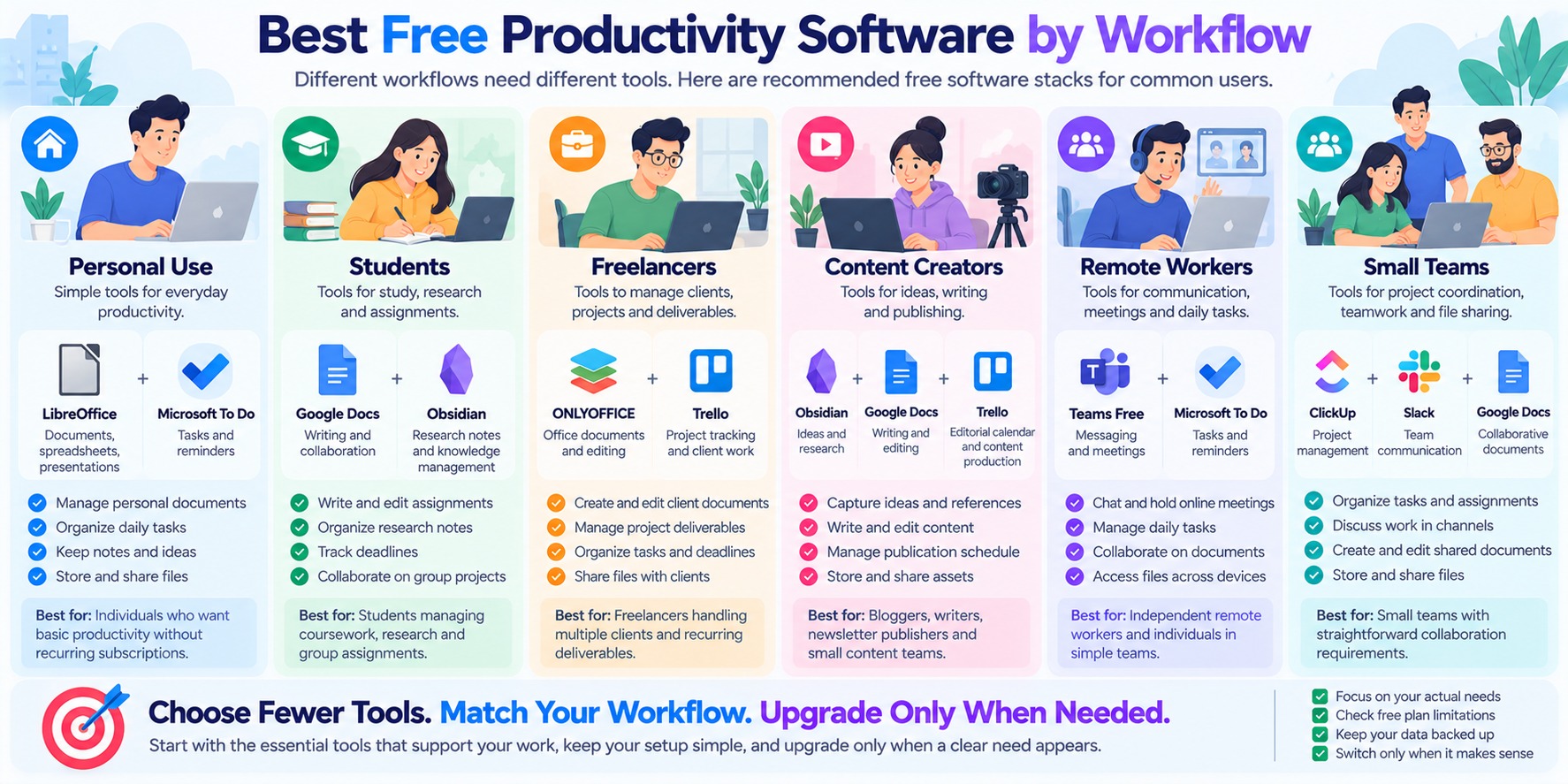
Free Productivity Software Recommendations by User Type
| User Type | Main Priority | Suggested Starting Point | Key Limitation to Check |
|---|---|---|---|
| Personal users | Simplicity | LibreOffice + Microsoft To Do | Backup and synchronization |
| Students | Coursework and collaboration | Google Docs + Obsidian | File formats and school requirements |
| Freelancers | Client deliverables | Trello + ONLYOFFICE | Project limits and compatibility |
| Content creators | Editorial workflows | Obsidian + Trello | Asset storage and duplicated work |
| Remote workers | Meetings and daily tasks | Teams Free + Microsoft To Do | Organizational policies and meeting limits |
| Small teams | Shared project coordination | ClickUp + Slack | Collaboration and message-history restrictions |
These combinations are examples, not fixed bundles. Free-plan availability and restrictions may change, and some users will need fewer applications.
How Many Productivity Apps Do You Actually Need?
More software does not necessarily create more productivity.
Every additional application introduces potential costs, including:
-
Another account to manage.
-
Additional notifications.
-
More information to organize.
-
Possible synchronization problems.
-
Duplicate tasks or files.
-
More complicated data backups.
A useful starting point is to choose one primary tool for each essential function.
For example, you might need:
-
One application for documents.
-
One place for notes.
-
One system for tasks or projects.
-
One approved communication platform.
-
One primary file storage location.
You may not need all five categories.
If your existing applications already cover multiple needs, use those capabilities before introducing another service.
Should You Choose One Software Ecosystem or Mix Different Tools?
There are two reasonable approaches.
Option A: Stay within one ecosystem
Using tools from the same provider can simplify accounts, integration, and everyday workflows.
For example, users already comfortable with Google services may prefer Google Docs and Drive.
Microsoft-oriented users may prefer OneDrive, Microsoft To Do, and other supported Microsoft applications.
The trade-off is that you may become more dependent on one provider.
Option B: Choose specialized tools
A mixed toolkit lets you select an application for each particular job.
For example, you might combine LibreOffice for desktop documents, Obsidian for notes, and Trello for project tracking.
This can provide flexibility, but it may require more manual coordination.
Neither approach is universally better.
Choose based on compatibility, data portability, collaboration requirements, and the effort needed to maintain the system.
How to Build Your Own Free Productivity Software Stack
Instead of copying someone else's software setup, build your toolkit in five steps.
Step 1: List your recurring activities.
Write down the tasks you perform every week, such as drafting documents, managing deadlines, sharing files, or communicating with collaborators.
Step 2: Group activities by function.
Identify which activities require document editing, notes, task management, project coordination, communication, or storage.
Step 3: Choose the minimum number of tools.
Start with applications that meet your essential needs without duplicating capabilities.
Step 4: Test a real workflow.
Complete a small project using the proposed toolkit.
Check file compatibility, sharing, synchronization, and data export.
Step 5: Review your setup periodically.
Remove applications you no longer use and reconsider tools that create unnecessary complexity.
A free software stack should make your work easier to manage, not harder.
When Should Your Workflow Move Beyond Free Tools?
A free toolkit may stop being sufficient when your needs change.
Possible signs include:
-
Your team exceeds collaboration limits.
-
You repeatedly run out of storage.
-
Essential project features are unavailable.
-
Manual workarounds consume significant time.
-
You need specific business administration or compliance capabilities.
-
The existing software cannot support required integrations.
These problems do not automatically mean you should upgrade every application.
Identify the specific limitation first.
Sometimes switching one tool is enough.
In other cases, paying for a single important service may be more practical than maintaining several inadequate free alternatives.
Bottom line: The best free productivity software is the combination that supports your actual workflow with the least unnecessary complexity. Start with essential tasks, choose compatible tools, verify their limitations, and expand your setup only when a clear need appears.
Frequently Asked Questions
1. What are the best free alternatives to paid productivity software?
The best free alternatives depend on the type of work you need to complete.
For office documents, consider LibreOffice, ONLYOFFICE Desktop Editors, or Google Docs.
For notes, Joplin, Obsidian, and Microsoft OneNote are useful options.
For task and project management, you can evaluate Microsoft To Do, Trello, Asana, and ClickUp.
There is no universal winner. Choose the software that supports your essential workflow without introducing unnecessary complexity.
2. Are free productivity apps safe to use?
Free productivity applications can be safe to use, but security depends on the individual product, its maintenance, your account settings, and how you handle information.
A paid subscription does not automatically make software more secure.
Before choosing an application, review its privacy policy, security documentation, update practices, and available account protections.
Enable multi-factor authentication where supported and maintain independent backups of important information.
3. Can free software replace Microsoft 365?
Free software can replace some Microsoft 365 workflows, particularly basic document editing, spreadsheets, presentations, notes, and file sharing.
For example, LibreOffice and ONLYOFFICE Desktop Editors can work with common office document formats.
However, compatibility is not always perfect.
Complex spreadsheets, macros, advanced formatting, specialized collaboration features, and business administration requirements may not transfer completely.
Test representative files before replacing Microsoft 365 for important work.
4. Is free productivity software suitable for business use?
Some free productivity applications can be suitable for business use, but the answer depends on the software's license, service terms, security capabilities, and the organization's requirements.
A free plan may allow certain business activities while restricting collaboration, administration, or other features.
Open-source software licenses and cloud service subscription terms are also different things.
Before adopting a tool for business use, confirm that the intended use is permitted and that the application meets relevant privacy, security, and operational requirements.
5. Are free productivity software plans permanently free?
Not necessarily.
A software provider may currently offer a free plan without guaranteeing that its features, limits, or availability will remain unchanged.
Companies can revise pricing, modify free-plan allowances, or discontinue products.
Open-source projects can also change their maintenance or distribution arrangements.
Check current terms, keep backups, and avoid building critical workflows around the assumption that today's free features will always remain available.
6. What is the difference between free software and open-source software?
The terms describe different characteristics.
A product may be free to use without making its source code available.
Open-source software provides access to source code under a license that grants specified rights to use, study, modify, and redistribute the software.
Open-source applications may still charge for hosting, synchronization, support, or related services.
Likewise, a proprietary application may offer a free plan with useful features.
Evaluate the license, functionality, data control, and ongoing costs rather than treating the terms as interchangeable.
7. What is the best free alternative to Microsoft Office?
LibreOffice, ONLYOFFICE Desktop Editors, and Google Docs are three options worth evaluating.
LibreOffice is useful for people who want a free desktop office suite.
ONLYOFFICE Desktop Editors may appeal to users who frequently work with common Microsoft Office document formats.
Google Docs is convenient for browser-based editing and collaboration.
The best choice depends on whether you prioritize offline work, document compatibility, or real-time collaboration.
For complex files, test formatting and functionality before switching.
8. Can free project management software support a small team?
Yes, some free project management plans can support small-team workflows, including basic task assignments, project tracking, and collaboration.
Trello, Asana, and ClickUp offer free options, but their team allowances and features differ.
Before adopting one, verify the current limits for users, projects, views, automation, storage, and permissions.
If your team needs advanced reporting, extensive automation, or formal administration, a paid plan may be more appropriate.
9. What are the biggest disadvantages of free productivity software?
Common limitations include restricted features, storage allowances, collaboration limits, reduced support options, and potential difficulties when migrating data.
Some free plans also restrict message history, integrations, or advanced project management capabilities.
However, these limitations vary by product.
A free application may be an excellent long-term choice if its restrictions do not interfere with your workflow.
10. Can I move my data from paid software to a free alternative?
Often, yes, but the migration process depends on the applications involved.
Many productivity tools provide export options for documents, notes, tasks, or other information.
Common formats include DOCX, CSV, Markdown, HTML, and PDF, although not every application supports every format.
Some information, such as custom fields, permissions, automations, or comments, may not transfer completely.
Back up your data, test a small import, and verify the new workflow before canceling your original subscription.
11. Should I use several free apps or one all-in-one productivity platform?
Both approaches can work.
Using specialized applications lets you select a tool for each task, such as writing, note-taking, or project management.
An all-in-one platform may reduce the number of applications you need to manage.
However, specialized tools can introd下一步uce extra integrations and duplicate information, while an all-in-one platform may create greater dependence on a single provider.
Choose the smallest set of tools that reliably supports your work.
12. When should I upgrade from free to paid productivity software?
Consider upgrading when a specific free-plan limitation repeatedly affects your productivity or prevents important work.
Examples include insufficient storage, restricted collaboration, missing automation, or required administrative controls.
Before paying, check whether another free application can meet the same need.
If an upgrade clearly saves time, reduces operational risk, or supports essential requirements, the subscription may be worthwhile.
The goal is not to avoid every paid product. It is to pay only for capabilities that provide meaningful value.
Conclusion: Save Money Without Sacrificing Productivity
The best productivity software is not necessarily the most expensive option. It is the software that helps you complete your work efficiently, reliably, and with as little unnecessary complexity as possible.
As this guide shows, there are useful free alternatives to paid productivity software across nearly every major category.
LibreOffice and ONLYOFFICE Desktop Editors can support common office tasks. Joplin and Obsidian offer different approaches to organizing notes. Tools such as Microsoft To Do, Trello, and ClickUp can help organize tasks and projects.
For file sharing and communication, services such as Google Drive, Slack, and Discord also provide free options worth evaluating.
However, no single tool is the right choice for everyone.
Choose Free Software Based on Your Actual Needs
Before replacing a paid application, focus on the features that matter most to your workflow.
-
For personal productivity: Prioritize simplicity, reliable task management, and easy access to your files.
-
For students: Focus on document compatibility, research organization, and collaboration.
-
For freelancers: Look for tools that support client deliverables, deadlines, and file sharing.
-
For content creators: Choose a practical combination of research, writing, and editorial planning tools.
-
For small teams: Pay close attention to collaboration limits, message retention, permissions, and administrative requirements.
Avoid adding more applications than you need. A small collection of compatible tools is often easier to maintain than a complicated system with overlapping features.
Remember That Free Software Has Trade-Offs
A free plan can reduce subscription expenses, but it may also introduce storage restrictions, limited collaboration features, reduced support options, or additional migration work.
These limitations do not automatically make a free application unsuitable.
They simply need to be evaluated against your requirements.
Before making a permanent switch, confirm that your essential features are available, your files remain compatible, and your important data can be exported.
Keep independent backups and test a small part of your workflow before canceling an existing subscription.
Upgrade Only When There Is a Clear Benefit
Paid productivity software can be worthwhile when it solves a recurring problem.
Additional storage, advanced automation, stronger administrative capabilities, or specialized collaboration features may justify a subscription for some users.
But paying for features you rarely use does not necessarily improve productivity.
Start with the free option when it meets your needs. Review its limitations as your workflow evolves, and consider upgrading only when the additional capabilities provide meaningful value.
Your Next Step: Build a Simpler Productivity Toolkit
You do not need to replace every application at once.
Choose one paid tool you currently use, identify its three most important features, and test a suitable free alternative with a small project.
If the replacement handles your essential tasks, preserves your data, and fits your workflow, it may be worth adopting.
If it does not, you can keep your existing software or evaluate another option.
For a broader look at choosing productivity applications, read Hozaki's Best Productivity Software for Work in 2026.
The goal is not to use only free software. It is to build a productivity system that delivers real value without unnecessary subscriptions.
Sources & Methodology
How We Selected These Free Productivity Software Alternatives
This guide was developed to help readers identify practical free alternatives to paid productivity software across common everyday workflows.
The applications discussed were selected based on their relevance to six software categories:
-
Office suites and document editing.
-
Note-taking and personal knowledge management.
-
Task management.
-
Project management.
-
Cloud storage and file sharing.
-
Team communication.
We focused on products that offer a free application, a free service tier, or an open-source option.
Our evaluation framework considers essential functionality, usability, file compatibility, collaboration requirements, data portability, and the potential limitations of free plans.
The recommendations are intended to help readers narrow their choices rather than establish a definitive ranking of software performance.
Primary Product Sources
Product descriptions and plan-related information should be checked against the following official resources.
Office Suites
Note-Taking Applications
Task Management
Project Management
Cloud Storage and File Sharing
Team Communication
How to Interpret the Comparisons
This article is an editorial comparison based on publicly described product capabilities, typical use cases, and common free-plan considerations.
It is not a controlled performance benchmark or a report of hands-on testing.
Statements about which applications may suit particular workflows represent editorial recommendations, not independently measured superiority.
We do not assign performance scores or claim that a product is the fastest, most secure, or most reliable without supporting evidence.
Free-plan availability, feature restrictions, storage allowances, and subscription terms can change.
Readers should consult the relevant provider's current documentation before purchasing, migrating important data, or adopting a tool for business use.
Data Portability, Privacy, and Security
Software selection involves more than feature comparisons.
We encourage readers to evaluate how applications handle data exports, file compatibility, account access, privacy, and backups.
For general account protection and cybersecurity guidance, see CISA's Secure Our World resources.
Security and privacy requirements vary by user and organization. The inclusion of a product in this guide does not constitute a security certification or compliance endorsement.
Editorial Independence and Updates
Hozaki aims to publish practical software guidance that distinguishes documented product features from editorial judgments.
Products are included because they are relevant to the workflows discussed, not because a higher feature count automatically makes them better.
If material product changes are identified, the affected comparisons should be reviewed and updated using official documentation.
For more information about our content standards, read the Hozaki Editorial Policy.
Important: Always verify current plan details directly with the provider. A free option that works well today may have different features or restrictions in the future.
Comments 0