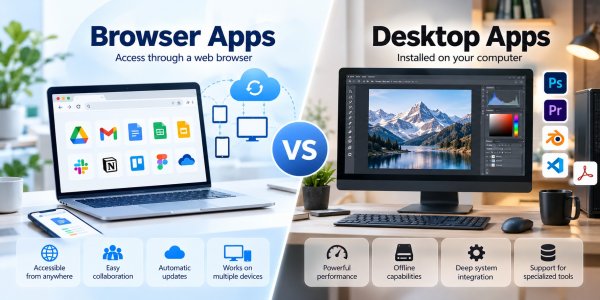
Choosing between browser apps and desktop apps is no longer as simple as deciding whether to install software.
Today, many of the tools people use for writing, project management, design, communication, and everyday productivity are available directly through a web browser. At the same time, desktop applications remain essential for certain offline workflows, local file operations, and specialized tasks.
The differences can be easy to overlook.
A browser-based application may offer convenient collaboration and access across multiple devices, but its capabilities can depend on network connectivity, browser support, and the provider's infrastructure.
A desktop application may offer closer integration with your operating system and local files, but that does not necessarily mean it works offline or keeps all your information on your computer.
Modern software also blurs these categories. Progressive Web Apps can offer installation-like experiences and offline capabilities, while many desktop applications rely on cloud services for synchronization and collaboration.
So, are browser apps or desktop apps better for productivity, performance, security, and everyday work?
The answer depends on what you need your software to do.
In this guide, we'll compare browser apps vs desktop apps across the factors that matter most: speed, offline access, file management, security, privacy, collaboration, cost, and long-term usability.
We'll also look at practical scenarios to help you decide when a browser app makes sense, when desktop software is the better option, and when combining both creates a more effective workflow.
What Are Browser Apps and Desktop Apps?
Before comparing performance, security, or productivity, it helps to understand what browser apps and desktop apps actually are.
At the simplest level, a browser app is software accessed through a web browser, while a desktop app is software designed to run within a computer's operating system.
But that definition only tells part of the story.
Modern web applications can store data locally, use certain device capabilities, and continue working offline when designed to do so. Meanwhile, many desktop applications rely on internet connections for synchronization, licensing, collaboration, or cloud-powered features.
The real difference is not simply whether an app needs the internet. It is how the application is delivered, how its components operate, and how it interacts with your device.
What Is a Browser App?
A browser app, also known as a web application, is software that users access through a browser such as Chrome, Edge, Firefox, or Safari.
Instead of downloading a traditional installation package, users typically open a web address and begin interacting with the application.
Common examples include:
-
Google Docs: A web-based document editor that supports collaborative writing and commenting.
-
Trello: A project management application that organizes tasks into boards, lists, and cards.
-
Microsoft 365 for the web: Browser-based versions of productivity applications, including Word, Excel, and PowerPoint.
Browser apps usually involve a combination of client-side and server-side components.
The client side runs within the browser and handles elements such as buttons, text input, visual layouts, and certain application operations.
The server side, when used, may manage accounts, store information, synchronize documents, or perform processing that happens outside the user's device.
However, not every browser app relies on a remote server for every action. Some applications perform substantial work locally through browser technologies.
This is why browser apps can range from simple online utilities to sophisticated productivity platforms.
What Is a Desktop App?
A desktop app is software that runs as an application within an operating system such as Windows, macOS, or Linux.
Desktop applications are commonly installed on a computer, although some can run through portable or other distribution methods.
Examples include:
-
Microsoft PowerToys: A collection of Windows utilities that extend everyday desktop workflows.
-
Obsidian: A note-taking application built around locally stored Markdown files.
-
Adobe Photoshop: A professional image-editing application with extensive desktop capabilities.
Desktop apps often have closer integration with operating system features, including file access, keyboard shortcuts, windows, notifications, and supported hardware interfaces.
For example, a desktop file-management utility may be designed to work directly with folders stored on your computer.
A professional editing application may also use local processing resources for demanding tasks.
However, desktop does not automatically mean offline or private.
Some desktop applications require online authentication, synchronize files with remote servers, or use cloud-based features.
The actual behavior depends on the product, its configuration, and the services connected to it.
Where Do Browser Apps Actually Run?
A common misconception is that browser apps run entirely in the cloud.
In reality, the browser itself executes important parts of many web applications.
Web technologies such as JavaScript and WebAssembly can perform calculations and other operations on the user's device.
At the same time, remote servers may provide storage, authentication, synchronization, or additional processing.
Consider an online document editor.
When you type, the browser can update the visible document immediately. The application may then communicate with a server to save changes and synchronize them with collaborators.
The exact implementation differs by product, but the example illustrates an important principle:
A browser app can use both local computing resources and remote infrastructure.
The same is true in reverse. A desktop application can run locally while still relying on cloud services for selected functions.
What About Progressive Web Apps (PWAs)?
Progressive Web Apps, or PWAs, make the distinction between browser and desktop software more interesting.
A PWA is built using web technologies but can offer an experience that resembles an installed application.
Depending on the browser, operating system, and application implementation, a PWA may support:
-
Installation from a browser.
-
Launching from an application icon.
-
Opening in a standalone window.
-
Caching selected resources for offline use.
-
Notifications and other supported platform capabilities.
According to MDN Web Docs, PWAs use modern web capabilities to provide experiences that can work across devices and installation contexts.
However, installing a PWA does not guarantee that all its features work without internet access.
Offline functionality must be implemented by the application, and browser support can vary.
This distinction is especially important when evaluating software for travel, remote work, or unreliable internet connections.
Browser Apps vs Desktop Apps: The Basic Differences
| Feature | Browser Apps | Desktop Apps |
|---|---|---|
| Primary environment | Web browser | Operating system |
| Typical access | Open a URL | Launch an application |
| Installation | Often unnecessary | Commonly required |
| Local processing | Supported through browser technologies | Supported through operating system APIs |
| Remote services | Common but not universal | Also common |
| Local file integration | Depends on browser APIs and permissions | Often more direct |
| Offline functionality | Depends on implementation | Depends on implementation |
| Updates | Frequently delivered through the web service | Typically managed through application or system updates |
The table highlights an important point: the categories overlap more than many users expect.
A modern browser app may offer offline storage and installation-like behavior. A desktop application may depend on cloud services for its most useful features.
Key Takeaway
Browser apps are primarily delivered through web technologies and accessed through a browser. Desktop apps are designed to run as applications within an operating system.
Both can use local computing resources, connect to remote servers, and support complex workflows.
When comparing browser apps vs desktop apps, the most useful question is not simply where the application opens.
It is which capabilities are available, where your data is processed, and how well the software supports your actual work.
Browser Apps vs Desktop Apps: Key Differences
The biggest differences between browser apps and desktop apps are not always visible when you open them.
Two applications may look nearly identical on your screen while handling files, updates, permissions, and network connections in very different ways.
For example, a browser-based document editor may save your work to a cloud account and synchronize changes between devices. A desktop editor may save files directly to your computer, although it may also offer cloud synchronization.
Neither approach is automatically better.
Understanding how each type of application works helps you choose software based on practical requirements rather than assumptions.
1. Installation and Accessibility
Browser apps are usually accessible through a web address, making them convenient when you need to work on different computers.
In many cases, you can open a browser, sign in, and continue working without installing a traditional desktop application.
Desktop applications generally require a compatible operating system and some form of installation or local deployment.
This can provide closer integration with the computer, but it also introduces compatibility and maintenance considerations.
However, the distinction is becoming less rigid.
As explained in MDN's guide to making Progressive Web Apps installable, certain web applications can be installed and launched in ways that resemble traditional applications.
Practical example: Someone who regularly switches between a work laptop and a shared computer may find a browser-based task manager convenient. Someone who needs a specialized Windows utility may prefer an application designed for that operating system.
2. Operating System Integration and Permissions
Desktop applications often have more direct access to operating system features.
Depending on their permissions and design, they may interact with local files, keyboard shortcuts, hardware devices, background processes, and system-level settings.
Browser apps operate within browser security boundaries.
These boundaries help control access to sensitive device capabilities, although modern browsers provide APIs that allow websites to use certain features with appropriate permissions.
For example, the MDN File System API documentation describes web capabilities for interacting with files and directories, subject to browser support and security restrictions.
This means browser apps are not necessarily limited to uploading and downloading files through basic forms.
Nevertheless, specialized desktop applications may remain more suitable when a workflow requires extensive system integration.
Practical example: A file-management utility that needs to inspect and organize many local folders may benefit from direct desktop integration, while a browser-based editor may be sufficient for working with a small set of selected documents.
3. Data Storage and File Ownership
Where your data is stored can matter more than how the software looks.
Browser applications frequently use remote services for account-based storage and synchronization. However, web applications can also store certain information locally through browser technologies.
Desktop applications may store files directly on a computer, synchronize them to cloud services, or use a combination of both.
According to MDN's Storage API documentation, browsers provide mechanisms for websites to manage stored data, subject to storage policies and available capacity.
For users, the most important questions are practical:
-
Can you access your files without signing in?
-
Can you export your work to a standard format?
-
Does the provider retain copies on remote servers?
-
What happens if you cancel your subscription?
-
Can you back up or migrate your information independently?
A locally installed application does not guarantee complete data ownership, just as a browser application does not necessarily prevent local storage.
Practical example: A writer who wants to maintain a personal archive of Markdown documents may prefer a local-file workflow. A distributed team may prioritize shared cloud documents with centralized permissions.
4. Internet Connectivity and Offline Access
One of the most common assumptions is that browser apps always require an internet connection while desktop apps work offline.
That is not universally true.
Modern web applications can use service workers and caching mechanisms to support selected offline functionality.
The MDN guide to offline and background operation explains how web applications can provide functionality even when network connectivity is unavailable.
However, offline support must be implemented by the developer. It may apply only to certain features or previously accessed content.
Desktop applications can also depend on online services.
For example, a locally installed program may still require a connection for authentication, synchronization, cloud processing, or particular licensed features.
Before relying on either format for offline work, test the exact activities you need to perform without internet access.
Practical example: If you need to edit documents during a flight, verify that the application can open the relevant files, save changes locally, and synchronize them later.
5. Updates and Software Maintenance
Browser applications often receive updates through their web service.
Users may access new features or interface changes without manually downloading a new installation package.
This can simplify maintenance, particularly for teams using shared online tools.
Desktop applications may require application updates, operating system compatibility checks, and occasional installation management.
However, many desktop products include automatic update systems, so manual maintenance is not always necessary.
There is also a trade-off.
Centralized web updates can make it harder for users to remain on an older version of an application. Desktop software may offer more control over versions in some environments, although that depends on the product.
Regardless of format, keeping software current is an important part of reducing exposure to known vulnerabilities.
The CISA Secure Our World guidance emphasizes the importance of updating software as part of everyday cybersecurity practices.
6. Cross-Device Access and Collaboration
Browser apps are often convenient for users who move between computers or collaborate with others.
A cloud-connected application can make it easier to access shared documents, synchronize changes, and manage permissions from different devices.
However, access depends on the provider's supported platforms, account requirements, and available features.
Desktop applications can also offer synchronization and collaboration through integrated cloud services.
For example, Microsoft offers both web and desktop productivity applications within its Microsoft 365 ecosystem.
The official Microsoft 365 website provides information about its available productivity tools and service options.
The real question is not whether an application opens in a browser.
It is whether your team can access the same information reliably, work with compatible files, and maintain appropriate permissions.
Browser Apps vs Desktop Apps: Side-by-Side Comparison
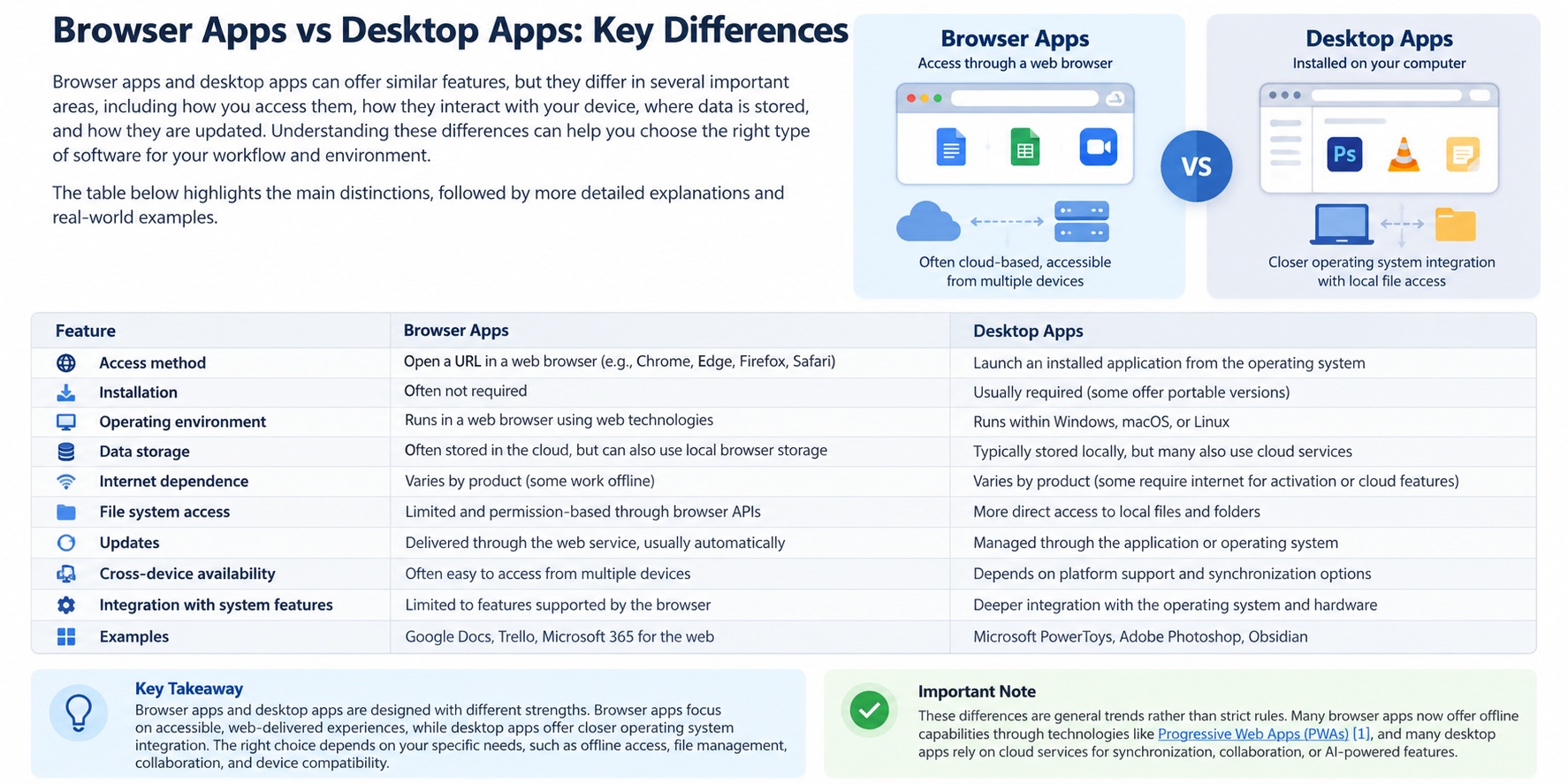
| Factor | Browser Apps | Desktop Apps |
|---|---|---|
| Installation | Usually minimal or optional | Usually installed locally |
| Platform requirements | Depends on browser support | Depends on operating system |
| System integration | Controlled through browser APIs and permissions | Often more direct |
| Data storage | Local, remote, or hybrid | Local, remote, or hybrid |
| Offline access | Available when implemented | Available when implemented |
| Updates | Often centrally delivered | Automatic or manually managed |
| Collaboration | Frequently integrated with online services | Depends on product and cloud integration |
| File management | Depends on supported browser capabilities | Often closer to the local file system |
| Device switching | Often convenient through accounts | Depends on platform and synchronization |
| Security | Depends on provider, browser, and configuration | Depends on developer, OS, and configuration |
This comparison shows why software categories should be treated as starting points rather than definitive rankings.
Browser apps are often convenient for accessibility and collaboration. Desktop apps may be preferable for specialized system integration and local workflows.
But the details of the individual product determine whether those advantages actually apply.
Key Takeaway
The most important differences between browser apps and desktop apps involve how they are deployed, what device capabilities they can access, where data is stored, and how they depend on remote services.
For everyday productivity, browser-based software can offer convenient access and collaboration.
For specialized workflows, desktop software may provide closer integration with local files and operating system features.
Before choosing, compare the actual applications you are considering rather than relying on broad assumptions about either category.
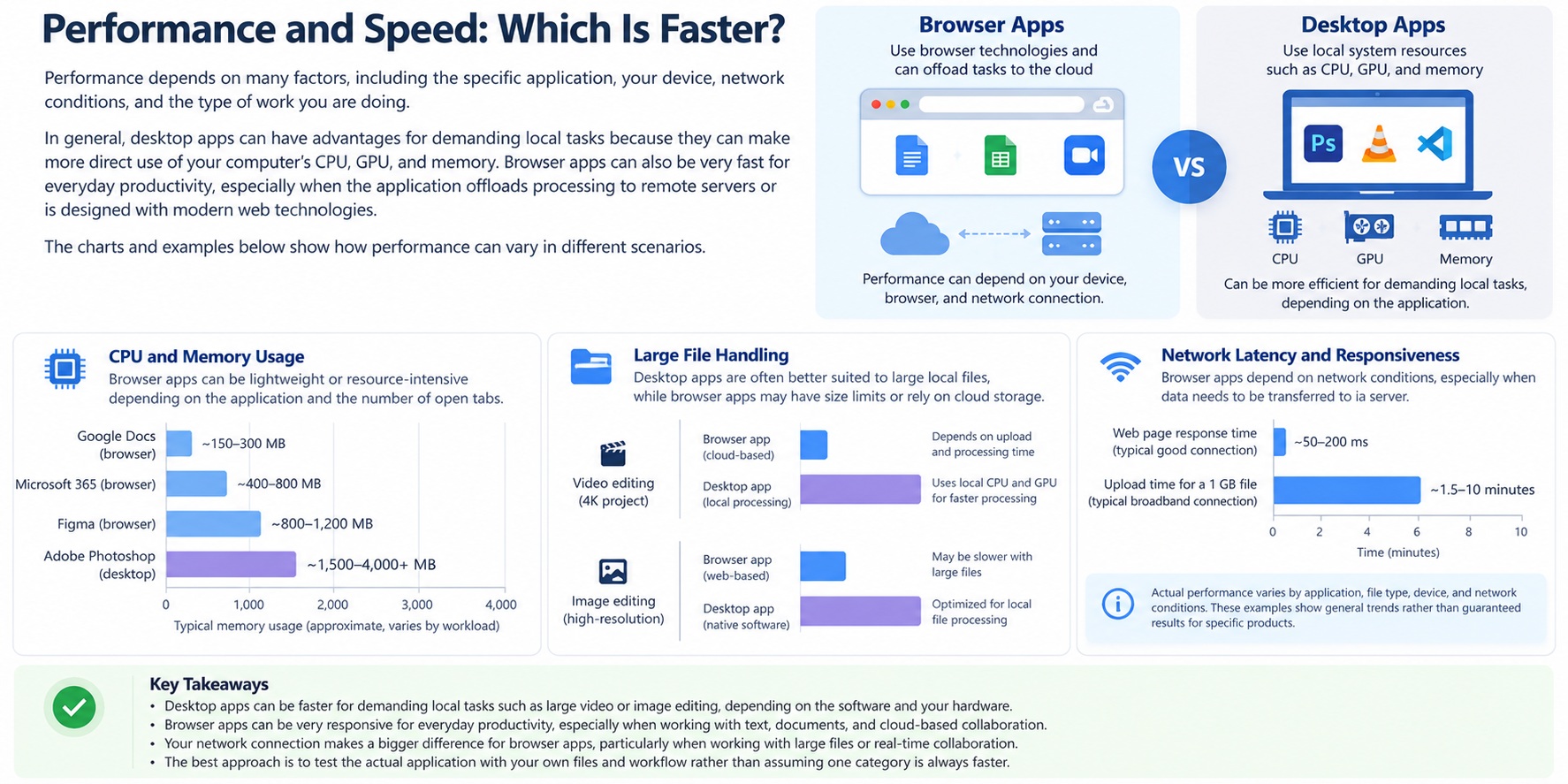
Performance and Speed: Which Is Faster?
Are desktop apps faster than browser apps?
The short answer is not necessarily.
Desktop applications often have advantages in workloads that benefit from direct operating system integration, local file access, or specialized hardware processing. However, modern browser applications can also perform demanding tasks using technologies such as WebAssembly and WebGPU.
The actual performance difference depends on the application, your device, available memory, network conditions, and the work being performed.
A lightweight browser-based task manager may respond faster than a poorly optimized desktop program. Conversely, a professional desktop editor may handle certain large local projects more efficiently than a browser-based alternative.
Instead of comparing software formats in isolation, it is more useful to examine the resources and performance limitations involved.
1. CPU Performance: Local Processing vs Cloud Processing
Both browser apps and desktop apps can use your computer's CPU.
Modern browsers execute JavaScript and can run other supported code through WebAssembly.
According to MDN's WebAssembly documentation, WebAssembly provides a compilation target that allows code to run in modern web browsers, making it possible to build more computationally demanding web applications.
This means browser apps are not limited to basic forms, text, or simple interface operations.
However, performance depends on implementation.
A browser application may execute some operations locally while sending other tasks to remote servers. A desktop application may process tasks locally or rely on cloud infrastructure in a similar way.
Practical example: An online AI application may generate its results on remote infrastructure, while a locally running application may perform supported processing on the user's own hardware.
In this situation, response time depends on factors beyond the software interface, including server capacity, model size, local hardware, and network conditions.
What matters most: Determine where the demanding operation actually runs before deciding which format is faster.
2. RAM Usage: Why Browser Tabs Can Slow Down Your Computer
Memory consumption is another important factor.
A browser may have multiple active tabs, extensions, background processes, and web applications running at the same time.
These components can compete for available RAM.
Google explains in its Chrome Memory Saver documentation that Memory Saver can deactivate certain inactive tabs to free memory for active tabs and other applications.
This is evidence that browser memory management matters for everyday performance.
However, it does not mean every browser app consumes more RAM than a desktop equivalent.
Desktop applications can also use substantial memory, particularly when handling large projects, media assets, or complex datasets.
For example, a professional video editor may require significantly more memory than a simple browser-based notes application.
A meaningful comparison should therefore use equivalent tasks rather than unrelated products.
Practical example: If your computer slows down while you are working in an online spreadsheet, the cause could be the spreadsheet itself, other browser tabs, extensions, or limited available system memory.
Closing unnecessary tabs may help, but the actual bottleneck should be identified before switching software.
3. GPU Acceleration: Can Browser Apps Handle Graphics-Intensive Work?
Graphics processing is no longer exclusive to traditional desktop applications.
Modern browsers support graphics technologies that allow compatible web applications to use GPU capabilities.
For example, MDN's WebGPU documentation describes a web API designed to support high-performance graphics rendering and general-purpose GPU computation.
This expands the types of applications that developers can build for the browser.
Browser-based graphics editors, visualizations, and other demanding tools can benefit from supported hardware acceleration.
However, browser support, hardware compatibility, application design, and feature availability all affect the result.
Desktop applications may still provide advantages when a workflow requires specialized GPU features, mature hardware integrations, or highly optimized processing pipelines.
Practical example: A lightweight graphics project may work comfortably in a browser editor, while a complex professional project involving large files and specialized effects may benefit from a desktop application designed for that workload.
The appropriate comparison is between actual applications and project requirements, not between the labels "web" and "desktop."
4. Network Latency: When Internet Speed Affects Responsiveness
Network dependence can create a noticeable difference in perceived application speed.
A browser app that relies on remote services may need to send requests and wait for responses before completing certain actions.
The total delay can include network latency, server processing, and data transfer time.
A locally processing desktop application may avoid some of these delays for operations that do not require remote communication.
However, a cloud-connected desktop app can experience similar network-related limitations.
The web.dev guidance on latency explains why network delays matter for web experiences.
Consider two different tasks:
Task A: Editing a small local text file
A locally capable application may complete the operation without communicating with a remote server.
Task B: Generating an AI response through a cloud service
Whether the interface is a browser tab or a desktop client, the application may depend on the same remote processing infrastructure.
The second task is not necessarily faster simply because it uses a desktop interface.
What matters most: Identify whether the task requires a network round trip and whether the application can continue functioning when the connection is slow or unavailable.
5. Large Files and Complex Projects
Large files can expose differences in application architecture.
A browser-based application may need to load, parse, display, or upload substantial amounts of information before certain features become available.
A desktop application may be designed to work directly with local files and specialized operating system resources.
However, browser applications can also process local data, stream content, and use modern APIs to handle demanding workloads.
The outcome depends on how the software is implemented.
For users working with large spreadsheets, design assets, video files, or complex technical projects, useful questions include:
-
How long does the application take to open a representative file?
-
How responsive is editing after the file loads?
-
How much memory does the application consume?
-
Does the application need to upload the entire file?
-
Can the project be saved or exported reliably?
-
Does performance change when the internet connection is unavailable?
These measurements provide more useful evidence than broad claims that one category is always faster.
Browser Apps vs Desktop Apps: Performance Comparison
| Performance Factor | Browser Apps | Desktop Apps |
|---|---|---|
| CPU processing | Can process locally or use remote services | Can process locally or use remote services |
| Memory usage | Influenced by tabs, extensions, and app design | Influenced by app design and project size |
| GPU acceleration | Available through supported browser technologies | Available through supported system and graphics APIs |
| Network latency | Matters when remote services are required | Also matters when remote services are required |
| Large local files | Depends on browser capabilities and app architecture | May benefit from direct local file integration |
| Offline processing | Possible when implemented | Possible when implemented |
| Background activity | Subject to browser and platform behavior | Subject to operating system and app behavior |
The table describes technical capabilities and common considerations. It is not a benchmark ranking.
How to Test Which Application Is Faster for Your Workflow
The most reliable way to compare browser and desktop software is to test the tasks you actually perform.
A simple evaluation can follow five steps:
Step 1: Choose a representative task.
Use the same type of document, file, or project that you normally work with.
Step 2: Keep the environment consistent.
Where possible, compare applications on the same computer, with similar background activity and network conditions.
Step 3: Measure practical outcomes.
Record startup time, file-opening time, task completion time, responsiveness, and memory usage.
Step 4: Repeat the test.
Run each task multiple times and compare the results rather than relying on one unusually fast or slow attempt.
Step 5: Consider usability alongside speed.
A tool that finishes a task slightly faster may not be the better choice if it requires more steps or creates additional maintenance work.
For browser-based performance analysis, Chrome DevTools Performance documentation explains how developers can investigate loading, scripting, rendering, and related performance behavior.
For Windows applications, Microsoft's Windows Performance Toolkit documentation describes tools for analyzing system and application performance.
Key Takeaway
Desktop apps are not automatically faster than browser apps.
Desktop software can be advantageous for certain specialized, local, or hardware-intensive workflows. Browser applications can also deliver strong performance through local processing, GPU acceleration, and remote computing.
The best choice depends on the application, workload, device, and network environment.
If performance is important to your work, compare actual task completion times and resource usage instead of relying on assumptions about how the software is delivered.
Offline Access and File Management
Imagine you're working on an important document during a flight, traveling through an area with unreliable Wi-Fi, or trying to finish a project when your internet connection suddenly drops.
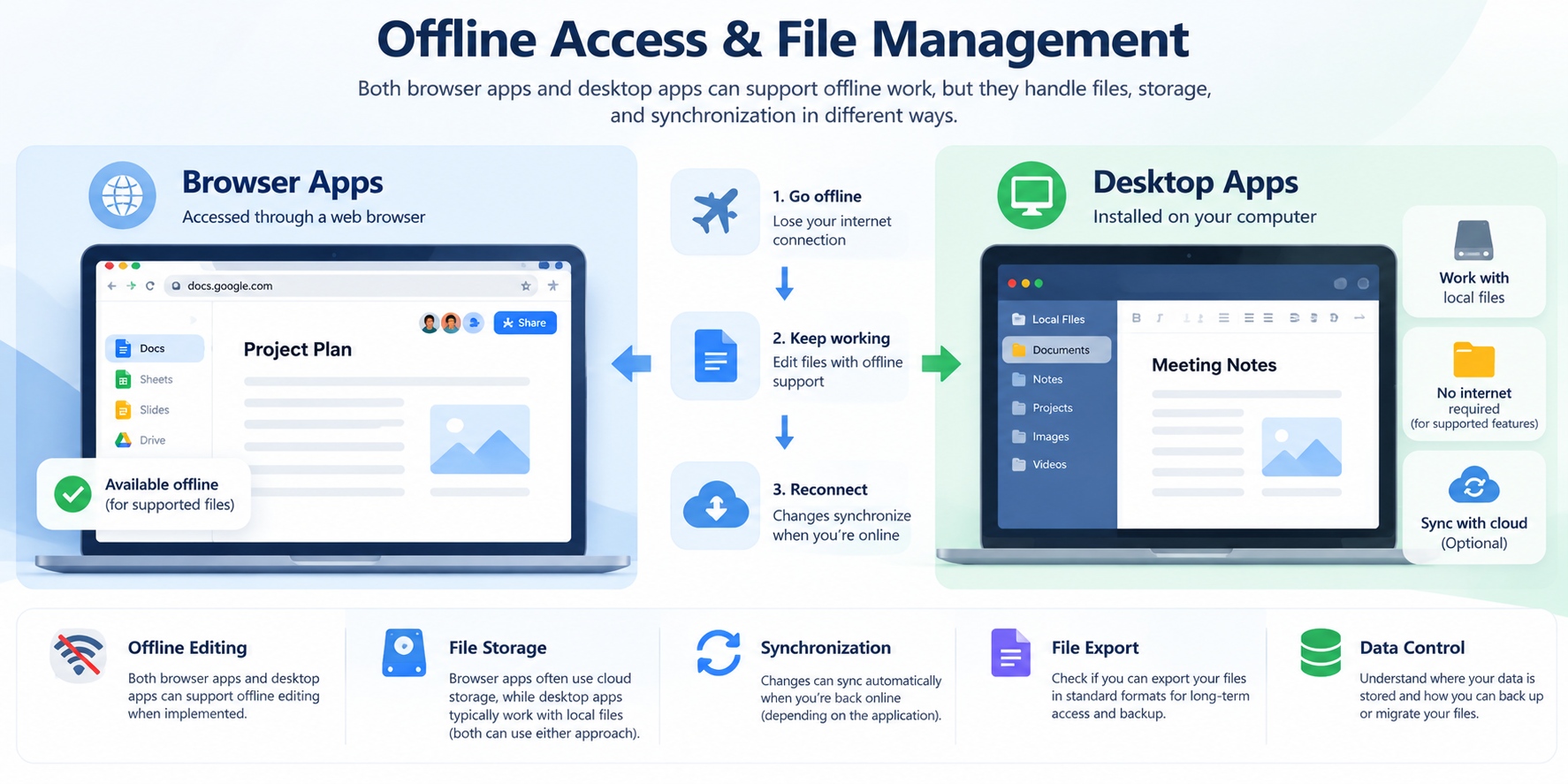
Can you keep working?
For many users, offline access is one of the most important factors when choosing between browser apps and desktop apps.
Desktop applications are often associated with local files and offline functionality, while browser apps are commonly associated with cloud storage and continuous internet access.
But modern software makes this distinction more complicated.
Some browser-based applications support offline editing and local caching. Meanwhile, some installed desktop applications still require internet access for authentication, cloud processing, or certain features.
The better question is not whether an application runs in a browser.
It is whether you can open your files, complete essential tasks, save changes, and recover your work without a reliable connection.
Can Browser Apps Work Without an Internet Connection?
Yes. Some browser apps can function offline, but the level of support depends on how the application is designed.
Modern web applications can use technologies such as service workers, Cache Storage, and IndexedDB to store selected resources and data on a user's device.
According to MDN's guide to offline and background operation, progressive web applications can use service workers and caching strategies to provide functionality when network access is unavailable.
However, offline support is not automatic.
A web application may allow you to open its interface without an internet connection but still require network access to retrieve documents, authenticate users, or perform certain actions.
This distinction is particularly important for cloud-based productivity tools.
Real-world example: Google Docs
Google provides offline functionality for supported Google Docs, Sheets, and Slides workflows.
According to Google's official documentation on working offline, users can configure offline access and work with supported files without an internet connection.
However, users must meet the relevant setup requirements, and not every file or feature is necessarily available offline.
Practical takeaway: If you rely on a browser app while traveling, configure offline access before disconnecting and verify that the documents you need are available.
Do Desktop Apps Always Work Offline?
No.
Although many desktop applications can process local files without a continuous internet connection, installing software does not guarantee full offline functionality.
Some applications depend on remote services for:
-
Account authentication and license verification.
-
Cloud-based AI features.
-
Online collaboration and synchronization.
-
Remote file storage.
-
Subscription or account management.
-
Access to specific connected services.
For example, a desktop writing application may allow local editing while temporarily losing cloud synchronization.
A different application may prevent access to certain features until the user reconnects.
This is why offline capability should be evaluated at the feature level rather than the application level.
Practical takeaway: Before relying on desktop software during travel or an internet outage, test whether your essential tasks remain available without connectivity.
Local Files vs Cloud Storage: What's the Difference?
Offline functionality is closely connected to file storage.
A local-first workflow typically keeps the primary working files on a user's device.
A cloud-oriented workflow commonly stores or synchronizes information through remote infrastructure.
However, browser and desktop applications can support either approach.
Modern browsers provide local storage capabilities through web APIs.
For example, the MDN Storage API documentation explains how websites can manage stored data and request persistent storage where supported.
The MDN File System API documentation also describes browser capabilities for interacting with files and directories, subject to browser support and security permissions.
These technologies allow web applications to offer more sophisticated local workflows than simple file uploads and downloads.
However, browser-managed storage should not automatically be treated as equivalent to a user-controlled folder with an independent backup.
Storage behavior may depend on browser settings, permissions, available capacity, and application design.
Practical example:
A user editing a Markdown file stored in a normal computer folder may be able to back it up using an independent backup tool.
A user working in a cloud-based document service may instead rely on the provider's export, synchronization, and account-access features.
Both approaches can be effective, but they create different responsibilities and risks.
What Happens When Your Internet Connection Drops?
The experience depends on the application's architecture.
Consider three common scenarios.
Scenario 1: Fully local editing
A locally capable application opens a file from the device, allows editing, and saves changes without contacting a remote server.
The user can continue working, although connected features may become unavailable.
Scenario 2: Offline-capable web application
A browser app has already stored the resources and documents needed for offline work.
The user can continue supported activities, and the application may synchronize changes when connectivity returns.
This behavior depends on the specific product and how offline synchronization is implemented.
Scenario 3: Cloud-dependent application
An application requires access to a remote service to retrieve information or complete its main operation.
If the connection is lost, the user may be unable to continue until service is restored.
These scenarios are possible in both browser-based and desktop software.
The key distinction is where the essential data and processing capabilities are available when the network disappears.
File Ownership, Export, and Long-Term Access
File management is not only about where information is stored.
It also involves whether you can retrieve, transfer, back up, and continue using your work.
Before choosing software, check whether it supports:
-
Exporting documents into commonly supported formats.
-
Accessing important files without a subscription.
-
Creating independent backups.
-
Restoring previous versions.
-
Moving projects to another application.
-
Recovering data after accidental deletion.
-
Continuing work during temporary service outages.
These questions matter for both browser apps and desktop apps.
A desktop application may use a proprietary file format that is difficult to open elsewhere.
A browser application may offer convenient export tools that make migration relatively straightforward.
Neither format guarantees portability.
For cloud-based services, also review the provider's published documentation on export and account deletion.
For example, Google Takeout documents options for exporting data from supported Google services.
Practical takeaway: Software that makes it easy to export and back up your work can reduce long-term dependence on a single provider.
Browser Apps vs Desktop Apps: Offline and File Management Comparison
| Capability | Browser Apps | Desktop Apps |
|---|---|---|
| Offline access | Available when specifically supported | Available when specifically supported |
| Local file editing | Possible through supported browser capabilities | Often supported directly |
| Cloud synchronization | Common | Also common |
| File export | Depends on the application | Depends on the application |
| Local backups | Depends on storage and export options | Often straightforward for accessible local files |
| Automatic synchronization | Depends on implementation | Depends on implementation |
| Working during outages | Requires relevant offline capabilities | Requires relevant offline capabilities |
| Long-term file portability | Depends on formats and export support | Depends on formats and export support |
These differences are general considerations rather than guaranteed features.
The specific product's documentation and behavior should determine your choice.
How to Test Offline Access Before Relying on an App
You do not need specialized technical equipment to test whether software supports your offline workflow.
Use the following process:
Step 1: Prepare a representative file.
Choose a document or project similar to what you normally work with.
Step 2: Enable offline access if required.
Follow the application's official setup instructions and confirm that the relevant files are available locally.
Step 3: Disconnect from the internet.
Disable Wi-Fi and other network connections.
Step 4: Open, edit, and save the file.
Verify that the essential functions remain available and that changes are preserved.
Step 5: Reconnect and verify synchronization.
If the application uses cloud synchronization, confirm that your changes appear correctly and that no conflicts or missing edits occur.
Step 6: Test export and backup.
Check whether you can save an independent copy of your work in a practical format.
This process provides a more reliable answer than assuming that every desktop app works offline or every browser app requires the cloud.
Key Takeaway
Desktop apps are not automatically offline, and browser apps are not automatically cloud-dependent.
Modern browser applications can support offline workflows through local storage and caching technologies. Desktop applications can offer direct access to local files but may still depend on online services.
For users who travel, work with unreliable connections, or need long-term access to important documents, the best software is the one that provides dependable offline capabilities, clear storage behavior, and practical export and backup options.
Before making a decision, test the exact workflow you need rather than relying on the application's format alone.
Security and Privacy: Which Is Safer?
When comparing browser apps vs desktop apps, security and privacy are often among the biggest concerns.
A browser app may process information through remote servers, while a desktop application may have access to files and other resources on your computer. These differences affect the types of risks users should consider, but they do not establish which category is safer.
Neither browser apps nor desktop apps are inherently more secure or private.
A secure application depends on its architecture, developer practices, access controls, update mechanisms, and how users configure it.
It is also important to separate two questions:
-
Security: How well does the application protect systems and information against unauthorized access, attacks, and other threats?
-
Privacy: What information does the application collect, how is it used, who receives it, and how much control does the user have?
An application can have strong technical security while collecting more personal information than a user expects. Conversely, a privacy-focused product can still contain security vulnerabilities.
1. Browser Security: Sandboxing and Permissions
Modern web browsers are designed to limit what websites can access.
Web applications normally operate within browser-enforced security boundaries rather than receiving unrestricted access to the operating system.
One important protection is the same-origin policy, which restricts how documents and scripts from one origin interact with resources belonging to another.
MDN's Same-Origin Policy documentation explains this fundamental web security mechanism.
Browsers also use permission controls for certain device capabilities, such as camera, microphone, and location access.
For example, the MDN Permissions API documentation describes how web applications can query the status of supported permissions.
These protections reduce certain risks, but they do not make browser apps immune to attacks.
Web applications can still be affected by vulnerabilities such as cross-site scripting, insecure authentication, malicious extensions, and compromised third-party dependencies.
The OWASP Top 10 provides an established reference for understanding major categories of web application security risks.
Practical example: A browser-based document editor should not normally have unrestricted access to every file on your computer. However, a compromised account or an improperly shared document can still expose sensitive information.
2. Desktop App Security: Local Access and System Permissions
Desktop applications can interact more directly with operating system resources.
Depending on the application, operating system, and permissions, desktop software may access local folders, connected devices, background processes, or system-level functionality.
This flexibility is valuable for advanced workflows, but it also means users should carefully evaluate software sources and requested permissions.
Desktop applications are not all granted the same level of access.
Some operate with restricted privileges or within platform-specific security boundaries, while others request elevated permissions for legitimate system-management tasks.
For Windows users, Microsoft's Windows Security documentation provides guidance and resources relating to device protection and security settings.
The key concern is whether an application requests access appropriate to its purpose.
For example, a desktop file-management utility may reasonably need access to selected folders. A simple calculator requesting extensive access to unrelated personal files would deserve closer scrutiny.
Practical takeaway: Download applications from trustworthy sources, review permissions, and avoid granting administrator-level access unless it is genuinely required.
3. Cloud Storage vs Local Storage: Which Protects Your Privacy Better?
A common assumption is that desktop applications keep data private because information stays on the computer.
That is not always true.
Many desktop applications synchronize documents, transmit diagnostics, or connect to cloud services.
Similarly, some browser applications process information locally or provide offline storage capabilities.
The important question is where your information is actually stored and processed.
For cloud-connected software, consider:
-
Whether files are uploaded to remote servers.
-
Whether information is encrypted in transit and at rest.
-
Who can access stored content.
-
Whether the provider uses submitted information for additional purposes.
-
How long information is retained.
-
Whether users can export or delete their data.
For locally stored information, consider:
-
Whether the device uses appropriate encryption.
-
Whether backups are protected.
-
Who has access to the computer.
-
Whether the application sends information to external services.
-
How data is recovered if the device is lost or damaged.
The NIST Privacy Framework provides a structured approach to identifying and managing privacy risks.
It is useful as a reference because privacy cannot be evaluated solely by asking whether data is stored locally or in the cloud.
Practical example: A local notes application may reduce dependence on a remote document service. However, if the computer is stolen and its storage is not adequately protected, locally stored information may still be exposed.
4. Malware, Phishing, and Account Compromise
Browser and desktop applications face different combinations of threats.
Browser-based services can expose users to phishing pages, account takeover attempts, malicious extensions, and unsafe links.
Desktop applications can expose users to malicious installers, compromised software packages, and applications that request excessive system permissions.
Both categories can also be affected by software vulnerabilities and supply-chain compromises.
One of the most effective protections is keeping software and operating systems updated.
The Cybersecurity and Infrastructure Security Agency's Secure Our World initiative emphasizes practical measures such as recognizing phishing, using strong authentication, and updating software.
For online accounts, multifactor authentication can provide additional protection against certain forms of account compromise.
However, MFA does not eliminate every threat, and users should still be cautious about phishing and unexpected authentication requests.
Practical takeaway: Security depends on the entire workflow, including the application, operating system, browser, account credentials, and user behavior.
5. Data Encryption and Access Controls
Encryption is an important security control, but the phrase "encrypted data" does not explain everything about an application's protection model.
For example, encryption in transit helps protect information while it moves between systems.
Encryption at rest can help protect stored information under certain threat conditions.
However, users should also understand how encryption keys are managed and whether a provider can access readable content when delivering its service.
Access controls are equally important.
A collaborative browser app may allow users to share files with specific people, teams, or anyone possessing a link.
A desktop application may rely on operating system permissions, local account controls, or cloud-based sharing features.
In either case, an incorrectly configured sharing permission can expose information even when the underlying storage system uses encryption.
Before selecting software for confidential work, review the provider's security documentation and available sharing controls.
6. How to Evaluate an App's Security and Privacy
Instead of choosing software based only on whether it runs in a browser or on a desktop, evaluate the individual product.
Use these questions:
Where does the application process and store data?
Determine whether important information remains local, is uploaded to remote infrastructure, or uses a hybrid approach.
What permissions does it require?
Check whether requested file, device, and account permissions are appropriate for the application's purpose.
How are accounts protected?
Look for supported authentication methods, multifactor authentication, and session-management controls.
How does the developer handle vulnerabilities?
Review available security documentation, update practices, and reporting channels.
Can you control or delete your information?
Check export, deletion, retention, and account-management options.
What happens if the service becomes unavailable?
Consider offline access, backups, and the ability to move your information elsewhere.
For organizations evaluating software, the NIST Cybersecurity Framework 2.0 offers a broader reference for managing cybersecurity risks.
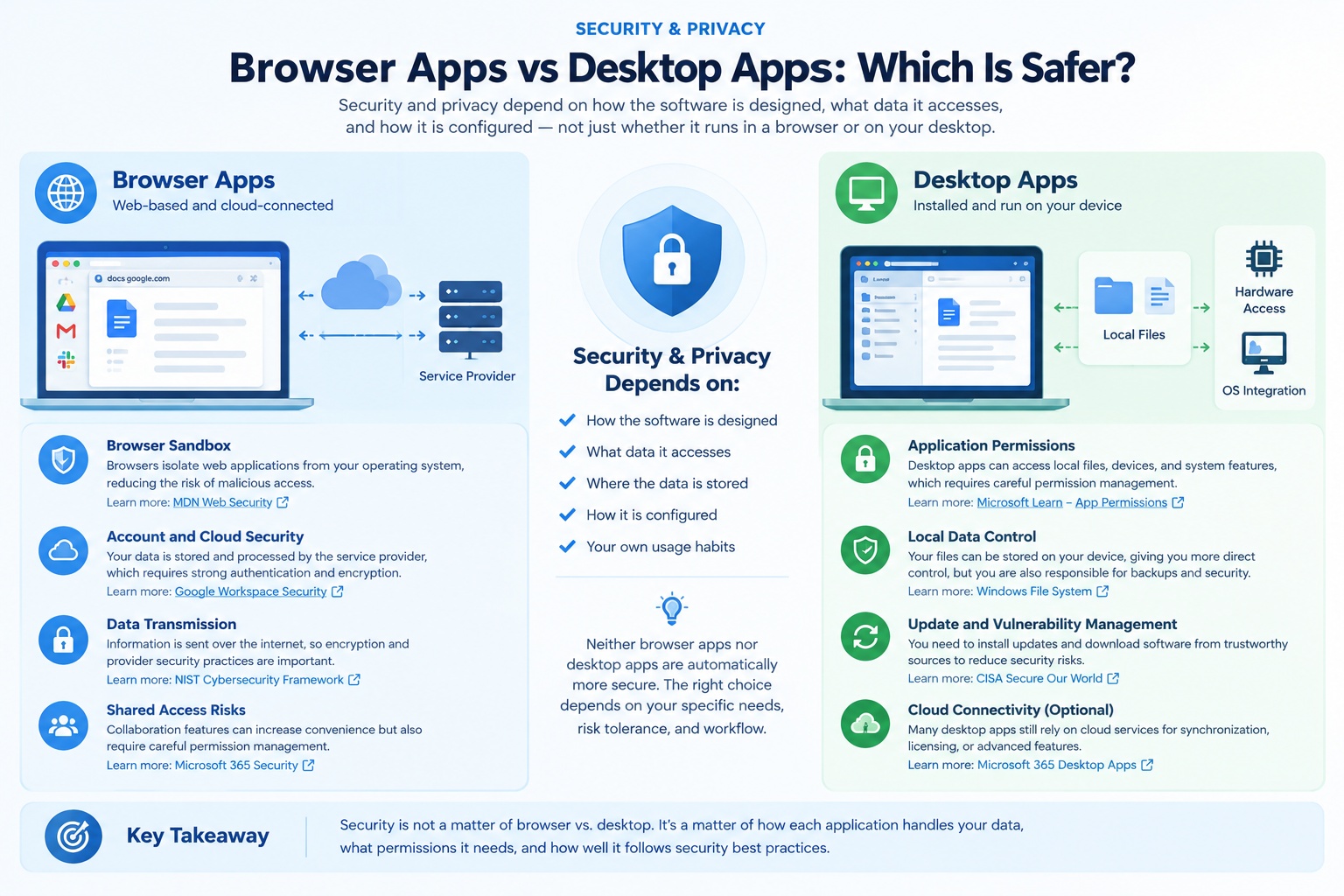
Browser Apps vs Desktop Apps: Security and Privacy Comparison
| Security Factor | Browser Apps | Desktop Apps |
|---|---|---|
| Execution environment | Typically constrained by browser security boundaries | Depends on OS privileges and application design |
| Local file access | Controlled by browser capabilities and permissions | Often more direct, depending on permissions |
| Cloud data processing | Common but not universal | Also common |
| Account compromise risk | Relevant for account-based services | Relevant for account-based services |
| Malware exposure | Includes malicious websites, scripts, and extensions | Includes malicious installers and compromised software |
| Security updates | Browser and web service updates matter | Application and operating system updates matter |
| Privacy controls | Depend on provider and configuration | Depend on provider and configuration |
| Data encryption | Depends on product implementation | Depends on product implementation |
This table describes different security considerations, not a ranking of which software category is safer.
Key Takeaway
The safest application is not automatically the one installed on your computer or the one running in your browser.
Browser apps benefit from browser security mechanisms, while desktop apps may offer closer local integration and different data-handling options.
Both can expose users to security and privacy risks if they are poorly designed, improperly configured, or not maintained.
For sensitive information, prioritize software with appropriate access controls, clear data-handling practices, reliable updates, and security features that match your actual needs.
Collaboration and Cross-Device Access
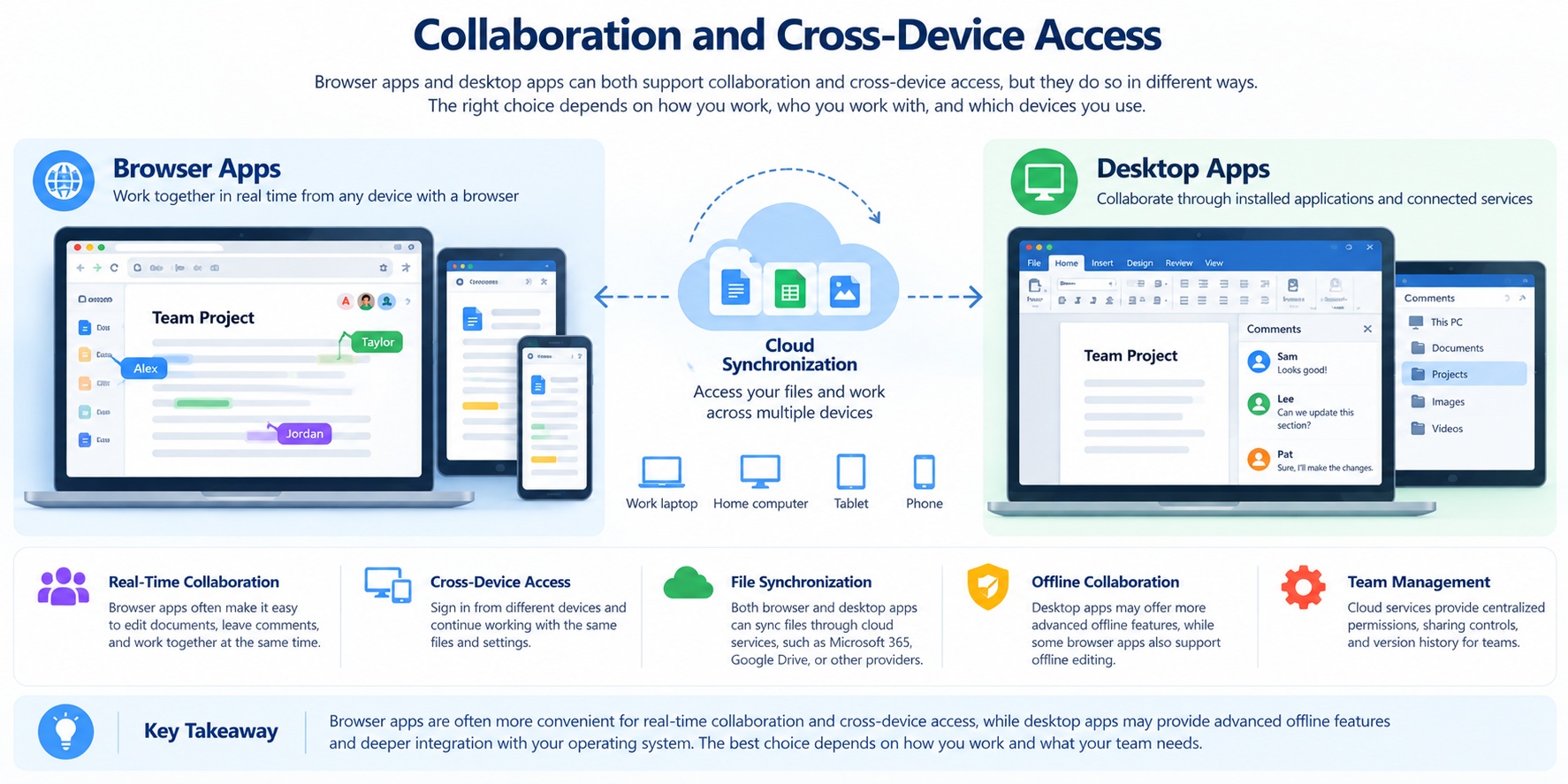
One of the biggest reasons people choose browser apps is the convenience of working with others.
A shared document can be opened from different computers, edited by multiple contributors, and updated without repeatedly sending attachments.
This makes browser-based software especially attractive for remote teams, students, freelancers, and organizations with distributed workflows.
However, desktop applications can also provide real-time collaboration, cloud synchronization, and access across devices.
The important difference is not simply where the application runs. It is how the software manages shared information, permissions, version history, and synchronization.
1. Real-Time Collaboration: Why Browser Apps Are Popular
Browser-based productivity tools often make collaboration a central part of their design.
Instead of sending a document to several people and collecting separate edited versions, users can work within a shared workspace.
Depending on the product, collaboration features may include:
-
Simultaneous document editing.
-
Comments and suggested changes.
-
Shared task boards and project timelines.
-
User mentions and notifications.
-
Role-based access permissions.
-
Version history and change tracking.
For example, Google Workspace provides cloud-connected tools for document creation, communication, and team collaboration.
Google Docs supports collaborative editing and commenting, allowing multiple contributors to work with a shared document.
This can reduce the need to exchange separate copies by email.
However, the collaboration experience depends on the specific application, account configuration, and sharing permissions.
Practical example: A marketing team preparing a campaign brief can use a shared document so that writers, designers, and managers can review the same content without maintaining several competing versions.
The benefit comes from the shared editing system, not merely from opening the document in a browser.
2. Can Desktop Apps Support Real-Time Collaboration?
Yes.
Modern desktop software frequently integrates with cloud services to support shared editing and synchronization.
Microsoft 365 is a useful example because its productivity ecosystem includes both web and desktop applications.
According to Microsoft's official co-authoring documentation, supported Microsoft 365 applications allow users to collaborate on shared documents.
The availability of specific co-authoring features depends on the application, file format, storage location, and supported software version.
This demonstrates why the distinction between browser and desktop collaboration is not absolute.
A desktop application connected to a shared cloud workspace may provide many of the same collaborative benefits as its browser-based counterpart.
Practical example: An employee may edit a presentation using a desktop application while colleagues review or modify the same shared file through supported web or desktop clients.
The most important factor is whether the applications use a compatible collaboration and storage system.
3. Cross-Device Access: Working from Anywhere
Browser apps are often convenient when users move between devices.
If an application stores information in an account-based cloud workspace, users may be able to sign in from another supported computer and continue their work.
This can be helpful when switching between:
-
A desktop computer at the office.
-
A laptop while traveling.
-
A personal computer at home.
-
A supported mobile device.
However, browser access does not automatically mean every feature is available on every device.
Screen size, browser compatibility, operating system support, account permissions, and product limitations can affect the experience.
Desktop applications may also provide cross-device workflows through cloud synchronization.
For example, Microsoft OneDrive supports cloud file storage and synchronization across supported devices.
The real question is whether your documents, settings, and essential functions remain accessible in the environments where you work.
Practical takeaway: Before choosing a productivity tool, verify that it supports your actual devices and that the features you rely on are available on each platform.
4. File Synchronization and Version Conflicts
Synchronization is one of the most important parts of a cross-device workflow.
When an application synchronizes data, it must account for changes made on different devices or by different users.
Some services support near-real-time collaboration within a shared document.
Others synchronize files after local changes have been saved.
These approaches can create different experiences when users work offline or modify the same information simultaneously.
For example, two people editing separate local copies of a document may create conflicting versions that require manual review.
A shared editing system may reduce this problem by coordinating changes, but it does not eliminate every possible conflict.
Network interruptions, unsupported file formats, permission changes, and application-specific limitations can still affect synchronization.
Microsoft provides guidance on OneDrive synchronization issues, including troubleshooting and file-sync behavior.
Practical example: If you edit a document offline on your laptop while a colleague updates another copy, reconnecting may require you to review differences or resolve a synchronization conflict.
Before relying on any tool, check how it handles offline edits, conflicting changes, and version recovery.
5. Permissions and Access Control
Collaboration becomes more complicated when sensitive information is involved.
A shared document may be accessible to specific individuals, a team, an organization, or anyone with a link, depending on the product and configuration.
The convenience of sharing should be balanced with appropriate access controls.
Before sharing important files, review:
-
Who can open the document.
-
Who can edit or comment.
-
Whether external users are allowed.
-
Whether public links are enabled.
-
Whether access can be revoked.
-
Whether activity or version history is available.
These considerations apply to both browser-based and desktop collaboration tools.
For example, Google Drive's official sharing guidance explains how users can share files and manage access permissions.
A desktop application connected to the same cloud storage system may be subject to comparable sharing controls.
Practical takeaway: For confidential team projects, the quality of permission management matters more than whether the software is browser-based or installed.
6. Collaboration When the Internet Is Unavailable
Online collaboration depends on communication between users and systems.
When connectivity is interrupted, applications may behave differently.
Some tools allow users to continue editing offline and synchronize changes later.
Others require a connection to open shared content or perform essential operations.
Desktop applications may provide a useful local editing environment, but their collaborative features can still depend on online services.
Browser applications with implemented offline functionality may also support continued work.
For more technical background, MDN's offline and background operation guide explains how web applications can support selected offline activities.
Practical takeaway: If your team works in environments with unreliable connectivity, test offline editing, synchronization recovery, and conflict handling before standardizing on a tool.
Browser Apps vs Desktop Apps: Collaboration Comparison
| Collaboration Factor | Browser Apps | Desktop Apps |
|---|---|---|
| Shared documents | Common in cloud-based services | Available in many cloud-connected applications |
| Real-time editing | Frequently supported | Supported by selected products |
| Cross-device access | Often convenient through browser sign-in | Depends on platform and synchronization |
| Offline editing | Depends on application support | Depends on application support |
| Version history | Depends on product and storage service | Depends on product and storage service |
| Sharing permissions | Usually managed through service settings | Often managed through integrated services |
| File synchronization | Common in account-based applications | Common in cloud-connected applications |
| Team administration | Depends on service and plan | Depends on service and plan |
The table reflects general capabilities, not guaranteed features or performance rankings.
How to Choose the Right Collaboration Setup
Before selecting software for a team, ask five questions.
1. Do multiple people need to edit the same content simultaneously?
If so, prioritize proven real-time collaboration features rather than assuming that any cloud-connected application supports them.
2. Which devices and operating systems does the team use?
Check compatibility across Windows, macOS, Linux, mobile devices, and supported browsers where relevant.
3. How will the team manage permissions?
Look for appropriate sharing controls, account administration, and access revocation.
4. What happens when someone works offline?
Confirm whether edits are preserved and how conflicts are handled after reconnection.
5. Can the team export and retain its work?
Choose tools that provide practical options for backups, migration, and long-term file access.
These questions are more useful than deciding that browser apps are always better for teams or that desktop apps are only suitable for individual work.
Key Takeaway
Browser apps often make cross-device access and collaboration convenient, but desktop apps can provide many of the same capabilities through integrated cloud services.
For teams, the best software is the one that supports shared work reliably, maintains appropriate permissions, handles synchronization clearly, and works across the devices people actually use.
Instead of choosing based on application format alone, evaluate the collaboration features and limitations of the specific product.
Cost, Updates, and Maintenance
Is a browser app cheaper than a desktop app?
Not necessarily.
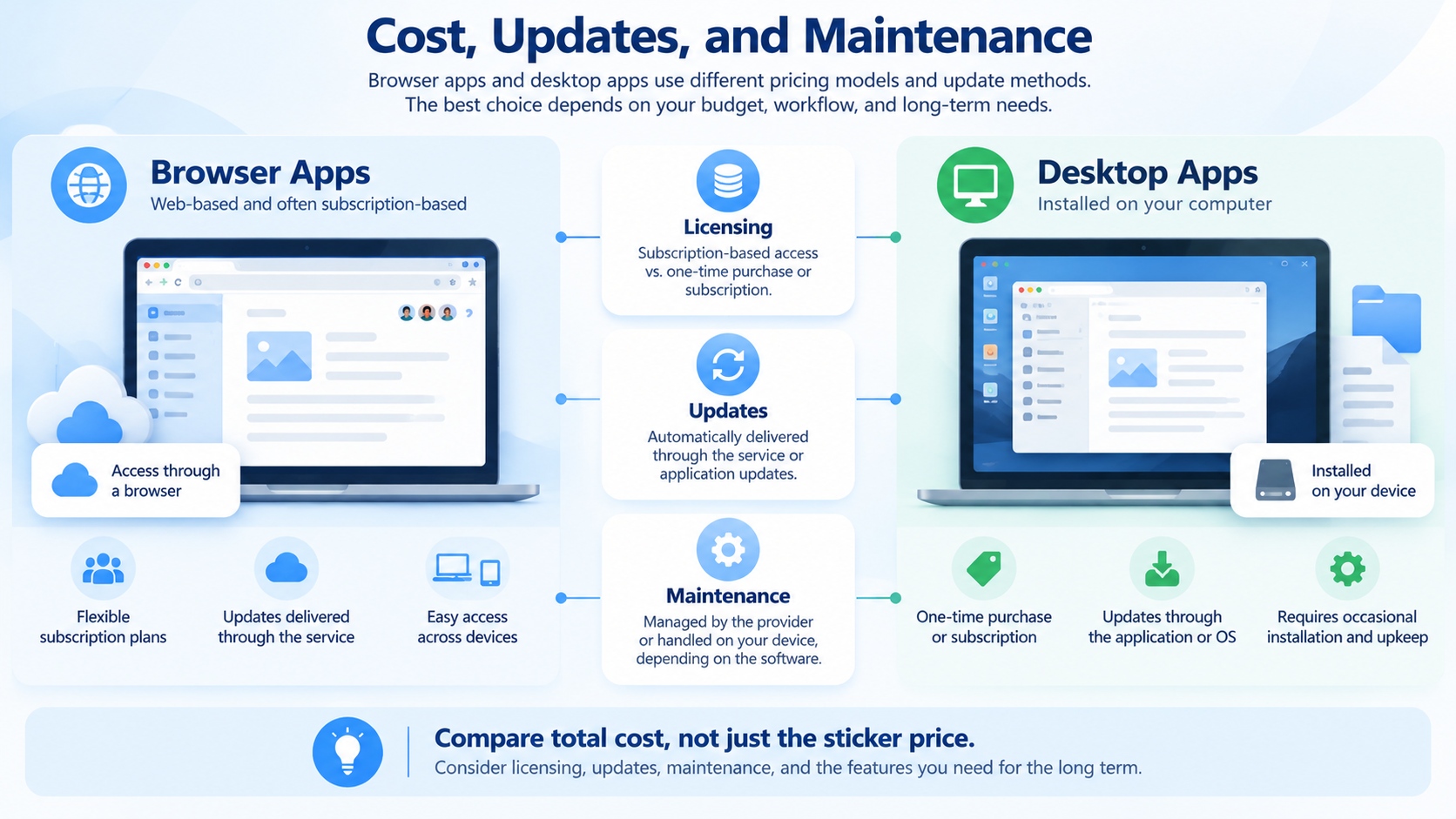
Browser-based software is often associated with monthly subscriptions, while desktop applications are sometimes associated with one-time purchases. However, modern software pricing is far more flexible than that distinction suggests.
Many desktop applications require subscriptions. Some browser apps offer free plans, while others charge according to users, storage, features, or usage.
There are also free and open-source desktop applications that do not require a commercial software license.
When comparing browser apps vs desktop apps, the most useful question is not which format has the lowest advertised price.
It is how much the software will cost over time, including licensing, updates, maintenance, storage, and the features you actually need.
1. Subscription vs One-Time Purchase: Understanding the Real Difference
Software licensing affects how much you pay and what happens when you stop paying.
A subscription typically provides access to software or services for as long as the subscription remains active, subject to the provider's terms.
A one-time purchase usually provides a license for a particular product or version, although future major upgrades and additional services may cost extra.
Neither model belongs exclusively to browser apps or desktop apps.
Microsoft provides a useful real-world example.
According to Microsoft's official pricing comparison, Microsoft 365 Personal is listed at $99.99 per year in the United States, while Office Home 2024 is listed at $179.99 as a one-time purchase.
Microsoft 365 Personal includes subscription-based desktop applications and cloud-connected services. Office Home 2024 provides classic desktop applications for one PC or Mac under its applicable license terms.
These products are not identical in features, services, or licensing rights.
The example demonstrates an important principle:
A desktop application can be subscription-based, and a one-time license does not necessarily include the same benefits as an ongoing subscription.
For further details, Microsoft's Office 2024 licensing and support FAQ explains the differences between perpetual Office licensing and Microsoft 365 subscriptions.
2. The Long-Term Cost of Software: A Three-Year Example
A monthly price can appear affordable until you calculate the total cost over several years.
Consider the two Microsoft products mentioned above.
Using the listed US prices as a simple illustration:
| Product | Payment Model | Year 1 | Three-Year License Cost |
|---|---|---|---|
| Microsoft 365 Personal | $99.99 annually | $99.99 | $299.97 |
| Office Home 2024 | $179.99 one-time | $179.99 | $179.99 |
The three-year subscription figure assumes the annual price remains unchanged and the subscription continues for all three years.
The one-time purchase figure assumes the user keeps the same licensed version and does not purchase an upgrade.
These figures exclude taxes, promotional discounts, additional services, and other expenses.
They also do not establish that Office Home 2024 is the better-value product.
Microsoft 365 includes services and capabilities that differ from the perpetual license, including cloud storage, multi-device access, and ongoing feature updates.
The products also have different usage rights. Office Home 2024 is intended for non-commercial home or school use, so it should not be treated as a direct substitute for a business license.
Practical takeaway: Calculate total cost over the period you expect to use the software, then compare the features and licensing rights you actually need.
3. Free Software Can Be a Serious Alternative
Not every useful productivity application requires a subscription or a one-time license payment.
Free and open-source software can be suitable for individuals, students, and organizations, depending on their workflow and compatibility requirements.
For example, LibreOffice is a free and open-source desktop office suite.
The project's official FAQ explains that LibreOffice can be used without license fees, including in business environments.
However, free licensing does not mean every associated cost disappears.
Organizations may still need to consider:
-
Training and user onboarding.
-
Compatibility with existing document formats.
-
Technical support.
-
Software deployment and maintenance.
-
Integration with other business systems.
-
File migration and workflow changes.
For an individual user, these costs may be minimal.
For a larger organization, support and compatibility requirements may be significant.
Practical takeaway: Evaluate free software based on whether it meets your needs, not merely because it eliminates the license fee.
4. Team Pricing: Why Per-User Costs Matter
For teams, software expenses can grow as more people need access.
Cloud-based productivity platforms frequently charge per user or seat.
For example, Google's official Workspace billing documentation lists Business Starter at $7 per user per month under an annual commitment and $8.40 per user per month under the flexible plan, in its US pricing examples.
For a team of ten users, the basic annualized calculations are:
-
Annual commitment: 10 × $7 × 12 = $840 per year.
-
Flexible plan: 10 × $8.40 × 12 = $1,008 per year.
These are illustrative subscription calculations based on the published prices. Actual billing depends on the number of licenses, contractual terms, taxes, and other applicable conditions.
Google's comparison of flexible and annual payment plans also explains that annual commitments can restrict when purchased licenses may be reduced.
This matters for teams with changing staffing requirements.
A lower monthly rate may not be the lowest-cost choice if you are paying for unused seats.
Practical takeaway: When evaluating team software, consider the number of active users, billing commitments, and whether licenses can be reassigned or reduced.
5. Software Updates: Convenience vs Control
Browser apps often receive changes through centrally managed web services.
Users may gain access to interface improvements, bug fixes, or new functionality without manually installing a new desktop package.
This can simplify maintenance.
However, centrally delivered updates can also introduce changes to features or workflows that users have limited ability to postpone.
Desktop applications may offer more control over installation and version management, depending on the product.
Many desktop applications also update automatically.
It would therefore be misleading to assume that browser apps update themselves while desktop apps always require manual maintenance.
For both categories, timely security updates remain important.
The CISA Secure Our World initiative recommends keeping software updated as part of good cybersecurity practices.
Updates are not only about new features. They may also address vulnerabilities, compatibility problems, and reliability issues.
6. One-Time Purchases Still Have a Support Lifecycle
Buying software once does not mean the product will receive updates indefinitely.
A perpetual license and an indefinite support commitment are different things.
For example, Microsoft's official Office 2024 lifecycle page lists October 10, 2029 as the retirement date for Office 2024.
This is a published support lifecycle date, not an indication that the application will automatically stop launching on that day.
After a product reaches the end of its support lifecycle, continued use may involve additional security, compatibility, and operational considerations.
When evaluating a one-time purchase, ask:
-
How long will the version receive security updates?
-
Will it remain compatible with future operating systems?
-
Are major version upgrades included?
-
Will file formats remain accessible?
-
Is technical support available?
Practical takeaway: A one-time purchase can offer predictable licensing costs, but its long-term value depends partly on support duration and upgrade requirements.
7. Hidden Costs Beyond the License Price
The purchase price is only one part of software ownership.
Other costs can include:
Cloud storage and usage limits
A low-cost plan may require an upgrade when users need more storage, additional AI usage, or advanced features.
Training and onboarding
A less expensive tool may take longer to learn or require more employee training.
Compatibility and integration
Software that does not work smoothly with existing files or business systems can create additional work.
Migration and switching
Moving data between applications may require manual conversion, export tools, or changes to established workflows.
Maintenance and administration
Desktop deployments may involve device-level management. Cloud platforms may require account administration, permissions, and subscription oversight.
Downtime and reliability
If essential work depends on a particular application, service interruptions or compatibility problems can have operational costs.
These considerations apply to both browser-based and desktop software.
8. How to Calculate the Total Cost of Ownership
A practical software comparison should estimate the total cost of ownership over a defined period.
A simple planning formula is:
Total Cost of Ownership = License or Subscription Fees + Additional Services + Setup and Training + Maintenance + Migration Costs
This is a planning framework, not a universal accounting standard.
For example, a small team evaluating two applications could calculate costs over three years.
The comparison should include:
-
The number of people who need access.
-
Monthly, annual, or one-time licensing costs.
-
Additional storage or feature requirements.
-
Support and maintenance needs.
-
Setup and training time.
-
Expected upgrades or migrations.
For a fair comparison, evaluate tools that satisfy the same essential requirements.
A low-cost application is not necessarily economical if it lacks a feature that your team must obtain elsewhere.
Browser Apps vs Desktop Apps: Cost and Maintenance Comparison
| Cost Factor | Browser Apps | Desktop Apps |
|---|---|---|
| Subscription pricing | Common, but not universal | Also common |
| One-time purchase | Possible, depending on product | Available for selected products |
| Free software | Available | Available |
| Updates | Often centrally delivered | Often delivered through app or OS mechanisms |
| Major version upgrades | Depends on pricing model | Depends on license terms |
| Cloud storage costs | May apply | May also apply |
| Device compatibility | Depends on browser and service support | Depends on operating system and application |
| Team licensing | May use per-seat pricing | May use per-seat or other licensing |
| Maintenance responsibilities | Provider and user share responsibilities | Provider, user, and IT team may share responsibilities |
The table describes common business models and operational considerations. Individual products may differ significantly.
Key Takeaway
Browser apps are not automatically cheaper, and desktop apps are not automatically more expensive.
The total cost depends on the product's licensing model, the number of users, included services, support lifecycle, and ongoing maintenance requirements.
A subscription may provide valuable cloud services and continuous updates. A one-time purchase may be economical for a stable workflow. Free and open-source software may be sufficient without commercial license fees.
Before choosing, compare the full cost over several years and verify that the software includes the features, support, and usage rights you need.
The best-value application is the one that meets your requirements without creating unnecessary long-term costs.
Browser Apps vs Desktop Apps: Pros and Cons
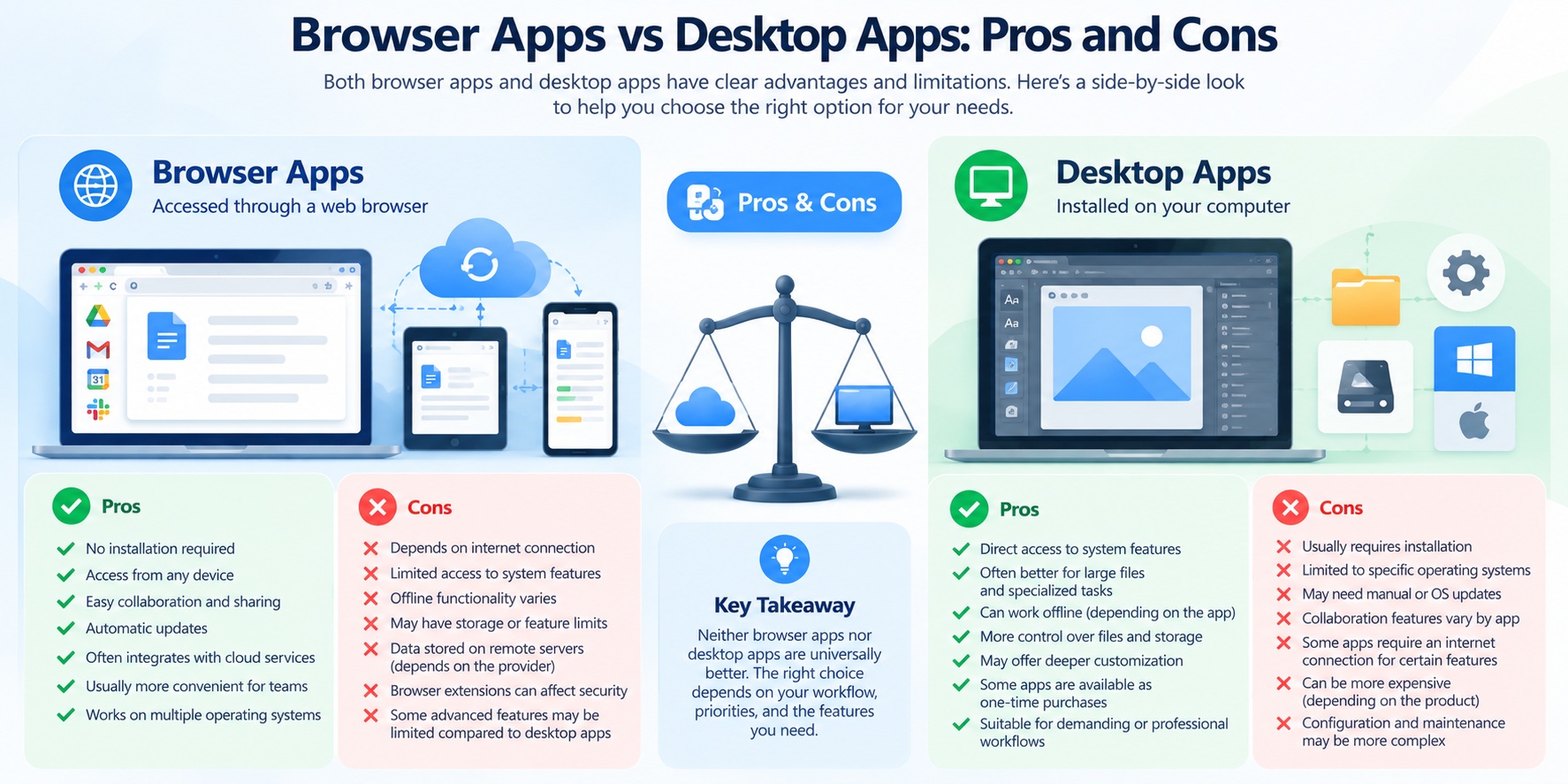
Browser apps and desktop apps each offer practical advantages, but neither is the best choice for every user.
Browser-based software can make it easier to access information across devices and collaborate through shared online workspaces. Desktop applications can be valuable when a workflow depends on local files, operating system integration, or specialized hardware capabilities.
However, these are common patterns rather than fixed rules.
A browser app may support offline editing, while a desktop app may require a cloud connection. Both can offer subscription pricing, automatic updates, and collaborative features.
The following comparison summarizes the most important strengths and limitations to consider.
Advantages of Browser Apps
Browser apps are particularly useful when convenience, accessibility, and connected workflows are priorities.
1. Convenient access across supported devices
Many browser applications can be opened without installing a separate desktop package.
For account-based services, users may be able to sign in on another supported device and access the same workspace.
This is helpful for people who switch between office computers, home laptops, and shared workstations.
However, access still depends on browser compatibility, account permissions, and the application's requirements.
2. Easy collaboration and document sharing
Browser-based productivity services often include shared documents, comments, and simultaneous editing.
For example, Google Workspace offers collaboration tools that support connected team workflows.
Instead of exchanging multiple file attachments, users can work within a shared document or project.
3. Centrally delivered updates
Many web applications receive updates through the service itself.
Users may not need to download and install a new desktop package for every feature change.
This can reduce some maintenance work, although browser updates and operating system compatibility still matter.
4. Flexible deployment
For organizations with supported browsers and managed accounts, browser apps may simplify access to common tools across different computers.
This can be useful when employees work remotely or use multiple operating systems.
5. Increasingly capable web technologies
Modern browser applications can use technologies such as WebAssembly, local storage, and supported device APIs.
MDN's WebAssembly documentation explains how applications can execute supported compiled code in modern web environments.
These capabilities make browser apps suitable for more than simple websites.
Disadvantages of Browser Apps
Despite their flexibility, browser applications can introduce limitations depending on the product and workflow.
1. Some features depend on connectivity
Cloud-dependent operations may stop working when the internet connection becomes unreliable.
Offline functionality is possible, but it must be implemented and configured.
MDN's offline web application guidance explains the technologies that can support offline experiences.
2. Browser and platform compatibility can matter
An application may work differently across browsers, devices, or operating systems.
Some capabilities depend on particular browser APIs or permissions.
3. Large or specialized projects may face limitations
Certain professional workflows require extensive local file access, specialized hardware integration, or features not available in a particular web application.
This does not mean browser apps are universally slower. The limitation depends on the software and task.
4. Cloud services create additional dependencies
If an application's essential functions rely on remote infrastructure, users may be affected by service outages, account restrictions, or changes to provider policies.
5. Data portability requires attention
Cloud-based services may use proprietary formats or storage systems.
Before adopting a product, verify its export, backup, and migration capabilities.
Advantages of Desktop Apps
Desktop applications can be particularly effective for workflows that require local resources, advanced features, or deeper integration with the operating system.
1. Direct integration with local files and devices
Desktop software may offer convenient access to folders, connected hardware, and system-level features, subject to operating system permissions.
This can be valuable for file management, media production, development, and technical work.
2. Strong options for offline workflows
Many desktop applications can open, edit, and save local files without a continuous internet connection.
However, some installed applications still require online authentication or cloud services for particular features.
3. Support for specialized professional workflows
Certain desktop products are designed around complex local projects, dedicated hardware acceleration, or specialized plugins.
For example, advanced video editing, audio production, and software development workflows may benefit from features available in specific desktop applications.
4. Local file organization and backup options
When an application uses accessible local files, users can often integrate them into their existing backup and file-management processes.
The actual level of control depends on the application's storage format and design.
5. Potentially predictable licensing costs
Some desktop applications are available through one-time licenses or free and open-source distribution.
For example, LibreOffice is a free and open-source desktop office suite.
However, many desktop applications also use recurring subscriptions.
Disadvantages of Desktop Apps
Desktop software also introduces practical trade-offs.
1. Installation and system requirements
Users may need to install the application, manage available disk space, and confirm operating system compatibility.
2. Device-specific availability
A desktop application may support Windows but not macOS or Linux, or offer different features across platforms.
This can complicate workflows for teams using different operating systems.
3. Maintenance responsibilities
Some desktop applications require users or IT administrators to manage updates, plugins, compatibility, and installation problems.
Automatic updating can reduce this burden, but maintenance requirements vary.
4. Collaboration may require additional services
An application that stores files locally may not provide simultaneous editing or cloud synchronization by default.
Users may need integrated storage or a separate collaboration service.
5. Hardware limitations can affect performance
Locally processed tasks depend on the capabilities of the computer.
Demanding projects may require additional memory, storage, or GPU resources.
Browser Apps vs Desktop Apps: Pros and Cons at a Glance
| Category | Main Advantages | Potential Limitations |
|---|---|---|
| Browser apps | Convenient access, shared workspaces, centrally delivered updates, cross-device flexibility | Connectivity dependencies, browser compatibility, service availability, export limitations |
| Desktop apps | Local file integration, specialized workflows, offline capabilities, hardware integration | Installation, platform compatibility, device maintenance, local hardware requirements |
These are common considerations, not universal characteristics.
The features of a specific product should always take priority over assumptions about its software category.
Which Advantages Matter Most for Different Users?
The most important benefits depend on the way you work.
For students
Cross-device access, document sharing, affordability, and offline availability may be more important than advanced hardware integration.
For remote teams
Real-time collaboration, account management, permissions, and synchronization reliability are often essential.
For designers and video editors
File size, supported formats, specialized tools, hardware acceleration, and export capabilities may play a larger role.
For developers
Operating system integration, terminal access, local development environments, and collaboration features may influence the choice.
For freelancers and small businesses
Long-term cost, client file compatibility, backup options, and the ability to work across devices can be especially important.
In many situations, combining browser and desktop applications is more practical than choosing only one category.
For example, a team might use a browser-based project management platform alongside desktop software for specialized production work.
Key Takeaway
Browser apps generally emphasize accessibility and connected workflows, while desktop apps can offer advantages in local integration and specialized tasks.
Neither category guarantees better performance, stronger privacy, lower costs, or more reliable offline access.
The most effective choice is to identify your essential tasks and select software that meets those requirements with the fewest unnecessary limitations.
For many users, a hybrid workflow that combines browser apps and desktop applications offers the best balance.
Which Should You Choose? Real-World Scenarios
After comparing performance, offline access, security, collaboration, and cost, one question remains:
Should you use browser apps or desktop apps for your everyday work?
The answer depends less on the type of software and more on the tasks you need to complete.
A student working on shared assignments has different requirements from a video editor handling large local projects. A remote team may prioritize collaboration, while a developer may need operating system tools that are unavailable in a particular browser application.
The following scenarios show how to make a practical choice.
1. For Students: Prioritize Accessibility and Affordability
Suggested starting point: Browser apps, with offline-capable tools where needed.
Students often work across multiple locations and devices.
They may need to write assignments, create presentations, organize notes, share group projects, and access materials from school or home.
Browser-based tools can be convenient because many provide account-based access and built-in sharing features.
For example, Google Docs supports collaborative document editing, while Google's offline documentation explains how supported files can be made available without an internet connection.
However, browser apps are not always sufficient.
Students studying engineering, architecture, video production, or other specialized subjects may need desktop applications required by their courses.
Choose browser apps when:
-
You frequently switch between computers.
-
You collaborate on group assignments.
-
You need accessible document and note-taking tools.
-
You prefer to avoid unnecessary installations.
Choose desktop apps when:
-
Your coursework requires specialized software.
-
You regularly work with demanding local projects.
-
You need specific offline features or file formats.
Best practical approach: Use accessible browser-based tools for everyday coursework and install specialized desktop applications when your program requires them.
2. For Remote Teams: Prioritize Collaboration and Access Control
Suggested starting point: Cloud-connected collaboration tools, available through a browser or desktop client.
Remote teams need more than document editing.
They must coordinate tasks, communicate changes, manage access permissions, and keep shared information organized.
Browser-based services are often convenient because team members can access a common workspace from supported devices.
For example, Google Workspace offers cloud-connected productivity and collaboration tools.
However, desktop software can also participate in shared workflows.
Microsoft's co-authoring documentation describes collaboration capabilities available in supported Microsoft 365 applications.
The important factor is the shared system behind the software.
Choose tools that provide:
-
Reliable shared document access.
-
Appropriate editing and sharing permissions.
-
Version history or recovery options.
-
Compatibility with team members' devices.
-
Clear procedures for offline work and synchronization.
Best practical approach: Standardize on a collaboration platform first, then allow browser or desktop clients where they support the team's requirements.
3. For Designers and Video Editors: Prioritize Project Requirements
Suggested starting point: Evaluate desktop software first for demanding local workflows, but test capable browser alternatives.
Design and media production can involve large files, specialized formats, graphics acceleration, and complex project structures.
Some desktop applications are designed specifically for these workflows.
However, browser-based creative software has also become increasingly capable.
Technologies such as WebAssembly and WebGPU allow developers to build sophisticated applications that run in supported browser environments.
This means the browser itself is not proof that a tool is unsuitable for creative work.
Instead, evaluate the actual project.
For example, a designer creating a simple social media graphic may find a browser editor sufficient.
A professional editor managing a complex video project may need specific local media workflows, plugins, export settings, or hardware capabilities.
Choose based on:
-
Supported file formats.
-
Project size and complexity.
-
Required effects, plugins, and export options.
-
Hardware compatibility.
-
Offline access.
-
Collaboration and review features.
Best practical approach: Test a representative project in both tools before deciding. Avoid assuming that every desktop editor will outperform every browser editor.
4. For Developers: Choose Based on Your Development Environment
Suggested starting point: A hybrid workflow.
Developers often need both local system tools and cloud-connected services.
Desktop applications may provide access to local terminals, development environments, debuggers, and operating system resources.
Browser-based platforms may be convenient for documentation, project management, repository review, and selected development tasks.
For example, Visual Studio Code is available as a desktop development environment, while VS Code for the Web offers browser-based editing capabilities.
Microsoft's VS Code for the Web documentation explains that browser-based development has different capabilities and limitations from the desktop application.
This is a useful example of why the right choice depends on the tools and extensions a project requires.
Choose desktop development tools when:
-
You need local terminals or system-specific tooling.
-
Your project depends on native build processes.
-
You require extensions or integrations unavailable in the web environment.
Choose browser-based tools when:
-
You need convenient access to supported repositories or files.
-
You are reviewing code or making lightweight edits.
-
Your development environment is designed for browser access.
Best practical approach: Use the environment that supports your project's required tools, and combine local and browser-based workflows where useful.
5. For Freelancers: Balance Flexibility, Cost, and Client Compatibility
Suggested starting point: A hybrid setup with minimal unnecessary subscriptions.
Freelancers frequently move between different types of work.
A consultant may need documents, spreadsheets, invoices, video calls, and project tracking.
A freelance designer may additionally require professional creative software.
Choosing every application from one category can create unnecessary limitations.
For example, browser-based tools may be convenient for client communication and shared project updates, while a desktop application may be more suitable for a particular deliverable.
Before selecting software, ask:
-
Can I open and export the file formats my clients use?
-
Can I work when my internet connection is unreliable?
-
How much will the software cost over one to three years?
-
Can I back up my work independently?
-
Will the tool remain useful if I change devices?
If software costs are important, compare the full pricing model rather than the advertised monthly rate.
For additional options, see our guide to productivity software for work.
Best practical approach: Use browser apps for convenient client-facing collaboration and desktop tools for tasks that genuinely benefit from local or specialized capabilities.
6. For Small Businesses: Think Beyond Individual Preferences
Suggested starting point: Choose software according to business processes, security requirements, and total cost.
Small businesses need software that employees can use consistently.
The decision may involve multiple users, customer information, document storage, licensing, backups, and technical support.
Browser-based business applications can simplify access to shared systems, but they may create dependencies on provider availability and subscription terms.
Desktop applications may support specialized business operations, but device management and compatibility can increase administrative work.
The right choice depends on the organization's requirements.
For example:
A small marketing agency may benefit from cloud-connected project management and collaborative documents alongside desktop creative applications.
A local accounting office may need particular file formats, data-handling controls, and software that meets its operational requirements.
A retail business may prioritize integration with inventory, payment, and reporting systems rather than whether the software opens in a browser.
For security planning, the NIST Cybersecurity Framework provides a reference for managing cybersecurity risks.
Best practical approach: Document the business's essential workflows, evaluate candidate products against those requirements, and calculate the long-term cost before standardizing.
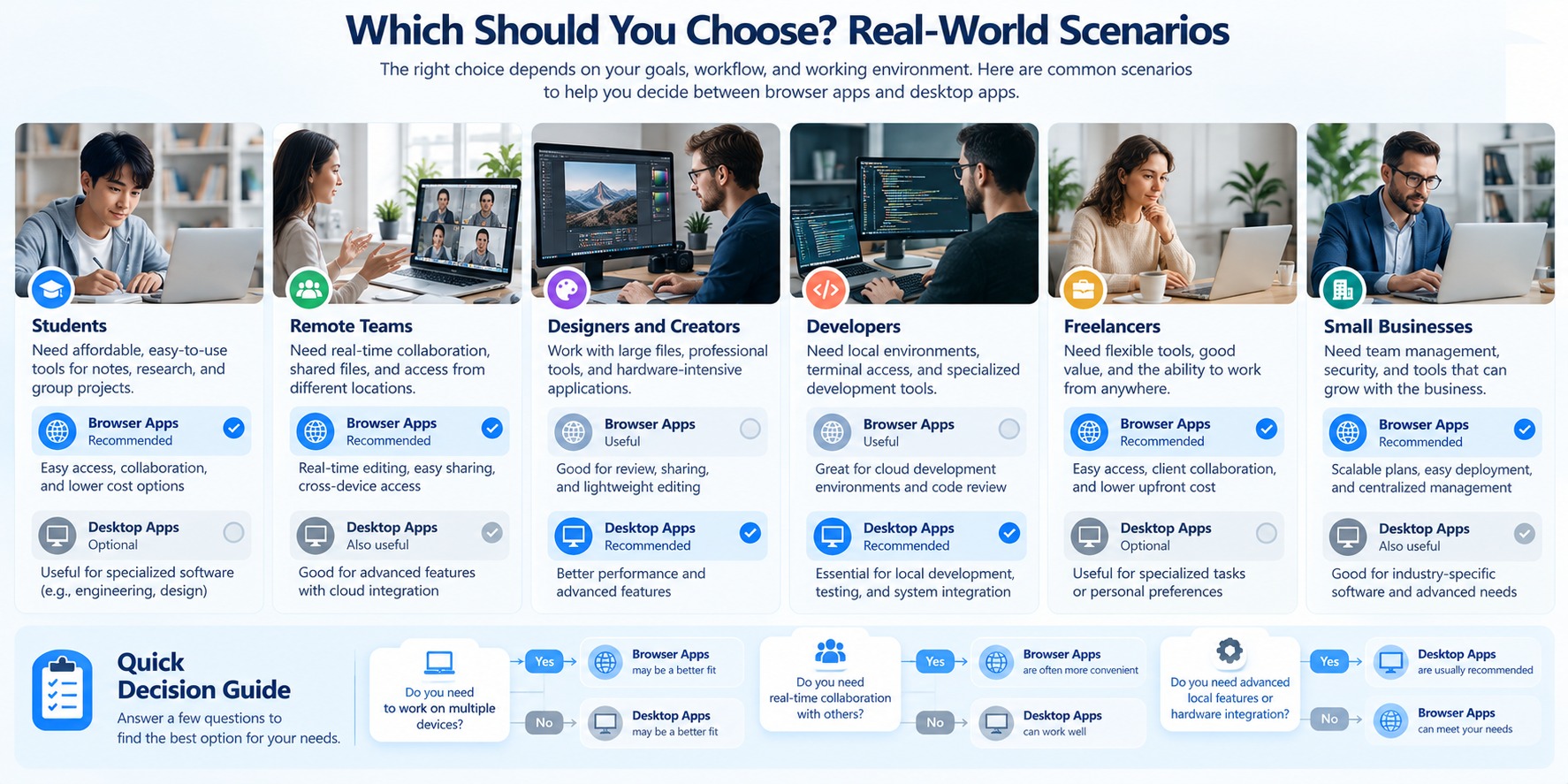
Browser Apps vs Desktop Apps: Recommendations by Scenario
| User or Workflow | Suggested Starting Point | Main Reason |
|---|---|---|
| Students | Browser apps + specialized desktop tools | Accessibility, collaboration, course requirements |
| Remote teams | Cloud-connected platform | Shared access, permissions, collaboration |
| Designers | Test both; consider desktop for specialized work | File formats, project complexity, hardware requirements |
| Video editors | Evaluate desktop tools for demanding local projects | Media workflows, exports, specialized capabilities |
| Developers | Hybrid workflow | Local development tools and web-based services |
| Freelancers | Hybrid workflow | Client compatibility, flexibility, cost |
| Small businesses | Requirements-based selection | Security, administration, integration, total cost |
These are starting points rather than universal recommendations. The capabilities of individual products should determine the final choice.
A Simple Decision Framework
If you are still unsure whether to choose a browser app or a desktop app, follow this process.
Step 1: Identify your essential task.
Are you primarily writing documents, collaborating with a team, editing media, developing software, or managing business operations?
Step 2: Check specialized requirements.
Do you need particular file formats, hardware integrations, plugins, or operating system features?
If so, verify which applications support them.
Step 3: Evaluate connectivity.
Do you need to complete essential work without an internet connection?
Test the product's actual offline capabilities.
Step 4: Consider collaboration.
Will multiple people edit the same information or access the same workspace?
Evaluate sharing, permissions, and synchronization.
Step 5: Compare total cost.
Include subscriptions, licenses, storage, updates, training, and maintenance.
Step 6: Test the workflow.
Use a representative project rather than relying on marketing descriptions or assumptions.
If both options meet your requirements, choose the one that feels more reliable and convenient for your daily work.
When a Hybrid Workflow Makes the Most Sense
For many users, the most practical answer is not browser apps or desktop apps.
It is browser apps and desktop apps.
A hybrid workflow might use:
-
A browser-based service for shared documents.
-
A desktop application for specialized editing.
-
Cloud storage for supported synchronization.
-
Local backups for important project files.
-
Browser-based communication tools for team coordination.
This approach allows users to select the strengths of individual products without forcing every task into one software category.
However, a hybrid setup should remain manageable.
Using too many overlapping tools can increase costs, create duplicate files, and complicate collaboration.
Choose each application because it solves a clear problem.
Key Takeaway
The right choice between browser apps and desktop apps depends on what you need to accomplish—not on which category sounds more advanced.
Browser-based tools can be excellent for accessible, collaborative workflows. Desktop applications can be valuable for specialized, local, or hardware-dependent tasks.
For students, freelancers, developers, creative professionals, and businesses, the strongest solution is often a carefully selected combination of both.
Start with your requirements, test real tasks, and choose the software that makes your workflow simpler and more reliable.
Common Mistakes When Choosing Software
Choosing between browser apps and desktop apps may seem straightforward, but the wrong assumptions can lead to unnecessary costs, compatibility problems, and frustrating workflows.
Some users assume that desktop applications are always faster. Others believe browser-based tools cannot work offline or that cloud software is automatically easier to maintain.
These assumptions overlook an important fact: the capabilities of a specific application matter more than whether it runs in a browser or on your desktop.
Before committing to new software, avoid these eight common mistakes.
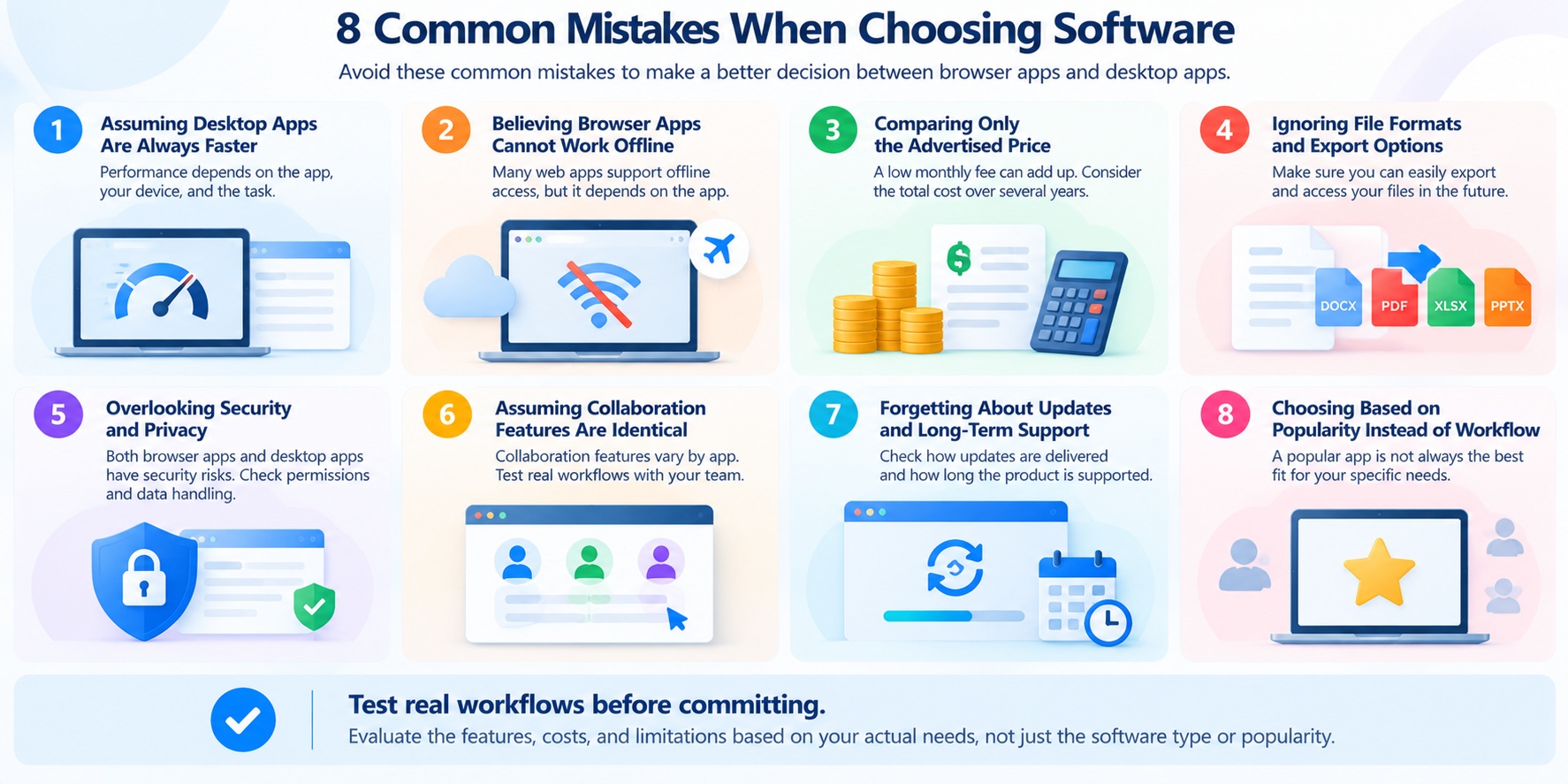
Mistake 1: Assuming Desktop Apps Are Always Faster
Desktop applications can offer advantages for certain local, hardware-intensive workloads, but that does not mean every installed application is faster than every browser app.
Modern browsers support technologies such as WebAssembly, which allows developers to build computationally demanding web applications.
Performance also depends on software optimization, hardware resources, file size, and whether processing occurs locally or on remote servers.
For example, a browser-based document editor may feel highly responsive for everyday writing, while a desktop video editor may be better suited to a complex local production workflow.
These are different tasks, so comparing them does not establish that one software category is universally faster.
How to avoid this mistake: Test the same representative task in the applications you are considering. Compare loading time, responsiveness, memory usage, and the time required to finish the work.
Mistake 2: Believing Browser Apps Cannot Work Offline
A common misconception is that every browser app stops working as soon as the internet connection disappears.
Some web applications support offline access through local storage, caching, and service workers.
MDN's documentation on offline and background operation explains how these technologies can support offline web experiences.
For example, Google provides offline functionality for supported Docs, Sheets, and Slides workflows, subject to setup and feature requirements.
However, offline support is not automatic. A browser app may load its interface without a connection while still requiring internet access for particular documents or features.
Desktop applications can also have online dependencies, including licensing, authentication, synchronization, and cloud-based processing.
How to avoid this mistake: Disconnect from the internet and test whether you can open, edit, save, and later synchronize the files you actually need.
Mistake 3: Comparing Only the Advertised Price
A low monthly subscription may appear affordable, but recurring payments can add up over several years.
Likewise, a one-time purchase may seem expensive initially but could be economical for a stable workflow.
Neither pricing model belongs exclusively to browser or desktop software.
For example, Microsoft's official Microsoft 365 product comparison includes both subscription-based offerings and separately licensed desktop software.
Free and open-source applications such as LibreOffice provide additional alternatives.
The important issue is whether the product meets your requirements at an acceptable total cost.
How to avoid this mistake: Estimate three-year costs, including licenses, subscriptions, storage, additional features, upgrades, training, and maintenance.
Also confirm that the license permits your intended personal or commercial use.
Mistake 4: Ignoring File Formats and Export Options
Software may be easy to start using but difficult to leave.
Some applications store information in proprietary formats or cloud workspaces that require specific export procedures.
This can become a problem when you change providers, collaborate with clients using different tools, or need long-term access to archived projects.
Local storage does not automatically guarantee portability, and cloud storage does not automatically prevent it.
For example, Google Takeout documents data export options for supported Google services.
However, the availability of an export feature does not guarantee that every element of a project will transfer perfectly into another application.
How to avoid this mistake: Before adopting software, create a sample project, export it, and confirm that the resulting files can be opened in the tools you expect to use.
For important work, also verify that independent backups are possible.
Mistake 5: Overlooking Security and Privacy
Some users assume desktop apps are safer because files can remain on their computers.
Others assume browser apps are safer because modern browsers provide security boundaries.
Both conclusions are too broad.
Browser applications benefit from mechanisms such as the same-origin policy, but web services can still face account compromise, malicious extensions, and application vulnerabilities.
Desktop applications may offer direct local file access, but they can also introduce risks through malicious installers, excessive permissions, or outdated software.
Privacy introduces additional questions about data collection, storage, retention, and third-party access.
The NIST Privacy Framework provides a structured reference for evaluating privacy risks.
How to avoid this mistake: Review the product's permissions, data-handling policies, security controls, and update practices. Use appropriate authentication protections and keep software updated.
For general cybersecurity guidance, see CISA's Secure Our World resources.
Mistake 6: Assuming Collaboration Features Are Identical
Two applications may both advertise collaboration while offering very different capabilities.
One may support simultaneous editing, comments, and detailed version history.
Another may provide only file sharing or synchronization.
The difference becomes important when multiple people edit the same information.
For example, Microsoft's document co-authoring guidance describes collaboration capabilities available in supported Microsoft 365 applications.
Those capabilities depend on the relevant application, file format, storage location, and software environment.
How to avoid this mistake: Test the actual collaboration process with at least two users. Check simultaneous editing, comments, permissions, version history, and what happens when changes conflict.
Mistake 7: Forgetting About Updates and Long-Term Support
An application may work well today but become difficult to maintain if it no longer receives updates or stops supporting your operating system.
This risk is not limited to desktop software.
Browser-based services can also change their features, discontinue integrations, or stop supporting older browsers.
For desktop applications, one-time licensing does not necessarily include future major upgrades.
For example, Microsoft's Office 2024 lifecycle documentation provides published support information for that product.
How to avoid this mistake: Review the developer's support policy, update mechanism, compatibility requirements, and available migration options.
For essential business software, include long-term support in the purchasing decision rather than treating it as an afterthought.
Mistake 8: Choosing Software Based on Popularity Instead of Workflow
A popular application is not automatically the best tool for your needs.
A product may receive positive reviews because it works well for a particular audience, yet lack a feature essential to your workflow.
For example, a browser-based project management tool may be excellent for coordinating a remote team but unsuitable as a replacement for specialized local production software.
Similarly, a feature-rich desktop application may be unnecessary for someone who only needs basic document editing.
How to avoid this mistake: Write down your essential requirements before researching products.
Separate them into three groups:
-
Must-have features: Capabilities required to complete your work.
-
Nice-to-have features: Improvements that would be useful but are not essential.
-
Deal-breakers: Limitations that would make the software unsuitable.
Then evaluate each candidate against those requirements.
Software Selection Checklist: What to Verify Before You Commit
Use this checklist when comparing browser apps and desktop apps.
| Evaluation Area | Question to Ask | Recommended Test |
|---|---|---|
| Performance | Can it handle my normal workload? | Open and edit a representative project |
| Offline access | Can I complete essential tasks without internet? | Disconnect and test |
| File compatibility | Can I exchange files with other tools? | Import and export sample files |
| Collaboration | Can my team work together reliably? | Run a shared editing test |
| Security | Are permissions and account protections appropriate? | Review security settings |
| Privacy | Where is my data stored and processed? | Review product documentation |
| Cost | What will I pay over several years? | Calculate total cost |
| Maintenance | How are updates and support handled? | Review update and lifecycle policies |
| Portability | Can I leave the service without losing my work? | Test export and backup |
A short trial using real tasks can reveal limitations that are not obvious from feature lists or marketing pages.
A Better Way to Compare Browser Apps and Desktop Apps
Instead of asking whether browser apps or desktop apps are generally better, follow a simple evaluation process.
First, define the work. Identify the tasks, file formats, devices, and people involved.
Second, shortlist suitable applications. Exclude tools that cannot meet your essential requirements.
Third, test real workflows. Use the same representative tasks wherever possible.
Fourth, evaluate operational risks. Check security, privacy, offline access, backups, and support.
Finally, compare long-term value. Consider the full cost and the amount of work each application helps you complete.
This approach produces a more useful decision than choosing software solely because it is installed locally, runs in a browser, or has a recognizable brand.
Key Takeaway
The biggest mistake when choosing software is treating browser apps and desktop apps as fixed categories with guaranteed strengths and weaknesses.
Actual performance, security, offline access, collaboration, and cost depend on the specific product and how it is used.
By testing real tasks, checking file portability, and evaluating long-term requirements, you can choose software that supports your workflow instead of creating new problems.
Frequently Asked Questions
1. Are browser apps better than desktop apps?
Browser apps are not universally better than desktop apps. Browser-based software can be convenient for cross-device access, collaboration, and connected workflows, while desktop applications may be more suitable for specialized local tasks or operating system integration.
The better choice depends on the application's features, your hardware, internet connectivity, and the work you need to complete.
2. Are desktop apps faster than browser apps?
Not always. Performance depends on the software's architecture, optimization, available hardware, and whether processing happens locally or on remote servers.
Modern browser applications can use technologies such as WebAssembly and supported GPU APIs to handle demanding tasks.
For an accurate comparison, test the same workload in both applications rather than assuming desktop software is automatically faster.
3. Can browser apps work without an internet connection?
Yes. Some browser apps support offline functionality through caching, local storage, and service workers.
For example, supported Google Docs workflows can be configured for offline access, as explained in Google's official offline documentation.
However, offline features vary by product and may require preparation before disconnecting.
4. Are browser apps safer than desktop apps?
Neither category is automatically safer.
Modern browsers provide security boundaries that restrict certain forms of website access to system resources. Desktop applications operate under permissions and security controls provided by the operating system.
Both categories can be affected by vulnerabilities, malicious software, account compromise, and unsafe configuration.
The CISA Secure Our World initiative recommends practices such as software updates and strong account protection.
5. Do browser apps use more RAM than desktop apps?
Not necessarily. Memory usage depends on the application, its features, the files being processed, and other software running on the device.
Browser tabs, extensions, and background processes can contribute to overall browser memory consumption. Desktop applications can also use substantial RAM, particularly for complex projects.
Compare memory usage during the same task to understand which product works better on your computer.
6. Can desktop apps sync files across multiple devices?
Yes. Many desktop applications integrate with cloud storage and synchronization services.
For example, Microsoft OneDrive supports file synchronization across supported devices.
However, synchronization capabilities depend on the specific application, storage service, account settings, and network conditions.
Installing a desktop application does not automatically guarantee cross-device access.
7. Are browser apps cheaper than desktop apps?
Not necessarily. Browser apps may offer free plans or subscriptions, while desktop applications may use subscriptions, one-time licenses, or free and open-source distribution.
For example, LibreOffice is free desktop software, while Microsoft offers both subscription-based and one-time-purchase productivity products.
Compare the total cost over several years, including storage, upgrades, additional features, and maintenance.
8. What is the difference between a browser app and a progressive web app (PWA)?
A browser app is software accessed through a web browser. A progressive web app, or PWA, is a web application designed to provide selected app-like capabilities, which may include installation, offline support, and other platform integrations.
Not every browser app is installable, and not every PWA supports the same features.
MDN's PWA documentation explains the technologies and capabilities involved.
9. Should businesses use browser apps or desktop apps?
Businesses should choose software according to their operational requirements rather than application format alone.
Browser-based tools may be convenient for shared workspaces and distributed teams. Desktop applications may be useful for specialized workflows, local integrations, or specific industry requirements.
Many businesses benefit from combining both.
Before choosing, evaluate security, licensing, compatibility, administration, backups, and long-term support.
10. Can browser apps replace desktop apps completely?
Browser apps can replace desktop applications for some workflows, but not necessarily for every task.
Many everyday activities, including document editing, communication, project management, and basic creative work, can be completed through supported browser-based tools.
However, certain workflows still require specific desktop features, local development environments, specialized plugins, or hardware integrations.
The most practical approach is to identify the tasks you perform and verify whether a browser application supports all essential requirements.
FAQ Summary
The main difference between browser apps and desktop apps is how the software is delivered and integrated into your working environment—not a guaranteed difference in speed, security, or quality.
Choose based on your actual workflow, test essential features, and consider a hybrid approach when both formats offer useful capabilities.
Conclusion: Choose the Right Tool for Your Workflow
When comparing browser apps vs desktop apps, there is no universal winner.
Browser-based software can make everyday tasks more accessible, especially when you need to collaborate with others, switch between devices, or work in a shared online environment.
Desktop applications can offer advantages for specialized workflows, local file management, and tasks that depend on particular operating system or hardware capabilities.
But these differences are not absolute.
Modern browser apps can support offline access, local processing, and sophisticated editing features. Many desktop applications rely on cloud services for synchronization, collaboration, or advanced functionality.
The best choice depends on what the software actually does—not simply where it runs.
Choose Browser Apps When Accessibility and Collaboration Matter Most
Browser apps are a strong starting point when your work involves shared documents, online communication, project management, or frequent device switching.
They may be especially convenient for students, remote teams, and people who need to access their work from different locations.
Before choosing, verify that the application provides the offline features, export options, and security controls you require.
Choose Desktop Apps When Your Workflow Needs Specialized Capabilities
Desktop applications may be more suitable when your work depends on advanced local tools, specific file formats, operating system integrations, or demanding production workflows.
This can include certain video editing, design, development, and technical tasks.
However, do not assume a desktop application will always perform better. Test the actual software with representative projects and your available hardware.
Consider a Hybrid Workflow for the Best of Both
For many users, combining browser apps and desktop applications is the most practical solution.
You might use a browser-based platform for collaboration and project tracking while relying on desktop software for specialized editing or local production.
This approach can provide flexibility without forcing every task into a single software category.
The key is to avoid unnecessary overlap. Each application should serve a clear purpose.
Your Next Step: Evaluate Software Based on Real Tasks
Before committing to a new application, take a few minutes to review your workflow.
Ask yourself:
-
What tasks do I need to complete every day?
-
Do I need reliable offline access?
-
Will I collaborate with other people?
-
Which file formats and integrations are essential?
-
What is the total cost over the next few years?
Then test the applications that meet your requirements.
If you are still exploring your options, our guide to the best productivity software for work in 2026 is a useful place to continue.
Final verdict: Choose browser apps for workflows that benefit from convenient access and connected collaboration. Consider desktop apps when specialized local capabilities are essential. And when your work requires both, build a simple hybrid setup that gives you the right tool for each task.
The best software is not necessarily the newest, most popular, or most feature-rich option. It is the one that helps you complete your work reliably, efficiently, and with fewer unnecessary complications.
Sources & Methodology
This guide was developed to help readers understand the practical differences between browser-based applications and desktop software.
Our comparison focuses on how these applications work, which capabilities they may offer, and the factors users should evaluate before choosing software.
Rather than declaring one software category universally superior, we examine the technical characteristics and real-world requirements that can influence the decision.
How We Evaluated Browser Apps and Desktop Apps
We organized the comparison around seven factors:
-
Performance and system resources: How application architecture, hardware, memory, and network conditions may affect responsiveness.
-
Offline access: Whether essential features and files remain available without an internet connection.
-
File management: How applications handle local storage, cloud storage, exports, and backups.
-
Security and privacy: What security boundaries, permissions, data-handling practices, and account protections users should consider.
-
Collaboration: How software supports shared documents, synchronization, and access across devices.
-
Cost and maintenance: How licensing, subscriptions, updates, and support requirements affect long-term value.
-
Workflow suitability: Which capabilities matter most for students, remote teams, developers, creative professionals, freelancers, and small businesses.
These criteria were selected to reflect practical software-selection questions rather than to produce a numerical ranking.
Primary Technical References
We used established technical documentation to explain browser capabilities and security mechanisms.
Mozilla Developer Network (MDN)
-
Progressive Web Apps — background on web applications with app-like capabilities.
-
Offline and Background Operation — service workers and offline web functionality.
-
WebAssembly — supported compiled code execution in web environments.
-
WebGPU API — browser access to supported GPU capabilities.
-
Same-Origin Policy — a fundamental web security mechanism.
-
File System API — supported browser file-access capabilities and limitations.
These references help explain what modern browser applications can do. They do not establish that every browser app implements every available capability.
Product Documentation and Practical Examples
We also referenced official product documentation to illustrate specific software features and licensing models.
Microsoft
-
Microsoft 365 Product Comparison — subscription and product licensing information.
-
Document Collaboration and Co-Authoring — collaboration features in supported applications.
-
Office 2024 Lifecycle — published product support information.
-
Google Docs Offline Access — supported offline document workflows.
-
Google Drive Sharing — file-sharing permissions and access controls.
-
Google Workspace Billing — billing and pricing examples.
Product features, availability, pricing, and licensing terms may change. Readers should consult the provider's current documentation before making a purchase or deployment decision.
Security and Privacy References
For broader security and privacy considerations, we referenced:
-
NIST Cybersecurity Framework — a framework for managing cybersecurity risks.
-
NIST Privacy Framework — guidance for identifying and managing privacy risks.
-
CISA Secure Our World — practical cybersecurity recommendations.
-
OWASP Top 10 — major categories of web application security risks.
These resources provide general technical and risk-management context. They should not be interpreted as security certifications or endorsements of any particular application mentioned in this guide.
Testing Limitations and Editorial Transparency
This article is a documentation-based comparison, not an independent benchmark study.
We did not conduct controlled performance tests of browser apps against desktop applications for this guide.
We therefore do not claim that one category is consistently faster, uses less memory, provides stronger security, or costs less across all products.
Performance can vary according to the application version, operating system, device specifications, workload, browser configuration, and network conditions.
Similarly, security and privacy depend on the specific software, its configuration, the provider's practices, and the user's environment.
Where we discuss software prices, licensing models, or support dates, these examples are intended to illustrate differences between business models. They are not permanent price guarantees.
For decisions involving important business processes, confidential information, or expensive software, we recommend testing the actual products and reviewing current vendor documentation.
Our Editorial Approach
Our goal is to provide practical, understandable software guidance based on identifiable sources and clearly explained limitations.
We distinguish documented technical capabilities from general recommendations and avoid presenting assumptions as verified test results.
For more information about how Hozaki develops and reviews its content, please read our Editorial Policy.
Last reviewed: October 2026.
As software capabilities and pricing change, this guide may be updated to reflect new documentation, product developments, or corrections.
Comments 0