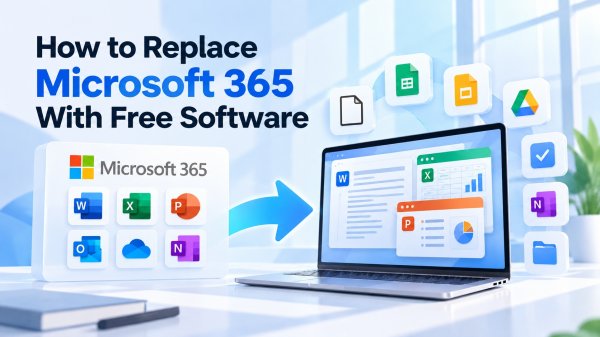
You can replace many Microsoft 365 tasks with free software, but replacing Word, Excel, and PowerPoint is not the same as replacing everything included in a Microsoft 365 subscription.
A safe switch starts with identifying which Microsoft services you actually use, choosing alternatives for those workflows, backing up your data, and testing real documents before canceling anything.
Quick answer: For offline document editing, start by evaluating LibreOffice or ONLYOFFICE Desktop Editors. For browser-based collaboration, consider Google's free document tools. You can also replace certain note-taking and task-management workflows with free applications. However, Outlook email, OneDrive storage, advanced Excel functionality, Teams administration, and business services may require separate solutions.
This guide walks through the migration process, including the parts most likely to go wrong.
1. Check What You Actually Need to Replace
Before installing new software, identify the applications and services you use within Microsoft 365.
| Microsoft 365 component | What it does | Potential free replacement | What may not transfer |
|---|---|---|---|
| Word | Document creation and editing | LibreOffice Writer, ONLYOFFICE Document Editor, Google Docs | Complex formatting, macros, advanced review workflows |
| Excel | Spreadsheets and calculations | LibreOffice Calc, ONLYOFFICE Spreadsheet Editor, Google Sheets | VBA, Power Query, data connections, specialized functions |
| PowerPoint | Presentations | LibreOffice Impress, ONLYOFFICE Presentation Editor, Google Slides | Animations, embedded media, fonts, transitions |
| Outlook | Email, calendar, contacts | Thunderbird or supported webmail and calendar services | Exchange-specific features, rules, shared mailboxes |
| OneDrive | File storage and synchronization | Google Drive, Dropbox Basic, local storage | Capacity, sharing permissions, version history |
| OneNote | Notes and notebooks | Joplin, Obsidian, OneNote's available free offering | Handwriting, attachments, notebook structure |
| Microsoft To Do | Tasks and reminders | Microsoft To Do's available free offering, other task apps | Account integrations and specialized workflows |
| Teams | Meetings and workplace collaboration | Free communication tools or eligible free Teams offerings | Business administration, retention, meeting capabilities |
This table is a planning aid, not a promise of equivalent functionality.
Personal subscriptions versus business subscriptions
For personal users, the migration may primarily involve documents, cloud storage, email, and notes.
For business users, the consequences can be more significant. A Microsoft 365 business subscription may involve Exchange email, SharePoint, Teams, identity management, security controls, and administration.
Do not cancel a business subscription merely because you found a free Word replacement. The desktop applications may be only one part of the service your organization depends on.
If you use a work or school account, consult the account administrator before moving organizational data or changing services.
Build a dependency inventory
Create a simple list of:
-
Applications used at least once per week.
-
File formats exchanged with other people.
-
Important macros, templates, and integrations.
-
Shared folders and collaborators.
-
Email addresses, calendars, and contact lists.
-
Automatic backups and synchronization.
-
Services that require your Microsoft account.
-
Subscription renewal and cancellation dates.
Mark each item as Essential, Useful, or Optional.
This list becomes your migration acceptance criteria. A replacement is suitable only if it supports the essential requirements.
2. Choose a Free Office Suite for Word, Excel, and PowerPoint
Three practical starting points are LibreOffice, ONLYOFFICE Desktop Editors, and Google's document applications.
Option A: LibreOffice for offline work
LibreOffice provides desktop applications for word processing, spreadsheets, and presentations.
Its official documentation confirms that it can open and save common Microsoft Office formats, including DOCX, XLSX, and PPTX.
Install it:
-
Open the official LibreOffice website.
-
Choose the download for your operating system.
-
Download and install the application.
-
Launch Writer, Calc, or Impress.
-
Open a copy of one of your existing Office files.
-
Make a small change and save the document.
-
Reopen the saved file to check the result.
If you must exchange Microsoft Office files, use File → Save As and select the appropriate Office format.
Important: LibreOffice's support for Microsoft VBA macros is not complete. Its documentation explains that macro code may need modification because Microsoft Office and LibreOffice use different object models.
If macros are essential, treat that as a separate migration project rather than a routine file conversion.
Option B: ONLYOFFICE Desktop Editors for Office-format editing
ONLYOFFICE Desktop Editors is a free desktop suite available for Windows, macOS, and Linux.
It supports common document, spreadsheet, and presentation formats and can work with locally stored files without a constant internet connection.
Install it:
-
Visit the official ONLYOFFICE Desktop Editors download page.
-
Select the installer for your operating system.
-
Install and open the desktop application.
-
Open a representative DOCX, XLSX, or PPTX file.
-
Edit a copy and save it.
-
Reopen the output and inspect critical formatting and calculations.
ONLYOFFICE also has separate cloud and business products. Do not assume every online collaboration or enterprise feature is included in the free desktop application.
Option C: Google Docs for online collaboration
Google Docs, Sheets, and Slides are useful when sharing and simultaneous editing are central to your workflow.
Set up a basic workflow:
-
Sign in to an appropriate Google account.
-
Open Google Drive.
-
Upload a copy of a Microsoft Office document.
-
Open the file with the relevant Google editor.
-
Review its formatting and features.
-
Share a test document with a collaborator.
-
Confirm the collaborator can comment or edit as intended.
-
Download an Office-format copy if you need to exchange it with Microsoft Office users.
Google's tools can be convenient for collaboration, but advanced Excel workflows and complex formatting still require testing.
Which should you install first?
| Your priority | First option to evaluate |
|---|---|
| Working without internet access | LibreOffice |
| Editing Office-format files locally | LibreOffice and ONLYOFFICE |
| Sharing documents in a browser | Google Docs |
| Advanced Excel automation | Retain Excel while testing |
| Organizational security and administration | Review your business requirements before switching |
You do not need to install all three. Start with one or two that match your actual workflow.
3. Back Up Microsoft 365 Files Before Migrating
This is the most important preparation step.
A software migration should never put the only usable copy of an important document at risk.
Step 1: Identify where your files are stored
Check these locations:
-
Local Documents, Desktop, and Downloads folders.
-
OneDrive folders synchronized to your computer.
-
OneDrive files available only online.
-
Shared OneDrive folders.
-
SharePoint document libraries, if applicable.
-
Files attached to emails or stored in other applications.
A document appearing in File Explorer does not necessarily mean a full offline copy is available.
Step 2: Download important OneDrive files
Microsoft documents a browser-based download process for OneDrive and SharePoint:
-
Open OneDrive in your browser.
-
Navigate to the folder containing your files.
-
Select the files or folders you need.
-
Choose Download.
-
Save the download outside your synchronized OneDrive folder.
-
Extract ZIP archives where necessary.
-
Open several files to confirm that the download is usable.
Microsoft notes that selecting multiple files or folders may produce a ZIP archive. Shared-view items may need to be opened from their actual folder location before downloading.
For organizational SharePoint files, follow your organization's access and data-handling policies.
Step 3: Preserve the original formats
Keep the original DOCX, XLSX, PPTX, and other files until the migration is complete.
Do not immediately convert your entire document library into another format.
Converting files too early can make it harder to distinguish a conversion problem from an issue that already existed in the original.
Step 4: Make a separate backup
Store a verified copy outside the source synchronization folder.
Depending on your needs, that might be an external drive, a separate approved cloud location, or another managed backup system.
For business information, use only storage locations permitted by your organization.
Step 5: Verify the backup
Choose several files that represent different types of work:
-
A complex Word document.
-
A spreadsheet with formulas.
-
A presentation with images.
-
A PDF.
-
A folder containing multiple files.
Open them from the backup location, not from the original OneDrive folder.
A backup is not verified merely because the copy operation completed.
4. Test Word Document Compatibility
Word compatibility problems often involve layout rather than missing text.
A document may open successfully but still have different page breaks, table widths, fonts, or headers.
Create a representative test file
Choose a document containing several of the following:
-
Headings and a table of contents.
-
Tables spanning multiple pages.
-
Images and captions.
-
Headers and footers.
-
Comments or tracked changes.
-
Footnotes or references.
-
Custom fonts.
-
Page numbering.
Make a copy before editing.
Run the compatibility test
-
Open the original document in Word, if available.
-
Record its page count and inspect important pages.
-
Open the copy in your replacement editor.
-
Check page breaks, headings, tables, and images.
-
Make a small edit.
-
Save the file in the format your recipient requires.
-
Reopen it in Word or another required receiving application.
-
Compare the final layout.
-
Export a PDF and inspect the output.
Decide whether the result is acceptable
For a personal draft, minor spacing differences may be harmless.
For a signed contract, formal report, academic submission, or client deliverable, even a small layout change may matter.
Pass condition: The document preserves all essential content and remains suitable for its intended recipient.
If not, identify the affected formatting and determine whether it can be corrected reliably.
5. Test Excel Formulas, Macros, and Data Connections
Spreadsheets deserve more caution than ordinary text documents because a file can appear normal while producing incorrect results.
Separate simple and advanced workbooks
A basic household budget may use sums, percentages, and straightforward formulas.
A business workbook may contain:
-
VBA macros.
-
Pivot tables.
-
Named ranges.
-
External data connections.
-
Power Query workflows.
-
Specialized formulas.
-
Add-ins.
-
Complex conditional formatting.
These are not equivalent migration cases.
Run a calculation test
-
Open the workbook in Excel.
-
Save a backup copy.
-
Record several critical results and totals.
-
Note any macros, external connections, or add-ins.
-
Open the copy in the alternative spreadsheet editor.
-
Check for unsupported formulas or errors.
-
Recalculate where appropriate.
-
Compare critical results against the original.
-
Inspect charts, formatting, and linked sheets.
-
Save, reopen, and repeat the checks.
Do not rely on the absence of visible error messages.
What to do with VBA macros
LibreOffice documents that VBA support is partial and may require changes to macro code.
ONLYOFFICE also has macro capabilities, but its macro environment should not be assumed to execute an existing Excel VBA solution unchanged.
If a workbook depends on macros, document what each macro does and test the required behavior separately.
For business-critical automation, retaining Microsoft Excel may be safer than attempting an unverified conversion.
What if the spreadsheet results differ?
Stop using the converted file for important decisions.
Check the specific formulas, date handling, references, external links, and calculation settings involved. Compare intermediate calculations, not only the final total.
Pass condition: Every business-critical calculation and required automation behaves correctly in the new workflow.
6. Move PowerPoint Presentations Without Breaking Layouts
Presentations may contain fonts, animations, charts, videos, and other elements that are handled differently across applications.
Migration procedure
-
Save a copy of the PPTX file.
-
Open it in LibreOffice Impress or ONLYOFFICE Presentation Editor.
-
Check slide dimensions and layouts.
-
Inspect font substitutions and text wrapping.
-
Test charts, embedded media, and transitions.
-
Run the presentation in slideshow mode.
-
Save a copy in the required format.
-
Reopen it and inspect the result.
If the presentation will be delivered as a static handout, a PDF may preserve the intended appearance more predictably.
However, PDF is not a replacement for an editable presentation or working animations.
Pass condition: The presentation behaves correctly in the environment where it will actually be used.
7. Replace Outlook Email, Calendar, and Contacts Carefully
Replacing Outlook requires distinguishing between the Outlook application and the email service behind it.
For example, a desktop email client can connect to an existing account without replacing the mailbox provider.
Personal email workflows
If you use Outlook primarily to read email from a personal account, you may be able to use:
-
Your provider's webmail interface.
-
A compatible desktop email client such as Thunderbird.
-
A separate calendar application or service.
Before switching, check whether your account supports the required connection methods and whether contacts and calendars can be transferred.
Microsoft 365 business email
If your organization uses Exchange Online, shared mailboxes, domain-based email, or managed identities, installing a free email client does not replace the underlying service.
A business email migration can require:
-
Selecting a new email provider.
-
Migrating mailbox data.
-
Transferring calendars and contacts.
-
Reconfiguring domain DNS records.
-
Updating SPF, DKIM, and DMARC settings.
-
Recreating shared mailboxes and access permissions.
-
Testing delivery and account recovery.
These changes should be planned with an administrator or qualified provider.
Do not cancel Exchange-related services until the replacement mail system is operational and tested.
Email migration acceptance test
Verify that you can:
-
Receive new messages.
-
Send messages to external recipients.
-
Access required historical email.
-
Open attachments.
-
Find contacts.
-
View and create calendar events.
-
Recover account access.
-
Use any required shared mailbox or delegation features.
A successful desktop app installation does not establish that the entire email workflow has been migrated.
8. Replace OneDrive Without Losing Shared Files
A replacement cloud storage service should be selected based on your collaboration and recovery requirements—not just the advertised free storage allowance.
Choose the destination
Potential options include Google Drive, Dropbox Basic, or a local-first storage arrangement with a separate backup system.
Before choosing, verify:
-
Available storage.
-
Device synchronization support.
-
File-size restrictions.
-
Sharing permissions.
-
Version history and recovery.
-
Export and download options.
-
Account and security requirements.
Migrate a test folder first
-
Download a representative OneDrive folder.
-
Verify that its files open.
-
Upload the folder to the destination.
-
Confirm the folder structure.
-
Open several uploaded files.
-
Test synchronization on another device.
-
Share a non-sensitive file with a test collaborator.
-
Revoke the sharing permission.
-
Download the folder again.
-
Confirm that the files remain usable.
Watch for sharing and ownership differences
Existing OneDrive sharing links generally should not be assumed to work after files are moved elsewhere.
You may need to create new links and update references in emails, project documents, or websites.
Shared folders and organizational SharePoint libraries may also have ownership and permission rules that require administrator involvement.
Keep a separate backup
Cloud synchronization can propagate unwanted changes or deletions.
Keep an independent, recoverable copy of important information instead of treating synchronization as your only backup.
9. Replace OneNote and Personal Task Workflows
Not every Microsoft 365 user needs to migrate notes or tasks.
OneNote and Microsoft To Do have offerings that may remain available without the same paid desktop Office subscription, depending on account and service conditions.
Check what you can continue using before moving your data unnecessarily.
Moving from OneNote
If you want to use Joplin or Obsidian instead:
-
Identify your most important notebooks.
-
Review the available export methods for your account and platform.
-
Export a small sample.
-
Check the target application's supported import formats.
-
Import the sample.
-
Verify text, images, attachments, and internal links.
-
Test synchronization and backup.
-
Continue in batches.
Some notebook features, especially handwriting and complex embedded content, may not transfer cleanly.
Moving tasks
For task lists, record or export the information you need:
-
Task names.
-
Due dates.
-
Recurrence rules.
-
Reminders.
-
Subtasks.
-
Attachments.
-
Shared assignments.
After import, manually check important reminders and recurring deadlines.
If the current free offering already meets your needs, staying with it may be simpler than switching.
10. Run a Parallel Trial Before Canceling Microsoft 365
A parallel trial means continuing to use the original system while testing the replacement.
This is particularly valuable when the subscription supports several connected workflows.
Suggested trial plan
| Stage | Main task | Evidence of success |
|---|---|---|
| Preparation | Inventory services and back up files | Recoverable copies exist |
| Office testing | Edit representative Word, Excel, and PowerPoint files | Required content and functions remain correct |
| Cloud testing | Transfer and share a test folder | Files, permissions, and sync work |
| Communication testing | Verify email, calendars, and collaboration | Essential communication continues |
| Daily-work trial | Use replacements for normal tasks | No unresolved critical blockers |
| Final review | Confirm remaining Microsoft dependencies | No essential service will be lost |
The duration depends on your work. A simple personal workflow may be assessed relatively quickly; complex business processes need more extensive validation.
Create a rollback plan
Before switching fully, document:
-
Where original files and backups are stored.
-
Which software can still open them.
-
How to restore the previous workflow.
-
Which collaborators need to be notified.
-
Which subscriptions must remain active during the trial.
If a critical test fails, pause the migration rather than forcing the replacement into production.
11. Troubleshooting Common Microsoft 365 Migration Problems
| Problem | What to investigate | Practical response |
|---|---|---|
| DOCX formatting changes | Missing fonts, tables, page settings | Compare with the original and correct critical layout |
| Excel formulas produce different values | Unsupported functions, references, calculation behavior | Verify formulas and intermediate results |
| VBA macros stop working | Different macro environments | Retain Excel or plan a tested rewrite |
| PowerPoint animations change | Transition or media compatibility | Test slideshow output and simplify unsupported effects |
| OneDrive files appear missing | Online-only files, incomplete downloads | Verify source folders and download status |
| Shared links stop working | New storage location or permissions | Create and test replacement links |
| Notes lose attachments | Export/import limitations | Retry with a smaller verified sample |
| Outlook messages are unavailable | Account type, provider connection, mailbox migration | Verify the underlying email service and credentials |
| Calendar events do not transfer | Export formats, account permissions | Test a small set of events before full migration |
| Free storage fills up | Plan allowance and shared storage usage | Remove unnecessary copies or reconsider the destination |
For any problem involving important information, preserve the original and the failed conversion output separately. That makes troubleshooting and recovery easier.
12. When You Should Keep Microsoft 365
Free software is not automatically a better choice.
Keeping Microsoft 365 may be sensible when you rely on:
-
Complex Excel models or VBA automation.
-
Specialized document templates and review workflows.
-
Enterprise email and identity services.
-
SharePoint-based collaboration.
-
Advanced security and administrative requirements.
-
Integrations that would be expensive to rebuild.
-
Contractual support or organizational standardization.
Calculate the real cost of switching
Compare more than subscription fees.
Total switching cost = Migration time + Training time + Replacement services + Ongoing maintenance + Expected disruption costs
For example, suppose a subscription costs $120 per year, while migration requires eight hours of work valued at $25 per hour.
The initial migration effort represents $200 before considering additional services or maintenance.
That does not mean the switch is uneconomical. It means you should compare the costs over a realistic period.
This is an illustrative calculation, not a statement about current Microsoft 365 pricing.
For a broader upgrade decision framework, read Free vs Paid Productivity Software: When Should You Upgrade?.
13. Final Microsoft 365 Migration Checklist
Before canceling, verify every relevant item:
| Check | Requirement |
|---|---|
| Subscription inventory | All Microsoft services in use are identified |
| File backup | Original files are stored separately and can be opened |
| Word replacement | Important documents retain usable formatting |
| Excel replacement | Critical formulas and workflows produce correct results |
| PowerPoint replacement | Presentations work in the intended environment |
| Required mailbox and calendar services remain operational | |
| OneDrive | Files are accessible and sharing permissions are correct |
| Notes and tasks | Important content and reminders are preserved |
| Collaboration | Other users can complete required work |
| Security | The new setup meets applicable requirements |
| Rollback | Original files and recovery instructions remain available |
| Cancellation | Renewal, billing, and post-cancellation access are understood |
If an essential requirement is not satisfied, do not treat the migration as complete.
Frequently Asked Questions
Can I use Word, Excel, and PowerPoint files without Microsoft 365?
Yes. LibreOffice and ONLYOFFICE Desktop Editors support common Microsoft Office file formats. However, advanced features and formatting may behave differently, so important files should be tested.
Can I keep my Microsoft email address after canceling Microsoft 365?
It depends on the account and subscription type. A personal Microsoft account is different from a business mailbox hosted through Exchange Online. Check the applicable account and service terms before canceling.
Will LibreOffice run my Excel macros?
Not necessarily. LibreOffice provides partial VBA support, but macro compatibility is not complete. Critical macros may require modification or continued use of Excel.
Can I move everything from OneDrive to Google Drive?
You can transfer many ordinary files, but sharing permissions, links, file versions, and Microsoft-specific collaborative content may not transfer automatically. Test representative files and review ownership requirements.
Is replacing Microsoft 365 completely free?
Some replacement applications are free, but storage, email hosting, synchronization, collaboration, support, or business administration may still require paid services.
Should a business replace Microsoft 365 with free software?
Only after reviewing its full service dependencies, security obligations, collaboration requirements, and migration costs. Replacing desktop Office applications is much simpler than replacing a managed business environment.
Conclusion: Replace the Workflow, Not Just the App
The safest way to replace Microsoft 365 is to migrate one workflow at a time.
Start by identifying the Microsoft services you actually use. Choose a suitable free office suite, back up your files, test document compatibility, and verify storage and communication requirements before canceling your subscription.
For simple personal document workflows, free software may provide everything you need. For complex spreadsheets, managed business email, or enterprise collaboration, retaining some Microsoft services may be the better decision.
Your next step: Choose three representative files—a Word document, an Excel workbook, and a PowerPoint presentation—and test them in LibreOffice or ONLYOFFICE. The results will tell you more about whether you can switch than a generic software ranking.
For a wider comparison of free applications, read Best Free Alternatives to Paid Productivity Software: What Actually Works?.
Sources and Editorial Methodology
This guide uses publicly documented product capabilities and migration instructions. It does not claim that Hozaki independently tested the applications or completed a live Microsoft 365 migration.
Key references:
The recommended tests are practical procedures for readers to perform with their own files. Product availability, licensing, subscription terms, and features may change, so confirm current details with the relevant provider before making a final decision.
Comments 0